

See, add and update your customers
Updated 20 October 2026 · Owners, managers and staffCustomers is your list of everyone who has bought from you, plus anyone you add by hand. Open a person to see their orders and how much they’ve spent, and to keep tags and notes about them. Suppliers never see this list.
Where to find it
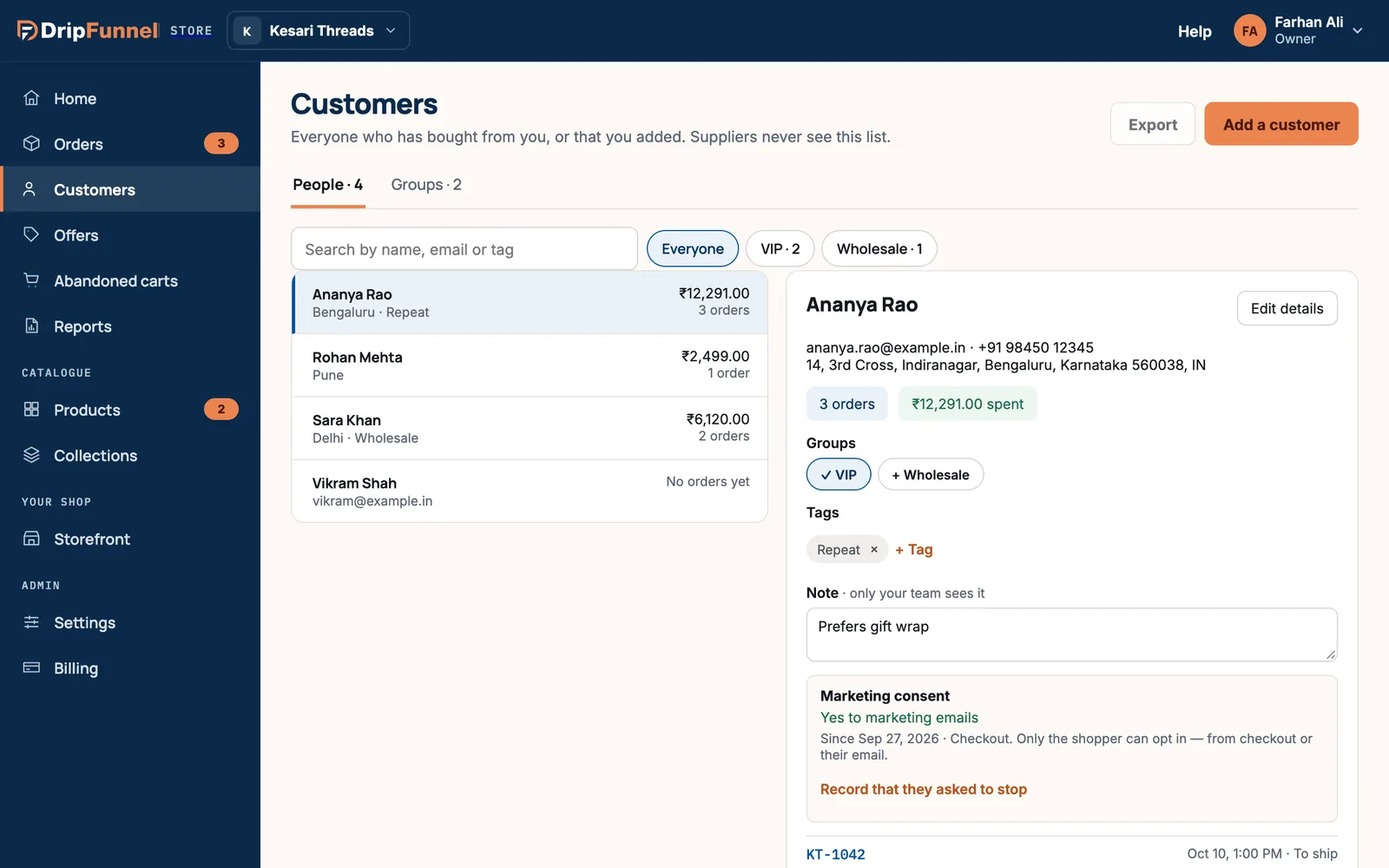
In the portal, open Customers in the menu on the left. The page has two tabs: People (everyone) and Groups (lists like VIP or Wholesale, see Group customers).
Find a customer
- Type in the Search customers box. You can search by name, email or tag.
- To see only one group, press its button next to the search box, for example VIP · 2. Press Everyone to see all customers again.
- Click a customer in the list. Their details open on the right.
Each row shows the person’s name, their city and tags (or their email), how much they’ve spent and how many orders they’ve placed. People with no orders yet show No orders yet. The list shows 25 people at a time.
What you see about each customer
- Name, email, phone and address. The address is their main (default) address.
- Orders and spend, for example “3 orders” and “₹12,291.00 spent”.
- Groups: the groups they belong to. Press a group to add or remove them (see below).
- Tags: short labels you choose, like Repeat, Press or Local, to help you find people later.
- Note · only your team sees it: anything worth remembering, like “Prefers gift wrap”. Shoppers never see it.
- Marketing consent: whether they’ve agreed to marketing emails (and, in some countries, texts).
- Their orders: their latest orders, each linked to the order page.
Add a customer yourself
Most customers appear by themselves after their first order. Add someone by hand when they buy in person or by phone.
- Press Add a customer at the top right.
- Type their Full name and Email. Phone (optional) can be left empty.
- Press Add customer.
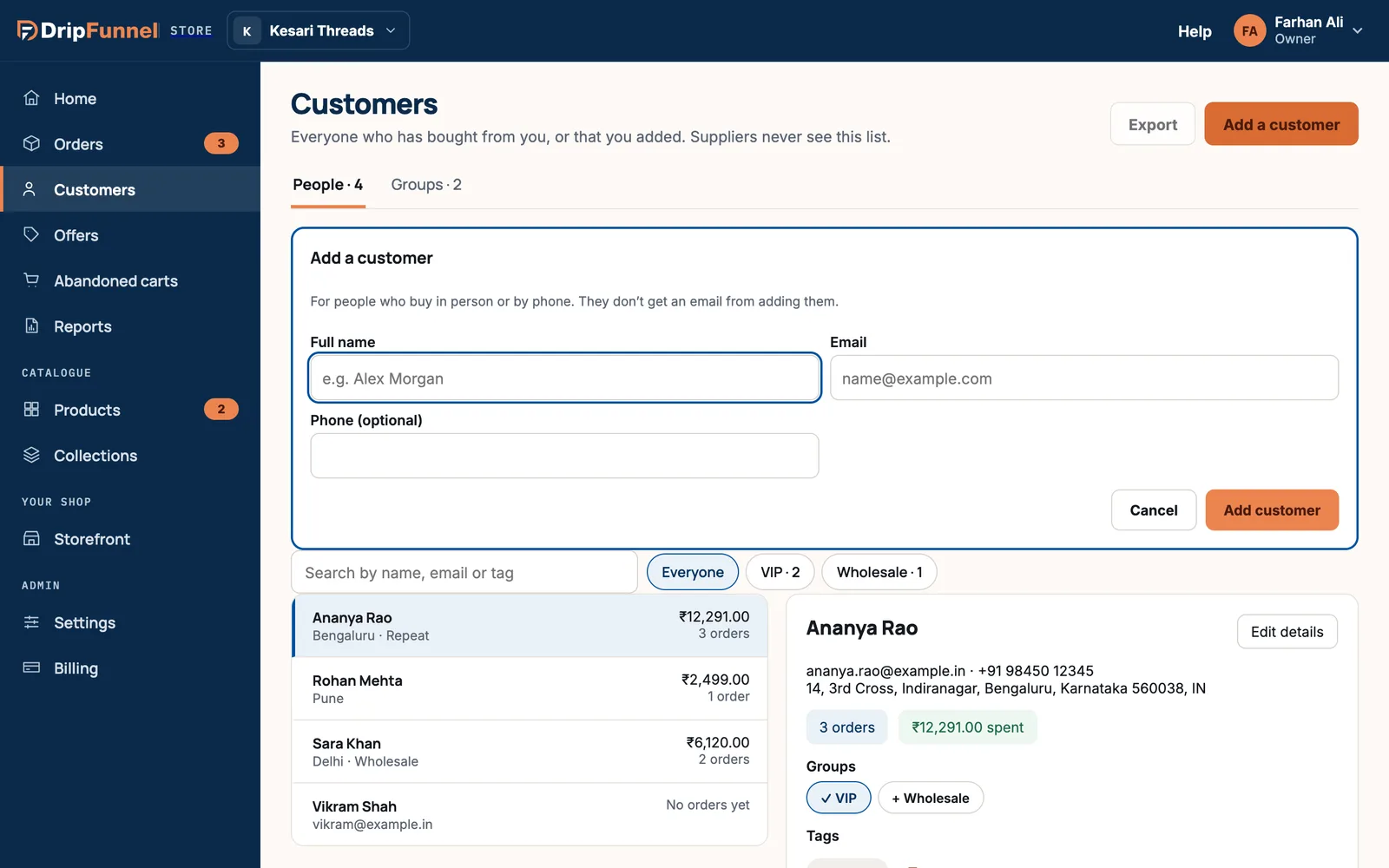
If that email already belongs to a customer, nothing new is made: the portal tells you “is already a customer” and opens their details instead.
Change a customer’s details
- Open the customer and press Edit details.
- Change their Full name, Phone number or address: Street address, Flat, floor or building (optional), City, State or region (optional), Postal code (optional) and Country.
- For Country, type the two-letter country code, like IN for India, US for the United States or AE for the United Arab Emirates.
- Save. You’ll see “Saved — past orders keep the details they were placed with”.
Changing an address only affects future orders. Orders already placed keep the address they were placed with, so a parcel already on its way isn’t redirected.
A customer’s email can’t be changed here. If a customer confirmed their phone number themselves, only they can change it.
Tags and notes
- To add a tag, press + Tag, type it (for example Repeat) and confirm. A tag can be up to 24 characters, and a customer can have up to 20 tags.
- To remove a tag, press the × next to it.
- To keep a note, type it in the Note box and press Save note.
Marketing consent
Marketing consent means the shopper has said yes to receiving marketing from you, such as news and promotions. Order and delivery emails are not marketing, so customers always get those.
- Yes to marketing emails (or “…and texts”): they ticked the box at checkout or opted in from one of your emails. The date and where they agreed are shown.
- No marketing — they didn’t tick the box: they checked out without agreeing.
- Asked to stop marketing: they opted out.
- Not asked yet: for example, someone you added by hand. They get order emails only, and can opt in from any email you send.
Only the shopper can say yes to marketing. You can’t switch it on for them. If a customer tells you directly (by phone, say) that they want no more marketing, press Record that they asked to stop and then Record it. They still get order and delivery emails.
Export your customers
Press Export at the top of the page to download your customers as a CSV file, a simple spreadsheet file that opens in Excel, Google Sheets or Numbers. It includes name, email, phone, city, number of orders, amount spent, currency, tags, groups and marketing consent. The Export button is hidden on phones and when you have no customers yet.
If something goes wrong
- “Another customer already has that number.”: two customers can’t share a phone number. Check you have the right person.
- “That customer deleted their account, so they can’t be added again.”: the shopper closed their account with your shop.
- “Your store is read-only until the bill is paid.”: you can look at customers, but changes wait until your plan’s bill is paid. See If a payment for your plan fails.
Questions
Can I delete a customer?
Not from the portal. You can remove their tags and notes, and record that they don’t want marketing. If a customer asks you to delete their data, contact support.
Does adding a customer send them an email?
No. Adding someone by hand sends nothing. They’ll only get emails when they place an order or when you send them a reminder or offer.
Can I sign a customer up for my newsletter?
No. Only the shopper can opt in to marketing, from checkout or from one of your emails. This keeps you on the right side of privacy rules in every country you sell to.
Can a customer have more than one address?
In the portal you see and edit one address per customer, their main one. Each order keeps the address it was placed with.
Can my suppliers see my customers?
No. Suppliers never see your customer list. If a supplier sends parcels straight to shoppers, they see only the name and delivery address on those orders.