

Invite staff and choose their role
Updated 20 October 2026 · OwnersInvite the people who help you run the store and give each one a role. They get an email, set a password and join. You can change their role or remove them at any time.
Before you start
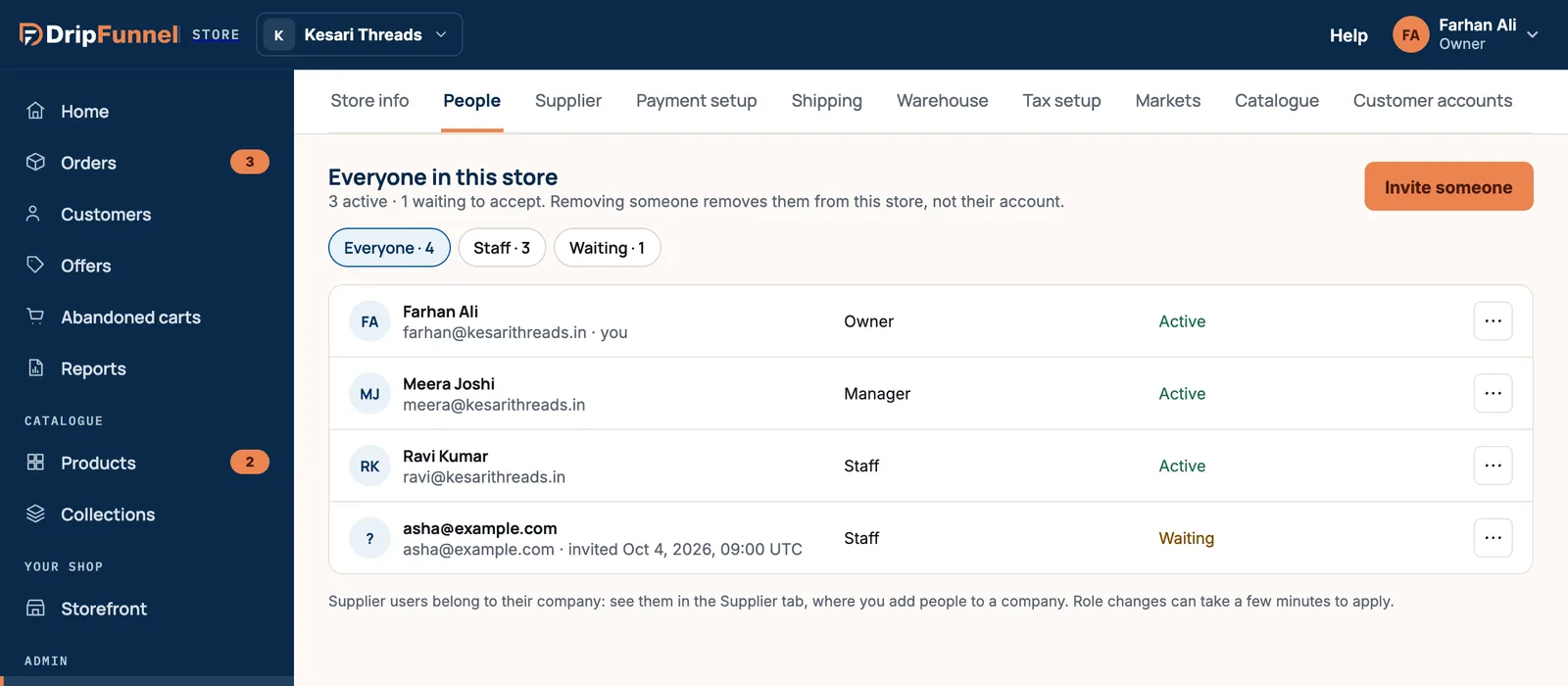
- Only an owner can invite people. Everything here is in Settings › People.
- Have the person’s email address ready. If they already use the portal for another store, they join with the account they have.
- Check how many staff accounts your plan includes (see What owners, managers and staff can do).
Invite someone
- Open Settings and choose the People tab.
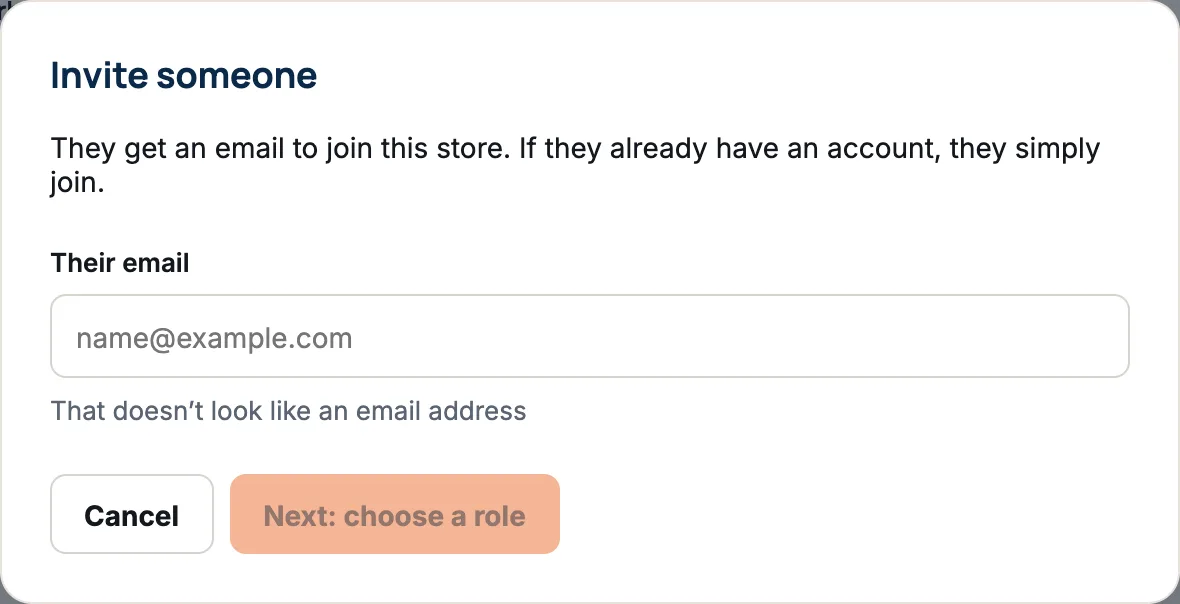
- Press Invite someone.
- Type their email in Their email and press Next: choose a role.
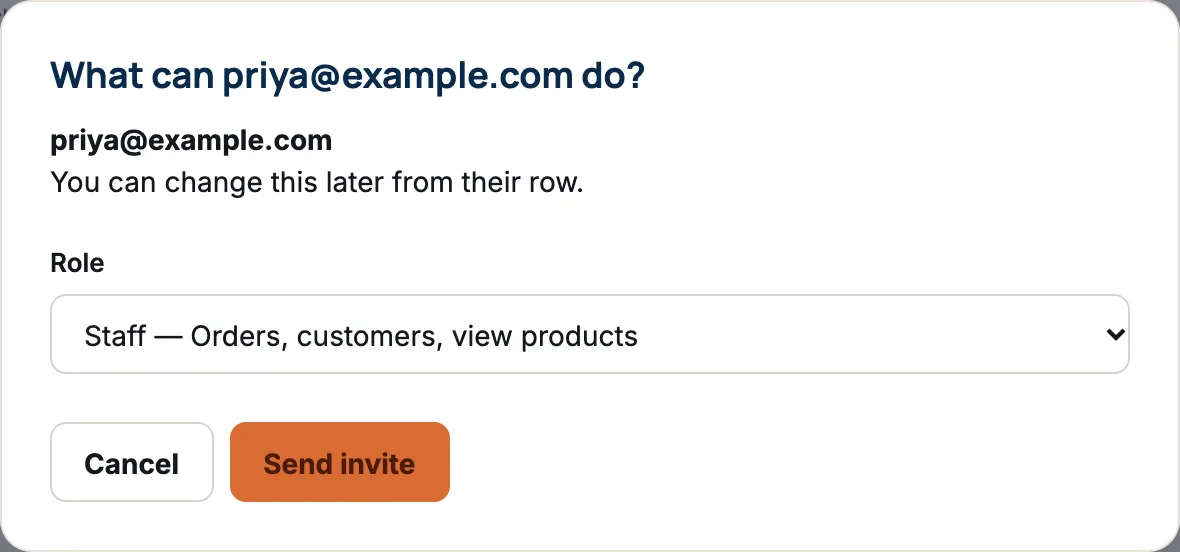
- Choose a Role: Owner, Manager or Staff. Staff is chosen to start with.
- Press Send invite. You see a message that the invite was sent, and they appear in the list as Waiting.
What happens next
- They get an email with a link. The link works for 7 days.
- Someone new opens the link, adds their name and a password, and presses Accept and open the store.
- Someone who already has an account presses Sign in to accept and signs in as usual.
- If you invited them as an owner, they also turn on two-step sign-in before they get in. Owners always need it.
- Once they accept, their row changes from Waiting to Active.
Resend or cancel an invitation
- Press ⋯ on the invited person’s row. The dialog tells you how long the link still works, or that it has expired.
- Under What to do, choose Resend invite — the old link stops working or Cancel invite.
- Press Continue.
Resending sends a new link and switches off the old one. If they open an old email, they see “A newer invitation replaced this one” and need the newest email.
Change someone’s role or remove them
- Press ⋯ on their row.
- Choose Change role, pick the new role and press Change role, or
- Choose Remove from this store and confirm with Remove.
Removing someone takes away their access to this store straight away. Their account, and any other stores they work in, aren’t touched. The screen notes that role changes can take a few minutes to apply.
If something goes wrong
- They’re already in this store. The email already belongs to someone on your team or a supplier.
- Your plan includes 2 — see plans for more. (with your plan’s number) You’ve used every staff account on your plan. Remove someone, cancel an unused invitation, or change your plan in Billing.
- Too many invitations for now. Try again later. You can send about 20 invitations an hour, and one email address can be invited 3 times a day.
- The last owner can’t be demoted or removed — make someone else an owner first.
Questions
They didn’t get the email. What should I do?
Ask them to check spam, then use ⋯ › Resend invite on their row. The new email replaces the old one.
Does the person need their own account?
They need one, and accepting the invitation creates it. One account works for every store they belong to.
Do invited people count towards my staff limit?
Yes. Managers and staff who are still invited count, as well as those who have joined. Cancel invitations you no longer need to free the place. Owners never count.
Where do my suppliers’ people go?
Not here. Suppliers belong to their company. You manage them in Settings › Supplier. See Invite a supplier.