

Add a market
Updated 20 October 2026 · OwnersA market is a group of countries you sell to, with its own currency, language and prices. For example “UK” or “Gulf”. Shoppers in those countries see your shop the way you set up their market.
Before you start
- Only the store owner can change markets, in Settings › Markets.
- Your home country is your primary market. It was set up when you signed up and can’t be switched off or deleted.
- A market can only use currencies and languages your store already has. Add them first in Settings › Store info. See Set prices per currency and Translate your shop.
- How many markets you can have depends on your plan. See Pricing.
Step 1: Create the market
- In the portal, go to Settings and choose the Markets tab.
- Press Add market.
- Type a Market name named after the place, for example “UK” or “Nordics”.
- Press Create.
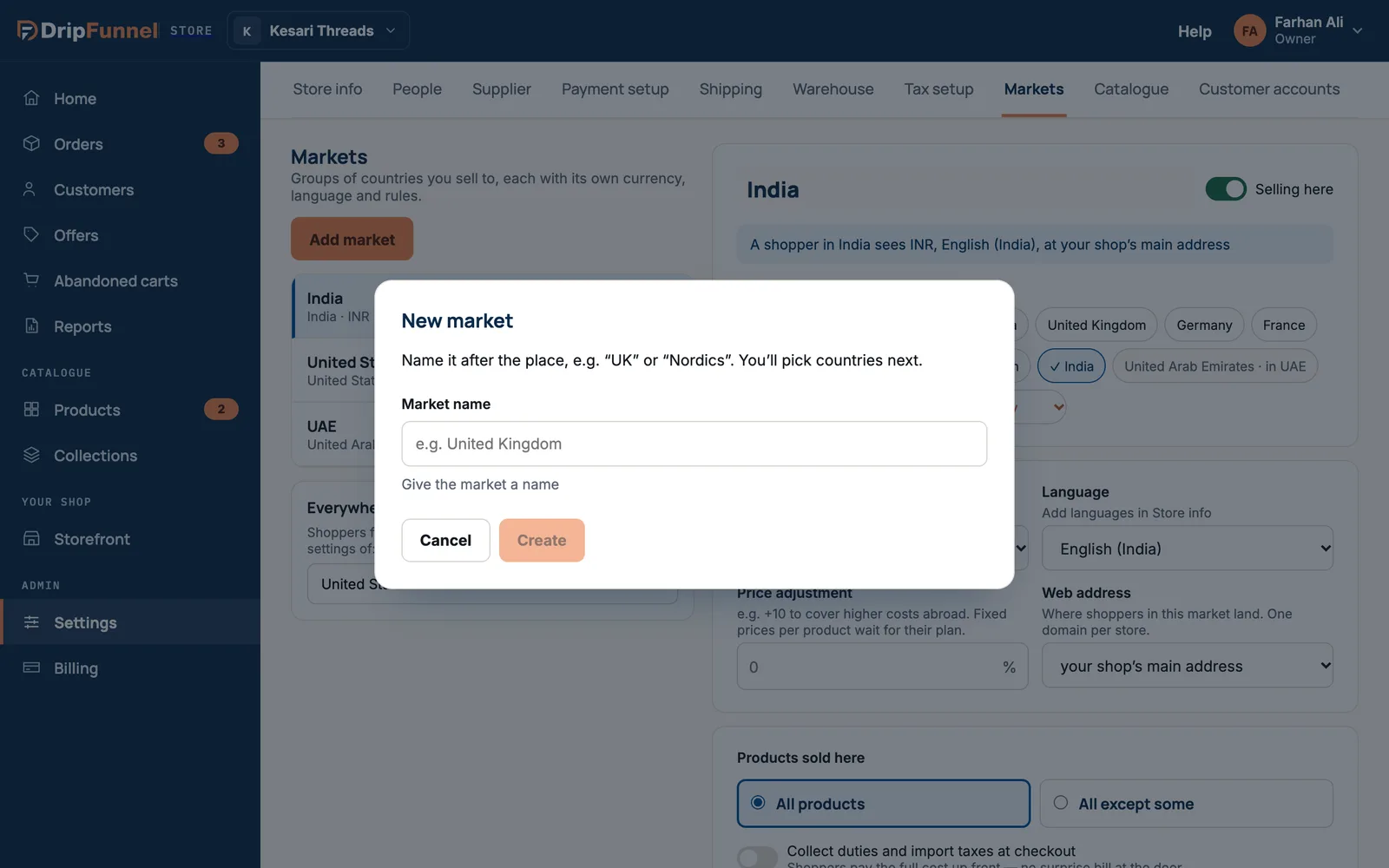
Step 2: Choose its countries and settings
The new market opens on the right. Work down the page:
- Countries: click each country this market covers, or add one with + Another country. A country can be in only one market; one that’s already used shows “in” and that market’s name, and can’t be picked.
- Part of a bigger market? Leave No — it stands on its own, or put it inside another market. A market inside another copies its settings unless you change them, and sells only in that market’s countries.
- Currency: the currency shoppers there pay in.
- Language: the language shoppers there see.
- Price adjustment: a percentage added to (or taken off) your prices in this market, for example 10 to cover higher costs abroad, or -5 for a lower price. Leave 0 for none.
- Web address: where shoppers in this market land. Choose your shop’s main address, or A path on your shop’s address and type a short path, like uk (so www.yourshop.com/uk).
- Products sold here: All products, or All except some and search for the products not to sell there. Those show “Not available in your country” to shoppers in that market.
- Press Save market. You see “UK saved — shoppers there see it within a minute”.
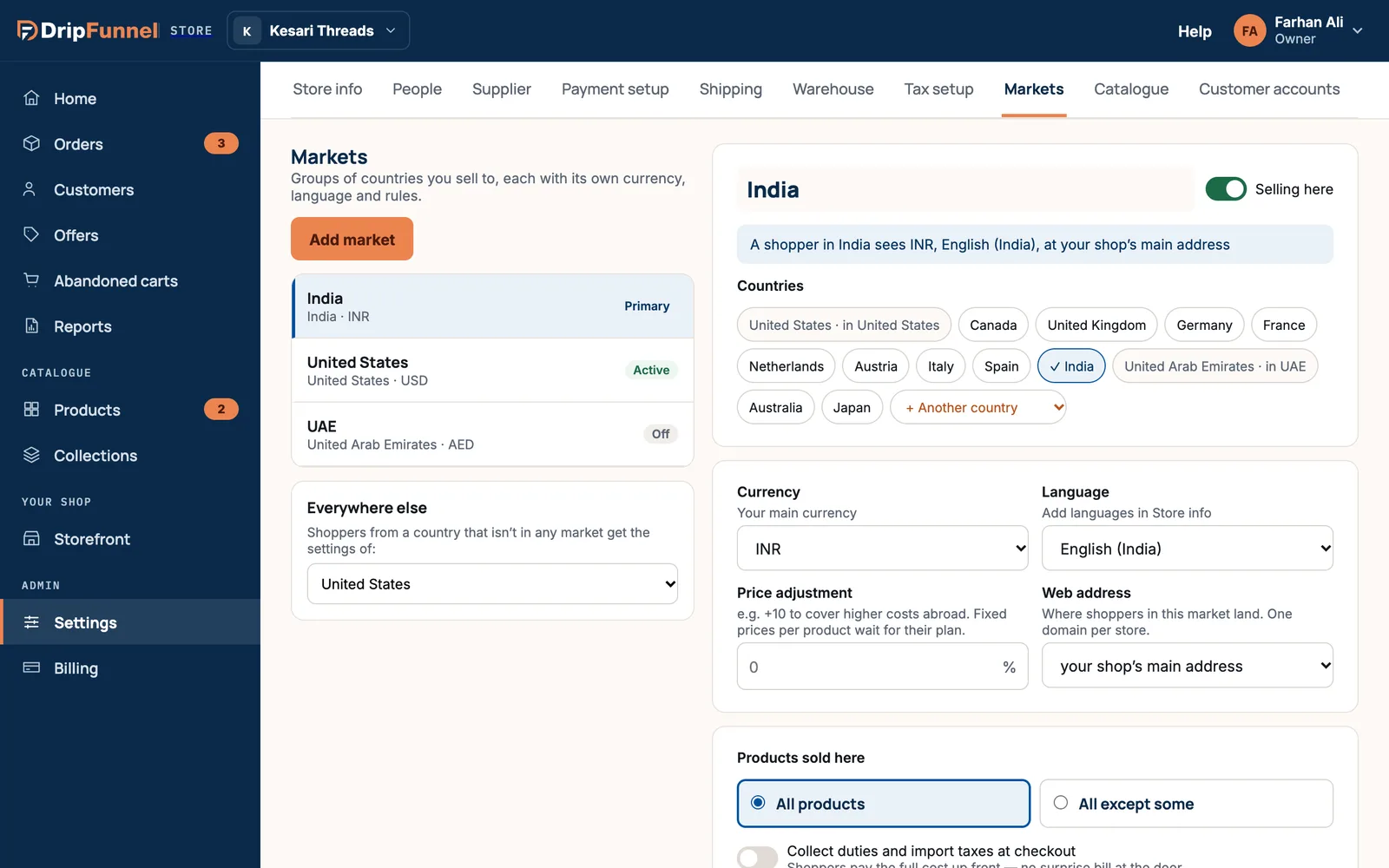
At the top of the market, a line sums it up, for example “A shopper in India sees INR, English (India), at your shop’s main address”. Check it before you save.
Switch a market on or off
Use the Selling here switch at the top of the market. When it’s off, the market shows Off in the list and shoppers there get your “Everywhere else” settings. Remember to press Save market.
Shoppers from everywhere else
Under the list of markets, Everywhere else decides what shoppers from a country that isn’t in any market get. Pick a market whose settings they should use, or Nobody — they can’t buy.
Delete a market
Open the market and press Delete market. Shoppers in its countries get your “Everywhere else” settings instead. Orders already placed aren’t affected.
If something goes wrong
- “A country can only be in one market.” Take the country out of the other market first.
- “Add that currency and language in Store info first.” Add them in Settings › Store info, then come back.
- “Use a short path: lower-case letters, numbers and -, e.g. uk” Remove capitals, spaces and other symbols from the path.
- “Your primary market can’t be switched off, moved or deleted.” That’s your home market.
- “Someone else changed this market first.” Open it again to see their changes.
Questions
How do markets change prices?
Each market’s price comes from your price, the market’s currency and its price adjustment. On a product, open Price per market › Show each market’s price to see them. A fixed price per product per market isn’t available yet.
Can each market have its own domain?
Not at the moment: your shop has one own domain. A market can use a path on it, like /uk.
Does a market change tax or delivery?
Tax follows your tax setup and delivery follows your shipping settings. See How tax is worked out and Set delivery charges.
Can a manager change markets?
No. Markets are in Settings, which only the store owner can open.