

Set prices per currency
Updated 20 October 2026 · OwnersYou type every price in your main currency. Each extra currency either converts from it automatically, or you type its prices yourself. Markets then pick which currency their shoppers pay in.
Before you start
- Only the store owner can change currencies.
- Your main currency comes from your country at sign-up: for example INR in India, USD in the United States or AED in the UAE. It can’t change after your first order.
- How many currencies you can have depends on your plan, your main one included. See Pricing.
Add a currency
- In the portal, go to Settings and stay on the Store info tab.
- Find the Currencies card. Your main currency is first: “Main currency · what you type on every product”.
- Press + Add a currency and choose one from the list.
- Choose how its prices are made (see below).
- Press Save currencies. You see “Currencies saved — product price boxes show them now”.
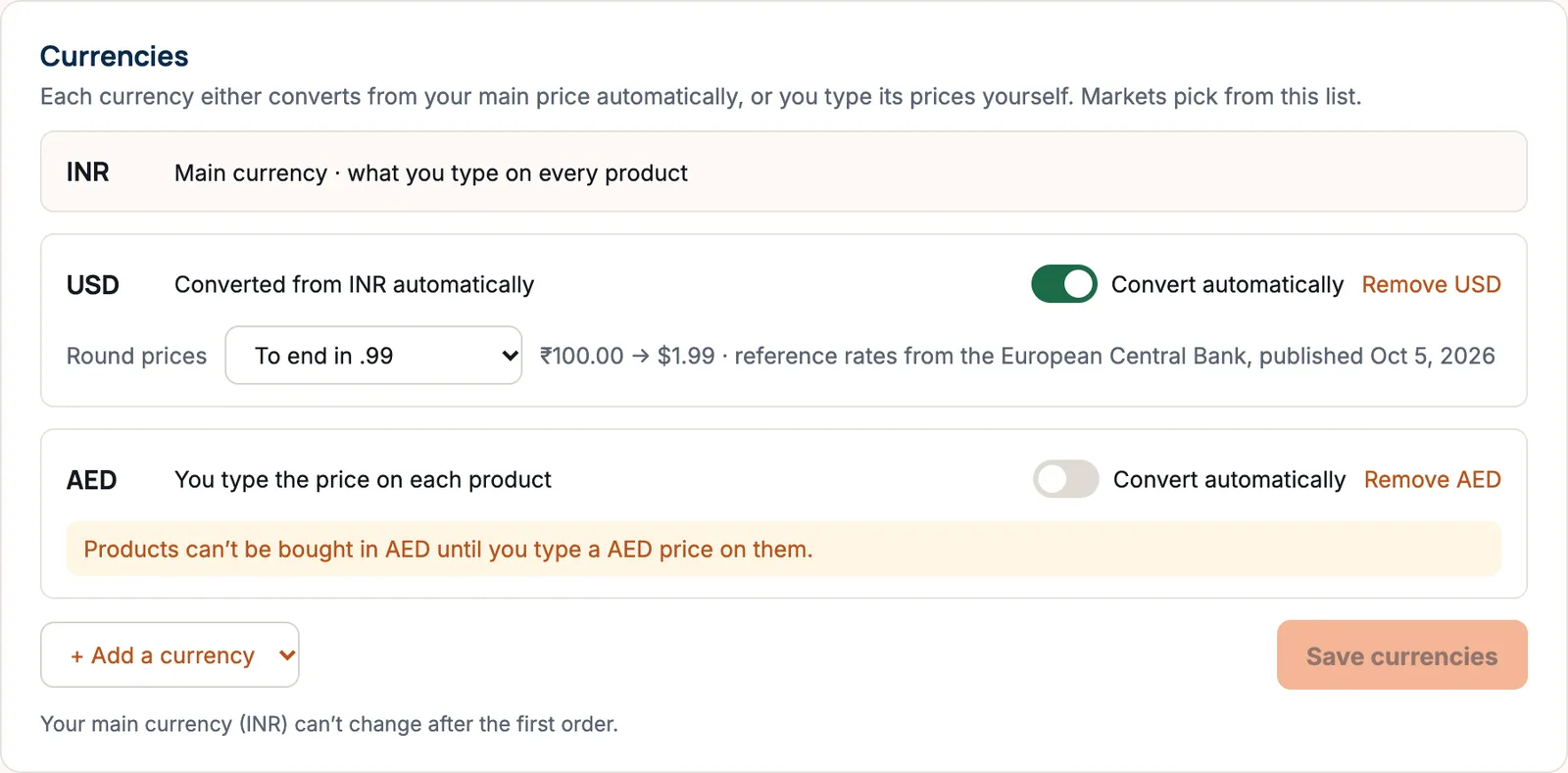
Option 1: Convert automatically
Turn on Convert automatically. Prices in this currency are worked out from your main price using the latest reference rates from the European Central Bank. A reference rate is the official exchange rate the bank publishes each working day. The card shows an example and the date the rates were published.
Then choose Round prices, so converted prices look tidy:
- Don’t round: the exact converted amount, like $29.37.
- To the nearest whole: like $29.00.
- To end in .99: like $29.99. This is the usual choice.
Option 2: Type the prices yourself
Turn Convert automatically off. You’re asked “Stop converting automatically?” Press Set prices myself. The prices that were converted are kept as your starting prices.
Then open each product. Under Price, a Shoppers abroad section has a Price in box for that currency. With versions (like sizes), the versions table has a column for it. Until a product has a price in that currency, it shows “Not for sale in … until you add a price.”
With typed prices, products can’t be bought in that currency until you type a price on them. Check your products after switching.
Use the currency in a market
Adding a currency doesn’t show it to anyone yet. Go to Settings › Markets, open the market and choose the currency under Currency. See Add a market.
Remove a currency
Press Remove next to it (for example Remove USD), then Save currencies.
If something goes wrong
- “There’s no reference rate for this currency yet, so converted prices wait until one arrives.” Converted prices appear once a rate is published.
- “Your plan includes 2 currencies, your main one among them.” Remove one, or move up a plan.
- A currency isn’t in the list. Only currencies with a European Central Bank reference rate can be added.
Questions
Do converted prices change every day?
They follow the European Central Bank’s reference rates, so they can change a little when new rates are published. If you want prices that never move, type them yourself.
How do I see a product’s price in each market?
Open the product and, under Price, press Show each market’s price.
Do my reports add the currencies together?
No. Sales are shown per currency and never converted, so the numbers match what you were paid.
Can I change my main currency?
Only before your first order. After that it’s fixed.