

Check a code, see results and switch offers off
Updated 20 October 2026 · Owners and managers (staff can view and check codes)The Offers page lists every offer you’ve made, with how often each has been used. From here you can check a code a customer gives you, see how an offer did, download single-use codes, and turn offers off or end them.
The Offers page
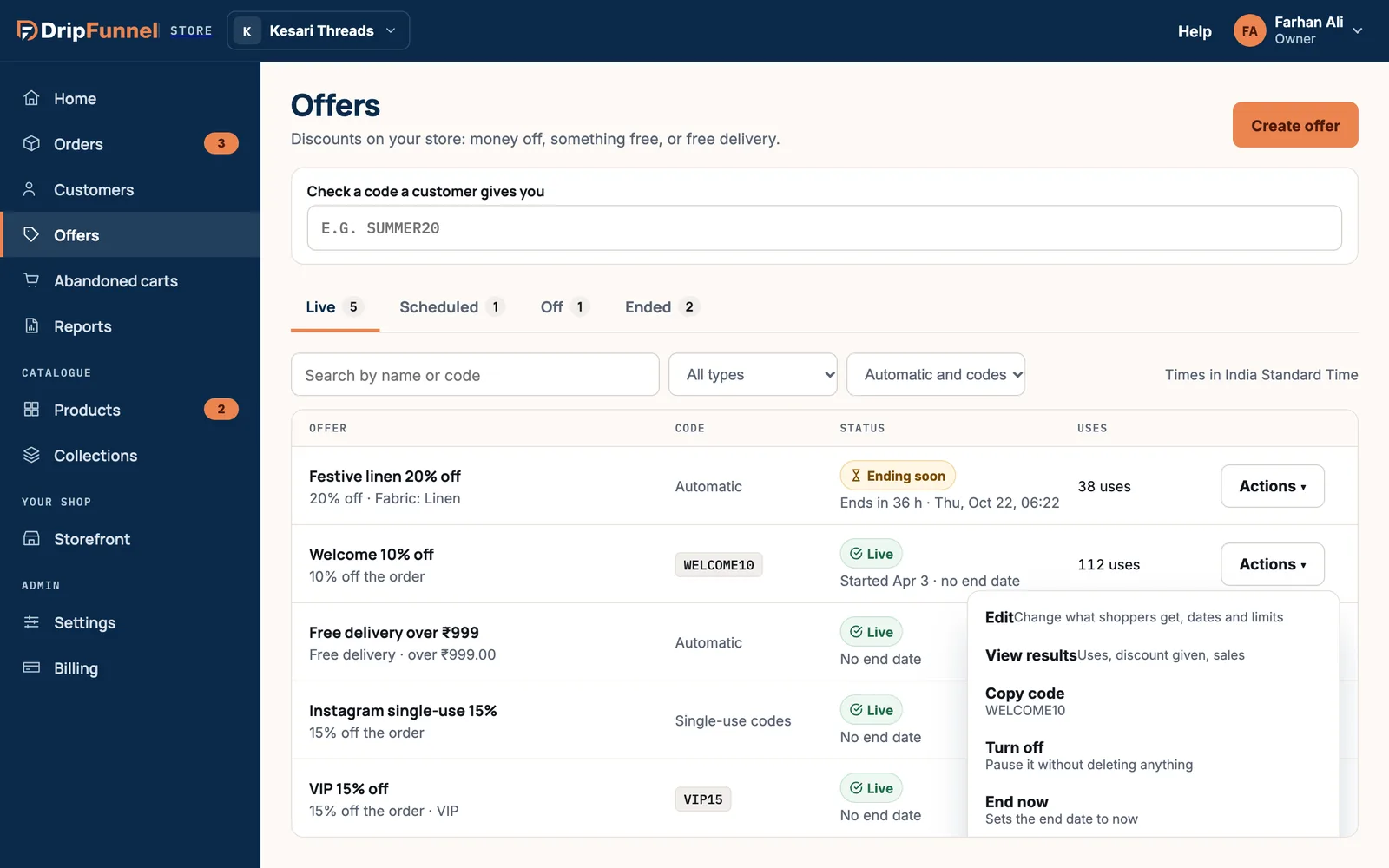
Open Offers in the menu. Your offers are split into four tabs: Live, Scheduled (starts later), Off (switched off) and Ended.
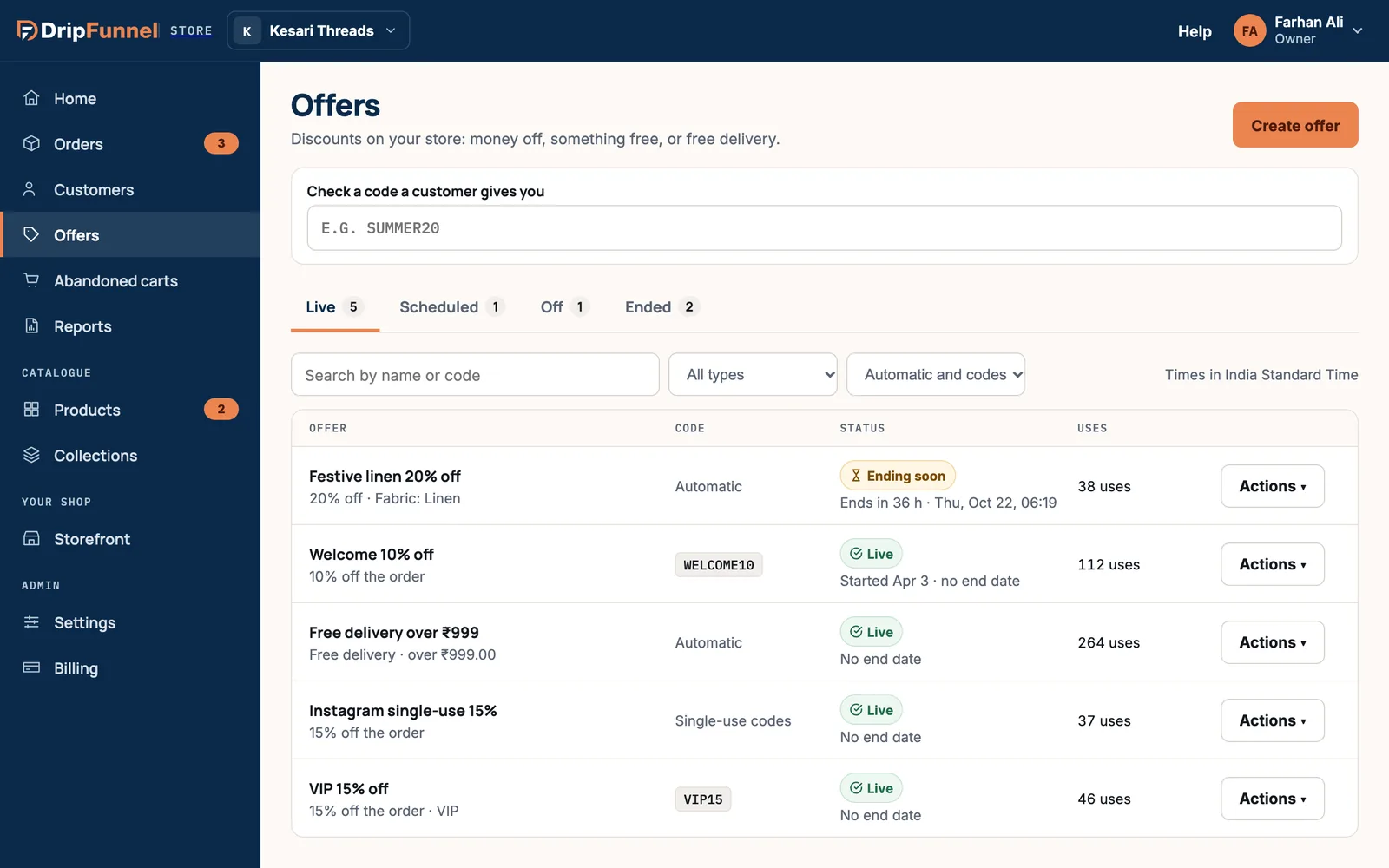
- Search by name or code, and filter by Offer type or by How shoppers get it (automatic, codes, or both).
- The Code column shows the code, Automatic, or Single-use codes.
- The Status column shows Live, Ending soon (ends within 48 hours), Scheduled, Off, Ended or Used up, with the dates underneath.
- The Uses column shows how many times it’s been used, or for example “50 / 100” if it has a limit.
- Times are in your store’s time zone, shown above the table.
Check a code a customer gives you
When a customer says “my code doesn’t work”, type it into Check a code a customer gives you. The answer appears as you type.
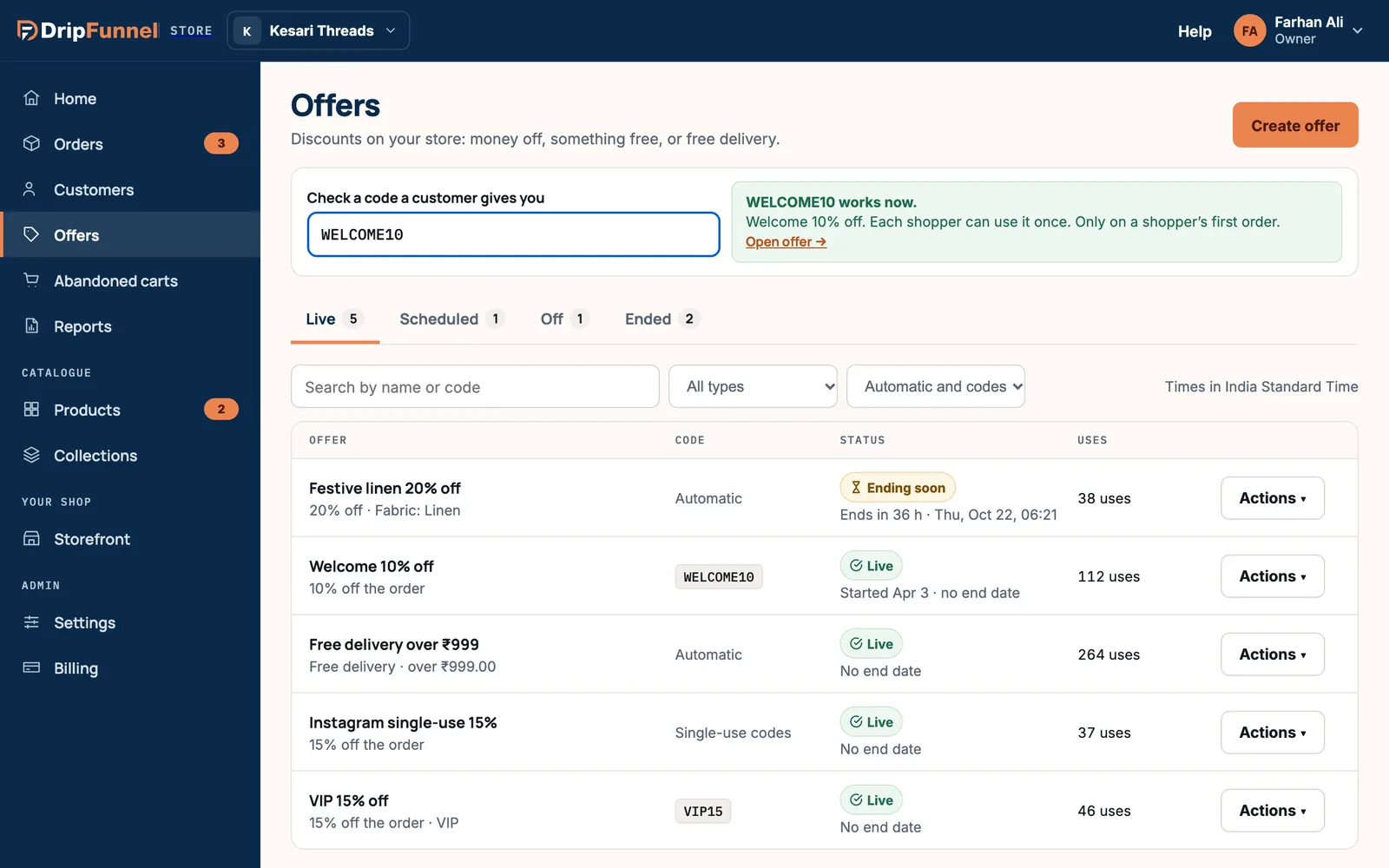
- …works now. It tells you the rules too, for example “Only on a shopper’s first order” or “Needs an order of ₹999 or more”.
- …isn’t one of your codes. Check the spelling. Codes aren’t case-sensitive.
- …doesn’t work yet. It’s scheduled; the start date is shown.
- …is turned off, …has expired or …is used up.
- …was deleted.
Press Open offer → to go to the offer.
See how an offer did
Click an offer to open its page. The Results card shows the last 30 days: Uses, Discount given, Sales with this offer and Average order, with a chart of uses per day.
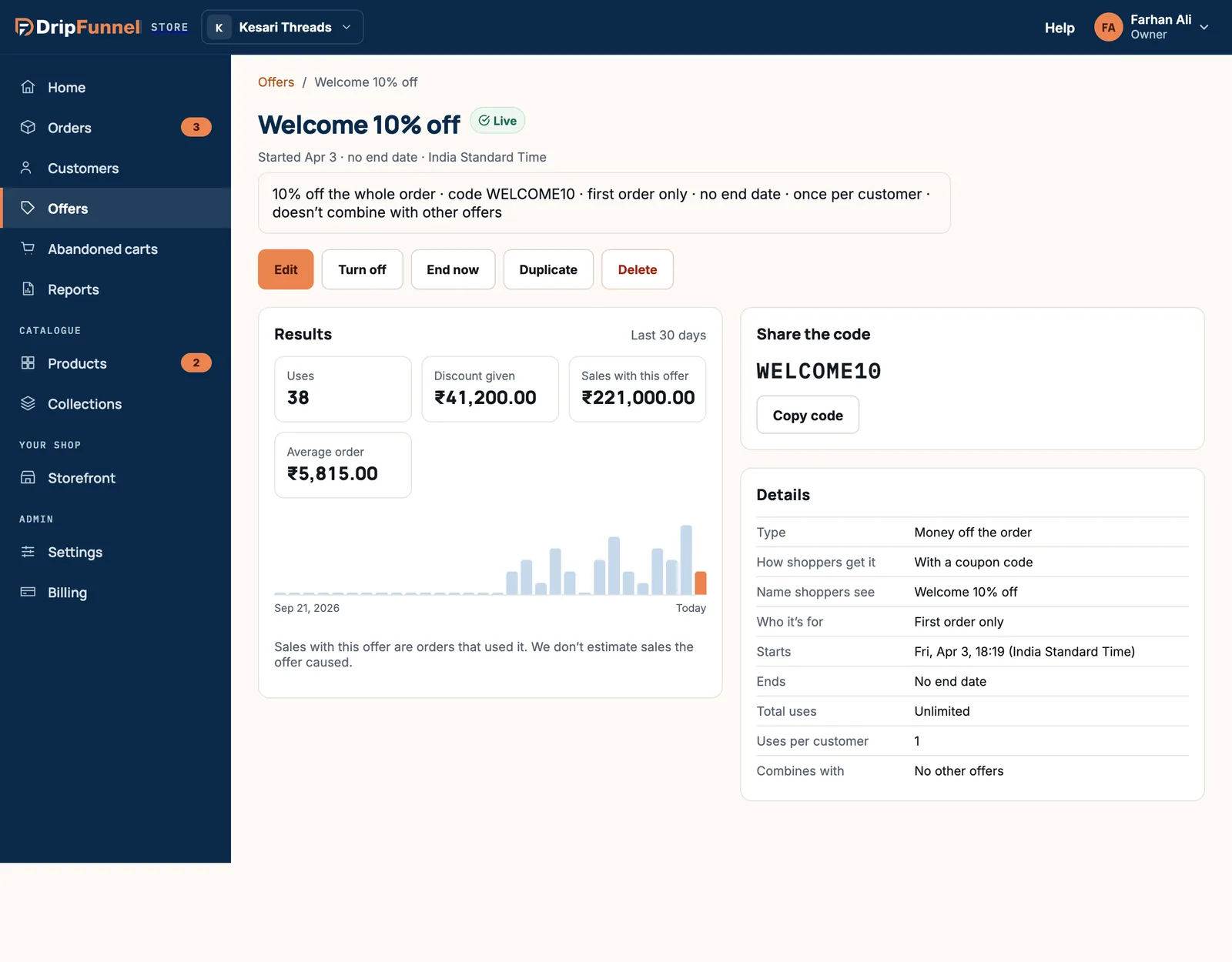
- “Sales with this offer” are orders that used it. It doesn’t guess how many sales the offer caused.
- Offer results are on Growth Pro and up. On other plans the card says which plan has them, but uses are still counted.
- Share the code shows the code large, with Copy code.
- Details lists everything about the offer: type, who it’s for, start and end, limits and what it combines with.
Single-use codes
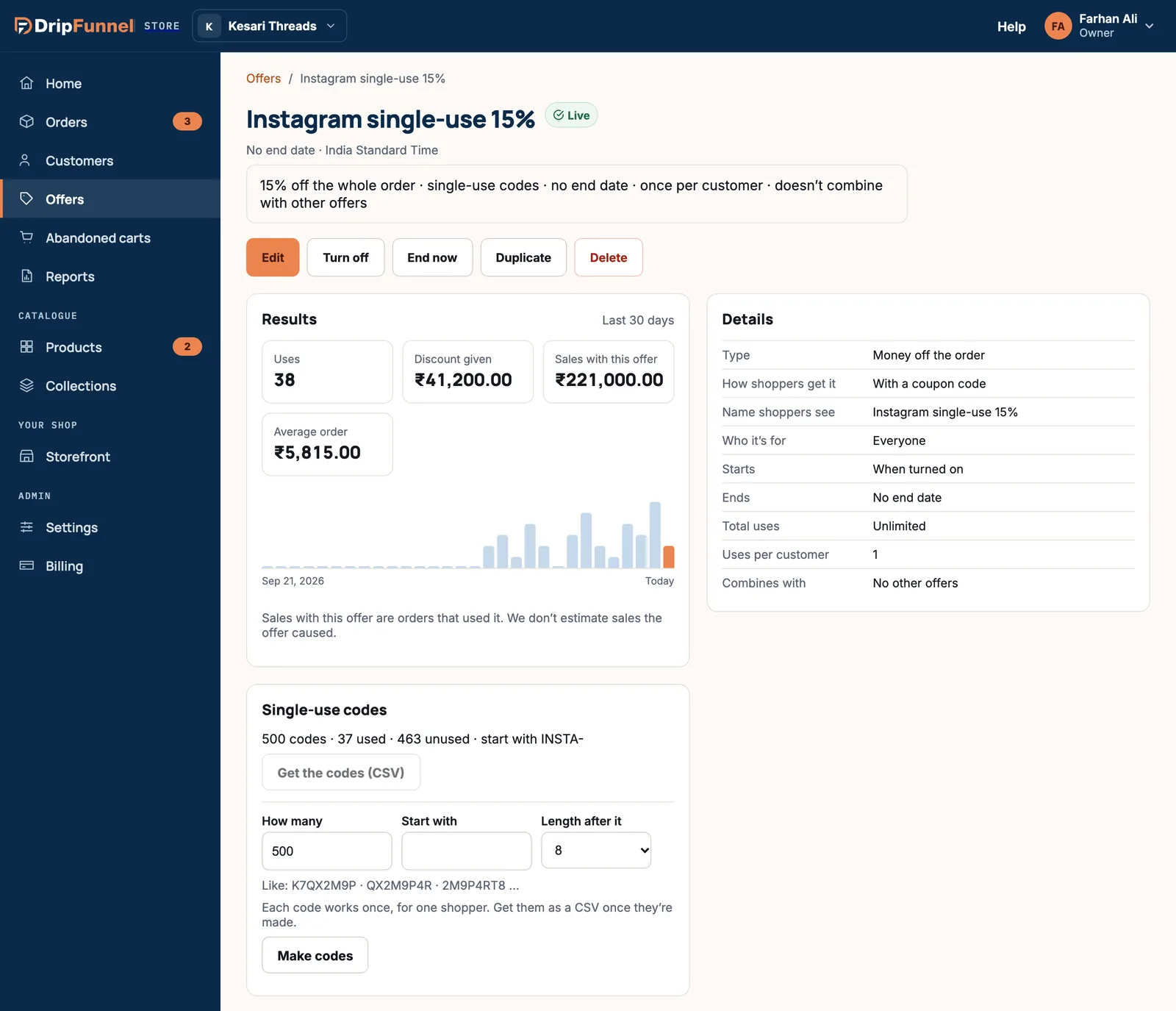
If the offer uses single-use codes, its page has a Single-use codes card, for example “500 codes · 37 used · 463 unused · start with INSTA-”.
- Press Get the codes (CSV). When the file is ready, press Download. It opens in any spreadsheet program.
- To make more, fill in How many, Start with and Length after it, then press Make codes. Each batch can have up to 5,000 codes.
Turn off, end, duplicate or delete
Use the Actions button on the list, or the buttons at the top of an offer’s page.
| Action | What happens | Can you undo it? |
|---|---|---|
| Turn off | Pauses the offer. Carts lose the discount the next time they change; orders already placed keep it. | Yes: Turn on again any time |
| End now | Sets the end date to now. Meant to be final. | To run it again, duplicate it |
| Duplicate | Makes a copy that’s off, with no code or dates yet. The way to rerun a sale. | Delete the copy if you don’t need it |
| Delete | Removes it from your list. Placed orders keep their discount. Its code stays reserved and can’t be reused. | No |
We suggest ending an offer rather than deleting it: an ended offer stays in your list with its results.
Questions
A customer says their code doesn’t work. What should I check?
Type it into Check a code a customer gives you. It tells you whether the code exists, whether it has started, ended or been used up, and any rules like a minimum order or first order only.
Can staff change offers?
No. Staff can see offers and check codes, but only the owner and managers can create, change, turn off or delete them.
Can I reuse a code from an old offer?
No. Codes stay reserved even after an offer ends or is deleted, so an old code can never accidentally give a new discount. Pick a new code, or duplicate the old offer and give it a new code.
What happens to offers if I move to a smaller plan?
Live offers keep running until they end. You just can’t create more than your new plan allows.