

Change, suspend or remove a supplier
Updated 20 October 2026 · Owners on BusinessAfter a supplier joins, you can add people to their company, change what they can do, decide who posts their parcels, pause them, or remove them. Everything is on the supplier’s row in Settings › Supplier.
Open a supplier’s options
- Open Settings and choose the Supplier tab.
- Press ⋯ on the supplier’s row.
- Choose an option under What to do and press Continue.
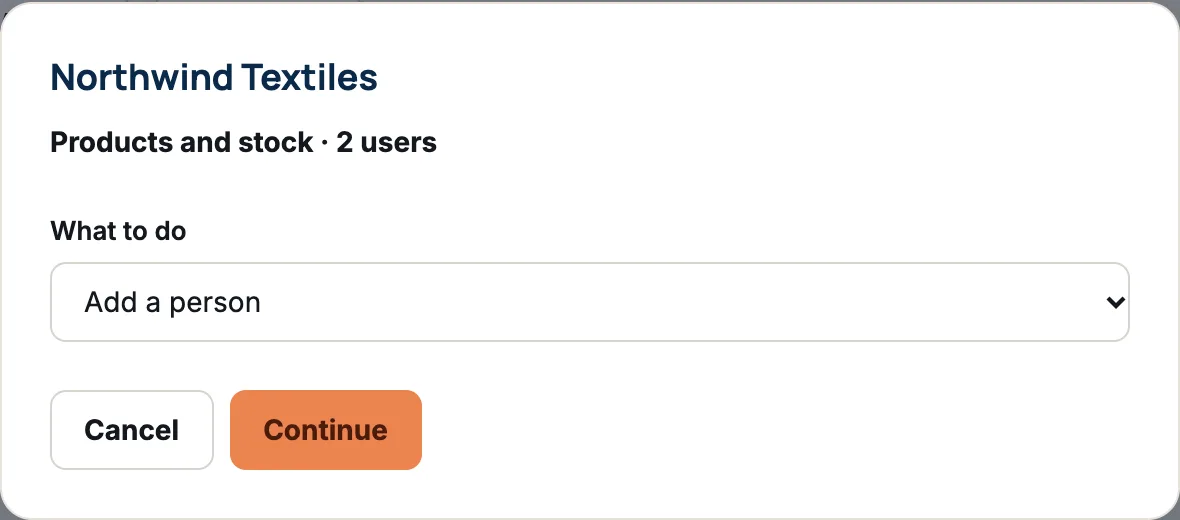
The options are Add a person, Change what they can do, Change how they ship, Suspend (or Reactivate) and Remove supplier. Use the All, Active and Suspended filters to find a supplier quickly.
Add a person at their company
Choose Add a person, type Their email and press Send invite. The new person can do the same as everyone else at that company. The supplier’s own admin can also invite colleagues from Your team.
Change what they can do
Choose Change what they can do, pick one of the four access levels and press Save. Access is set on the company, so everyone there gets the same level. See the levels in What owners, managers and staff can do.
Choose who ships their items
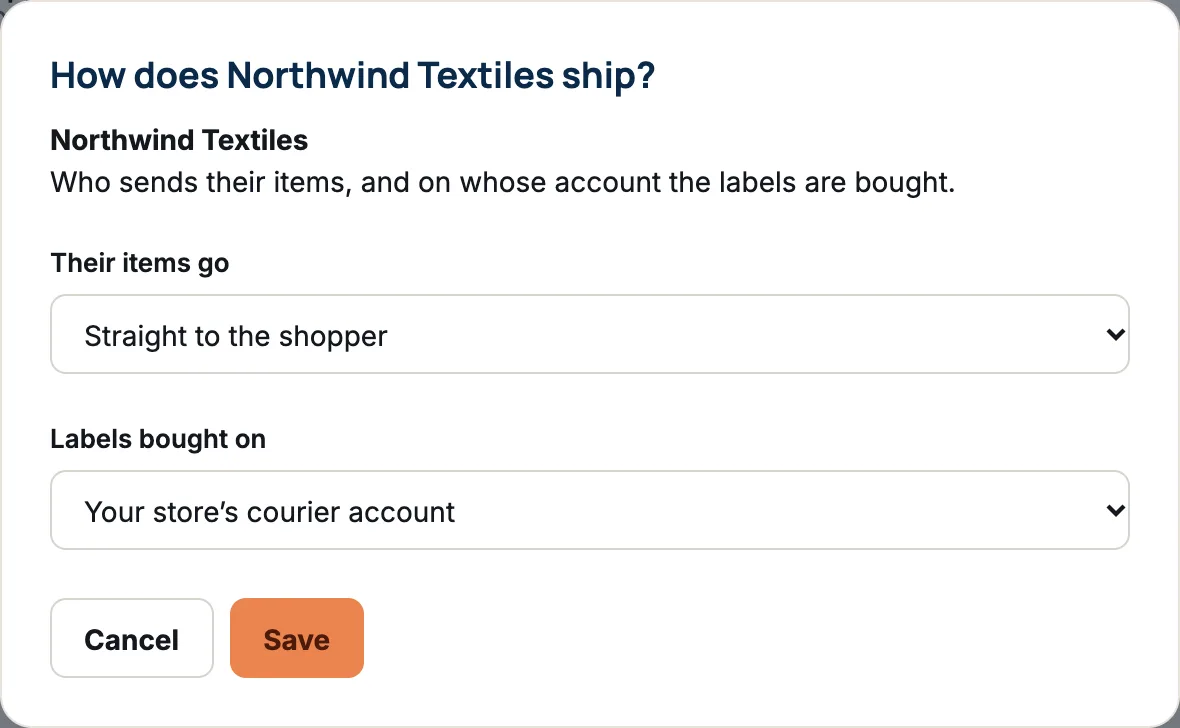
Choose Change how they ship. Under Their items go, pick:
- To you, and you ship them on: the supplier sends their items to you, and you pack them with the rest of the order. They never see who bought them. New suppliers start here.
- Straight to the shopper: the supplier posts the parcel themselves. Then choose Labels bought on: Your store’s courier account or Their own courier account. They see the shopper’s name and delivery address, never their email or phone.
Orders already placed keep the way they were set up when they were placed. The change applies to new orders.
Suspend a supplier
Suspending pauses a supplier without removing them. They can’t sign in to your store. Under Their products, choose Hide their products too (chosen to start with) or Keep selling their products, then press Suspend.
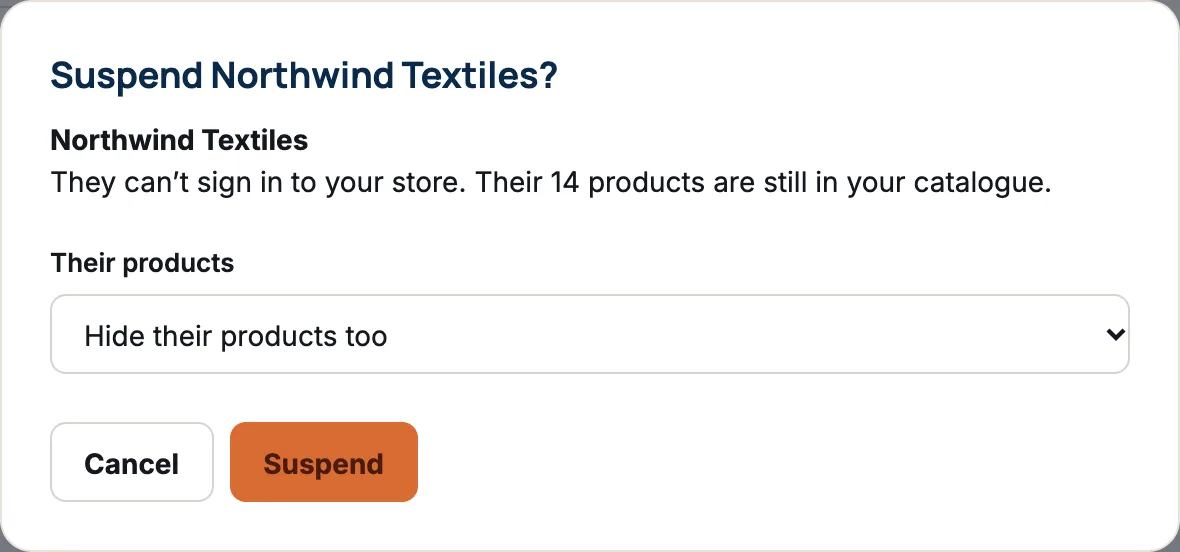
To undo it, choose Reactivate. It happens straight away, and whatever the suspension hid comes back as it was.
Remove a supplier
Choose Remove supplier and confirm. Their people lose access straight away. Their products are hidden from shoppers and stay in your catalogue, still marked as theirs. You can show any you want to keep selling, or delete them.
If something goes wrong
- Reactivate this supplier first. You tried to add a person to a suspended supplier.
- They’re already in this store. The email belongs to someone on your own team or at another supplier.
Questions
What’s the difference between suspending and removing?
Suspending is a pause you can undo with Reactivate, and you choose whether their products stay on sale. Removing ends the relationship: their people lose access and their products are hidden, though they stay in your catalogue.
Can I make someone at the supplier an admin?
People you add from their row join as Supplier members. The supplier’s own admin can make a colleague an admin from Your team.
Are a removed supplier’s products deleted?
No. They are hidden and marked as coming from a removed supplier. You can show them again or delete them from Products.