

Describe a change to your storefront
Updated 20 October 2026 · OwnersYou change your storefront by describing what you want in plain words. The AI changes a private copy of your site, called a draft, and shows it to you. Shoppers see nothing until you publish.
Before you start
- Only the store owner can change the storefront.
- Every message you send to the AI uses one AI request from your monthly allowance. The studio shows how many are left, and Storefront › Site settings › AI and build minutes shows this month’s use.
- Changes stay in your draft until you publish. Your live shop keeps working as it is.
Open the studio
In the portal, open Storefront and press Open studio at the top right. If you have changes you haven’t published yet, the button says Continue in studio.
The studio is a full-screen editor. The chat, called Design with AI, is on the left. A live preview of your draft is on the right.
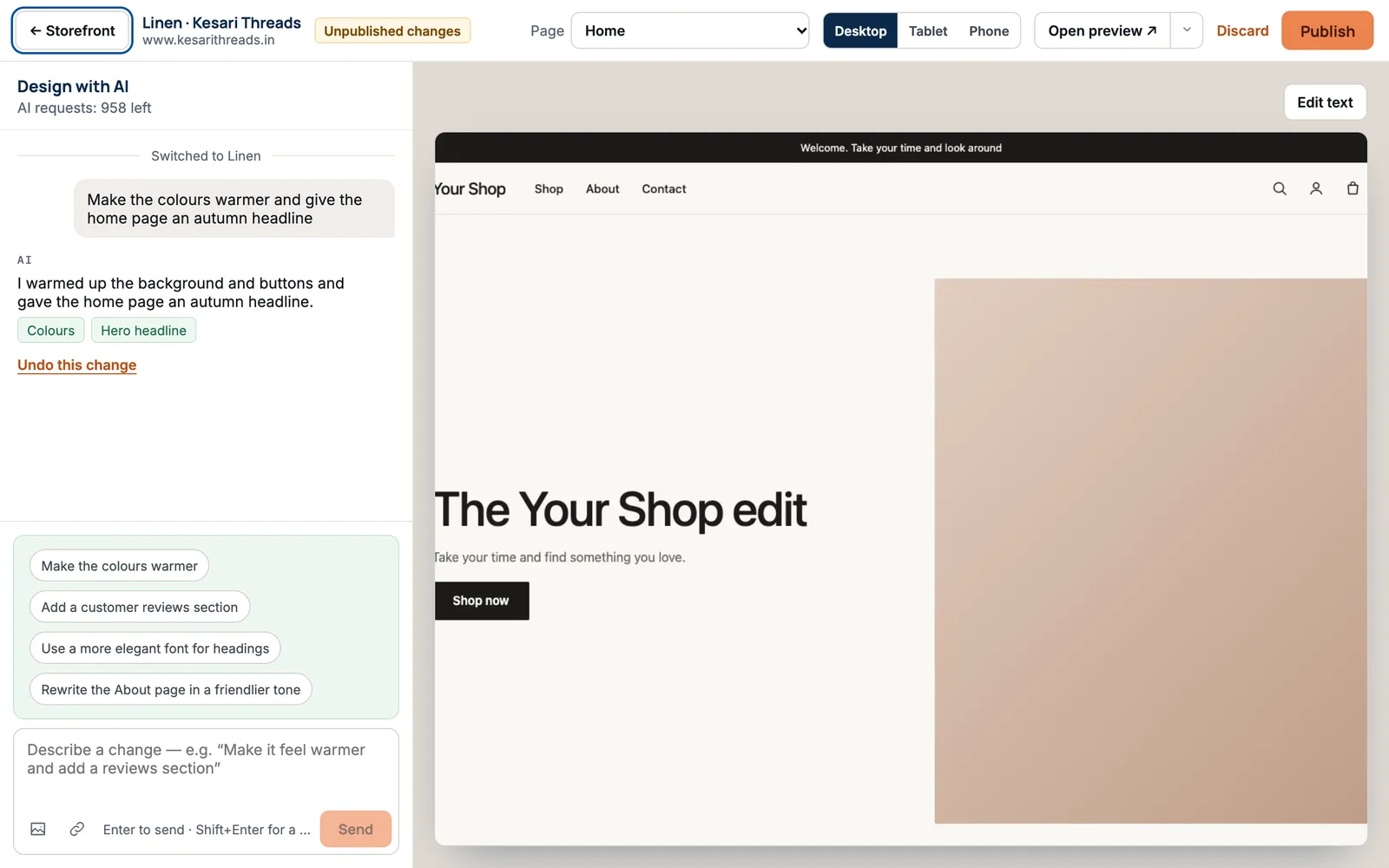
Sometimes you see a short message over the preview first, such as “Opening your studio…” or “You’re next — about 20 seconds”. Wait a moment and the studio opens by itself.
Describe a change
- Click in the box at the bottom of the chat, labelled Describe a change.
- Write what you want, in plain words. For example: “Make the menu simpler: Shop, Our story, Help” or “Make it feel warmer and add a reviews section”.
- Press Enter or the Send button. Use Shift+Enter if you want a new line.
- Wait while the button says Working…. The AI changes your draft and the preview updates.
- Read the AI’s reply. Under it, small labels list what changed, for example Colours or Hero headline.
Not sure what to ask? Press one of the suggestions above the box, such as Make the colours warmer or Add a customer reviews section. It’s sent straight away.
Show the AI what you mean
- An image: press the picture icon, or paste an image, to attach a PNG, JPEG or WebP. For example, a photo of a shop you like.
- A website: press the link icon, type a full address starting with https://, and press Add. The AI takes inspiration from it.
- You can send an image or website without any words. It’s sent as “Take inspiration from what I attached.”
Check it on every screen size
Use the buttons at the top: Desktop, Tablet and Phone. The preview changes to that size. Most shoppers buy on a phone, so always check Phone.
Use the Page list at the top to look at other pages: Home, All products, a product page, Search, Cart, Checkout, the account pages, your policies and your content pages.
Undo a change you don’t like
Under the AI’s latest reply, press Undo this change. You see “Undone — the preview is back to how it was.” Only the latest change can be undone this way. To go back further, use Discard (below) or go back to an earlier version.
Change words by hand
- Press Edit text at the top right of the preview.
- Click the words you want to change in the preview.
- A box opens with a field for each of your shop’s languages. The main one is marked “main language”.
- Type the new words and press Save. You see “Text saved”.
Some words come from your products or store details, such as a product name or price. For those you see “Those words come from your products or store details — change them there.” Change them in Products or Settings instead.
Throw the whole draft away
Press Discard at the top of the studio. You’re asked “Discard unpublished changes?” Press Discard changes. Your preview goes back to your live site. Your live site doesn’t change.
When you’re happy
Press Publish. Your site is checked and then goes live. See Publish your storefront.
If something goes wrong
- “I couldn’t make that change — nothing on your site changed.” Try again, or say it a different way. Shorter, more specific requests work best.
- “You’ve used this month’s AI requests.” Your allowance resets on the 1st of the month, or you can move to a plan with a larger allowance in Billing.
- “Add your AI key to design with AI.” Your plan uses your own AI key and none is connected yet. Contact support.
- “We couldn’t open that website.” Try another address. It must be a public website starting with https://.
- “Your studio session ended.” Press Reopen. Your draft is kept.
Questions
Do shoppers see my changes while I work?
No. Everything happens in your draft. Shoppers see your live site until you press Publish and the checks pass.
Can I make several changes before publishing?
Yes. Send as many requests as you like. They all build up in one draft, and one Publish sends them all live.
Can I show my draft to someone before publishing?
Yes. Press Open preview ↗ to open the draft in a new tab and share that link. Links work for 7 days. Checkout on a preview takes test payments only, and search engines don’t see it. To cut off every link you shared, open the menu next to Open preview and choose End all preview links.
What can’t the AI change?
It changes your design and the words on your pages. It doesn’t change prices, stock, products or your store settings; you do those in the portal.
Who can use the studio?
Only the store owner. Managers can look at the Storefront page but can’t open the studio.