

Add pages and journal posts
Updated 20 October 2026 · OwnersPages are the extra pages of your shop, like About, FAQ, Contact or a lookbook. The Journal is your shop’s blog. You write both in the portal, block by block.
Before you start
- Only the store owner can add or change pages and posts.
- A page or post you publish goes live with your shop’s next publish. See Publish your storefront.
- Your storefront design decides how pages look. You choose the words, photos and order.
See your pages
In the portal, open Storefront and choose the Pages tab. Each page shows its title, web address, status (Published or Draft) and when it was last edited.
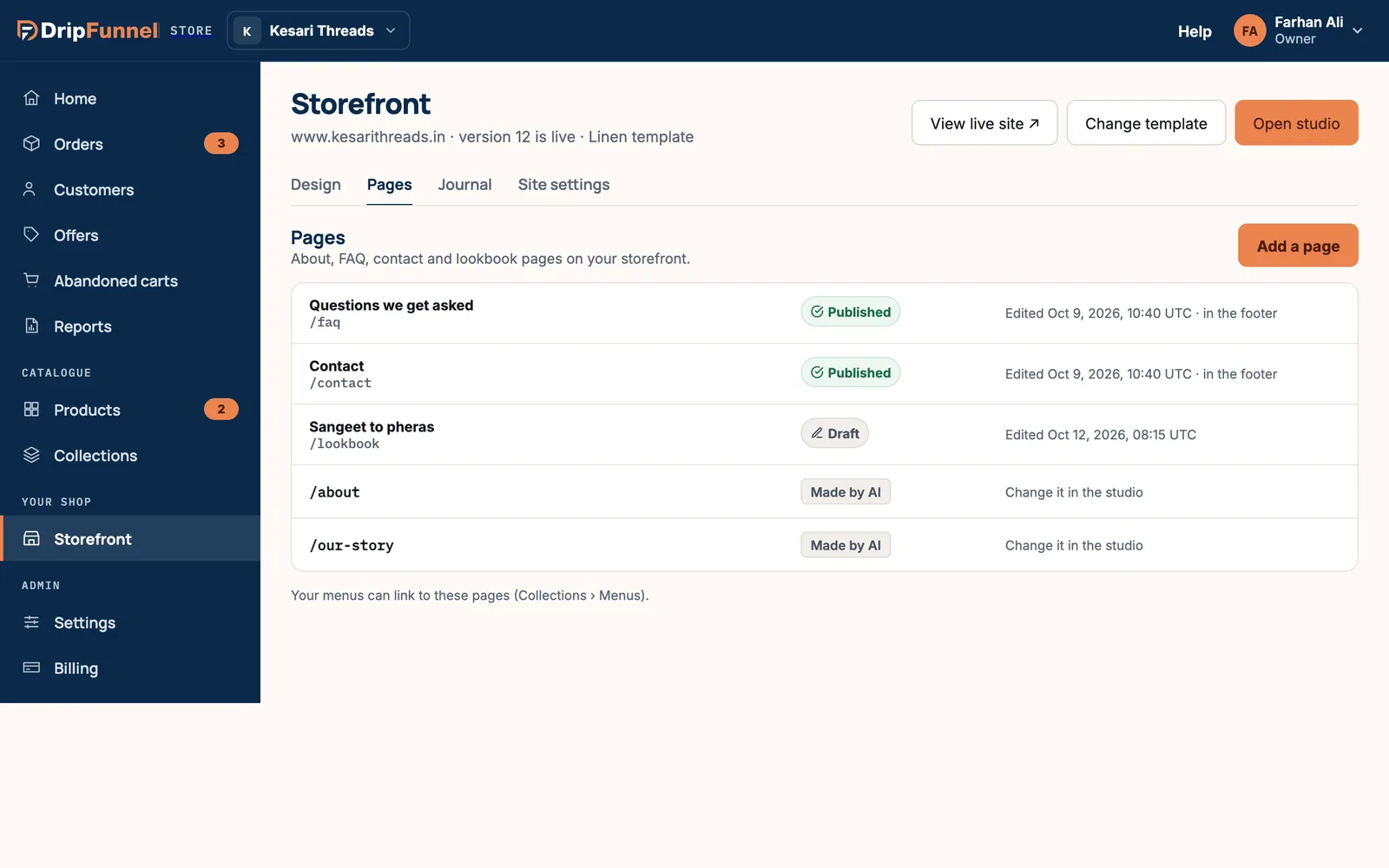
Pages marked Made by AI were made by the AI in the studio. Change those by describing the change in the studio.
Add a page
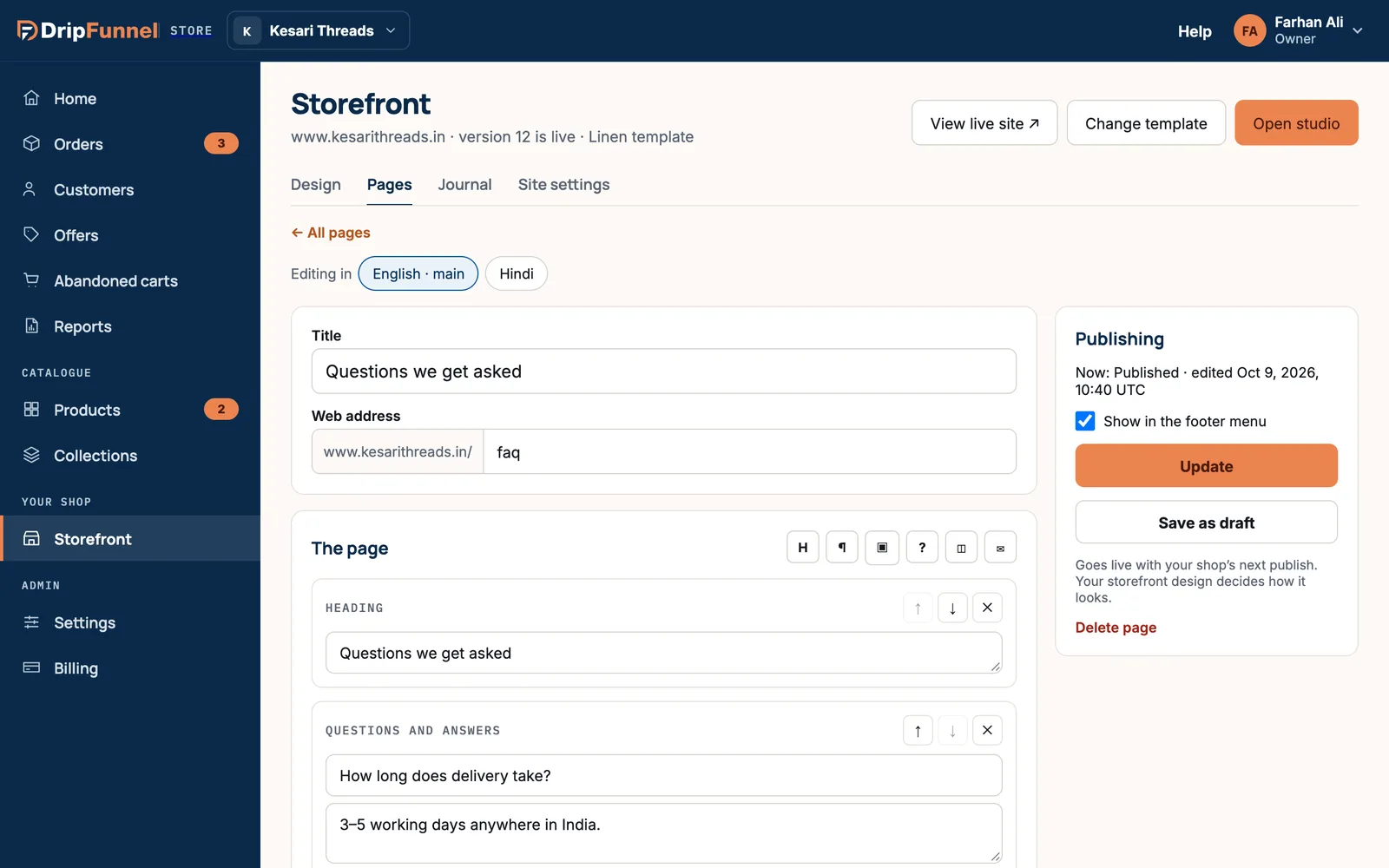
- Press Add a page.
- Type a Title, for example “Questions we get asked”.
- Check the Web address: the part after your shop’s address, like “faq”. Use letters, numbers and hyphens.
- Under The page, add blocks with the buttons on the right: a Heading, Text, a Photo, Questions and answers, Products or a Contact form.
- Fill in each block. Use the arrows to move a block up or down, and × to remove it.
- Optional: under How it looks in search, write a Title in search and a Description. Leave the title empty to use the page title.
- Under Publishing, tick Show in the footer menu if you want a link in your site’s footer.
- Press Publish, or Save as draft to keep working on it later.
About the blocks
- Photo: add a description of the photo for people who can’t see it.
- Products: search for products to show. They appear with their live price and stock; a sold-out product shows as sold out.
- Contact form: asks for name, email, an optional order number and a message. Messages go to your store email, and the shopper gets a copy.
Write a Journal post
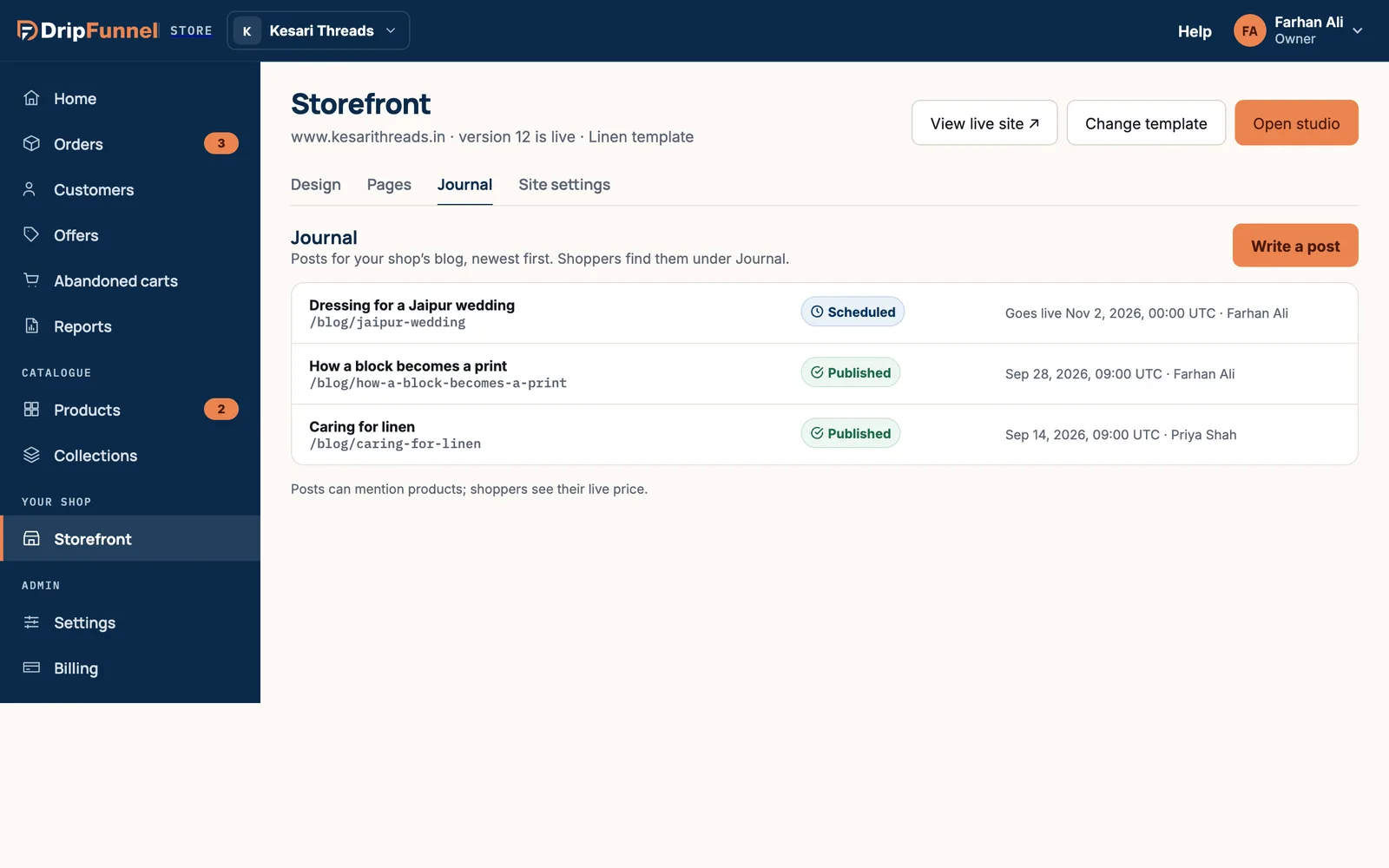
- Choose the Journal tab and press Write a post.
- Add a title, web address and blocks, just like a page.
- Add a cover photo if you like.
- Fill in Written by with the author’s name.
- Publish on: leave it empty to date the post the day it’s published, or pick a future date to schedule it. Dates are in UTC (the world’s standard time).
- Press Publish, or Schedule if you picked a future date.
Pages in other languages
If your shop has more than one language, the editor shows Editing in with a tab per language. Choose a language, type the words and press Save translation. Shoppers see your main language wherever a translation is missing. See Translate your shop.
Linking pages from your menu
Your menus can link to these pages. Go to Collections › Menus. See Collections and menus.
If something goes wrong
- “Give it a web address: letters, numbers and hyphens.” Remove spaces and other symbols from the web address.
- “Your plan doesn’t include the Journal.” Posts need a plan that includes the Journal. See Billing.
- “Someone else saved this since you opened it.” Reload to see their changes.
Questions
Why isn’t my new page on my shop yet?
Pages go live with your shop’s next publish. See Publish your storefront.
What happens when I delete a page?
It comes off your shop with the next publish, and links to it show “page not found”. If it was in the footer menu, it leaves the menu too.
Can I mention products in a post?
Yes. Add a Products block. Shoppers see the product’s live price.