

Export your data and build a custom report
Updated 20 October 2026 · Depends on what you export (see below)You can download your orders, products, customers, reports and activity log as spreadsheet files, whenever you like. Your data is always yours to take away.
What a CSV file is
Every export is a CSV file. CSV is a plain spreadsheet format that opens in Excel, Google Sheets, Numbers or your accounting software. Large exports are prepared in the background: you’ll see “Preparing…”, then a Download button. Each download link works for a limited time, shown on screen; after that, just export again.
What you can export, and where
| What | Where | Who can |
|---|---|---|
| Orders (one row per item sold) | Orders › Export. It follows the filter you’ve chosen. | Owner, manager, staff |
| Products | Products › Export, or Products › Import & export, which can export all products or hidden ones only | Owner, manager, staff |
| Customers | Customers › Export | Owner, manager, staff |
| Reports | Reports: Export on each card, or Export all | Owner, manager (Growth Pro and up) |
| Custom reports | Reports › Custom reports | Owner, manager (Business and up) |
| Single-use discount codes | The offer’s page: Get the codes (CSV) | Owner, manager |
| Activity log | Settings › Activity log › Export CSV | Owner |
| Your plan’s invoices | Billing: Export all | Owner |
Export buttons are hidden on phones; use a computer to export. Order, report and activity exports hold up to 10,000 rows each; narrow the filter or the dates if you have more.
What’s in the orders file
One row per item sold, with: order number, when it was placed, status, payment, fulfilment, how it was paid, customer name, email and phone, city, region, postal code and country, the item and its option, product code (SKU), supplier, quantity, unit price, line total, order total and currency.
Build a custom report
A custom report lets you pick what each row is and which columns it has. It’s on Business and up.
- Open Reports and choose the date range at the top. The custom report uses it.
- On the Custom reports card, press Export.
- Under What should each row be?, choose An order, A product or A customer, and press Next.
- Under Which columns?, choose the columns you want, then press Make report.
- When it’s ready, press Download.
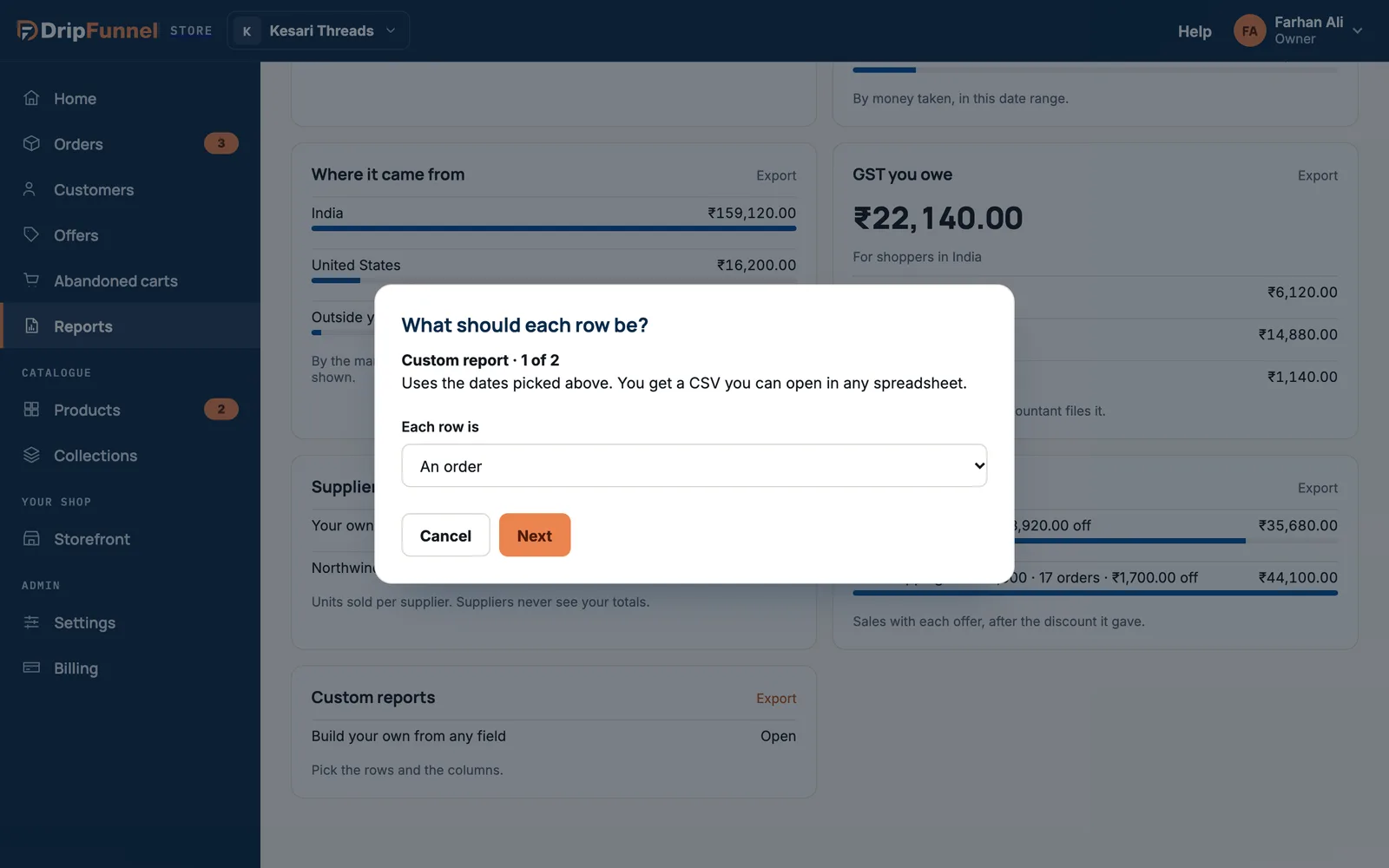
| Each row is | Column choices |
|---|---|
| An order | Order, date, customer, total · … plus tax and refunds · One row per item sold |
| A product | Product, units, takings · … plus stock left and supplier |
| A customer | Name, email, orders, spent · … plus groups and tags |
Downloading everything when you close your store
If you close your store, the owner can download your products, orders and customers in one go with Download my data. Everything is kept for 90 days after closing. See Close your store.
Questions
Why is the Export button greyed out or missing?
Exports are hidden on phones and when there’s nothing to export yet. Some exports also depend on your role or plan: see the table above.
My download link stopped working. What now?
Links work for a limited time. Press Export again to make a new file.
Can I export only some orders?
Yes. The orders export follows the filter you’ve chosen on the Orders page, such as To ship.
Can I import a product export back in?
Use the import template from Products › Import & export. It’s the safest way to bring products in. See Import products from a spreadsheet.