

API keys and webhooks for developers
Updated 20 October 2026 · OwnersAPI keys and webhooks let other software work with your store, for example a warehouse system that reads your stock or an accounting tool that hears about new orders. You only need these if a developer asks for them.
Words worth knowing
- An API key is a long secret password for a program, not for a person. A program uses it to read data from your store.
- A webhook works the other way round: your store sends a message to a web address of your choice the moment something happens, like a new order.
Both are in Settings › Developers. Only the store owner can open Settings.
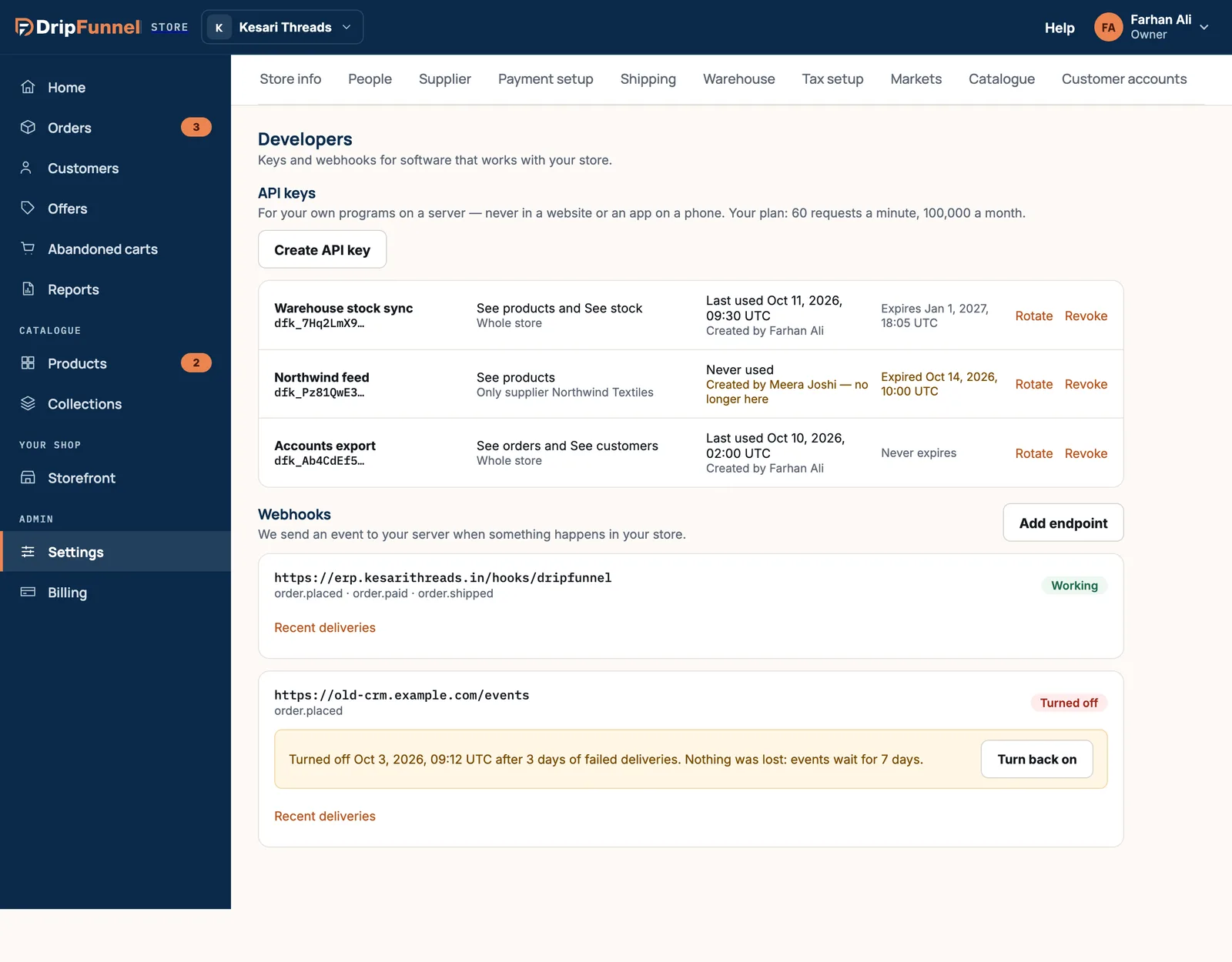
Create an API key
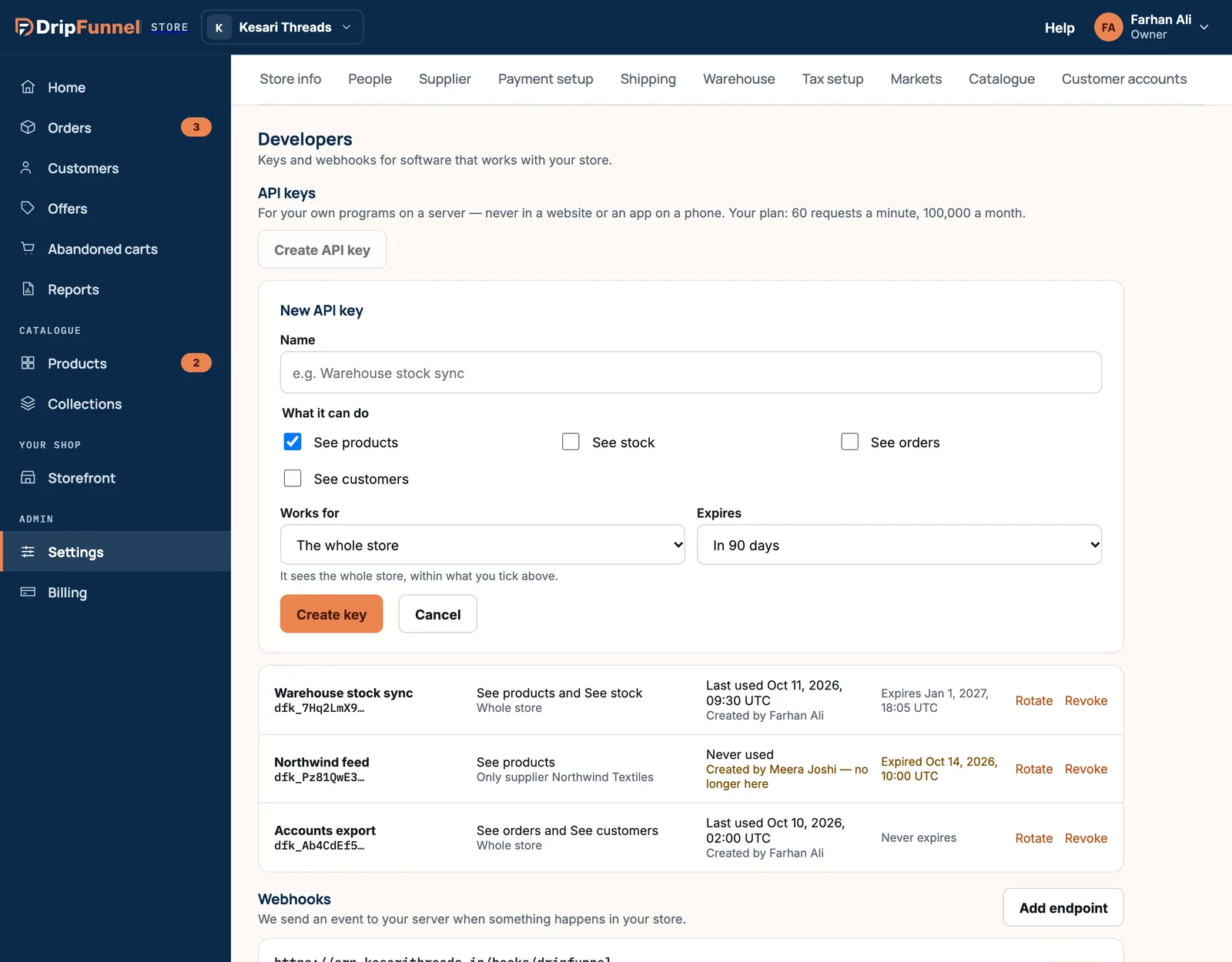
- Press Create API key.
- Give it a Name you’ll recognise later, like “Warehouse stock sync”.
- Under What it can do, tick what it may see: See products, See stock, See orders and See customers. Tick only what the program needs.
- Under Works for, choose The whole store, or Only supplier and a supplier, so it sees just that supplier’s products, stock and orders.
- Under Expires, choose in 30, 90 or 365 days, or Never.
- Press Create key.
- Copy the key under Copy your key now and give it to your developer, then press I’ve stored it.
The key is shown only once. If it’s lost, create a new one. Keys are for programs on a server, never for a website or a phone app, where anyone could read them.
Keys can only read your data; they can’t change anything in your store. Your plan allows 60 requests a minute and 100,000 a month, shown at the top of the section.
Rotate or revoke a key
- Rotate makes a new key and shows it once. The old key keeps working for 24 hours, so your developer can swap it without the program stopping.
- Revoke stops a key straight away. Anything using it gets an error until it has a new key.
Each key shows when it was last used and who created it. If that person no longer works in your store, it says so, a good prompt to check whether the key is still needed.
Add a webhook
- Press Add endpoint.
- Paste the Endpoint URL your developer gives you. It must start with https://.
- Under Events, pick what to send, such as new orders (order.placed), paid orders (order.paid), shipped orders (order.shipped), refunds (order.refunded), product changes (product.updated) and stock changes (stock.changed).
- Save, then copy the signing secret shown under Copy the signing secret now and give it to your developer. Their system uses it to check each message really came from your store. It isn’t shown again.
When a webhook stops working
- Each endpoint shows Working, Failing or Turned off.
- If deliveries fail for 3 days, the endpoint is turned off. Nothing is lost: events wait for 7 days. Press Turn back on once your developer has fixed it, and waiting events are sent.
- Recent deliveries shows the last deliveries and whether each worked. Press Send again to resend one (within 7 days).
Endpoints can’t be edited or removed in the portal yet. To stop receiving events at an old address, let deliveries fail and it turns off by itself, or contact support.
Questions
Can an API key change my products or orders?
No. Keys can only read what you tick: products, stock, orders or customers. They can never change anything.
Can support or my managers make keys?
No. Only the store owner can open Settings › Developers, and support sessions can’t change keys or webhooks.
How many keys can I have?
Up to 50 working keys per store. Revoke ones you no longer use.
What’s the difference between an API key and an app?
An API key is a secret you give to a developer’s program. An app is installed from a link and asks for its access on screen. See Add an app to your store.