

Read your reports
Updated 20 October 2026 · Owners and managersReports show how much money you took, what sold, where your orders came from, the tax you collected, and which offers worked, for the last 7, 30 or 90 days.
Before you start
- Reports are for the store owner and managers. Staff and suppliers can’t open them. (Suppliers see their own lines in Your sales: see For suppliers.)
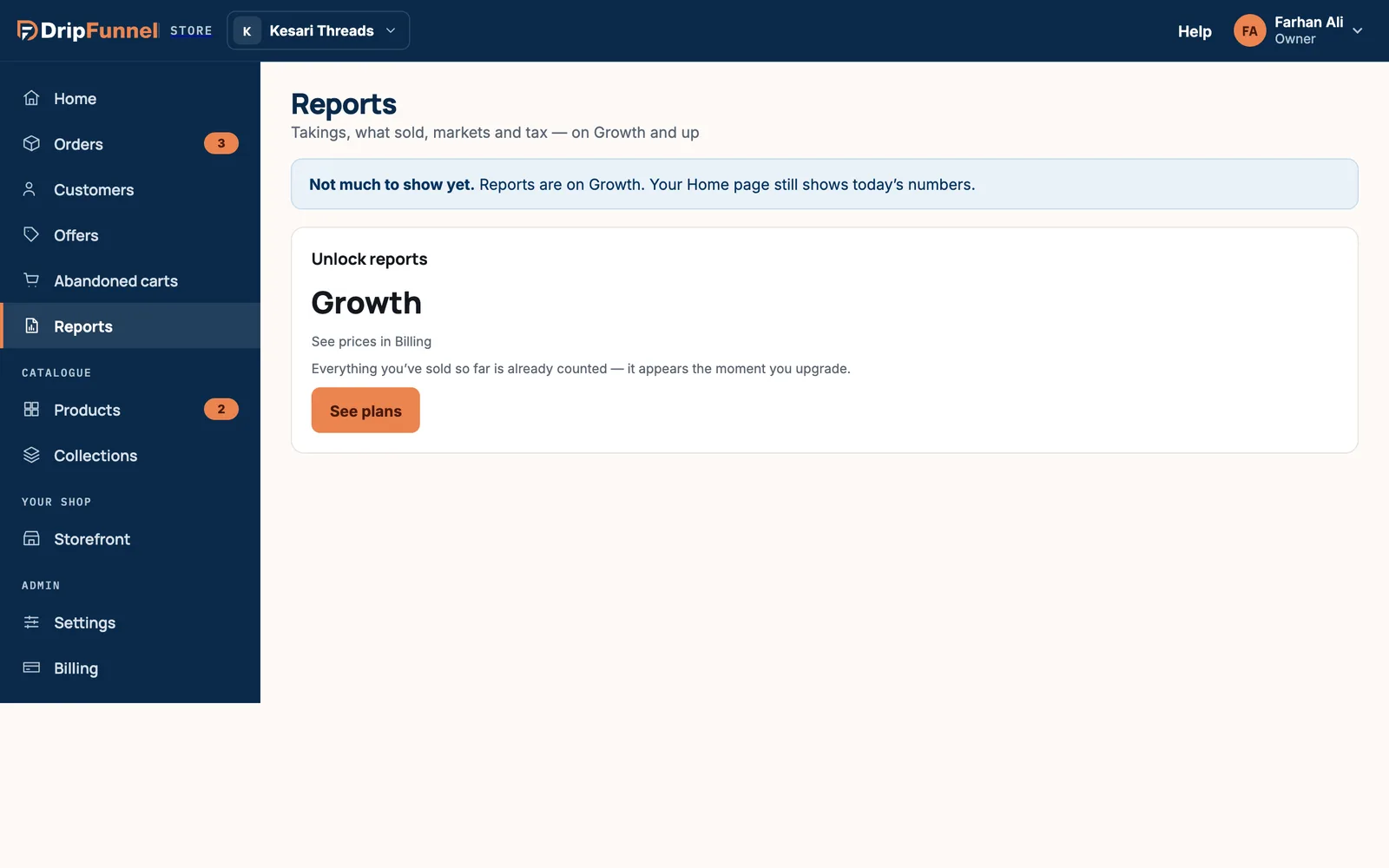
- Reports are on Growth and up. On Starter (Free), your Home page still shows today’s numbers, and everything you sell is already counted: it appears the moment you upgrade.
- Exporting reports and the Suppliers card are on Growth Pro and up. Custom reports are on Business and up. See Pricing.
Open your reports
- Open Reports in the menu.
- Pick a date range at the top right: 7 days, 30 days (the default) or 90 days. Each figure is compared with the same number of days just before.
- If you sold in more than one currency, choose the currency next to the dates. Figures are never converted between currencies, so each currency has its own report.
What each card shows
| Card | What it tells you |
|---|---|
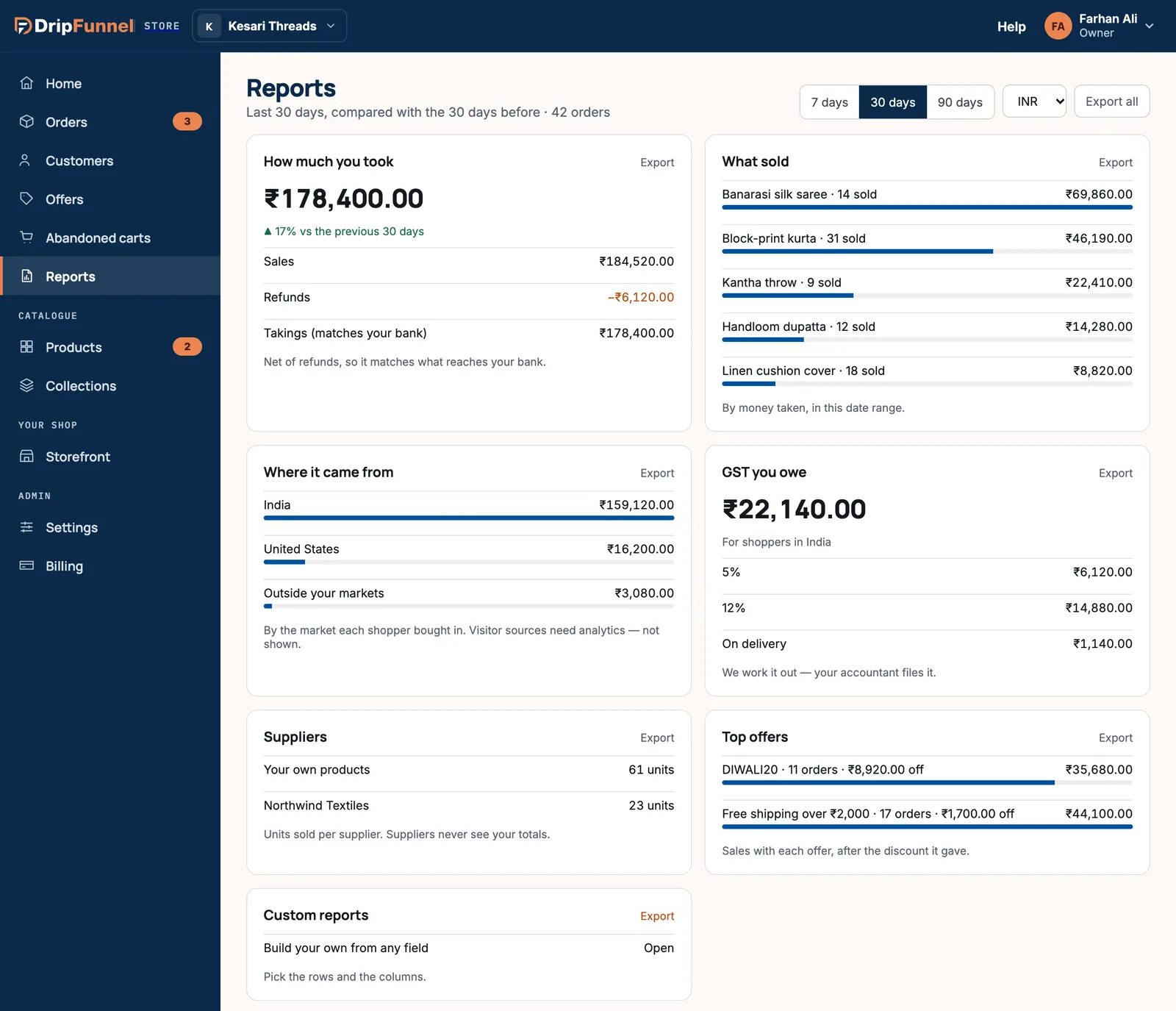
| How much you took | Your takings for the period: Sales, minus Refunds, gives Takings (matches your bank). The arrow compares it with the period before. |
| What sold | Your top 5 products by money taken, with how many of each sold. |
| Where it came from | Takings by market (for example India and United States), plus Outside your markets. It doesn’t show which website or ad visitors came from. |
| Tax card | The tax you collected, by rate, plus tax on delivery. It’s called GST you owe in India, Sales tax collected in the United States (by state) and Tax you owe elsewhere, including the UAE. |
| Suppliers | Units sold of your own products and of each supplier’s. Shown only if suppliers made sales. Suppliers never see your totals. |
| Top offers | Which discounts were used most, how many orders used each, the discount given and the sales with each. |
| Custom reports | Build your own file, with the rows and columns you choose. See Export your data. |
The tax card works out what you collected so your accountant can file it. DripFunnel doesn’t file tax returns for you.
Download a report
- Press Export on a card, or Export all at the top for the orders behind your takings.
- Wait for “Preparing your report…”. When it says how many rows are ready, press Download.
- The file is a CSV: a plain spreadsheet file that opens in Excel, Google Sheets or Numbers. The download link works for a limited time, shown under the button.
A file holds up to 10,000 rows. If there are more, choose a shorter date range.
When there isn’t much to show
- With fewer than 3 orders, you’ll see “Not much to show yet. Reports get useful after a week or two of orders.”
- With no sales in the range: “No sales in the last 30 days — try a longer range.”
Questions
Why don’t my takings match my sales?
Takings are your sales minus refunds, so they match what actually reaches your bank. Sales shows the full amount before refunds.
Can I choose my own dates, like last quarter?
Not yet. Reports cover the last 7, 30 or 90 days. For other periods, export the 90-day report and filter the dates in a spreadsheet.
Can staff see reports?
No. Reports are for the owner and managers. Staff see today’s number of orders on Home.
Do reports show website visitors?
No. Reports show orders and money. Where visitors came from needs a separate analytics tool.
My store is view-only. Can I still see reports?
Yes. Reports and their exports keep working while your bill is being sorted.