

Sign in, two-step sign-in and passwords
Updated 20 October 2026 · EveryoneOwners, managers, staff and suppliers all sign in through the same page. This guide covers signing in, the code you type with two-step sign-in, backup codes, working in more than one store, and what to do if you forget your password.
Sign in
- Open your portal’s sign-in page and type your Email and Password. Press Show to check what you typed.
- On your own computer or phone, tick Keep me signed in on this device for 30 days so you don’t have to sign in every day. Leave it unticked on a shared computer.
- Press Sign in.
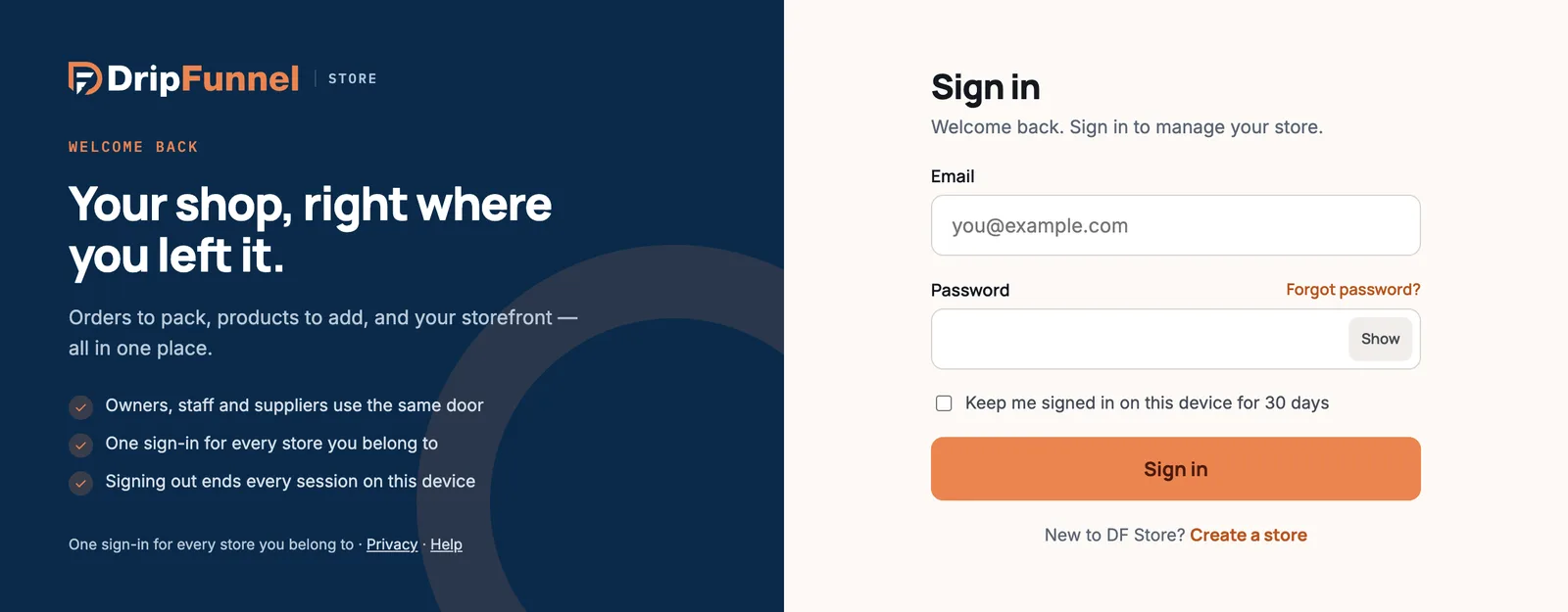
If you see “That email and password don’t match”, check for typos and that Caps Lock is off, or reset your password (below).
Type your two-step code
With two-step sign-in on, you’re asked for a 6-digit code after your password. It comes one of two ways:
- By text message, to your mobile number. If it doesn’t arrive, press Send again; you can ask again every 30 seconds.
- From an authenticator app on your phone, such as Google Authenticator, 1Password or Authy. Open the app and type the code it shows for your store. Apps work without phone signal.
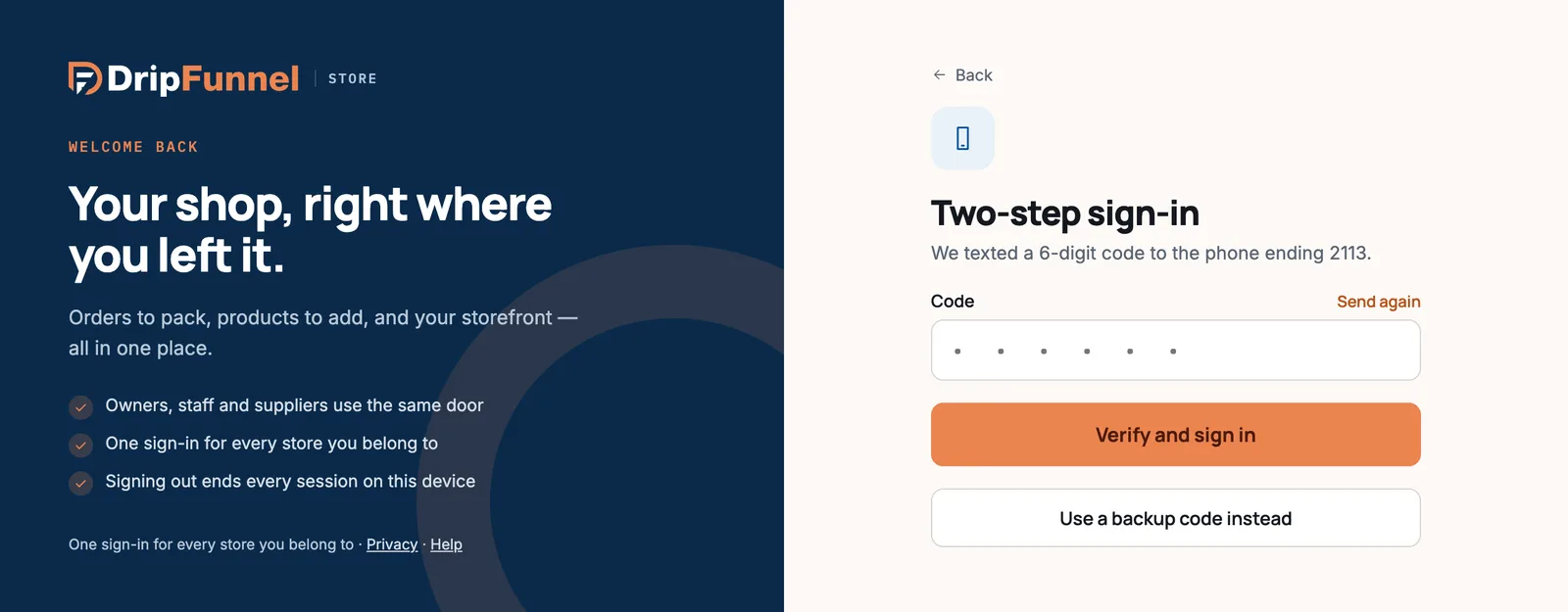
Codes only work for a short time. If you see “That code has expired”, ask for a new one.
Lost your phone? Use a backup code
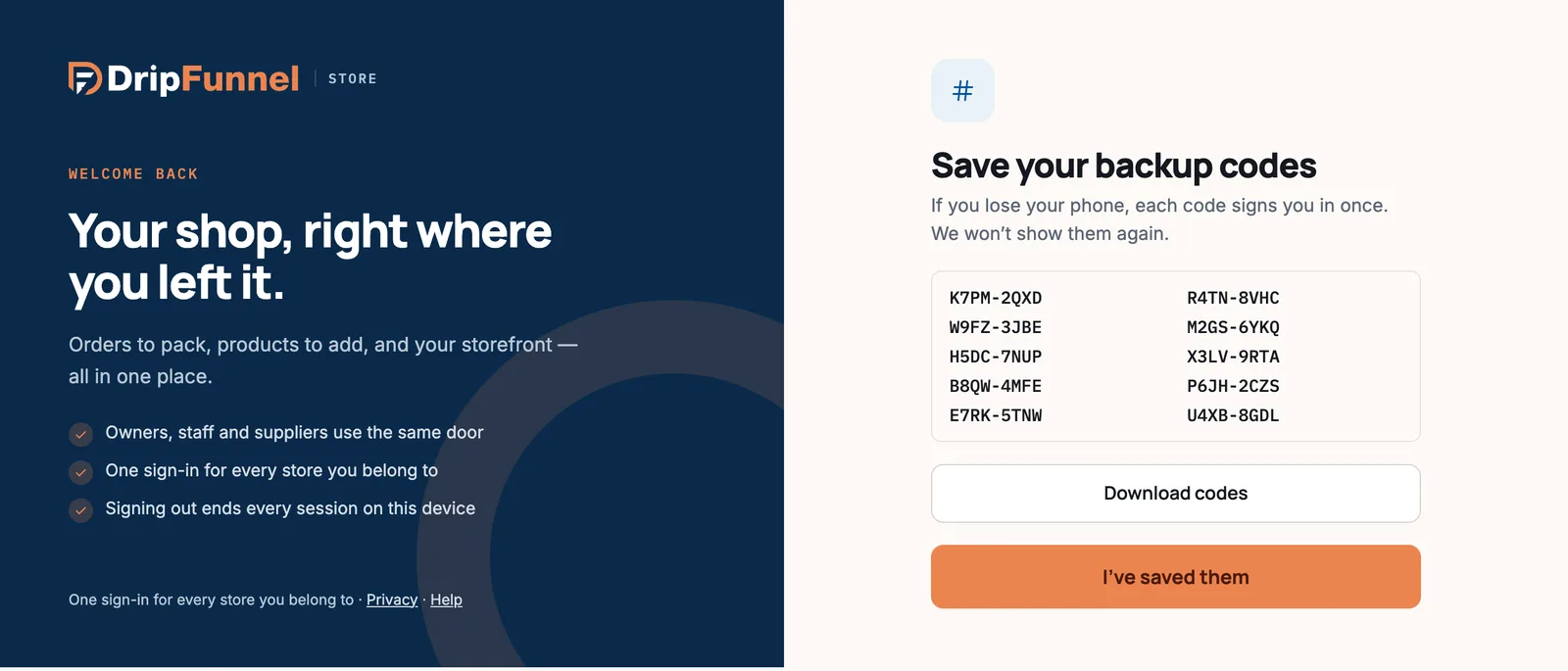
When you turned on two-step sign-in, you saved ten backup codes. Each looks like K4P2-9XQM and works once.
- On the code page, press Use a backup code instead.
- Type one of your codes into Backup code and press Sign in.
- Once you’re in, make new backup codes in My profile, and update your phone number or authenticator app.
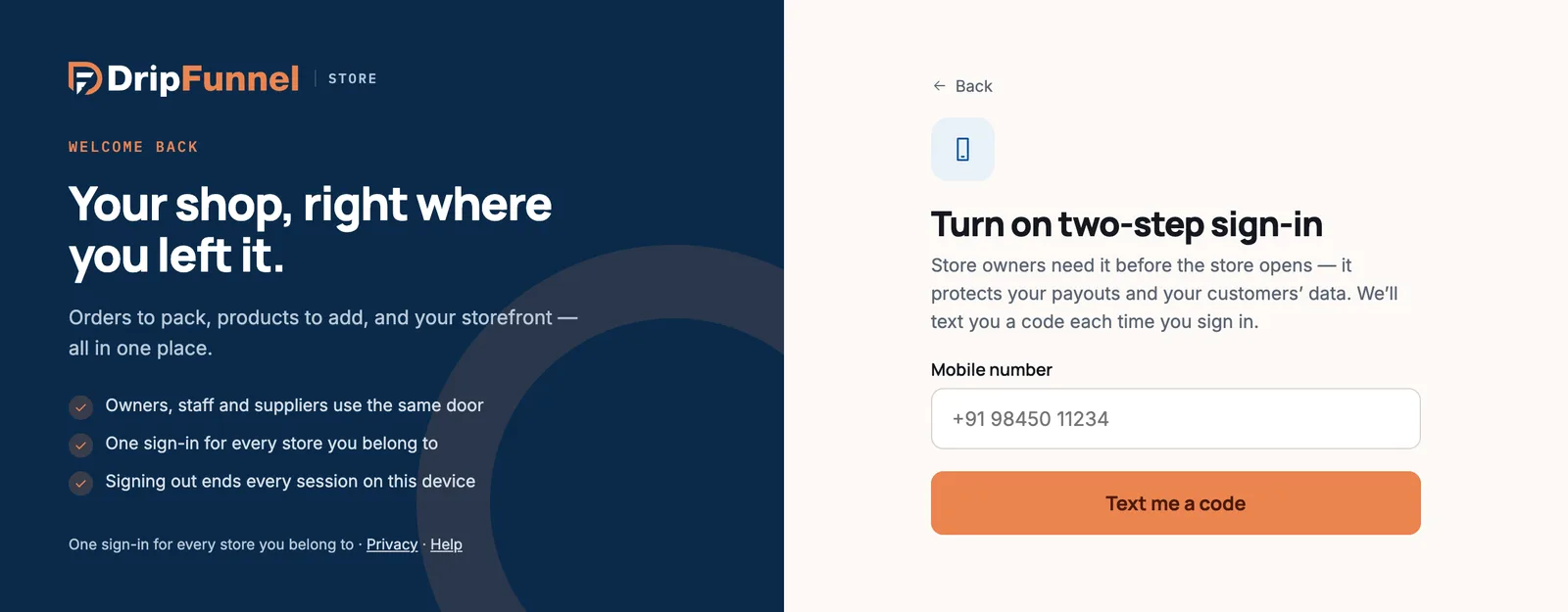
Store owners: turning on two-step sign-in
Every store owner must use two-step sign-in. If yours isn’t on yet, you’re asked to Turn on two-step sign-in right after your password: type your mobile number, press Text me a code, type the code and press Turn on and sign in. Then save your backup codes. Managers, staff and suppliers can choose to turn it on in My profile, and we strongly recommend it.
Choose a store
One sign-in covers every store you belong to. If you work in more than one, you see Choose a store after signing in: pick one to open it. Each row shows your role there, for example Owner or Manager, and Last used marks the store you opened last on this device.
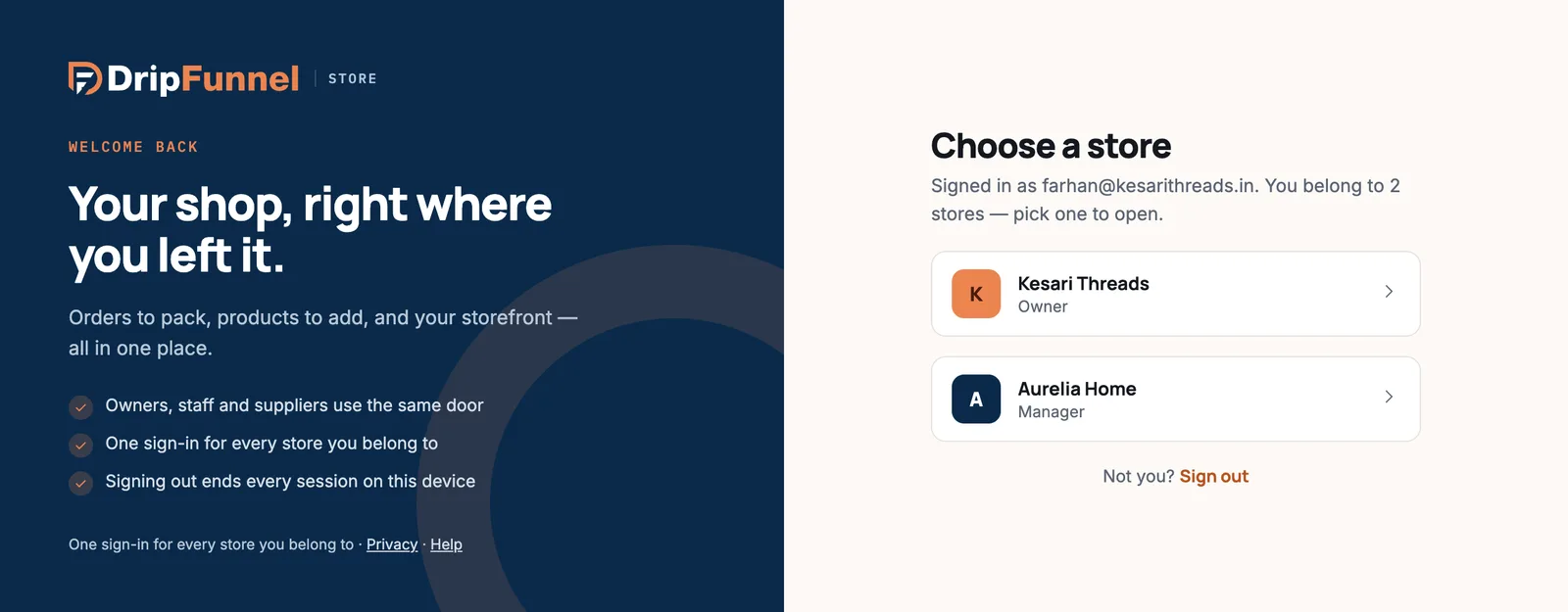
To move between stores later, use the store name at the top left of the portal, or Switch store in your name’s menu at the top right.
Forgot your password?
- On the sign-in page, press Forgot password?.
- Type the email you sign in with and press Send reset link.
- Open the email and click the link. It works once, for 30 minutes.
- Type your new password twice and press Save and sign in. You’re signed out on every other device.
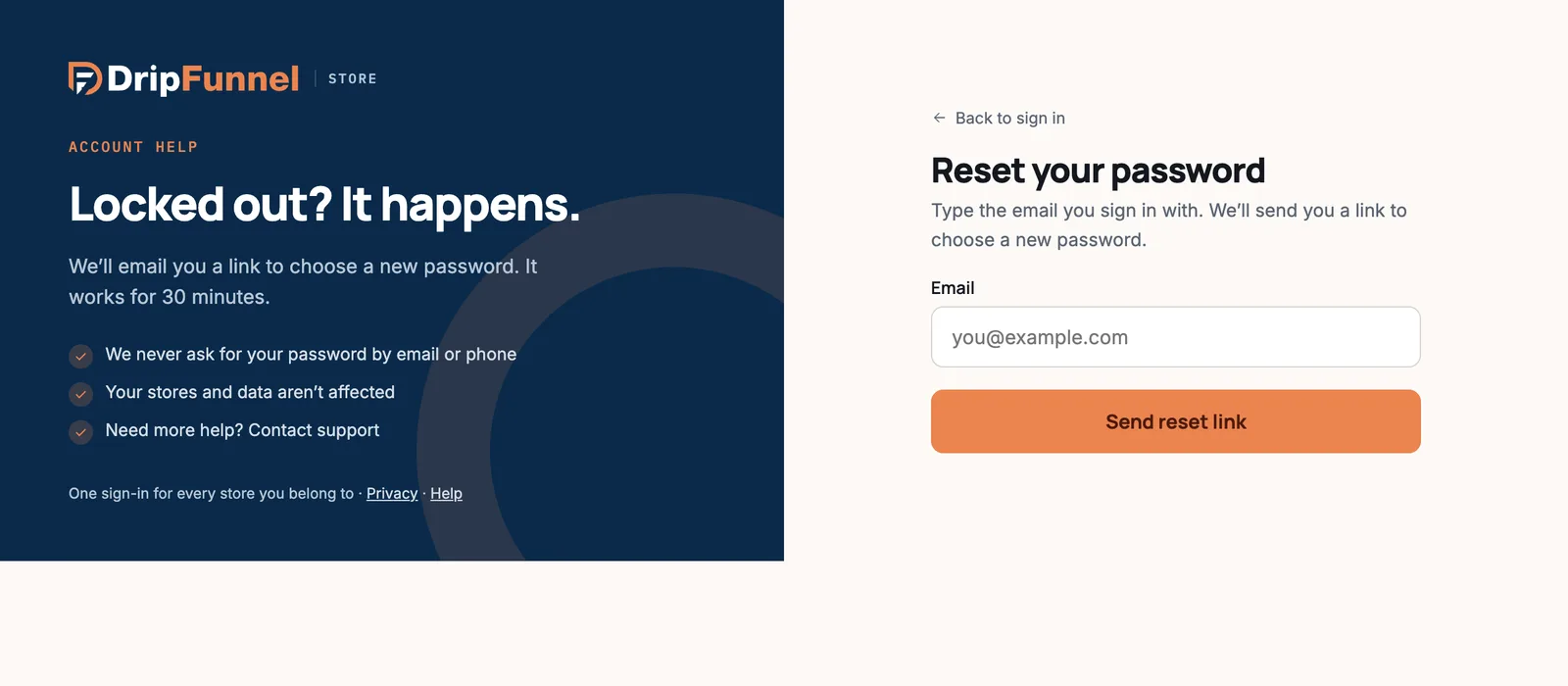
If the email doesn’t arrive within a few minutes, check your spam folder or press Send it again. For your safety, we never say whether an email address has an account.
If sign-in is paused
After 5 wrong passwords or codes in a row, sign-in is paused for 15 minutes to keep your store safe, and the account’s email address is told. To get back in now, press Reset my password.
Signing out
Open the menu under your name at the top right and press Sign out. This signs you out of every store on that device. If you didn’t tick “Keep me signed in”, you’re signed out automatically after a while without activity. To sign out your other devices, see My profile.
Questions
I didn’t get the text message. What can I do?
Wait a minute, then press Send again. Check the number shown (“the phone ending …”) is yours. If you still can’t get a code, use a backup code.
I lost my phone and my backup codes.
Contact support with your store name and the email you sign in with. For your safety, we’ll check it’s really you before helping.
Can I sign in with Google?
Not at the moment. Sign in with your email and password.
Do I need a separate account for each store?
No. One email and password covers every store you’re invited to.