

Your Home page: what needs you today
Updated 20 October 2026 · Owners, managers and staffHome is the first page you see after signing in. It lists what needs your attention today, shows how the shop is doing, and lists the latest orders, so you can start work in one click.
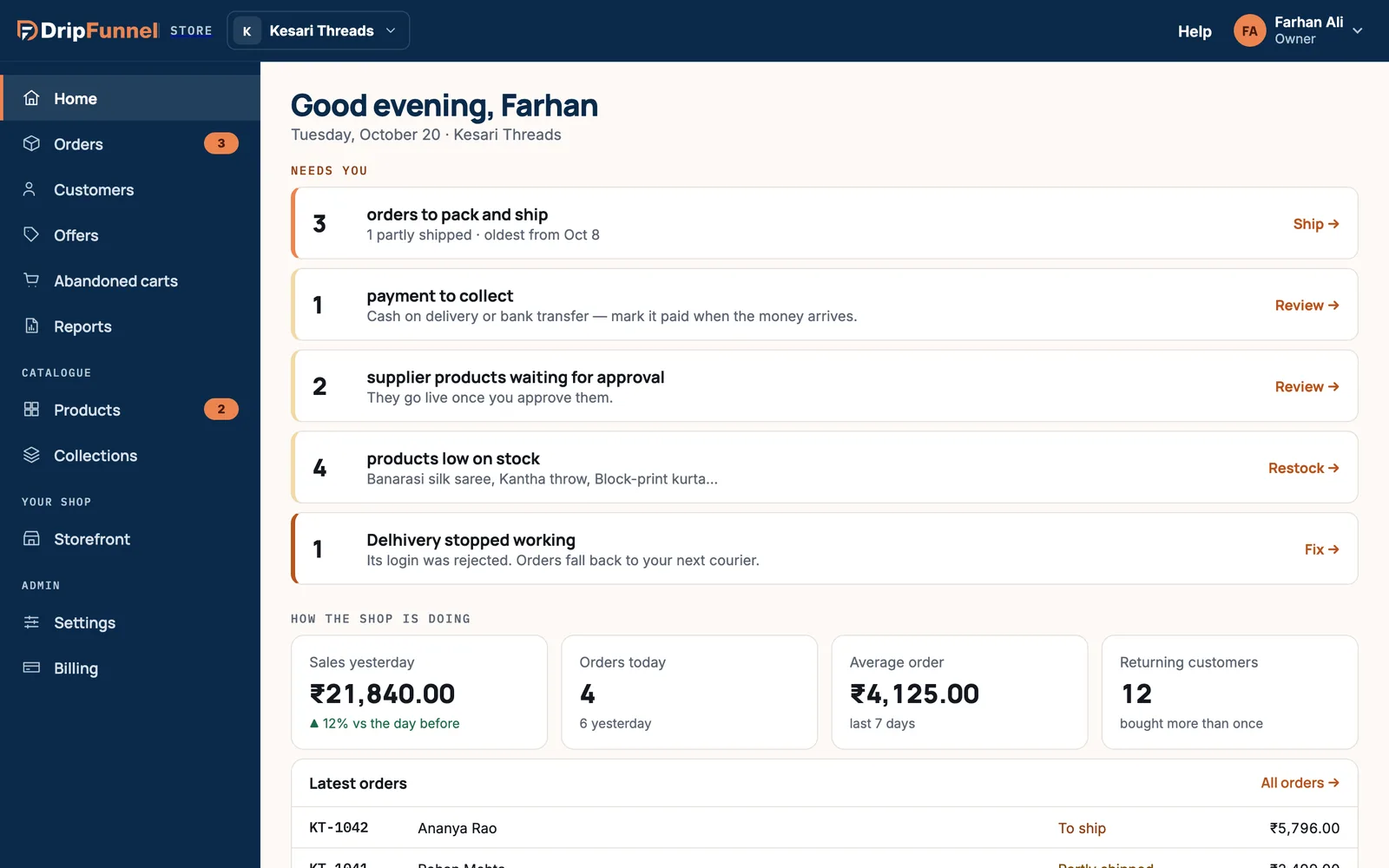
Needs you
The top of Home lists jobs that are waiting, with how many there are. Only jobs with something to do appear. Click a row, or its button, to go straight to it.
| Row | What it means | Button |
|---|---|---|
| Orders to pack and ship | Orders not fully shipped yet, including partly shipped ones, and the date of the oldest. | Ship opens Orders filtered to To ship. See Ship an order. |
| Payments to collect | Cash on delivery or bank transfer orders still waiting for the money. Mark them paid when it arrives. | Review. See Offer cash on delivery. Owners and managers only. |
| Supplier products waiting for approval | Products your suppliers added or changed, which go live once you approve them. | Review. See Approval for supplier products. Owners only. |
| Products low on stock | Products running low, with the first few names. | Restock opens Products filtered to Low stock. See Keep stock up to date. |
| A courier stopped working | Its login was rejected. Orders fall back to your next courier until it’s fixed. | Fix opens Settings › Shipping. Owners only. |
When nothing is waiting you see “Nothing is waiting for you. Orders are packed, approvals are done.”
How the shop is doing
- Sales yesterday, with the change from the day before.
- Orders today, with yesterday’s count.
- Average order over the last 7 days.
- Returning customers: people who bought more than once.
If you sell in more than one currency, sales are shown per currency, never converted. Owners and managers can click a money number to open Reports.
Latest orders
The five newest orders with their number, customer, status and total. Press All orders to see the rest, or click an order to open it.
What staff see
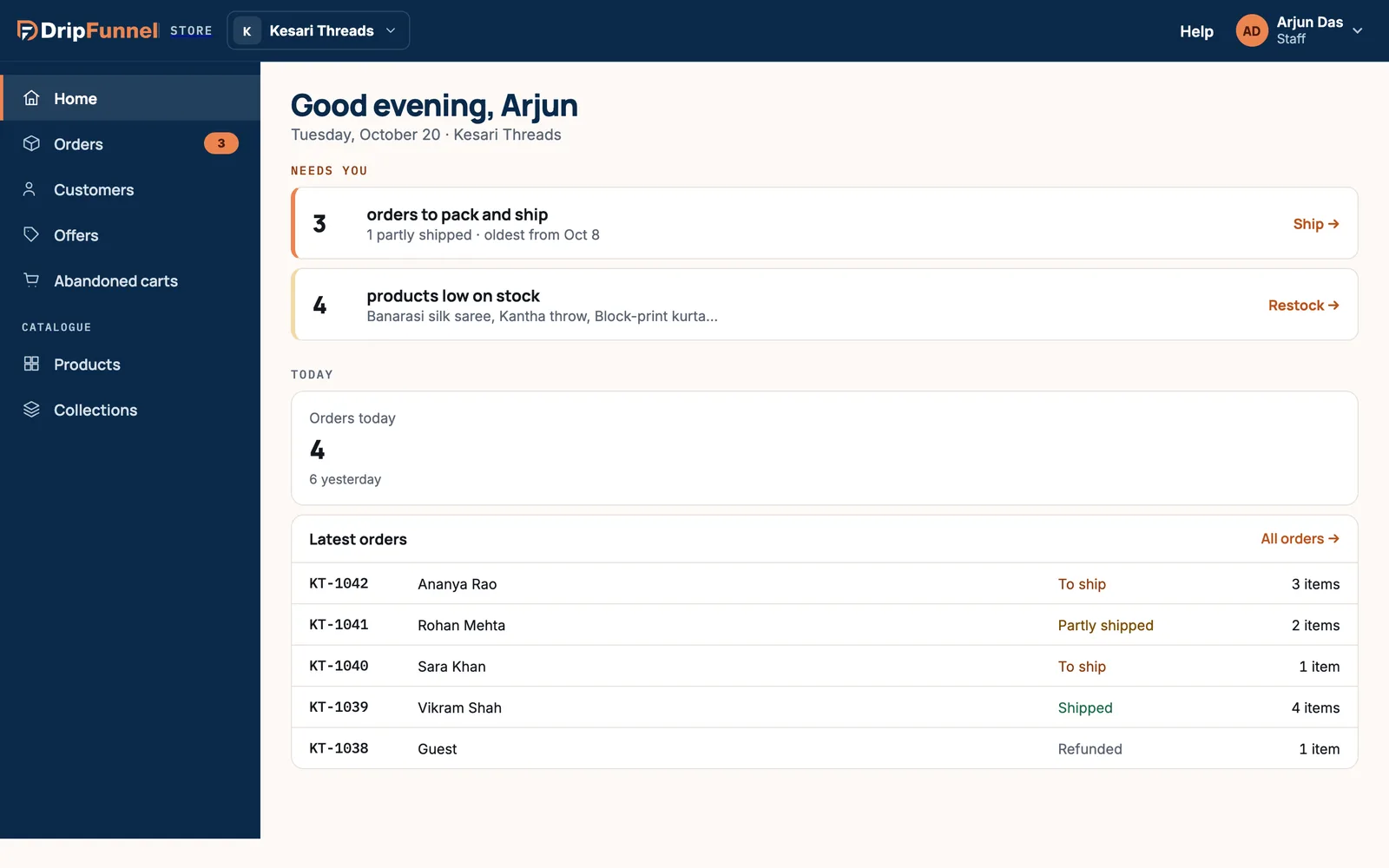
Staff see the jobs they can do (orders to ship and low stock), Orders today and the latest orders with item counts. They don’t see sales or money amounts.
A new store
Until your first order arrives, owners see the Get your shop ready for its first order checklist instead. See Set up your store in your first 10 minutes. Suppliers don’t use Home: they start on Your products. See For suppliers.
Banners at the top
A coloured strip above every page tells you about your store as a whole, for example a trial’s days left, a payment for your plan that failed, or a support session in progress. Each explains what it means and, where there’s something to do, has a button. See How the trial works and If a payment for your plan fails.
Questions
Which time zone does Home use?
Your store’s time zone, set in Settings › Store info. The greeting, “today” and “yesterday” all follow it.
Why don’t I see sales numbers?
Staff don’t see money amounts. Ask your store owner if you need them.
Home says “Home didn’t load”. What should I do?
Nothing was changed. Press Try again in a moment. If it keeps happening, contact support.