

Translate your shop into other languages
Updated 20 October 2026 · Owners (translating products: owners and managers)You write your shop in your main language. Add more languages, then translate your products, pages and storefront words. Wherever a translation is missing, shoppers see your main language, so nothing breaks.
Before you start
- Only the store owner can add languages. Owners and managers can translate products.
- How many languages you can have depends on your plan, your main one included. See Pricing.
- Shoppers see a language through their market. See Add a market.
Step 1: Add a language
- In the portal, go to Settings and stay on the Store info tab.
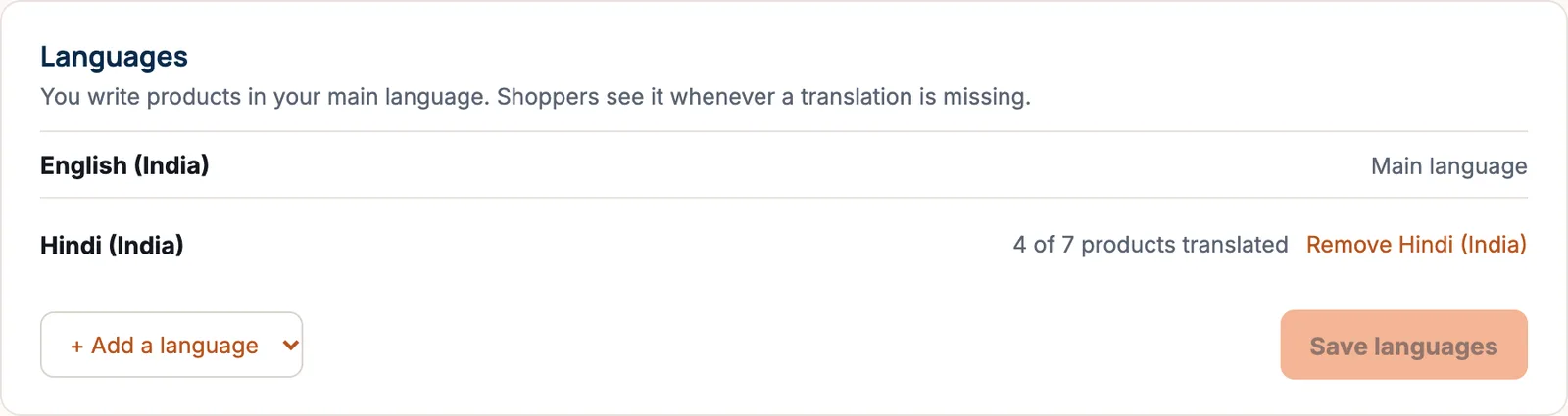
- Find the Languages card. Your main language is marked Main language.
- Press + Add a language and choose one.
- Press Save languages. You see “Languages saved”.
Step 2: Translate your products
- Open a product from Products.
- At the top, next to Editing in, choose the language tab. Each tab shows how many fields are left (“3 to do”) or done.
- In Translating into, fill in the Name and Description. You can see your main text above each box to translate from. Leave a field empty to show the main-language text.
- Web address is made from the translated name when left empty.
- Translate the Versions and Choice names (like “Size” and “Colour”) if shown. Choice names are translated once and used on every product.
- Press Save translation.
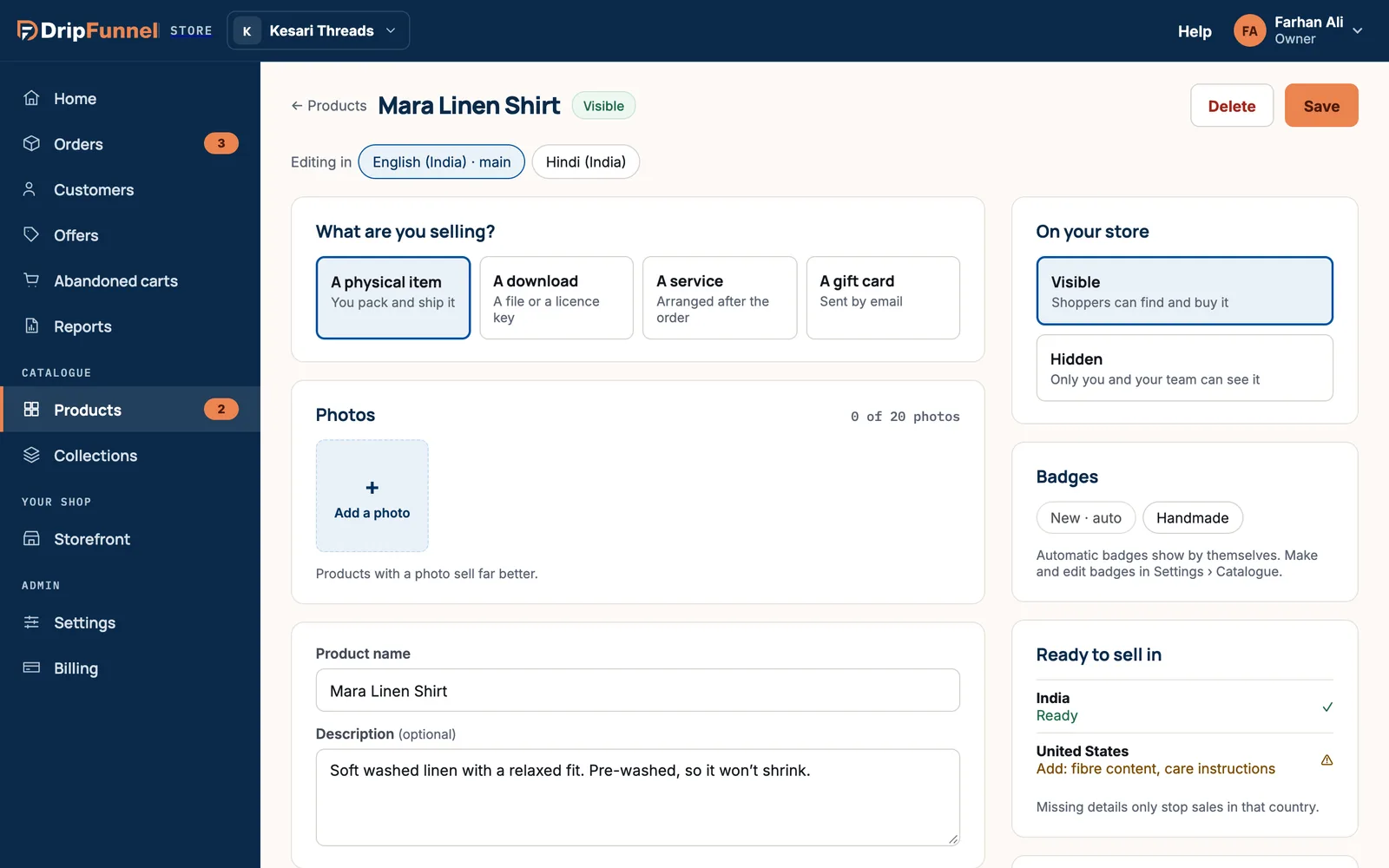
Each field shows Not translated, Translated, or Changed in … since when you’ve changed the main text after translating. Price, stock, photos and the tax category are the same in every language.
Step 3: Translate pages, posts and storefront words
- Pages and Journal posts: in Storefront › Pages or Journal, open one and choose the language tab. See Add pages and journal posts.
- Words on your storefront (headlines, buttons, footer): in the studio, press Edit text, click the words, and fill in the box for each language. See Describe a change to your storefront.
Step 4: Choose a language for each market
Go to Settings › Markets, open a market and pick its Language. Shoppers in that market see your shop in it.
Remove a language
Press Remove next to it. You’re told “Your translations are kept but won’t show. Add it back any time to show them again.” Press Remove, then Save languages.
Questions
What do shoppers see if I haven’t translated something?
Your main-language text. Nothing is blank or broken.
Can suppliers translate their products?
Suppliers can fill in translations of their products’ names and descriptions. Choice names are the store owner’s to translate.
Can the AI translate my products for me?
Not from the product editor at the moment. You type translations yourself.
Can I remove my main language?
No. Your main language has to stay.