

Find an order, add notes and export orders
Updated 20 October 2026 · Owners, managers and staffEvery order your shop takes lands in Orders. This is how to find one fast, read what it says, leave a note for your team and download your orders as a spreadsheet.
Open your orders
In the menu on the left, press Orders. The orange number next to it is how many orders are waiting to be packed and shipped.
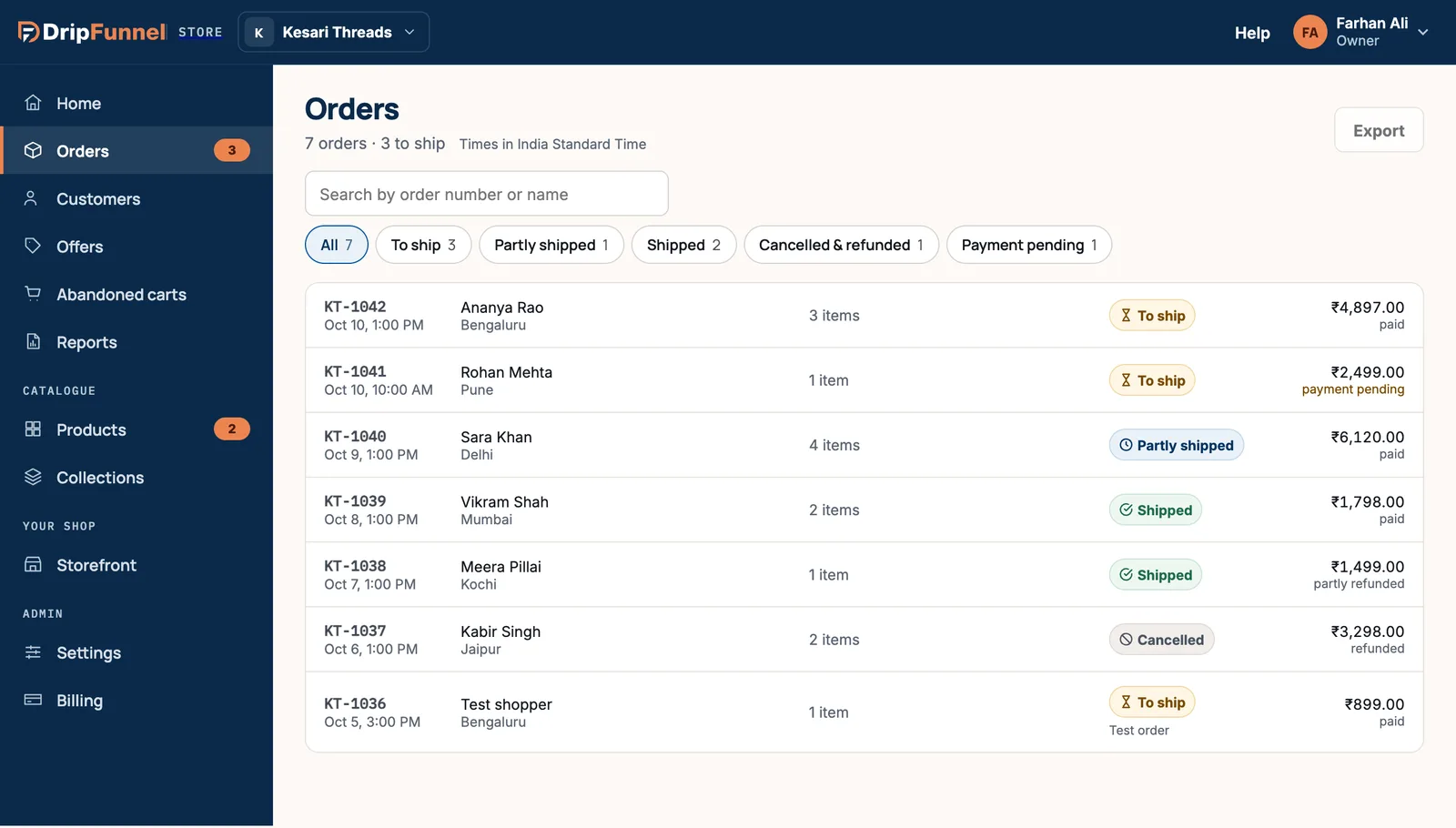
At the top you see how many orders you have and how many are to ship. Times are shown in your store’s time zone, which you set in Settings › Store info.
Find an order
- Type in the box marked Search by order number or name. You can type the order number (like KT-1042) or the shopper’s name.
- Or press one of the filter buttons. Each one shows how many orders it holds.
- Press an order to open it.
| Filter | Orders in it |
|---|---|
| All | Every order |
| To ship | Paid orders with nothing sent yet: the ones to pack today |
| Partly shipped | Some items sent, some still to go |
| Shipped | Everything sent |
| Cancelled & refunded | Orders you cancelled or refunded in full |
| Payment pending | Cash on delivery and bank transfer orders you haven’t marked paid yet |
Each row shows the order number and when it was placed, the shopper and their city, how many items, a status and the total. Under the total you see whether it’s paid, payment pending, partly refunded or refunded. An order placed while testing your shop’s preview is tagged Test order and never ships.
Nothing found? You see No orders match. Check the spelling, or press Show all orders to clear the search and filter.
Read an order
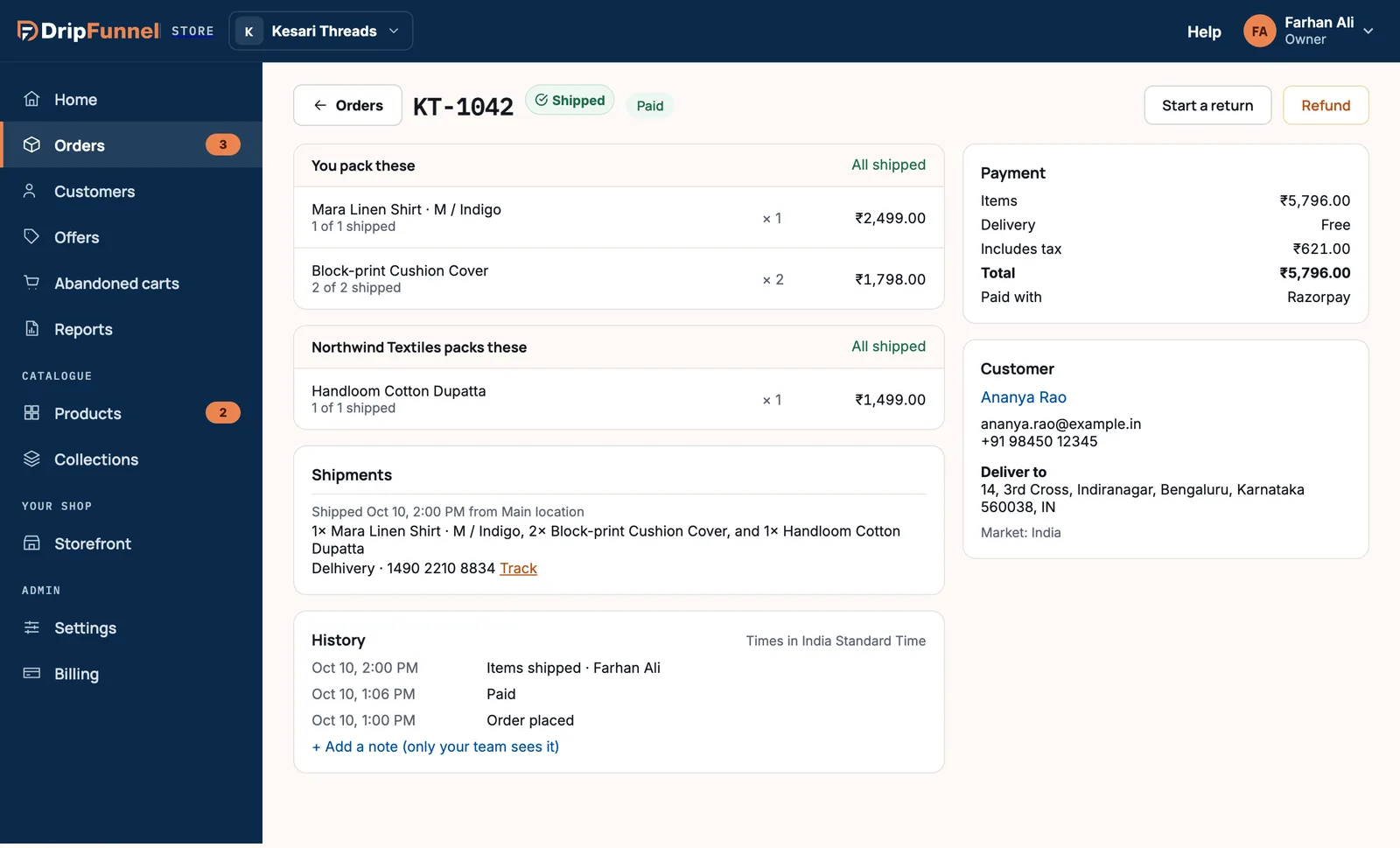
- The top line shows the order number, its status (for example To ship or Shipped) and its payment (Paid, Payment pending, Card authorised or Refunded). The buttons on the right are the things you can do now.
- Item cards group items by who packs them: You pack these for your own stock, and “Northwind Textiles packs these” for a supplier’s items. Each line says how many have shipped.
- Shipments lists each parcel sent, from which location, with the courier and tracking number.
- History lists everything that happened to the order, newest first, and who did it.
- Payment (on the right) breaks down items, discount, delivery, tax, duties, total and refunds, and says how the shopper paid.
- Customer shows the shopper’s name (press it to open their customer page), email, phone, delivery address, the market they bought in and any note they left at checkout.
Add a note for your team
- On the order page, find the History card.
- Press + Add a note (only your team sees it).
- Type the note, for example “Gift wrap — shopper called”, and press Add note.
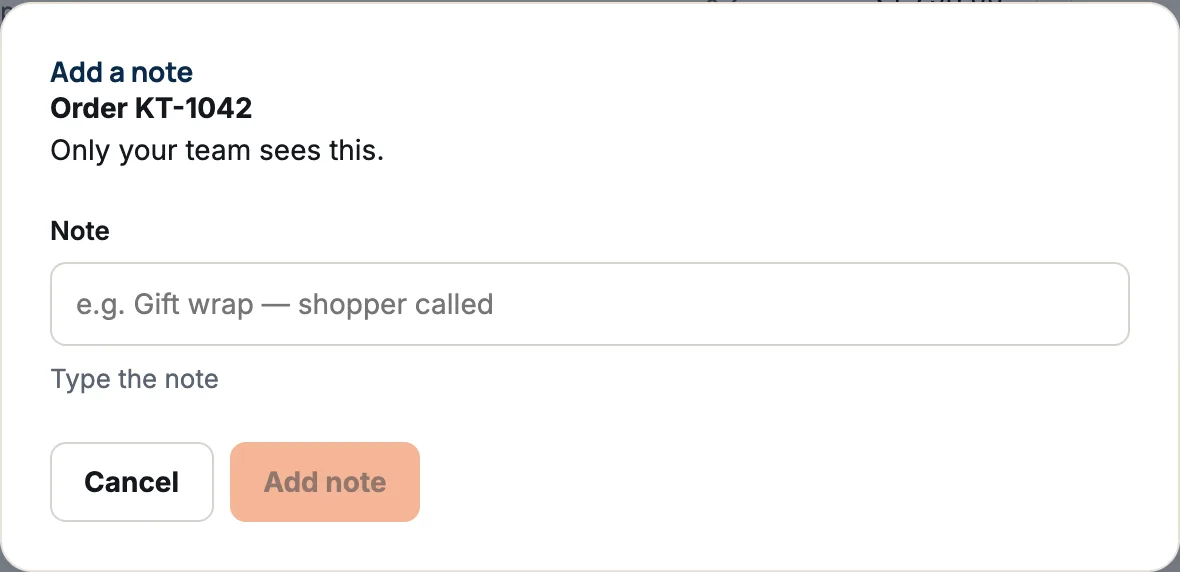
The note appears in the order’s history. Shoppers never see it. A note can be up to 1,000 characters.
Export your orders to a spreadsheet
- On the Orders screen, pick a filter if you only want some orders.
- Press Export at the top right.
- Wait while it says Preparing your export…. When it says the lines are ready, press Download.
You get a CSV file (it opens in Excel, Google Sheets or Numbers) with one row per item sold: order number, date, status, payment, shopper, email, phone, delivery city and postcode, item, version, product code (SKU), supplier, quantity, prices and totals. The download link works for a limited time; if it has expired, press Export again.
An export holds up to 10,000 lines. If you have more, you’re told Only the first … lines are in it: pick a narrower filter and export again. The Export button is hidden on phones.
Questions
Can staff see order totals?
Yes. Owners, managers and staff all see orders, totals and payments. Suppliers only see the lines with their own products, without totals.
Why does an order say Test order?
It was placed from your storefront’s preview, with a test payment. Test orders never ship and can’t be changed. They let you try checkout safely.
Can I edit an order after it’s placed?
No. You can ship, refund, start a return, cancel or add notes, but not change the items or the address. If the shopper needs something different, cancel or refund and let them order again.
What does Card authorised mean?
The shopper’s card payment is approved but still going through. Wait until the order shows Paid before you ship it.