

Set up your brand and pick a template
Updated 20 October 2026 · OwnersThe first time you open Storefront, you tell us about your brand and pick a template: a ready-made look to start from. After that, the AI and you change it to fit your shop.
Before you start
- Only the store owner can set up and change the storefront. Managers can look at it; staff don’t see it.
- Have your logo ready as a PNG, JPG or WebP file. A square or wide logo on a plain background works best.
- Nothing you do here reaches shoppers until you publish. You can try things freely.
Step 1: Tell us about your brand
In the portal, open Storefront in the menu on the left. The first time, you see a page called Your brand. Your template and the AI use it to design your site.
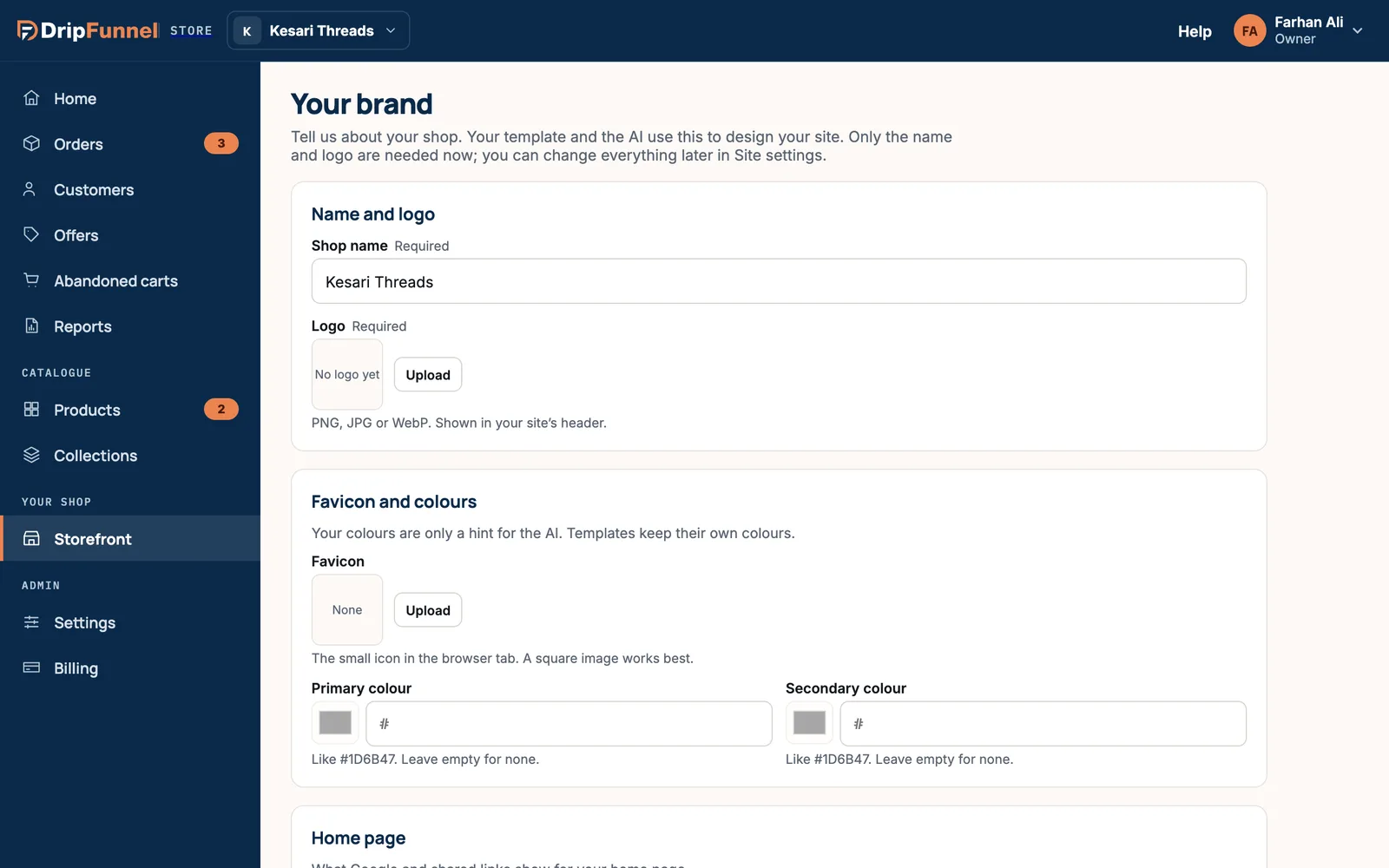
- Shop name (required): the name shoppers see in your site’s header.
- Logo (required): press Upload and choose the file. It’s shown in your site’s header.
- Favicon (optional): the small icon in the browser tab. A square image works best.
- Primary colour and Secondary colour (optional): a colour code like #1D6B47. These are only a hint for the AI; templates keep their own colours.
- Home page title and Home page description: what Google and shared links show for your home page.
- Tagline: a short line under your name, like “Handloom from Jaipur”.
- Short description: a few sentences about what you sell.
- Tone of voice: how your site talks to shoppers. Pick Warm and friendly, Calm and minimal, Bold and playful, Elegant and refined, Expert and straightforward, or write your own words.
- Social links: your Instagram, Facebook, X, YouTube, TikTok or WhatsApp. Type your handle (like @yourshop) or the full address.
- Public contact: the email, phone and address shoppers see on your site. These are filled in from your store details.
Press Continue to templates. The button stays greyed out until the shop name and logo are in. You see “Your brand is saved”.
Step 2: Pick a template
A template is a finished design to start from: layout, fonts and colours. You see Choose a starting point, with a card for each template, for example Linen (minimal fashion), Concrete (bold streetwear), Bloom (beauty and wellness), Circuit (electronics), Market (food and grocery) and Atelier (luxury).
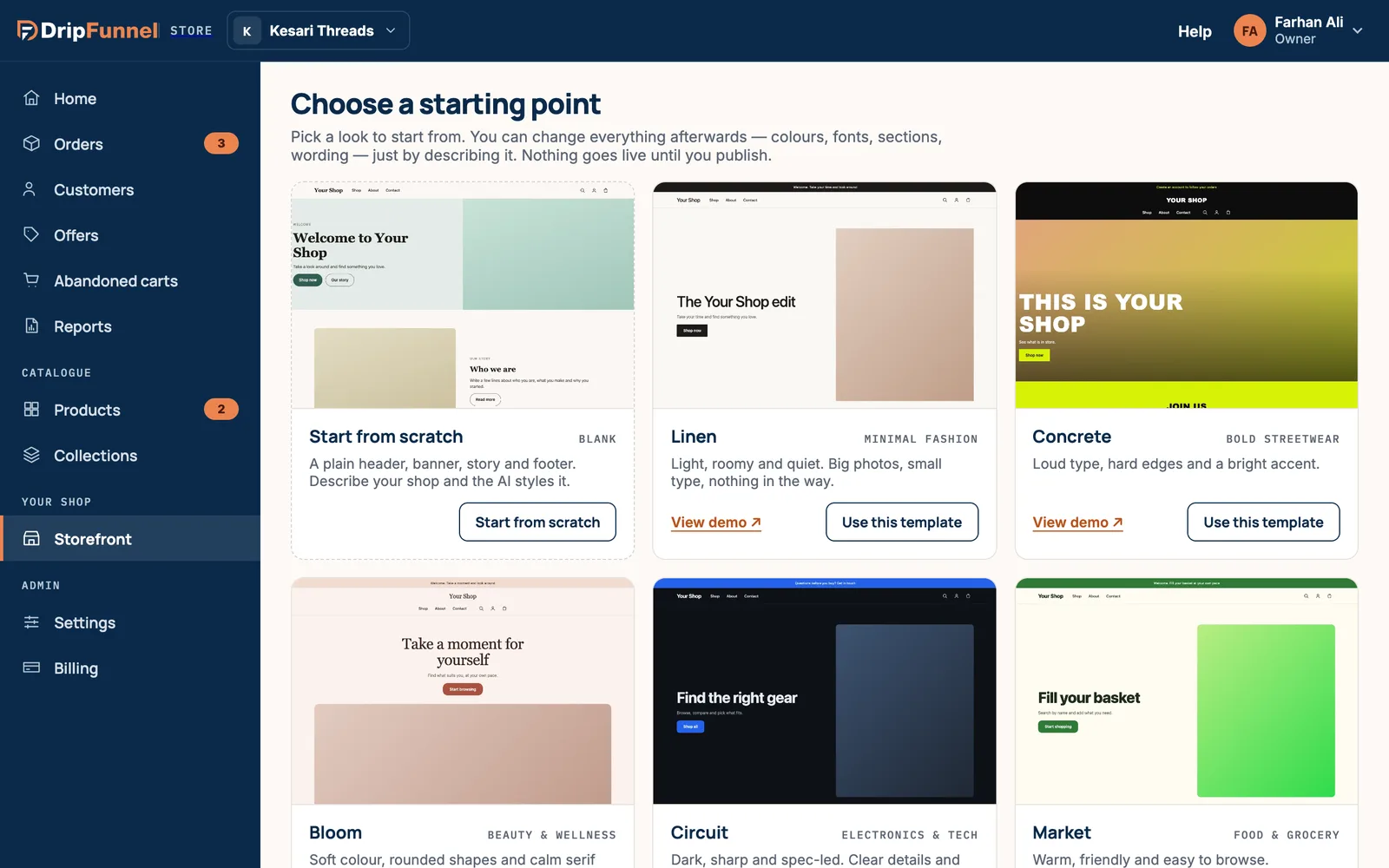
- Press View demo ↗ on a card to open a full example shop in a new tab.
- When you like one, press Use this template. Or choose Start from scratch for a plain header, banner, story and footer that the AI styles from your description.
- You see “Setting up your storefront…”. It takes a minute or two, and the page updates by itself.
- The studio opens: the place where you change your design by describing it. See Describe a change to your storefront.
Changing template later
On the Storefront page, press Change template. Pick another card. Because you already have a site, you’re asked whether to keep your words (headline, menu, footer, About and Contact) or start with the template’s sample text. Press Keep my words or Use template text. Your live site doesn’t change until you publish.
Changing your brand later? Go to Storefront › Site settings › Brand. Your live site shows the change after your next publish.
If something goes wrong
- “We couldn’t set up your storefront. Pick a template to try again.” Choose the template again. Nothing on your site changed.
- “That template isn’t offered any more.” Pick another one from the list.
- The Continue button won’t work. Check that the shop name is filled in and the logo has finished uploading.
Questions
Do I have to pay for a template?
No. Every template is free on every plan. If you’d like our team to build the storefront for you, that’s an optional one-time service; see Pricing.
Will my colours replace the template’s colours?
Not by themselves. Your colours are a hint for the AI. To change the colours on your site, describe it in the studio, for example “Use our orange #E07B39 for buttons”.
Can a manager set up the storefront?
No. Only the store owner can change the storefront. Managers can look at it read-only.
Does changing template delete my products?
No. Products, collections and orders are kept. A template only changes how your shop looks.