

Connect your own domain
Updated 20 October 2026 · Owners on Growth and aboveEvery shop has a free web address that always works. On a paid plan you can also connect a domain you own, like www.yourshop.com, and make it your shop’s main address.
Before you start
- You need to own a domain, bought from a domain provider such as GoDaddy, Namecheap or IONOS, and be able to sign in there.
- Your own domain is on a paid plan (Growth and above). On Starter (Free) you see “Your own domain is on a paid plan.” with See plans.
- Use a subdomain, like www.yourshop.com, not just yourshop.com. A subdomain is the part before your domain name; “www” is the usual one.
- Only the store owner can connect a domain. Domain changes don’t need a publish.
Step 1: Start connecting
- In the portal, open Storefront and choose the Site settings tab.
- Find Domains. Your free address is listed first, marked “Free address — always works”.
- Under Connect a domain you own, type your domain, for example www.yourshop.com.
- Press Connect.
Step 2: Add two records at your domain provider
A DNS record is a line of settings at your domain provider that tells the internet where your domain points. We show you exactly which two to add.
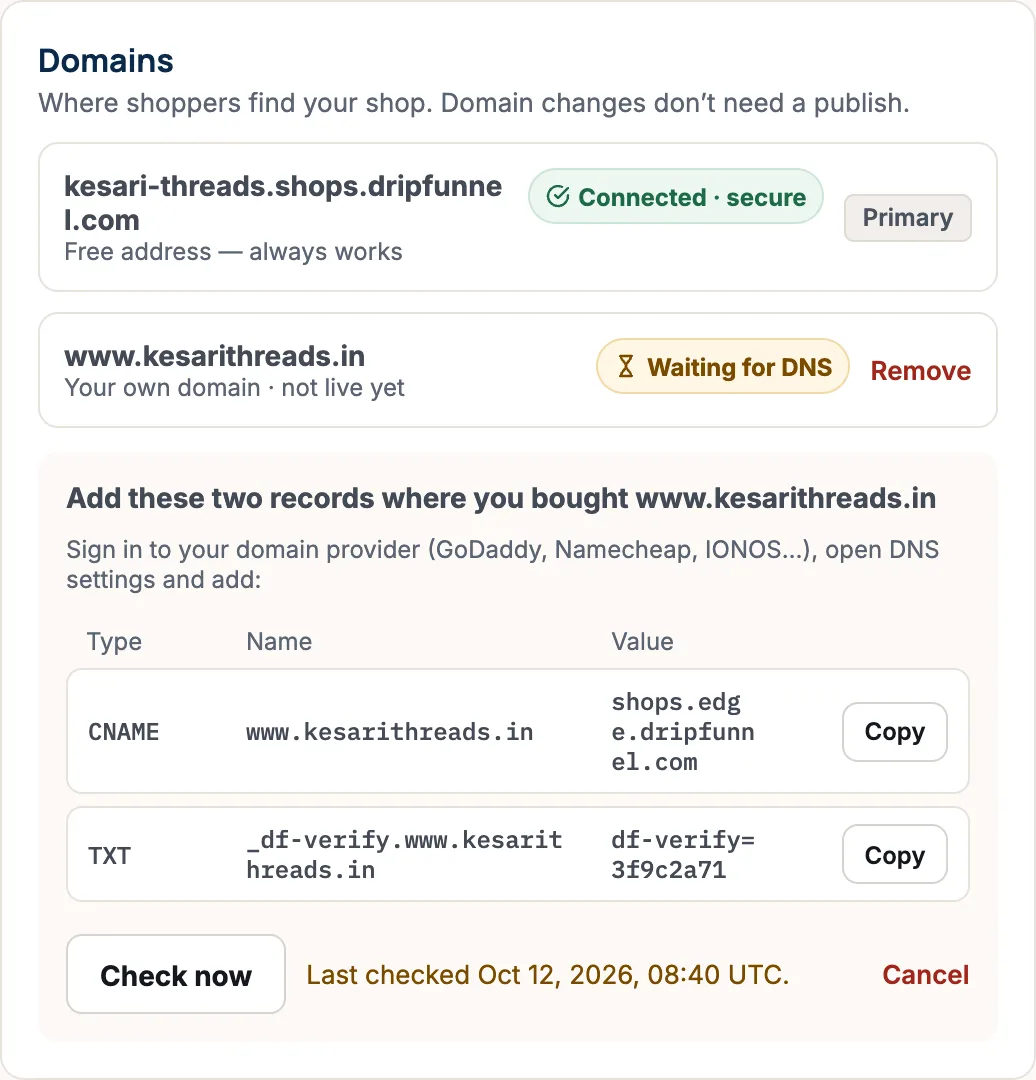
- Open a new tab and sign in to your domain provider.
- Find the DNS settings for your domain (sometimes called “DNS management” or “Zone editor”).
- Add the first record. Set Type to CNAME, then copy the Name and Value from the portal using the Copy buttons. A CNAME record points your www address to your shop.
- Add the second record. Set Type to TXT, and copy its Name and Value. A TXT record proves the domain is yours.
- Save the records at your provider.
Some providers add your domain name to the end of the Name by themselves. If the Name already ends with your domain, and your provider adds it again, type only the first part (for example “www”).
Step 3: Check and wait
- Back in the portal, press Check now.
- If you see “We can’t see the records yet. That’s normal — it can take up to 24 hours.”, wait and press Check now again later.
- When the records are found, the status changes to Securing (SSL)…. We set up the secure padlock (SSL) for you, free. SSL is what makes the address start with https:// and show a padlock in the browser.
- When it says Connected · secure, your domain works.
Step 4: Make it your main address
Press Make primary next to your domain. You see “www.yourshop.com is now your main address — the other one redirects to it”. Shoppers who use your free address are sent to your own domain.
What the statuses mean
| Status | Meaning |
|---|---|
| Waiting for DNS | We can’t see your two records yet. |
| Securing (SSL)… | Records found; we’re setting up the padlock. |
| Connected · secure | Working. |
| Certificate renewing | The padlock is being renewed. It keeps working. |
| Couldn’t connect | The records didn’t match. Check them at your provider. |
| Stopped working | The records were changed or removed at your provider. |
Removing a domain
Press Remove next to it and confirm with Remove domain. Shoppers using that address stop reaching your shop; your free address keeps working.
If something goes wrong
- “Use a subdomain, like www.yourshop.com.” Connect the www version. Many providers offer “forwarding”, so that yourshop.com sends visitors on to www.yourshop.com.
- “DNS answers …” Your domain points somewhere else, often an old website builder. Delete the old record for the same Name at your provider, then add ours.
- “Your shop already has its own domain.” A shop has one own domain. Remove it to connect another.
- “Finish connecting your other domain first, or cancel it.” Only one domain can be connecting at a time.
- “That domain is already connected.” It’s used by another shop. Use a domain you own.
Questions
How long does it take?
Usually minutes, but DNS changes can take up to 24 hours to reach everywhere. Press Check now from time to time.
Do I pay for the SSL padlock?
No. We set it up and renew it for you, free.
Will my free address stop working?
No. It always works. Once your own domain is primary, the free address simply sends shoppers on to it.
Can each country have its own domain?
Not at the moment: a shop has one own domain. A market can use a path on it instead, like www.yourshop.com/uk. See Add a market.