

Your profile, devices and appearance
Updated 20 October 2026 · EveryoneMy profile holds your own account: your name, email, mobile number, password, two-step sign-in, how the portal looks, where you’re signed in, and what you’ve done. Changes here apply in every store you belong to.
Open My profile
Click your name at the top right of the portal and choose My profile.
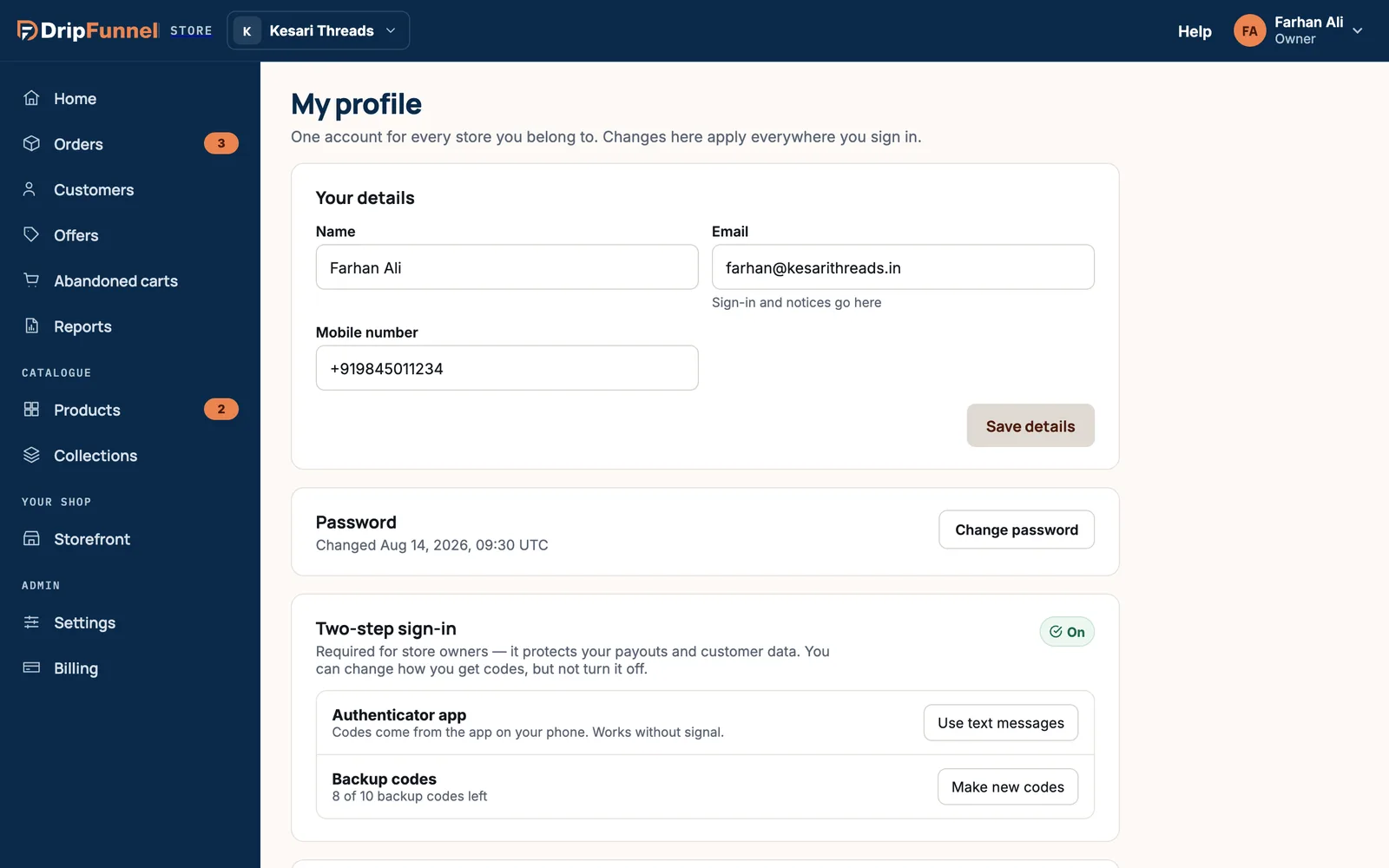
Your details
- Name: your team sees it on everything you change, so it can’t be empty.
- Email: where sign-in and notices go.
- Mobile number: used only for sign-in codes. Type it with the country code, like +91 98450 11234.
Press Save details when you’re done.
Changing your email
- Type the new address. A Current password field appears: type your password.
- Press Save details. We email a link to the new address.
- Click the link within 24 hours. Your email changes only once you do. Until then, My profile shows “Waiting for you to click the link we sent”.
While your sign-in codes come by text, your mobile number can’t be changed here. Switch to an authenticator app first (below), change the number, then switch back if you like.
Change your password
- Press Change password.
- Type your Current password, then the New password twice. It needs at least 10 characters; a short sentence works well.
- Press Change password. You stay signed in here and are signed out on every other device.
Two-step sign-in
Two-step sign-in asks for a code as well as your password each time you sign in. It’s required for store owners and optional, but strongly recommended, for everyone else.
Turn it on
- Press Turn on two-step sign-in.
- Choose how to get codes: Authenticator app (recommended, works without signal) or Text message.
- Type Your password and press Next.
- For an app: open your authenticator app (Google Authenticator, 1Password, Authy or similar), add a new account and type the Setup key shown. For text messages: we text a code to your number.
- Type the 6-digit code and press Verify.
- Save your ten backup codes with Download codes, then press I’ve saved them.
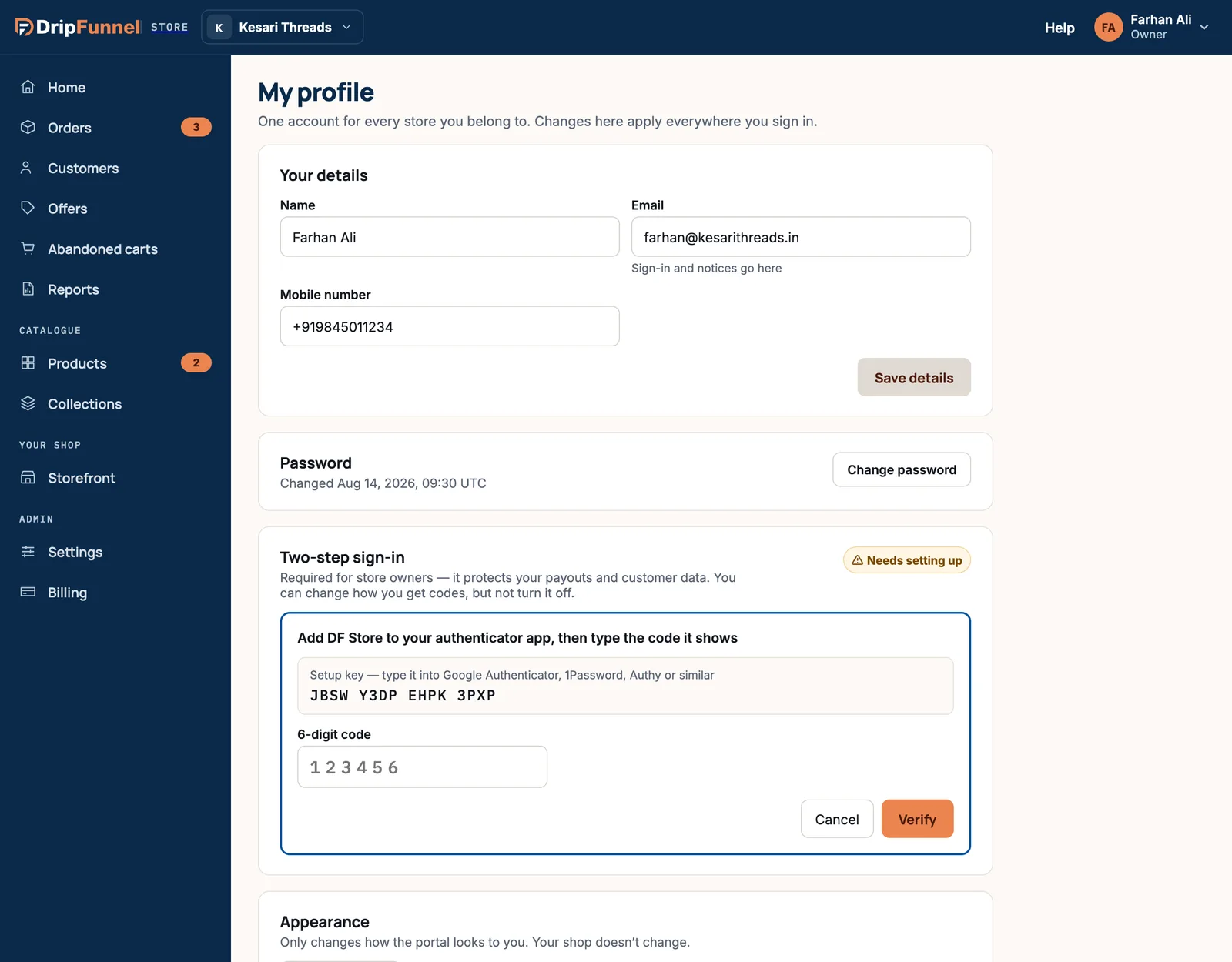
Switch how you get codes
When two-step sign-in is on, press Use text messages or Use an authenticator app and follow the same steps.
Make new backup codes
The Backup codes row shows how many you have left. Press Make new codes when you’re running low or think someone has seen them. Your old codes stop working straight away.
Turn it off
Managers, staff and suppliers can press Turn off two-step sign-in and type their password. Store owners can’t turn it off, only change how they get codes.
Appearance
Choose Light or Dark. It only changes how the portal looks to you, never your shop. The menu under your name also has System, which follows your computer’s setting.
Where you’re signed in
This lists This browser and every other device signed in to your account, with when each was last used. If you see one you don’t recognise, or you’ve signed in on a shared computer, press Sign out everywhere else. Then change your password.
Your activity
Everything done under your name, newest first: sign-ins, refused sign-ins, invitations and changes, with the store and the time. Press Show older to go further back. To see everyone’s activity in a store, see See who changed what.
Questions
Is my profile different in each store?
No. It’s one account for every store you belong to, so a change here applies everywhere.
I don’t see a QR code to scan for my authenticator app.
Type the setup key instead. In your authenticator app, choose to add an account by entering a key, and type the letters shown in My profile.
Why can’t I turn off two-step sign-in?
Store owners must keep it on to protect payouts and customer data. You can switch between text messages and an authenticator app.
I see a sign-in I don’t recognise in Your activity.
Press Sign out everywhere else, change your password, and make new backup codes. If you think someone else got in, contact support.