

Go live: what to check before you share your shop
Updated 20 October 2026 · OwnersBefore you share your shop’s address, take ten minutes to check that shoppers can find your products, pay you, and get their order. This is a checklist of everything worth checking, with links to the detailed guides.
1. Your store details
Open Settings › Store info and check the details shoppers and invoices use:
- Store name, Contact email (where shoppers’ replies go) and Phone.
- Your Street address, city and postal code. Couriers quote delivery prices from this address, so it must be right.
- Your tax number (GSTIN in India, EIN or sales tax permit in the US, VAT number elsewhere), if you have one. It’s printed on invoices.
- Your Logo: square, at least 400 pixels, PNG, JPG or WebP, under 5 MB.
- Time zone: order times, reports and offer schedules use it.
2. Your products
- Open Products. Each product you want to sell should show Visible in the Status column. Hidden products aren’t shown to shoppers.
- Check the Ready to sell column. “Ready” means the product has what your markets need. If it says, for example, “2 details missing”, open the product and fill them in under Legal & safety.
- Make sure every product has a photo, a price and stock. The Missing info filter shows products with no description or no photo.
See Find, filter and change products in bulk and Add a product with sizes and colours.
3. How shoppers pay you
Open Settings › Payment setup and make sure at least one way to get paid shows Live. A gateway showing Test only works on your preview shop but isn’t offered on your live shop. You can also turn on cash on delivery or bank transfer. See Connect a payment method.
Card and online payment providers are currently offered to stores in India and the United States. In other countries, check Payment setup to see what’s available for your store.
4. Delivery
Open Settings › Shipping and check what shoppers pay for delivery, when delivery is free, which couriers are connected and where you deliver. Press Test all to check that your couriers answer. See Set delivery charges, couriers and where you deliver.
You also need at least one stock location (your warehouse, shop or home) before you can ship. Check Settings › Warehouse. See Keep stock up to date across locations.
5. Tax
Open Settings › Tax setup. Check whether the prices you type include tax or not, and that your tax rates are right. See How tax is worked out in each country.
6. Your storefront
- Open Storefront. If you haven’t yet, add your brand and pick a template: see Set up your brand and pick a template.
- In the studio, open the page picker and check your Policies pages (Terms, Privacy, Shipping and Returns), as well as Home, a product page, the cart and checkout.
- Check each page on Desktop, Tablet and Phone. Most shoppers buy on a phone.
- Press Publish. We check your whole site before it goes live. See Publish your storefront.
7. Your web address
Your shop works on its free address straight away. To use your own domain, such as www.yourshop.com, see Connect your own domain. Your own domain is on paid plans; see Pricing.
8. Place a test order
- In the Storefront studio, press Open preview ↗. Your preview shop opens in a new tab.
- Add a product to the cart and go through checkout. The preview’s checkout takes test payments only, so no real money moves. To pay by card there, connect your provider’s test keys first, choosing Your preview storefront: test payments under Use them for.
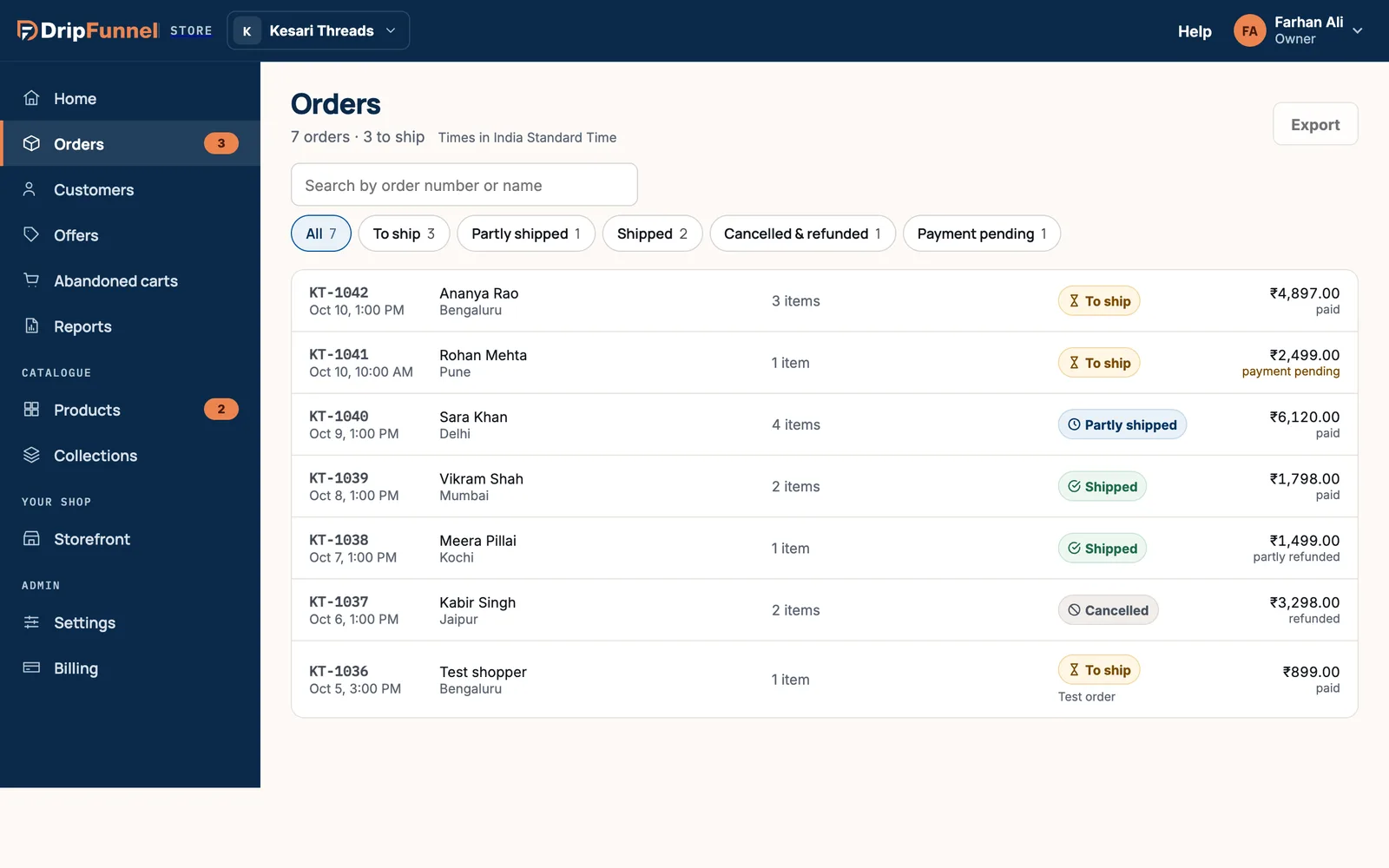
- Back in the portal, open Orders. Your order is there with a Test order tag. Test orders never ship and never reach real shoppers.
- Open it and check the totals, delivery charge and tax.
9. Your team
If others help you, invite them now so they can ship orders from day one: see Invite staff and choose their role. Check Settings › Support access too, so our support team can look at your store if you ever ask for help: see Let support look at your store.
Questions
Will shoppers see my shop before I publish?
No. Shoppers only see what you’ve published. Changes you make in the studio stay in a private preview until you press Publish.
Do test orders count in my reports?
Test orders are marked “Test order” and never ship. Check Reports after your first real orders to see your real numbers.
Why can’t shoppers pay on my live shop?
Your payment provider may only have test keys connected. In Settings › Payment setup, it shows “Test only”. Connect its live keys to take real payments.
Do I need my own domain to go live?
No. Your shop works on its free address. You can connect your own domain at any time on a paid plan.