

Set up your store in your first 10 minutes
Updated 20 October 2026 · EveryoneSigning up takes about two minutes and builds your store for you. This guide walks through each sign-up step, then the short checklist that gets your shop ready for its first order.
Before you start
- An email address you can open now. We send a 6-digit code to it.
- A mobile phone that can receive text messages. We text a code to it, so nobody else can open a store in your name.
- Your store’s name, and the country your business is in.
- You don’t need a card. Every new store starts on a free 10-day trial.
Step 1: Your account
- Open the sign-up page and fill in Your name, Email and Password.
- Your password needs at least 10 characters. The bar under it tells you how strong it is, from “Weak” to “Strong password”. A short sentence is easy to remember and hard to guess.
- Press Continue.
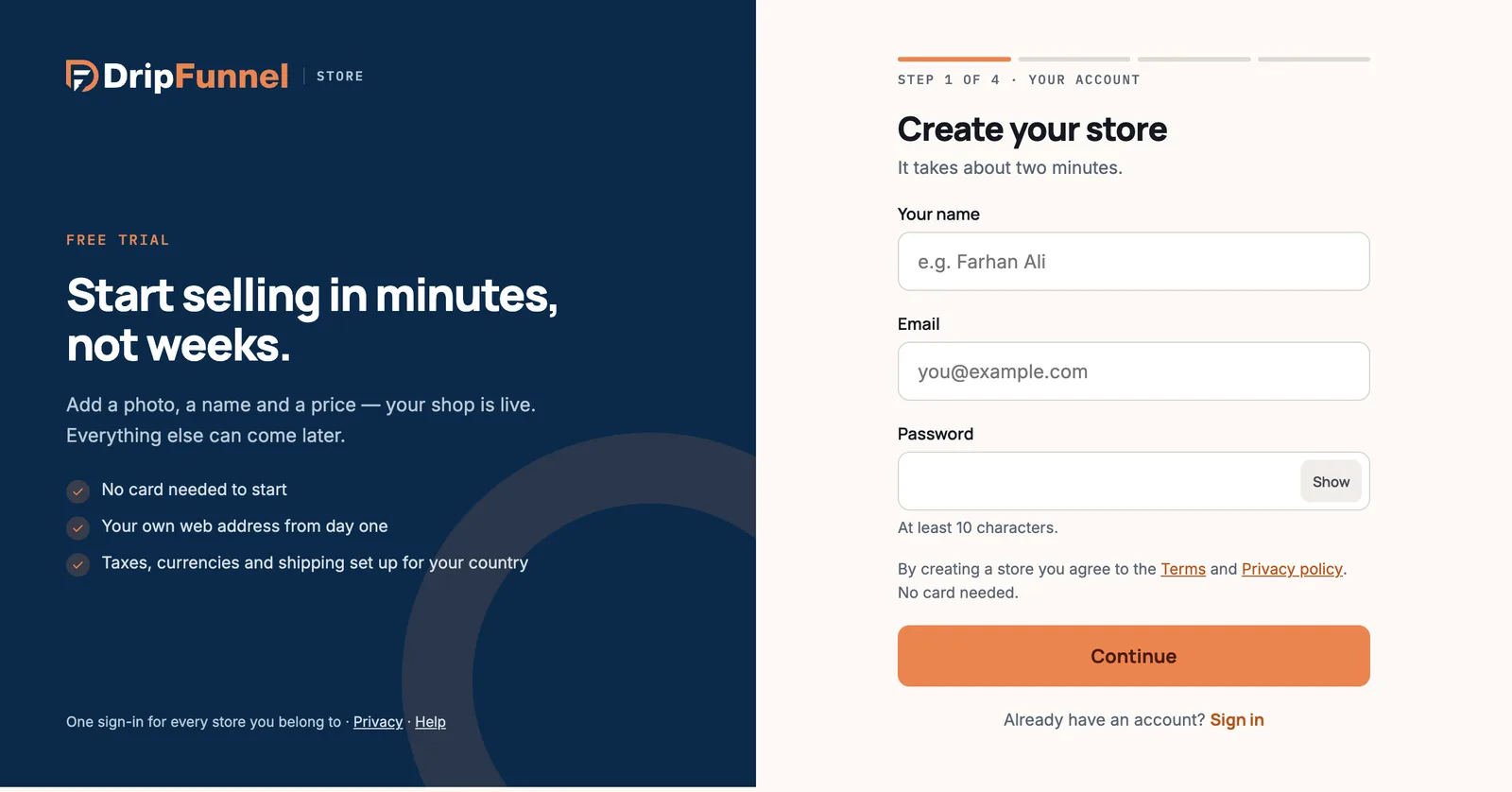
If you see “Too many tries in a short time”, wait a few minutes and try again. If you see “We couldn’t reach the store service”, nothing was saved; try again in a moment.
Step 2: Verify your email
- Open your inbox. We sent a 6-digit code to the address you typed. It works for 10 minutes.
- Type the code into Code and press Verify email.
If the email says you already have an account, follow its instructions to sign in instead. Typed the wrong address? Press Change email. If the code has expired, or you see “This sign-up timed out”, start again: it only takes a minute.
Step 3: Tell us about your store
- Store name: shoppers see this everywhere. You can change it later in Settings › Store info.
- Web address: filled in from your store name as you type. Use only letters, numbers and hyphens. This becomes your shop’s free web address.
- Country: sets your currency and tax rules, for example “India · INR”.
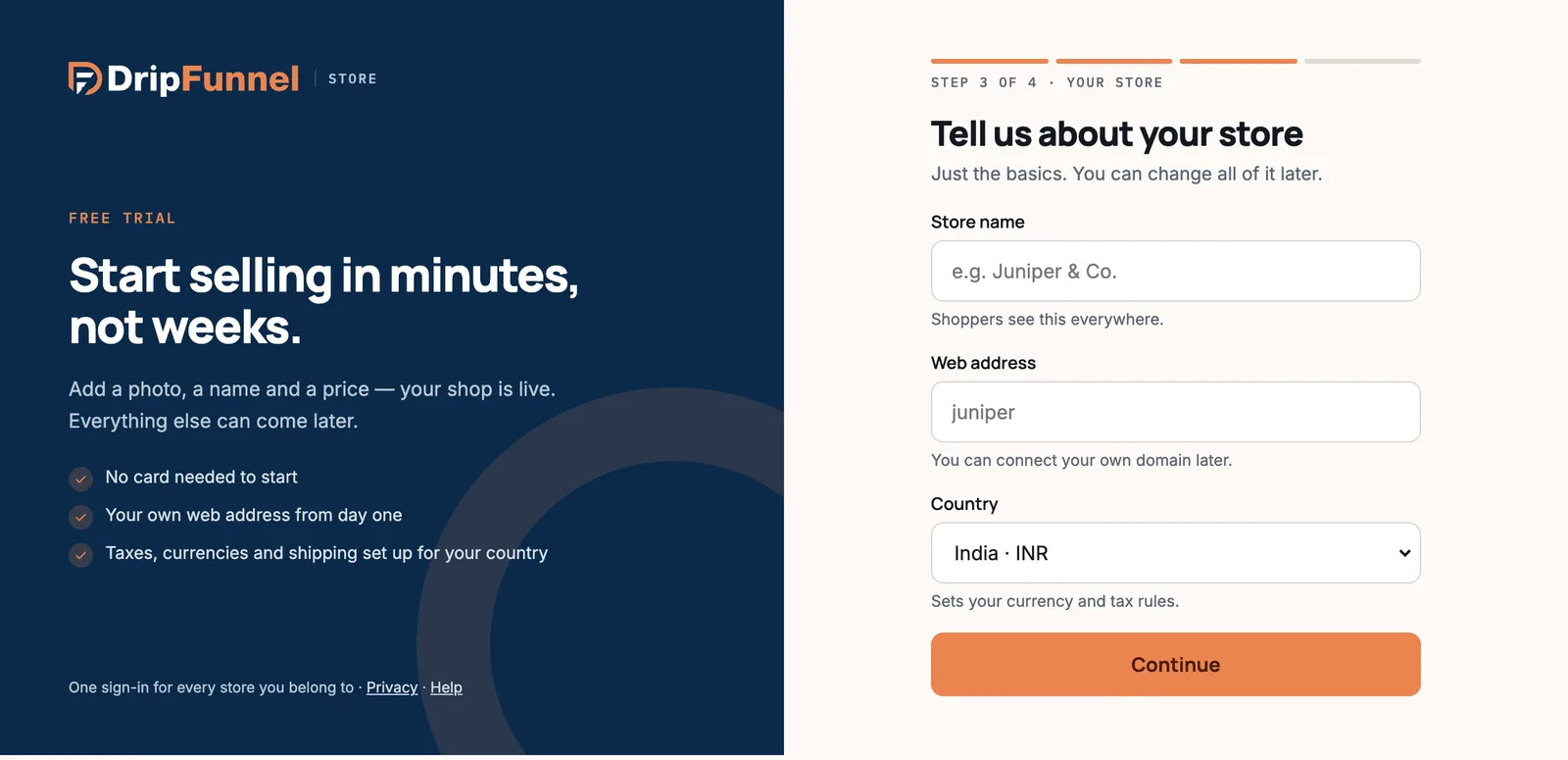
Choose the web address and country with care. Neither can be changed after sign-up. You can still connect your own domain later, and you can sell to other countries by adding a market.
If the address is taken, you’ll see “That address is taken” with one or two suggestions. Pick one, or type another.
Step 4: Verify your phone
- Type your Mobile number with its country code, for example +91 98450 11234, and press Text me a code.
- Type the 6-digit code from the text message and press Verify and build my store.
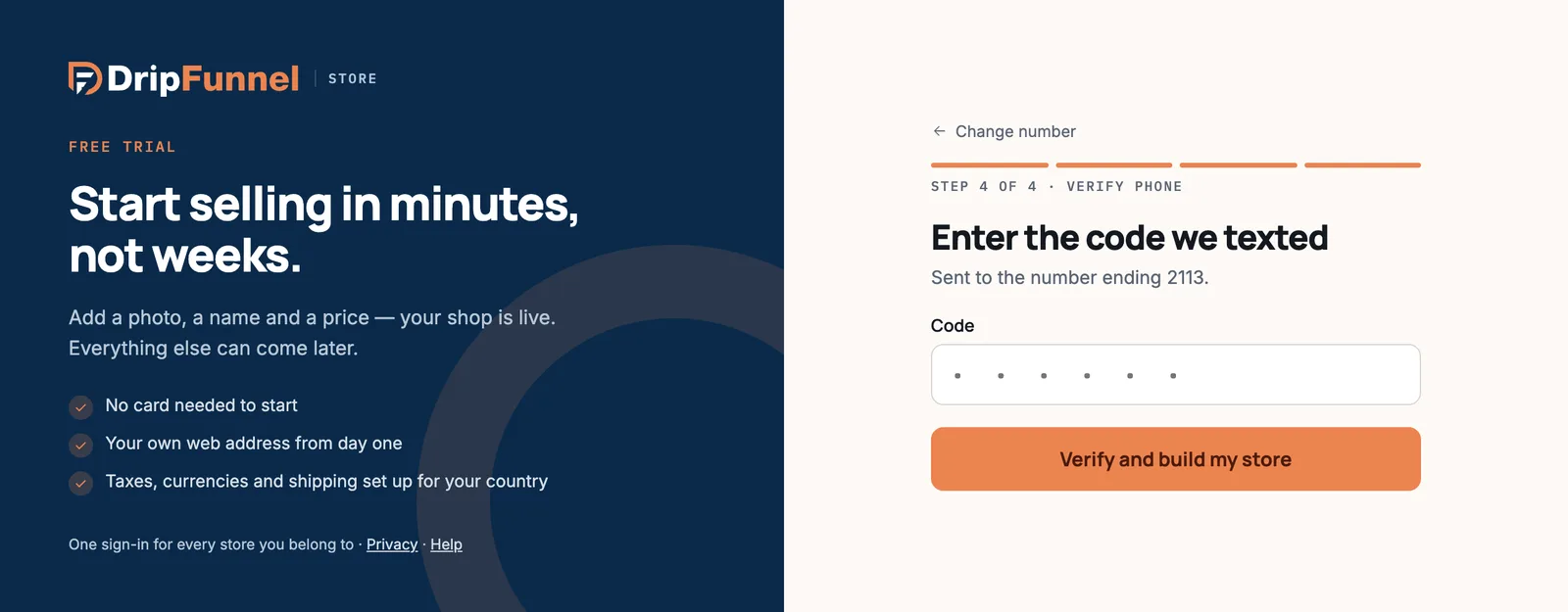
If the text doesn’t arrive, press Change number, check the number and send the code again.
Step 5: Turn on two-step sign-in
Your store is created straight away. Because you’re the owner, you’re then asked to Turn on two-step sign-in. This means that every time you sign in, you type a code as well as your password, so a stolen password alone can’t open your store. It protects your payouts and your customers’ data, and every store owner needs it.
- Type your mobile number again and press Text me a code.
- Type the code and press Turn on and sign in.
- Save the ten backup codes you’re shown, with Download codes, then press I’ve saved them. Each code lets you sign in once if you lose your phone.
At this step codes come by text message. You can switch to an authenticator app later in My profile. See Sign in, two-step sign-in and passwords for more.
Step 6: Follow the checklist on Home
You land on Home. Until your first order arrives, it shows a checklist called Get your shop ready for its first order, with a progress bar.
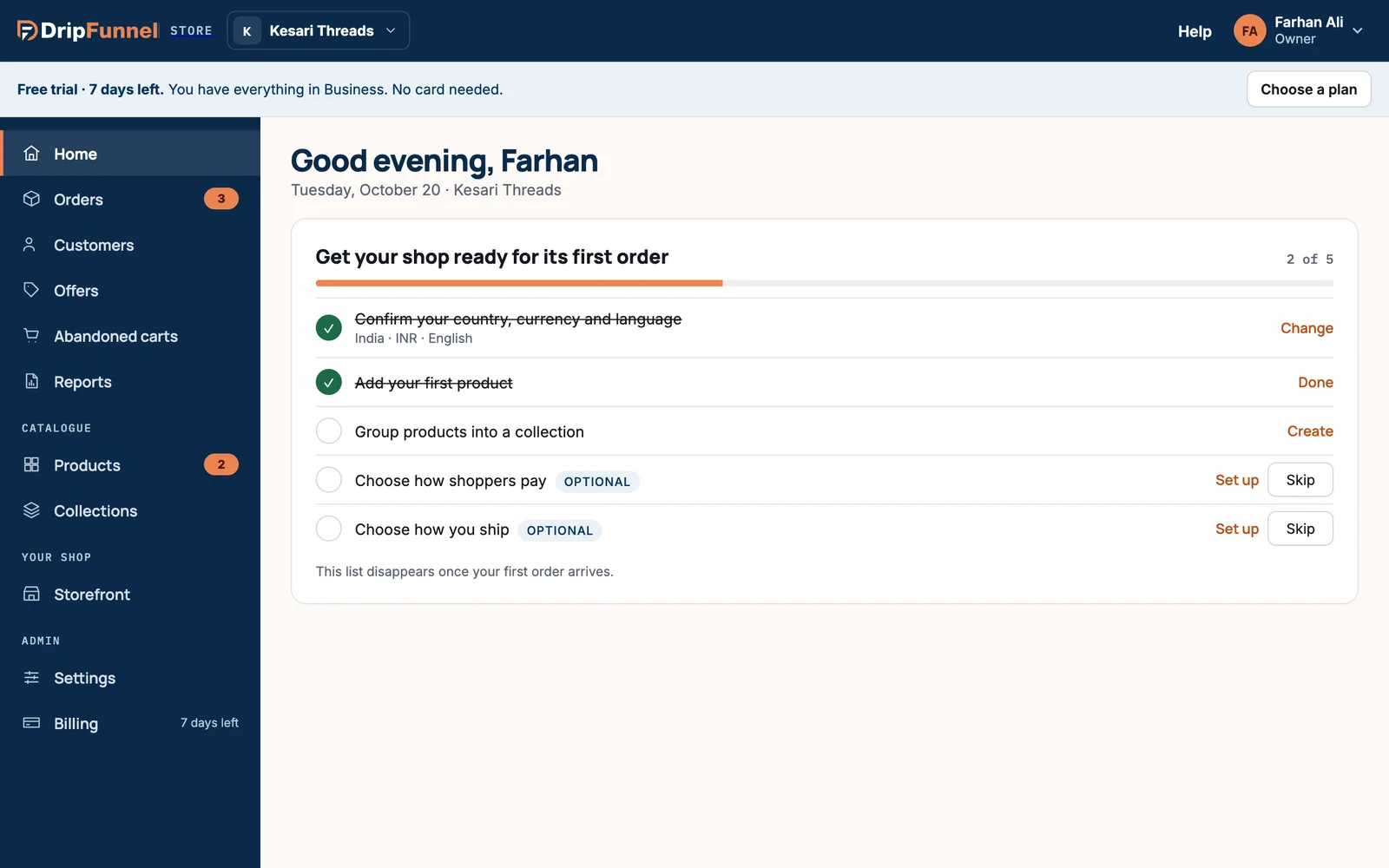
| Item | What to do | Help |
|---|---|---|
| Confirm your country, currency and language | Already done at sign-up. Change opens Settings › Store info. | Add a market |
| Add your first product | Add opens a new product. | Add a product |
| Group products into a collection | Create opens Collections. | Collections and menus |
| Choose how shoppers pay (optional) | Set up opens Settings › Payment setup. | Connect a payment method |
| Choose how you ship (optional) | Set up opens Settings › Shipping. | Delivery charges and couriers |
You can Skip the two optional items and come back later; Undo brings a skipped item back. Managers and staff don’t see the payment, shipping and country items, because only the owner can set them.
Then: design your storefront and go live
The checklist covers the portal. Your shop also needs a look: open Storefront, add your brand, pick a template and publish. See Set up your brand and pick a template, then run through Go live: what to check before you share your shop.
Questions
Do I need a card to sign up?
No. Every new store starts on a free 10-day trial with no card. See How the 10-day trial works.
Can I change my store’s web address or country later?
No, both are fixed once the store is created. You can change the store name any time, connect your own domain, and sell to other countries with markets.
Why do you need my phone number?
To check that a real person is opening the store, and for two-step sign-in codes. We don’t call you or share the number.
Is my shop live as soon as I sign up?
Not yet. Shoppers see your shop once you’ve picked a template and pressed Publish in Storefront. Until then you can add products and set things up privately.
Can I sign up with Google?
Not at the moment. Sign up with your email address and a password.