

Refund all or part of an order
Updated 20 October 2026 · Owners, managers, and suppliers who pack their own ordersYou can give back all of an order’s money or just part of it: for items the shopper returned, or as a goodwill gesture. Online payments go back automatically; for cash on delivery and bank transfer you pay the shopper yourself and record it here.
Before you start
- Only owners and managers can refund. Staff see the Refund button greyed out with the note that only the owner or a manager can refund.
- The order must be paid. You can’t refund money that hasn’t arrived.
- Items can only be picked for a refund once they have shipped. For an order where nothing has shipped yet, you can refund a typed amount, or use Cancel an order to refund everything and put the items back in stock.
Refund items
- Open the order and press Refund.
- Under Your items, press + next to each item you’re refunding, as many as you’re refunding.
- Choose a Reason: Returned by shopper, Goodwill or Something else.
- Leave Put the picked items back in stock ticked if the items can be sold again. Untick it if they’re damaged.
- Press Refund the picked items.
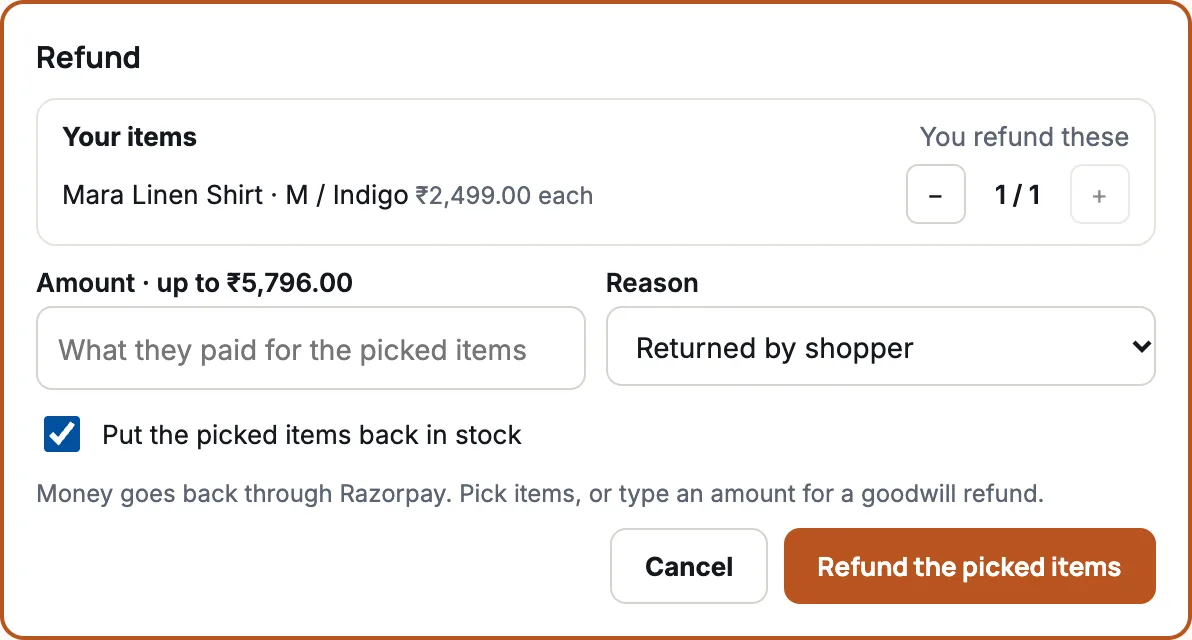
The amount is worked out from what the shopper paid for those items. You see a message such as ₹2,499.00 refunded to Ananya Rao.
Refund an amount instead
Use this for a goodwill refund, for example when an item arrived late, without anything coming back.
- Open the order and press Refund.
- Leave every item counter at 0.
- In Amount · up to …, type how much to give back, like 250 or 250.50. It can’t be more than what’s left to refund.
- Choose Goodwill as the reason and press Refund ….
One refund is either picked items or a typed amount. As soon as you pick an item, the Amount box is turned off. Make two refunds if you need both.
Where the money goes
| The shopper paid by | What happens |
|---|---|
| Card, UPI, wallet or PayPal (online) | The money goes back through the same payment provider, to the same card or account, automatically. |
| Cash on delivery or bank transfer | You give the money back yourself, for example by bank transfer. The refund in the portal records that you did it. |
How long the money takes to show depends on the shopper’s bank or card company, usually a few working days.
Refunding a supplier’s items
Items from a supplier appear under their name. Suppliers normally refund their own items. If you refund them yourself, the form warns you that the refund is recorded against that supplier, for you to settle with them.
What happens next
- The order’s payment changes to partly refunded or refunded, and the refund appears in Payment and History.
- Picked items go back into stock if you left the box ticked.
- The shopper doesn’t get an email from DripFunnel about the refund. Their payment provider usually tells them.
If something goes wrong
| Message | What it means |
|---|---|
| Pick items, or type an amount. | Nothing was chosen. Pick at least one item or type an amount. |
| That’s more than is left to refund (…). | Part of the order was refunded already. Type a smaller amount. |
| The payment provider didn’t answer. Nothing was refunded; try again. | A short outage at the provider. Try again in a few minutes. |
| The payment provider refused the refund. Nothing was refunded. | Check your account with the provider (for example a low balance), then try again. |
Questions
Can I refund the delivery charge?
Yes: type the delivery amount as a goodwill refund. Picked items refund only what was paid for the items.
Can I undo a refund?
No. Once the money is sent back, it can’t be taken back from the portal.
The shopper is sending items back. Should I refund now?
It’s safer to start a return first, mark it received when the items arrive, then press Refund these items.