

Set delivery charges, couriers and where you deliver
Updated 20 October 2026 · OwnersDecide what shoppers pay for delivery, when delivery is free, which couriers you use and where you deliver. Everything is on one page: Settings › Shipping.
Before you start
- Only the store owner can change shipping.
- Add your store’s address and postcode in Settings › Store info first. Couriers work out prices from it.
- There are no shipping zones to draw. You choose how delivery is charged, and the countries you sell to come from your markets.
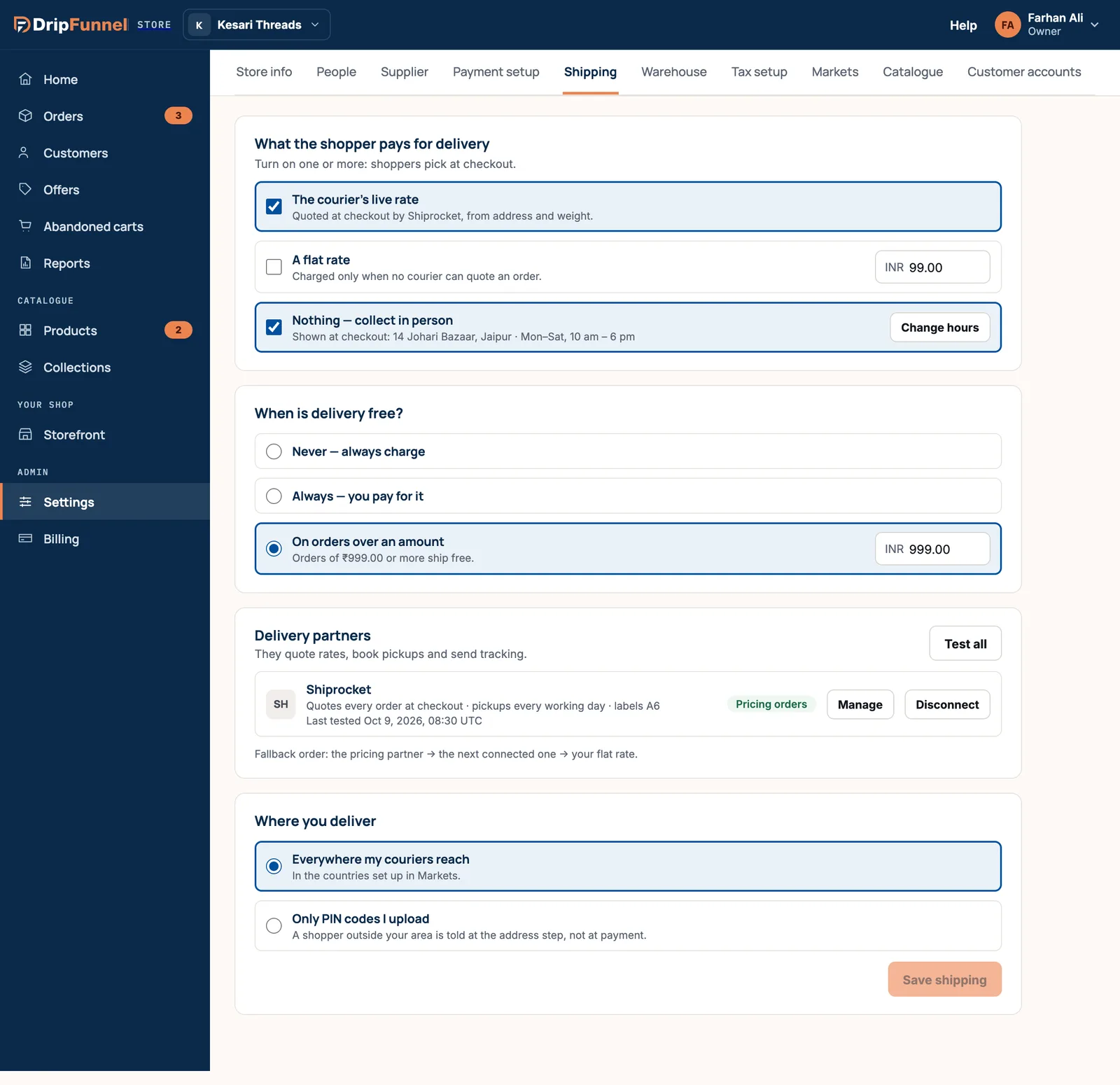
1. Choose what the shopper pays
Under What the shopper pays for delivery, tick one or more. If you tick more than one, shoppers pick at checkout.
- The courier’s live rate: your courier quotes a price at checkout from the shopper’s address and the parcel’s weight. You need a connected courier (step 3).
- A flat rate: the same charge on every order. Type it in the box. If the courier’s rate is also on, the flat rate is only charged when no courier can quote an order.
- Nothing — collect in person: shoppers pick the order up from you. Press Set hours and type when you’re open, for example “Mon–Sat, 10 am – 6 pm”. Your address and hours show at checkout and in the order confirmation.
2. Choose when delivery is free
- Never — always charge.
- Always — you pay for it: delivery is free on every order.
- On orders over an amount: type the amount. Orders of that amount or more ship free.
For a free delivery offer that runs for a limited time or only with a code, use an offer instead.
3. Connect a delivery partner
Delivery partners are couriers that quote live rates at checkout. Which ones you see depends on your store’s country.
| Store country | Couriers offered |
|---|---|
| India | Shiprocket |
| United States | USPS, UPS and FedEx |
| Other countries, including the UAE | None yet. Use a flat rate or collection. |
- Press Connect next to a courier. You don’t need your own account or keys.
- The first courier you connect is marked Pricing orders. Others are on Standby: press Use for pricing to switch.
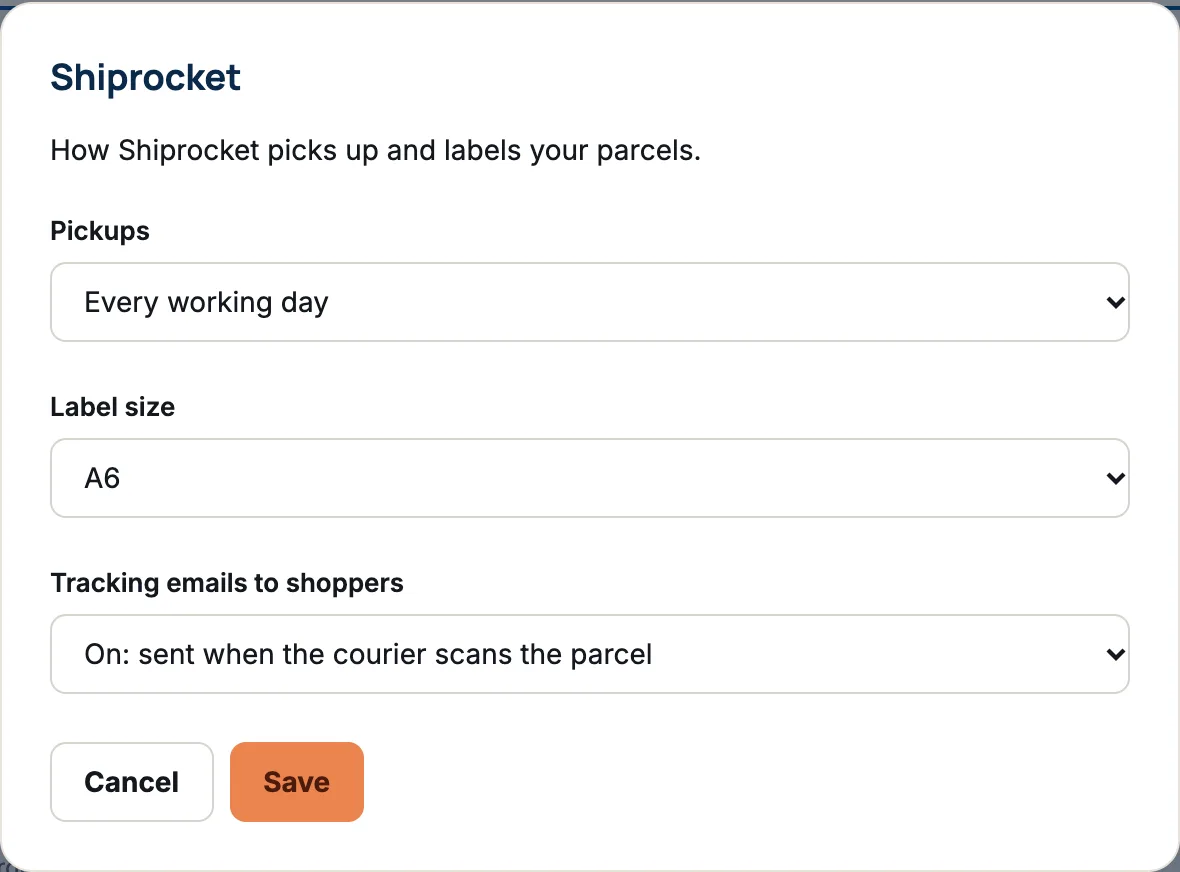
- Press Manage to choose Pickups, Label size and Tracking emails to shoppers.
- Press Test all to check every courier answers. A good result reads like “quoted a test parcel to your own address in 2 s”.
If the pricing courier can’t quote an order, checkout tries the next connected courier, then your flat rate. If a courier’s login stops working, its status turns to Login rejected and Home shows a warning with a Fix button.
4. Choose where you deliver
- Everywhere my couriers reach: anywhere in the countries of your markets.
- Only PIN codes I upload (ZIP codes in the US, postcodes elsewhere): press Upload list and choose a CSV or text file of codes, up to 50,000. Shoppers outside your area are told at the address step, before they pay.
5. Save
Press Save shipping. You see Shipping saved — checkout uses it now.
If something goes wrong
| Message | What to do |
|---|---|
| Choose at least one way for shoppers to get their order. | Tick at least one option in the first card. |
| Type a flat rate. | Fill in the flat rate amount, or untick it. |
| Set your collection hours first — shoppers need to know when to come. | Press Set hours. |
| Add your store’s address and postcode in Store info first: couriers quote from it. | Fill in your address in Settings › Store info. |
| Someone else saved shipping since you opened it. | Reload the page to see their changes, then make yours again. |
Questions
Can I charge different rates for different countries or regions?
Not with a flat rate: it’s the same everywhere. The courier’s live rate already changes with the address and weight.
Where do I set a product’s weight?
In the product’s Shipping section: weight when packed and box size. Couriers need them to quote. See Add a product.
Does connecting a courier book pickups and print labels?
Couriers quote prices at checkout. Booking a parcel and printing its label from the order page isn’t available yet, so book with your courier directly and add the tracking number when you ship.