

Create a discount or offer
Updated 20 October 2026 · Owners and managersOffers are discounts on your shop: money off some products, money off the whole order, buy one get one, or free delivery. Each offer can work with a code the shopper types, or apply by itself at checkout.
Before you start
- Only the owner and managers can create or change offers. Staff can see offers and check a code, but can’t change them.
- Every plan can run discount codes and automatic offers. Starter (Free) and Growth can have 3 live at once; Growth Pro and up have no limit. See Pricing.
- Offers for customer groups or chosen customers, bigger discounts for bigger orders (“steps”) and single-use codes are on Growth Pro and up.
- The words in your portal follow your country. In the United States your portal says “shipping” and elsewhere “delivery”. In India and the United States a code is a “coupon code”; elsewhere, including the UAE, it’s a “voucher code”.
Step 1: choose the kind of offer
- Open Offers in the menu and press Create offer.
- On What kind of offer?, pick one of the four kinds, or a ready-made recipe below them.
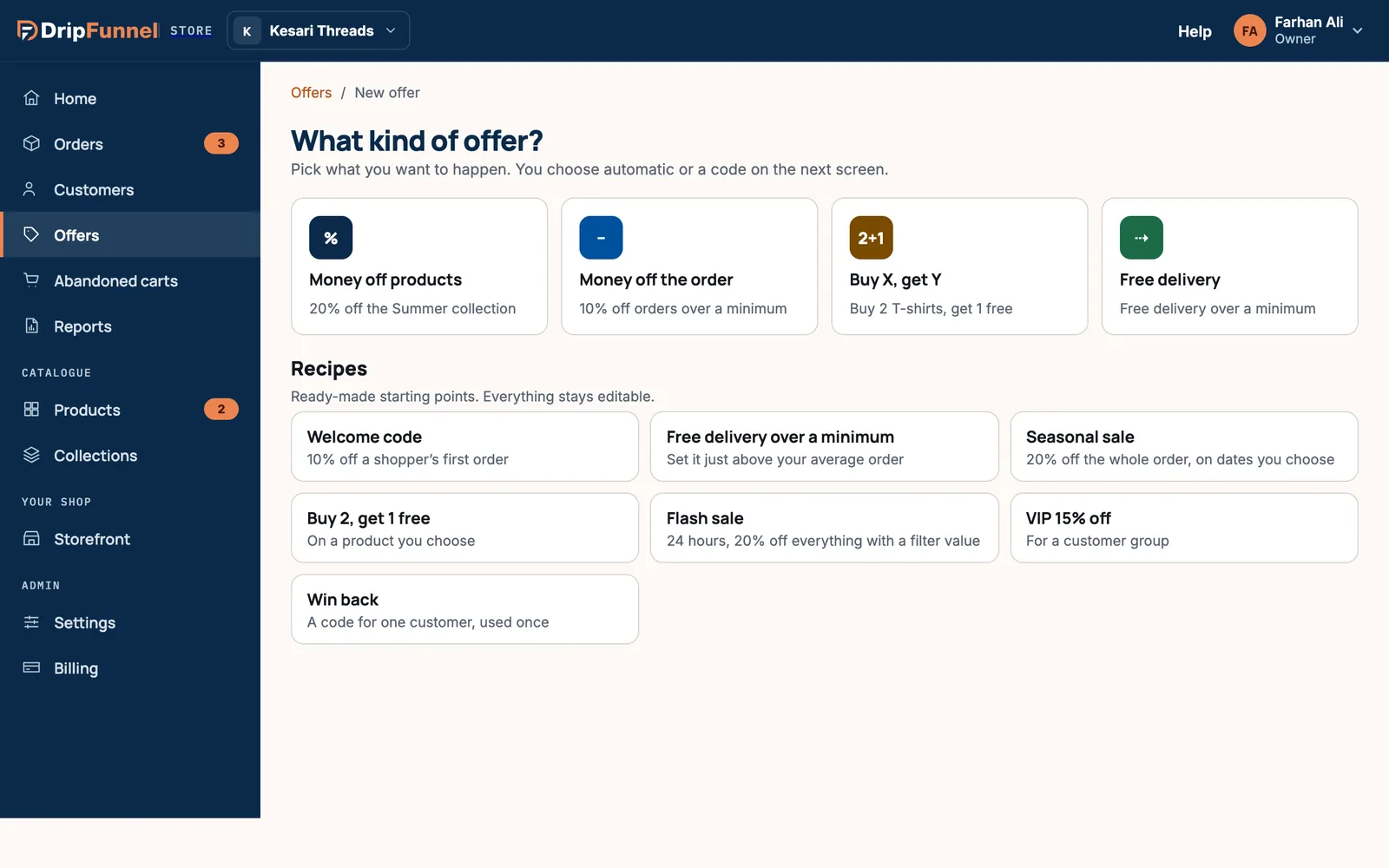
| Kind | What it does | Example |
|---|---|---|
| Money off products | Takes money off chosen products only | 20% off the Summer collection |
| Money off the order | Takes money off the whole order | 10% off orders over a minimum |
| Buy X, get Y | Gives something free or cheaper when they buy enough | Buy 2 T-shirts, get 1 free |
| Free delivery | Makes delivery free, or cheaper | Free delivery over a minimum |
Recipes are ready-made starting points. They fill in the form for you, and you can change anything before saving:
- Welcome code: 10% off a shopper’s first order, with the code WELCOME10.
- Free delivery over a minimum: set the minimum just above your average order.
- Seasonal sale: 20% off the whole order. If a festival or holiday is coming up in your markets, it’s set for the week before it (for example DIWALI20); otherwise you choose the dates.
- Buy 2, get 1 free: on a product you choose.
- Flash sale: 24 hours, 20% off everything with a filter value you choose.
- VIP 15% off: for a customer group.
- Win back: a code for one customer, used once.
Step 2: what does the shopper get?
The first section of the form depends on the kind you picked.
Money off products
- Choose Percentage or Fixed amount, and type the number.
- Under Applies to, choose Specific products (press Choose products and pick them), Products tagged… (every product with a filter value, like Fabric: Linen) or A collection.
- With products tagged or a collection, products you add later are included automatically.
- Under Leave out, you can exclude Gift cards and Products already reduced.
- With a percentage, you can tick Cap the discount at to set the most money any order can save.
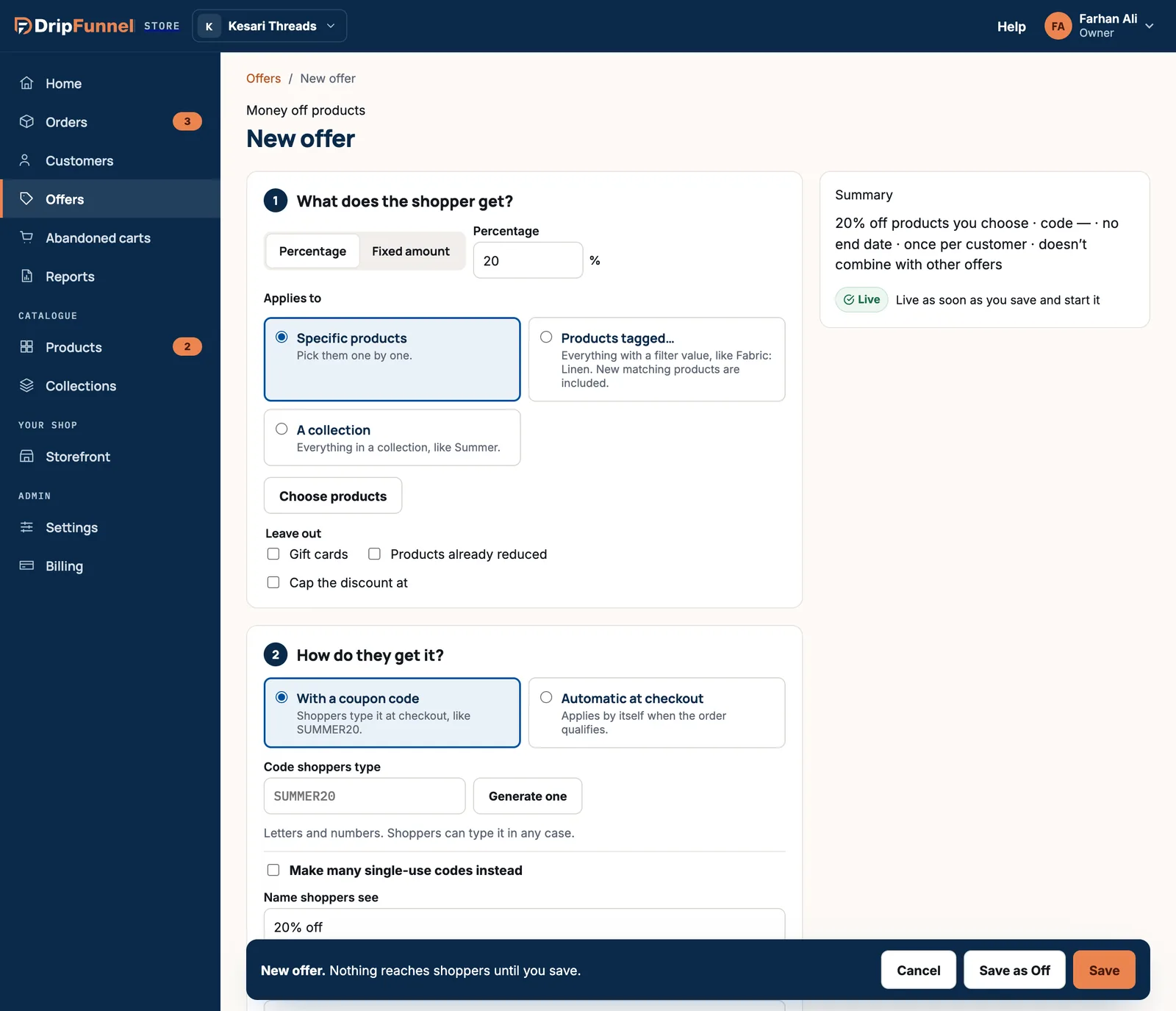
With a fixed amount, the discount comes off each item: two of the same item get twice the amount off.
Money off the order
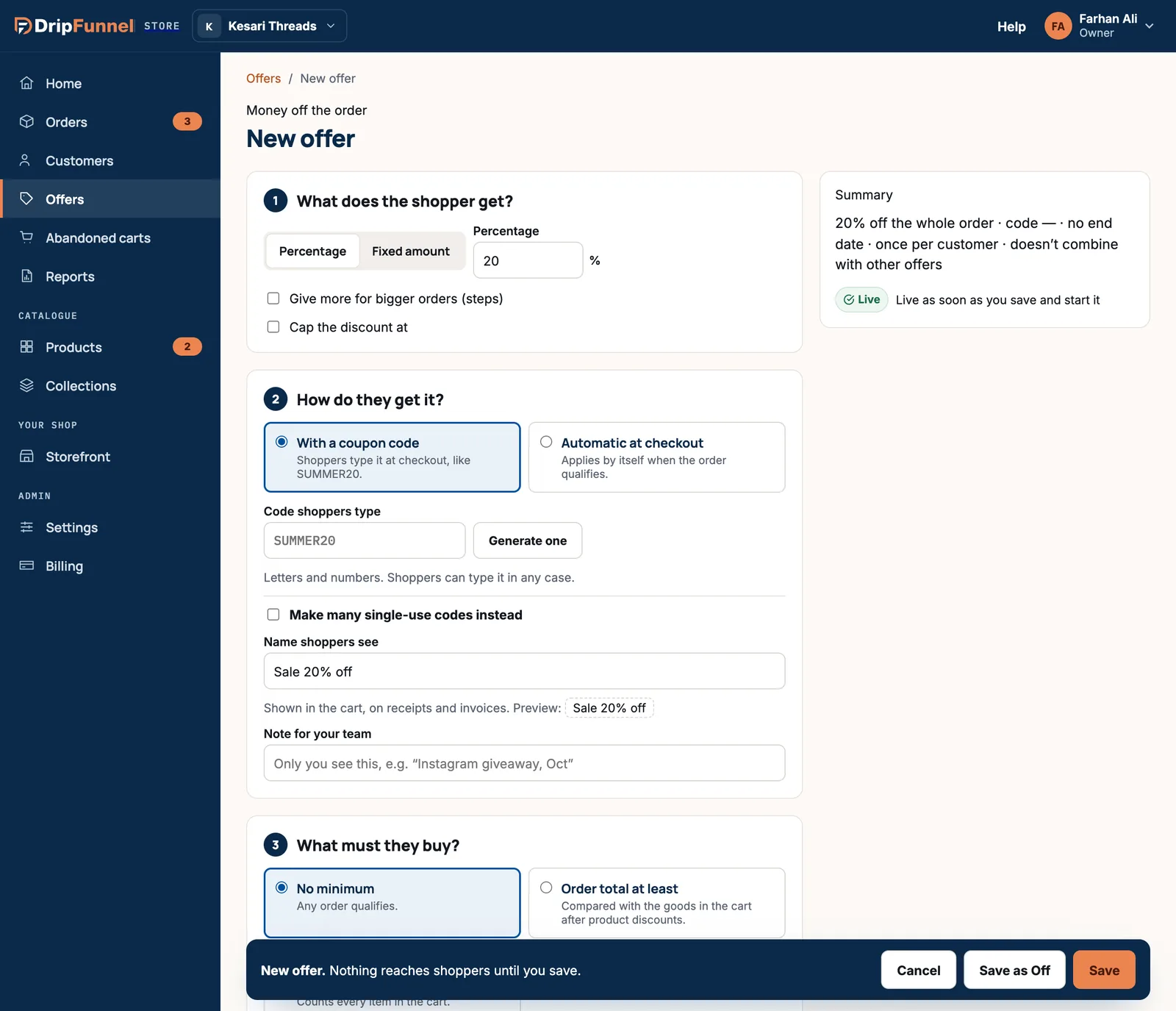
- Choose Percentage or Fixed amount.
- Tick Give more for bigger orders (steps) to reward bigger baskets, for example 5% off over ₹2,000 and 10% off over ₹5,000. Give 2 to 5 steps. The shopper gets the highest step they reach, not all of them added together.
- A fixed amount never makes an order go below zero.
Buy X, get Y
- Fill in “Customer buys [number] of [products]”: type how many and press Choose products.
- Fill in “and gets [number]”, then choose more of the same or of other products.
- Choose the price of what they get: Free, Half price or A percentage off.
- Tick Once per order if buying 6 shouldn’t give 2 free.
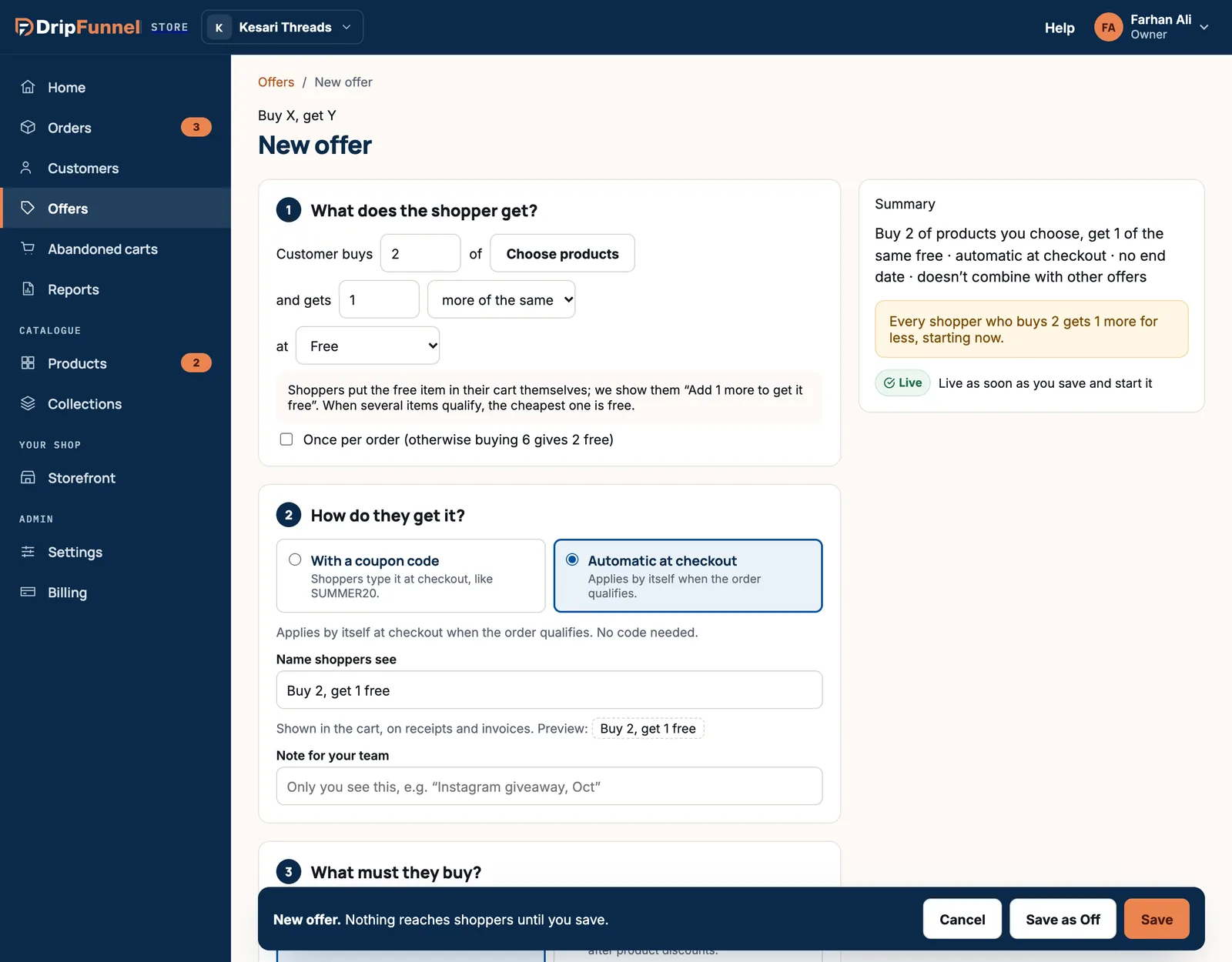
Shoppers put the free item in their cart themselves; the shop shows them a hint like “Add 1 more to get it free”. When several items qualify, the cheapest one is free.
Free delivery
Choose Free delivery, or Money off delivery and type the amount off the delivery charge. It applies to every delivery method.
Step 3: how do they get it?
- With a coupon code (or voucher code): shoppers type a code at checkout, like SUMMER20. Type your own in Code shoppers type, or press Generate one. Codes can use letters, numbers, - and _, from 3 to 32 characters. Shoppers can type it in any case: summer20 and SUMMER20 are the same.
- Automatic at checkout: the discount applies by itself when the order qualifies. No code needed.
A new code offer can also Make many single-use codes instead: a batch of codes that each work once, for one shopper. That’s useful for influencer giveaways or printed cards. Choose How many (up to 5,000), what they Start with (like INSTA-) and the Length after it. You download them as a spreadsheet file from the offer’s page after saving. See Check a code, see results and switch offers off.
- Name shoppers see: the name in the cart, on receipts and invoices, like “Welcome 10% off”. If it sounds internal (for example it contains “test”), the portal warns you, because shoppers will see it.
- Note for your team: only your team sees this, for example “Instagram giveaway, Oct”.
Step 4: what must they buy?
- No minimum: any order qualifies.
- Order total at least: the goods in the cart, after product discounts, must reach an amount.
- At least a number of these products (Money off products only).
- At least a number of items in the cart: every item counts.
If you set more than one condition, every condition must be met. For “this or that”, make two offers.
Step 5: who is it for?
- Everyone: every shopper.
- Customer groups: a group you choose, like VIP or Wholesale. You can make a new group right here. See Group customers.
- First order only: shoppers who haven’t ordered before. They sign in to use it, so the shop knows.
- Specific customers: pick people by name or email.
- Shoppers in one market: only orders going to that market’s countries. See Add a market.
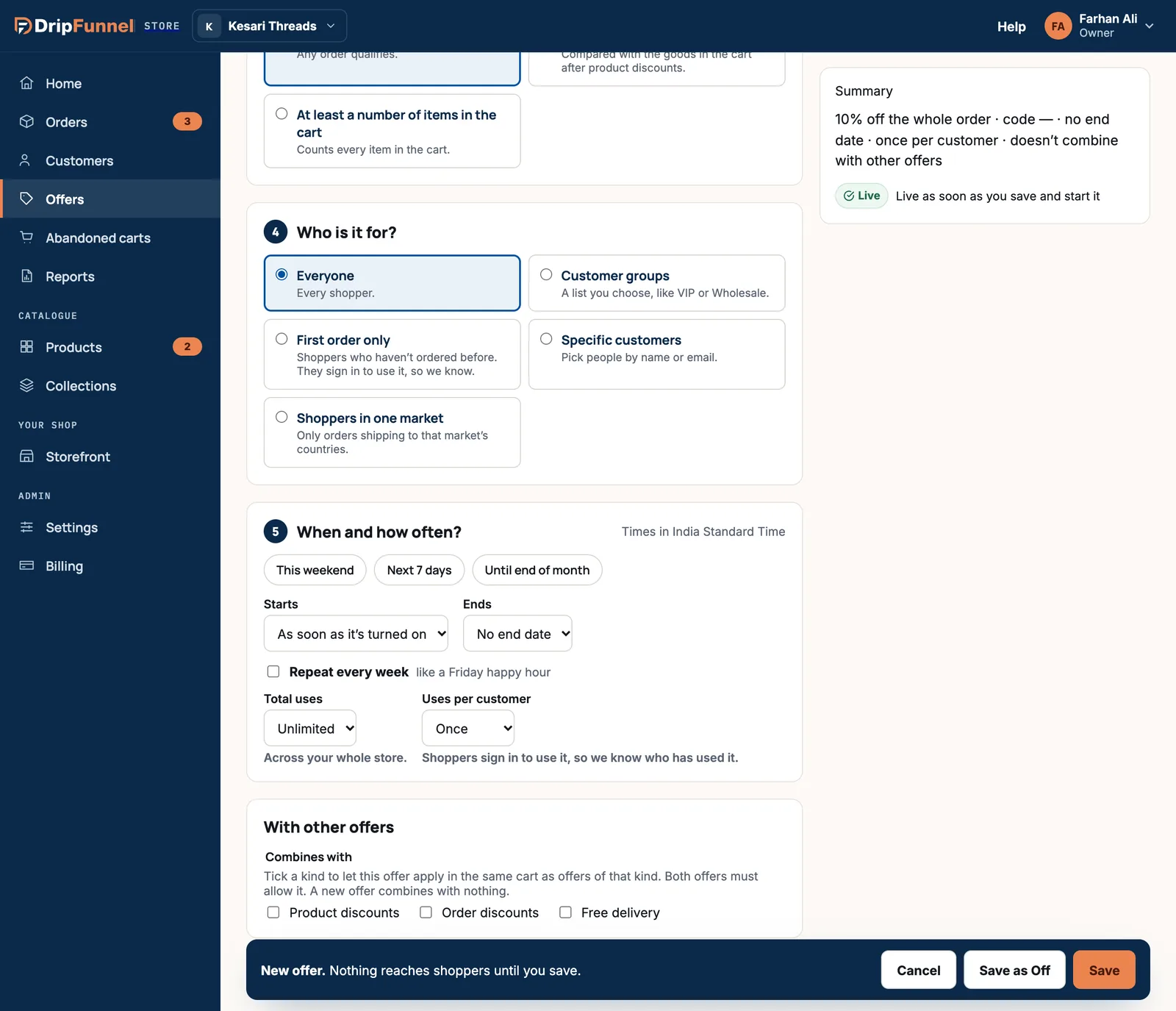
Step 6: when and how often?
- Quick picks: This weekend, Next 7 days or Until end of month.
- Starts: As soon as it’s turned on, or on a date. Ends: No end date, or on a date. Times are in your store’s time zone, shown at the top of the section. Midnight means the end of that day.
- Repeat every week: for something like a Friday happy hour. Pick the days and the hours.
- Total uses: Unlimited, or a limit across your whole store, for example the first 100 orders.
- Uses per customer: Unlimited, Once, Twice or 3 times. Shoppers sign in to use it, so the shop knows who has used it.
Step 7: with other offers
Under Combines with, tick Product discounts, Order discounts or Free delivery to let this offer apply in the same cart as offers of that kind. Both offers must allow it. A new offer combines with nothing until you tick something.
Check the summary, then save
The Summary on the right describes your offer in one sentence and shows the status it will have. It also warns you about common mistakes:
- A discount over 50%: “Double-check it isn’t meant to be…” (for example 50% instead of 5%).
- A fixed amount with no minimum, which could make a cheap product free.
- A code with no end date, unlimited uses and no per-customer limit, which anyone could use forever if it’s shared online.
- Press Save. (Press Save as Off to save it switched off, and turn it on later.)
- Choose when it starts: Start now, Schedule (it starts by itself on the start date) or Keep off.
- Press Save. You’ll see, for example, “Your code WELCOME10 is live”, with See offer or Stay here.
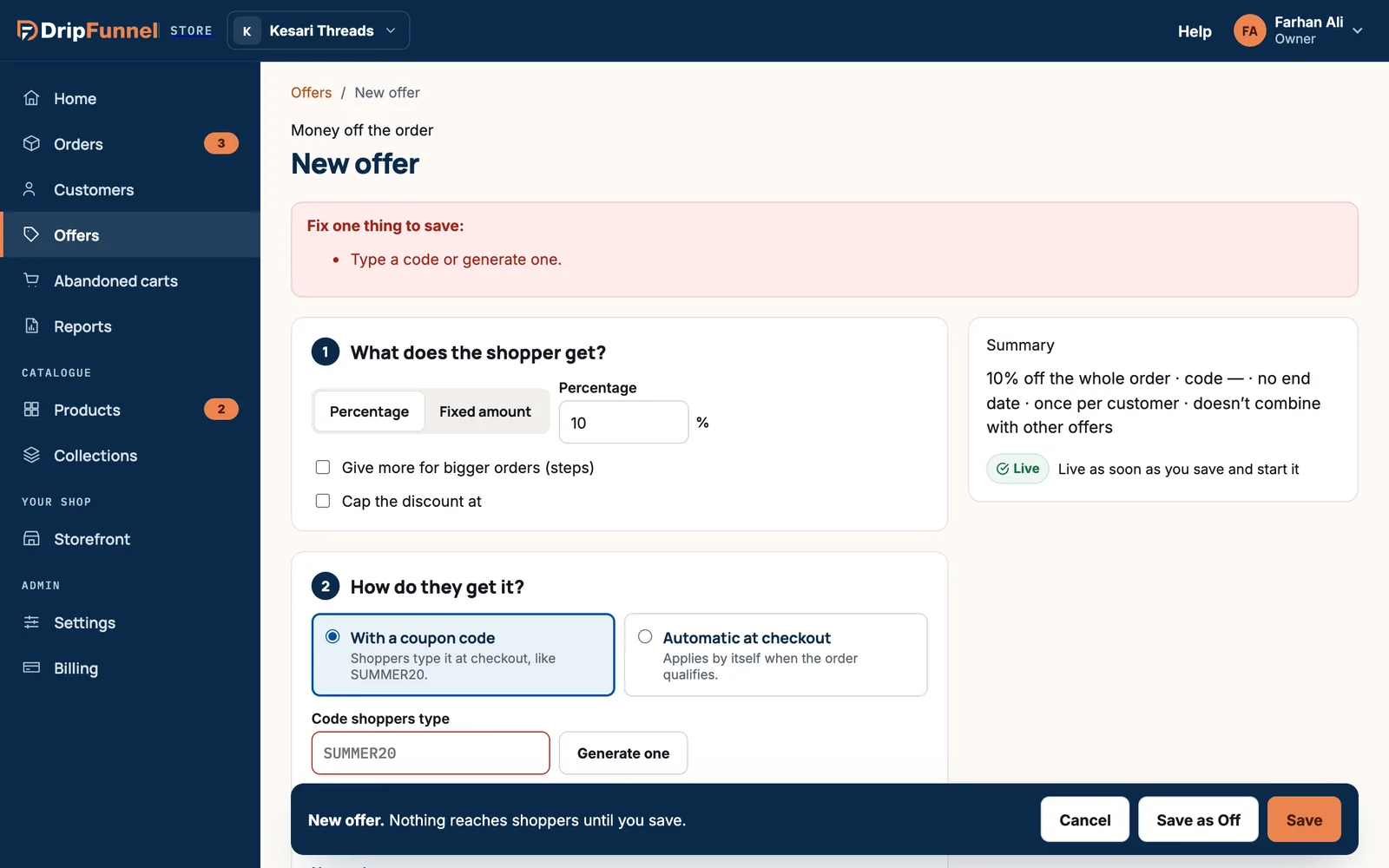
Changing a live offer
Open the offer and press Edit. Changes to a live offer reach shoppers as soon as you save; carts already in progress update the next time they change. If you change the code, the old code stops working.
If something goes wrong
- “…is already used by…”: every code can only be used by one offer, ever. Codes from ended or deleted offers stay reserved too, so pick a new one.
- “Your plan allows 3 live offers.”: turn one off, or see a bigger plan in Billing.
- “Your plan doesn’t include this.”: group or chosen-customer offers, steps and single-use codes need Growth Pro or up.
- “Someone changed this offer since you opened it.”: another person saved first. Choose Load their version or Keep mine.
Questions
Should I use a code or an automatic offer?
Use a code when you want to control who gets it, for example by sharing it on Instagram or in an email. Use automatic when every qualifying order should get it, like free delivery over a minimum.
Can a shopper use two offers at once?
Only if both offers allow it under Combines with. A new offer combines with nothing, so by default the shopper gets one offer of each kind.
Does the free item in Buy X, get Y go into the cart by itself?
No. Shoppers add the free item themselves. The shop tells them how many more to add, and the cheapest qualifying item becomes free.
Can I give one customer a personal code?
Yes. Use the Win back recipe, or choose Specific customers under Who is it for? and set Total uses to 1. This is on Growth Pro and up.
What time zone do offer dates use?
Your store’s time zone, set in Settings › Store info. It’s shown at the top of the When and how often? section.