

Turn on approval for supplier products
Updated 20 October 2026 · Owners on BusinessWith approval on, nothing a supplier adds, and no change to a product’s price, title or photos, reaches shoppers until you’ve checked it. You review products from the Products list.
Turn approval on or off
- Open Settings and choose the Supplier tab.
- Switch on Approve supplier products before they go live.
When it’s on, the switch reads: On — new supplier products, and changes to price, title or photos, wait for your approval in Products. Other edits go live straight away. So a supplier can still fix a typo in a description or update stock without waiting for you.
- Turning approval on doesn’t take anything off sale: live products stay live; only new and edited ones wait.
- Turning approval off doesn’t release products that are already waiting: products already waiting stay in the queue. Approve them as usual.
- Suppliers with Stock only access can still suggest new products. Those always wait for you, whether approval is on or off.
See what’s waiting
Three places tell you something is waiting: the number next to Products in the menu, the supplier products waiting for approval card on Home, and a banner at the top of the Products list. Press Review them on the banner, or choose the Waiting for approval filter.
Review a product
- In Products, press Review on a row marked Waiting for approval.
- Read the checks: whether a photo and a price are filled in, and whether the product is ready to sell in each of your markets (for example, a missing country of origin).
- Choose what to do: Approve & publish, Send back or Edit before approving.
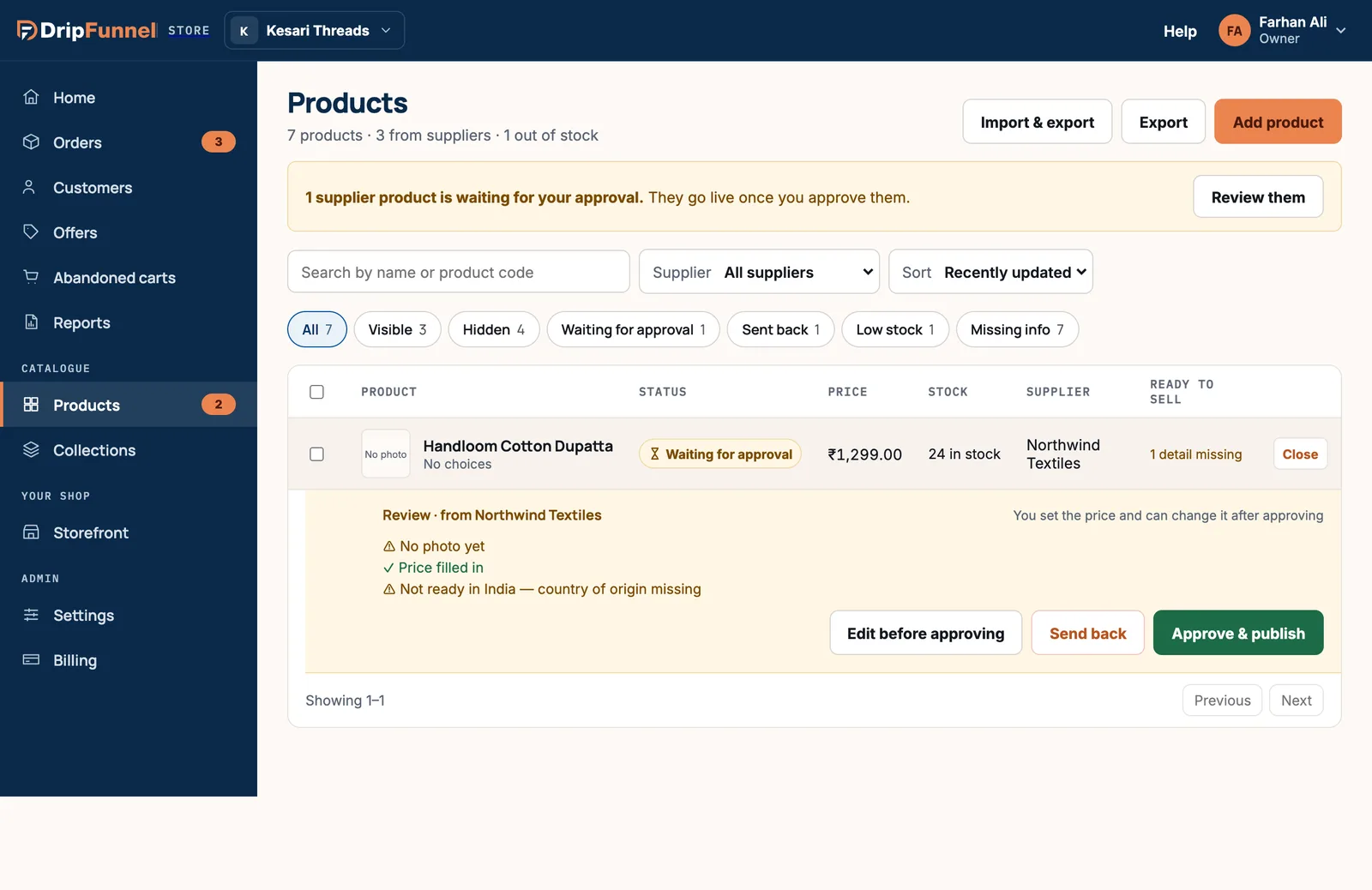
- Approve & publish puts it on sale. The supplier is told. You set the price and can change it after approving.
- Edit before approving opens the product so you can fix something first.
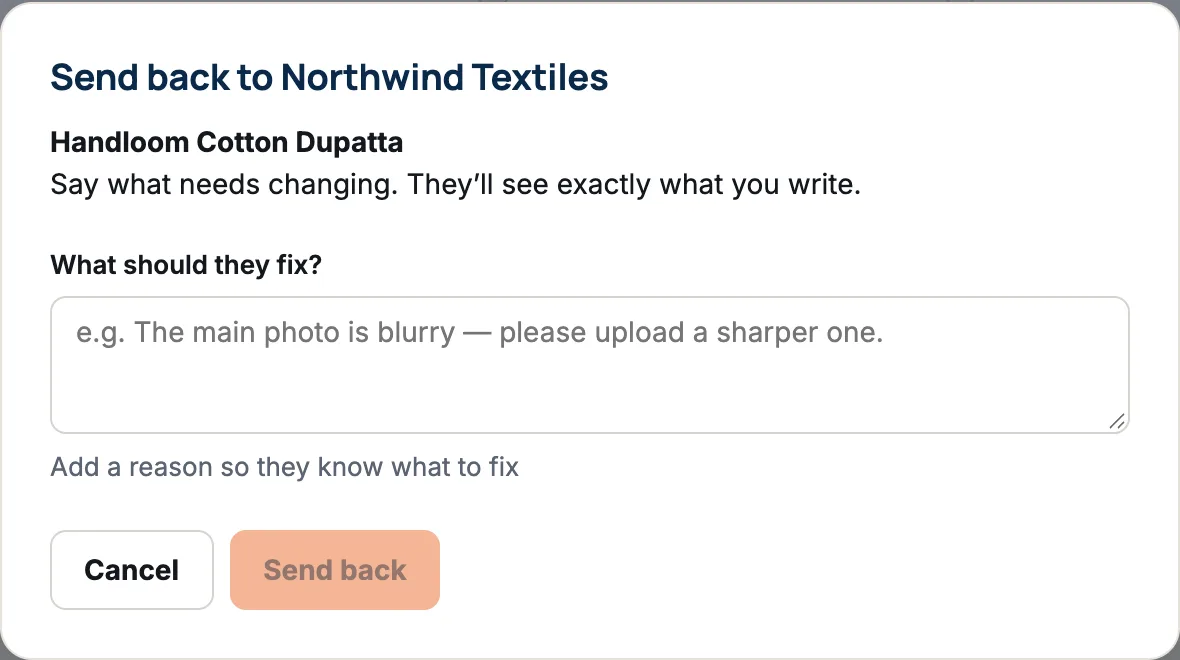
- Send back asks you What should they fix? Write it plainly. They see exactly what you write, at the top of their product.
Approve several at once
Tick the products you want in the list, then press Approve (with the number selected) in the bar that appears. If some don’t save, you’re told how many were approved, and you can try the rest again.
What the supplier sees
While a product waits, the supplier sees Waiting for approval. If you send it back, it shows Sent back with your words. When they fix it, they press Submit for approval again, and it comes back to your list.
Only owners can approve or send back supplier products. Managers can see them but can’t approve them.
Questions
If a supplier edits an approved product, does it come off sale?
Only if they change the name, price or photos. Then it waits for you again and is hidden until you approve it. Other edits go live straight away.
Can I change a supplier’s price?
Yes. You decide the price and whether the product shows on your store, before and after approving.
Is approval on my plan?
Approving supplier products is part of the Business plan, along with suppliers themselves. See Pricing.