

Invite a supplier
Updated 20 October 2026 · Owners on BusinessSuppliers add their own products and keep their stock up to date, and their products sell under your store’s name. They only ever see their own products and their own lines in orders.
Before you start
- Suppliers are on the Business plan (see Pricing). Only an owner can invite them.
- You need the supplier’s business name and the email of the person who will look after it for them.
- Decide how much they can do. See the four access levels in What owners, managers and staff can do.
Invite a supplier in three steps
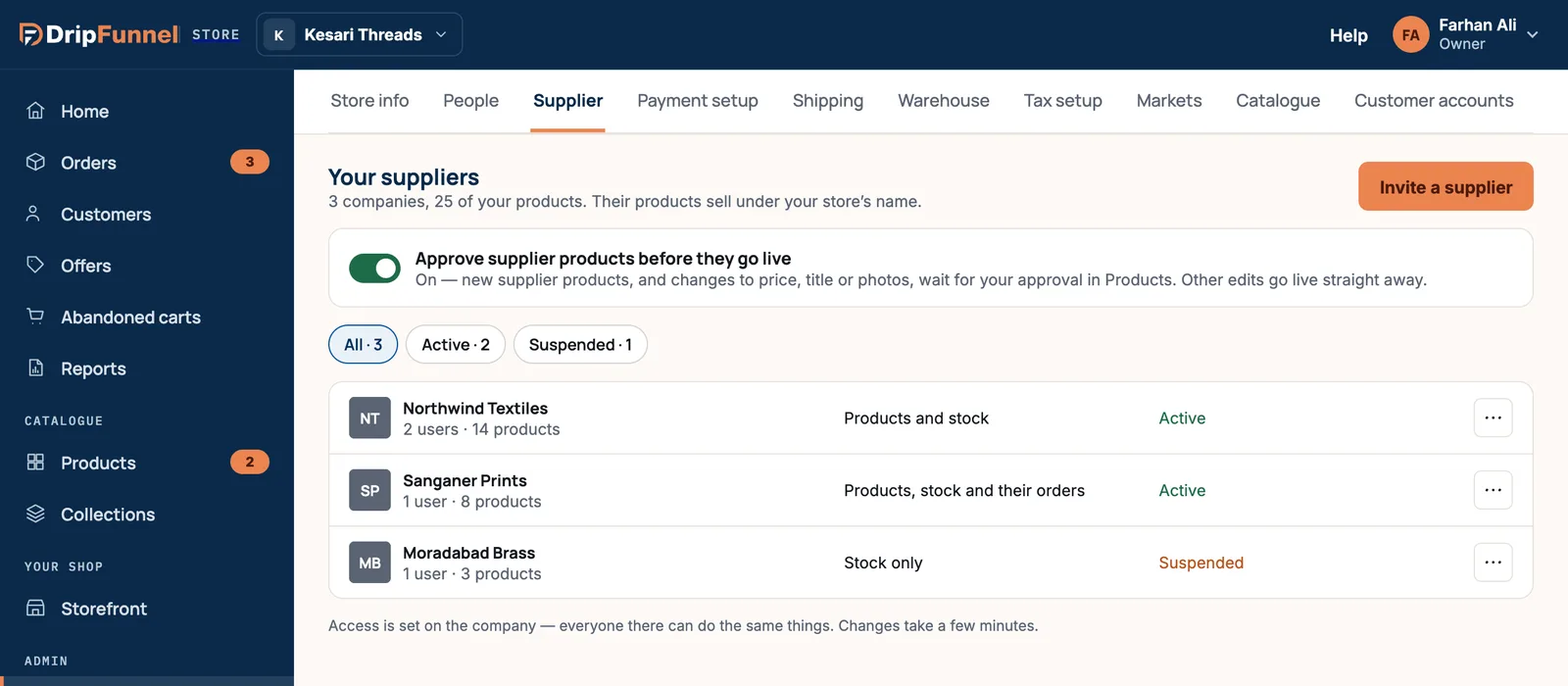
- Open Settings and choose the Supplier tab. Press Invite a supplier.
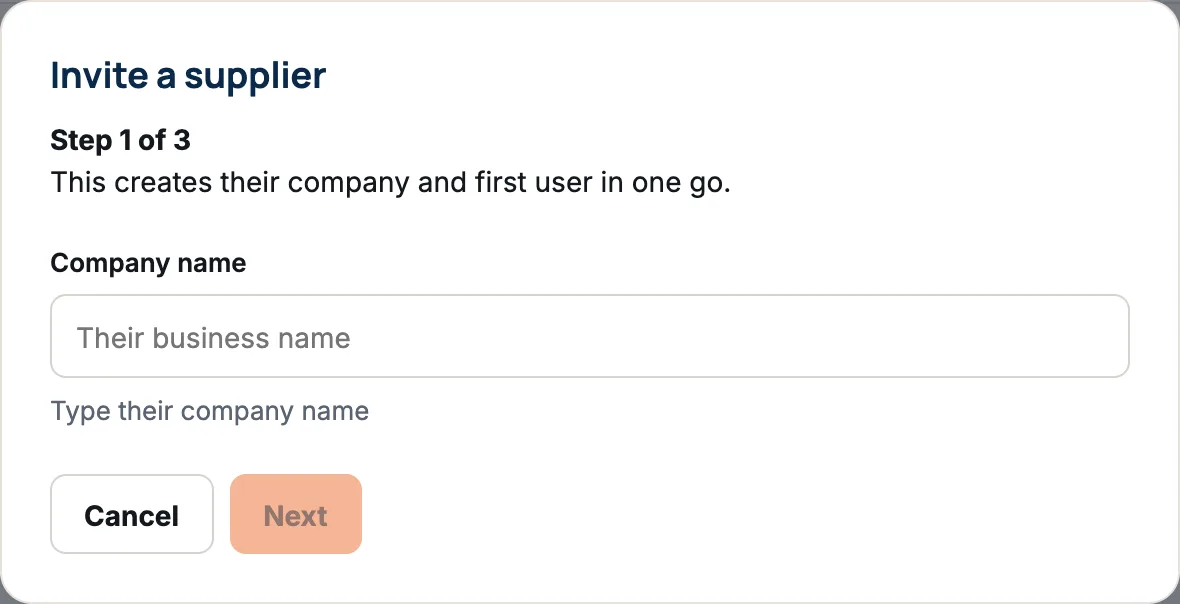
- Step 1 of 3: type their Company name and press Next. This creates their company and first user in one go.
- Step 2 of 3: type Their email and press Next. This person becomes the company’s first Supplier admin, who can later invite their own colleagues.
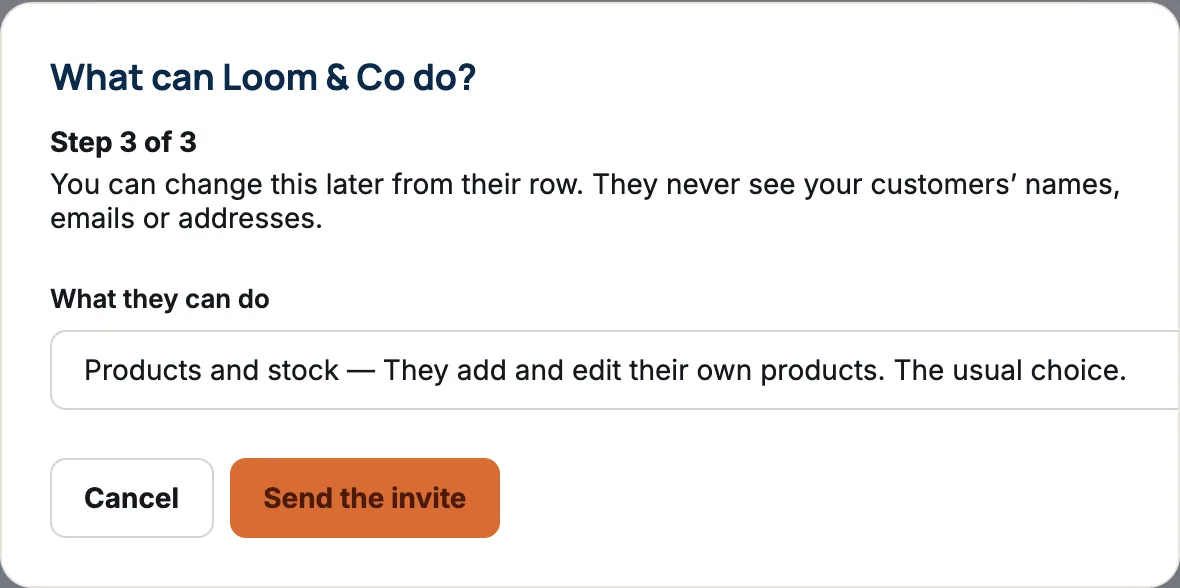
- Step 3 of 3: choose What they can do. Products and stock is chosen to start with, and is the usual choice.
- Press Send the invite. You see a message that the invite was sent, and the company shows Invite sent.
The four access levels
- Stock only — They update quantities. Nothing else.
- Products and stock — They add and edit their own products. The usual choice.
- Products, stock and seeing their orders — They also see the orders with their items.
- Products, stock and their orders — They also see and pack the orders with their items.
What happens next
- The supplier’s contact gets an email. The link works for 7 days.
- They set a password (or sign in, if they already have an account) and land on Your products, which shows only their products.
- New suppliers start with their items being sent to you, and you ship them on to the shopper. To have them post parcels straight to shoppers, use Change how they ship. See Change, suspend or remove a supplier.
- If approval is on, every new product they add waits for you before it goes on sale. See Turn on approval for supplier products.
Send your supplier the link to For suppliers: working in a store’s portal. It walks them through everything from their side.
If something goes wrong
- That company is already one of your suppliers. Add another person to that company instead, with ⋯ › Add a person.
- They’re already in this store. The email belongs to someone on your own team. One person can’t be both.
- Your plan includes … — see plans for more. Your plan doesn’t include suppliers, or you’ve reached its limit. See Change your plan.
Questions
Can a supplier see my customers?
No. They never see your customers list, emails or phone numbers. Only if you set their items to go straight to the shopper do they see the shopper’s name and delivery address, to post the parcel.
Do my supplier’s people count towards my staff accounts?
No. Staff accounts count only your own managers and staff.
Can I change their access level later?
Yes. Press ⋯ on the company’s row and choose Change what they can do. The new level applies to everyone at that company.
Does DripFunnel pay my suppliers?
No. You settle with your suppliers yourself, outside the portal. Suppliers can see their own sales lines to check against what you pay them.