

For suppliers: working in a store’s portal
Updated 20 October 2026 · SuppliersThis guide is for you if a store has invited your company to sell your products through it. You add your products, keep your stock right and, if the store allows it, pack your own orders. You only ever see your own products and your own lines in orders.
Accept the invitation
- Open the email from the store. The link works for 7 days.
- If you’re new, add your name and a password and press Accept and open the store. If you already have an account, press Sign in to accept.
- You land on Your products.
If the link has expired, ask the store (or your company’s admin) to send a new one. Each new invitation replaces the old link.
What you see
Your menu depends on what the store lets your company do:
- Your products: always. Here you also find Warehouses and Size charts.
- To ship and Your sales: if you can see or pack the orders with your items.
- Your team: if you’re a Supplier admin.
Home isn’t for suppliers. If you open it, press Go to your products.
Add a product
- In Your products, press Add product.
- Add photos, the name, a description, the price and your stock, as the store’s owner would. See Add a product with sizes and colours.
- Press Submit for approval if the store checks products first, or Save if it doesn’t.
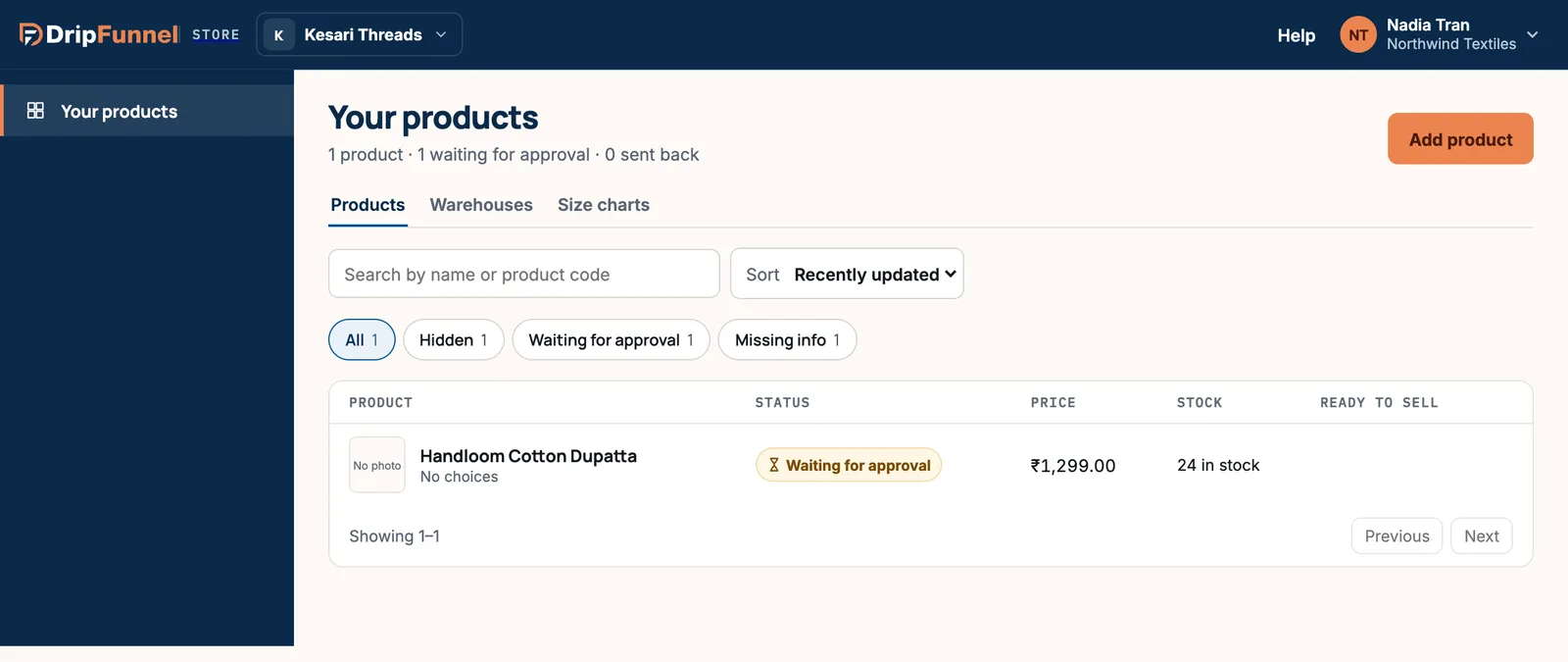
- Waiting for approval: the store hasn’t checked it yet. You hear back either way.
- Sent back: the store wants something changed. Their note is at the top of the product: Sent back by your store owner: “…” Fix it and send it again. Fix it and press Submit for approval again.
- Once approved, the product goes on sale. If you later change its name, price or photos, it waits for approval again. Other edits go live straight away.
The store owner can also edit your products, and decides the selling price and whether a product shows in the store.
Keep your stock right
Open a product and change the stock count, or use Change with a reason… to record why (new stock, a return, damage or a recount). Stock is counted per location: add your locations under Your products › Warehouses. With Stock only access, stock is all you can change on an existing product.
Ship your items
To ship lists the orders with your items in them. You see only your lines. Each row says whether to Send to the store or send it to the shopper.
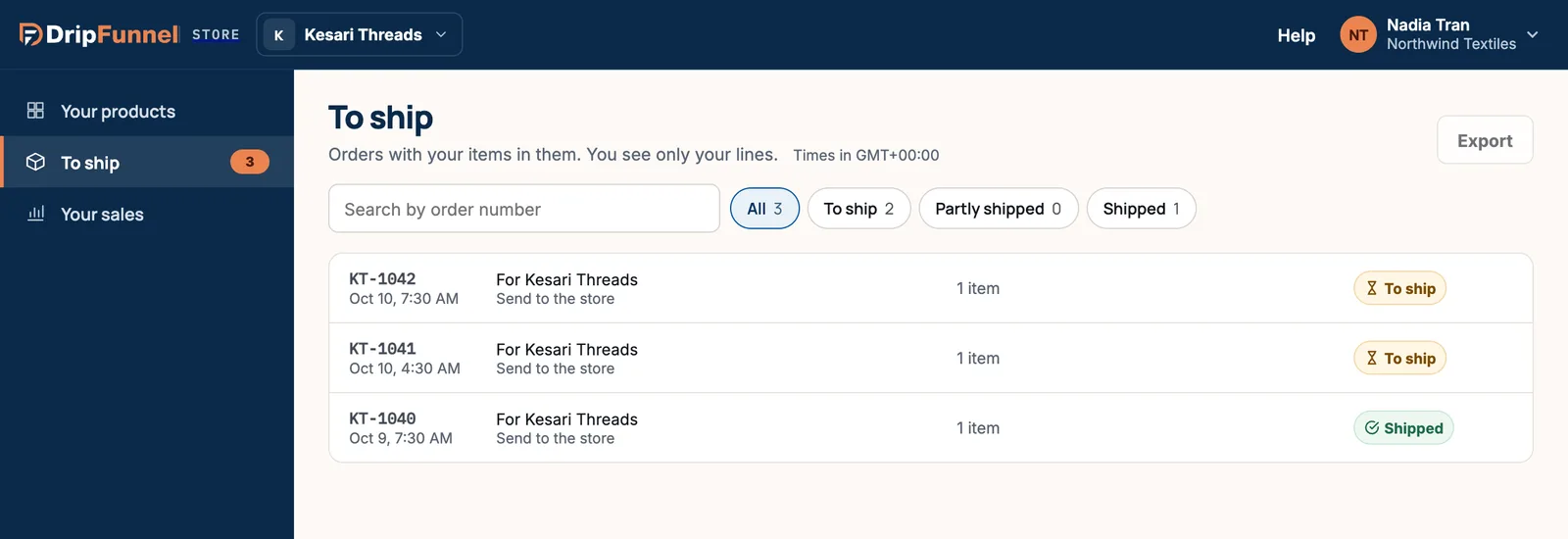
- Open an order and press Ship items.
- Choose how many of each item are in this parcel and where it ships from.
- If the store delivers to the shopper, press Mark as sent. If you post straight to the shopper, add the courier and tracking, then press Mark as shipped. The shopper gets an email.
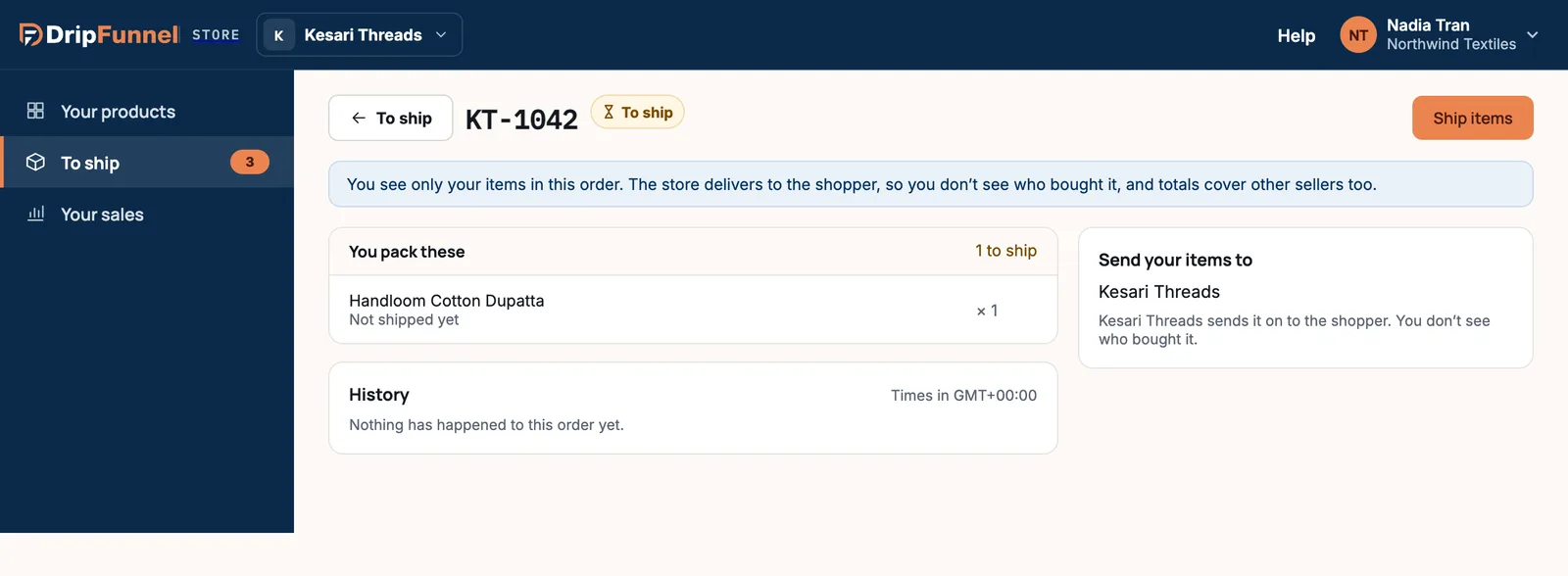
If you pack your own orders, you can also refund your own items once they’ve shipped, with Refund. The money goes back on the shopper’s payment, and the store sees every refund you make.
Check Your sales
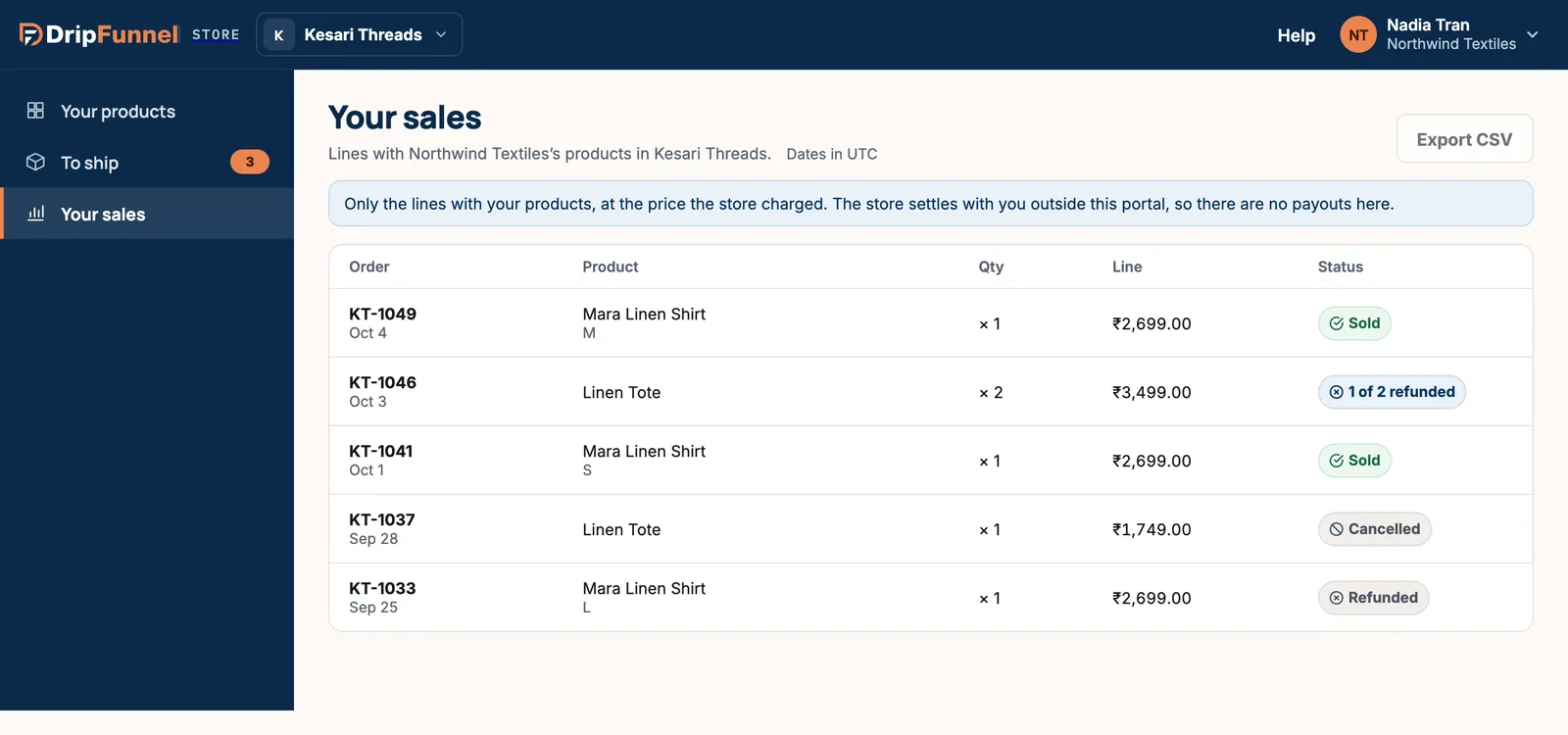
Your sales lists every order line with your products, at the price the store charged, and whether it was sold, refunded or cancelled. Press Export CSV for a spreadsheet. The store settles with you outside the portal, so there are no payouts here.
Invite your colleagues (Supplier admins)
- Open Your team and press Invite someone.
- Type Their email and choose Supplier member or Supplier admin — Also invites and removes people.
- Press Send invitation. The link works for 7 days.
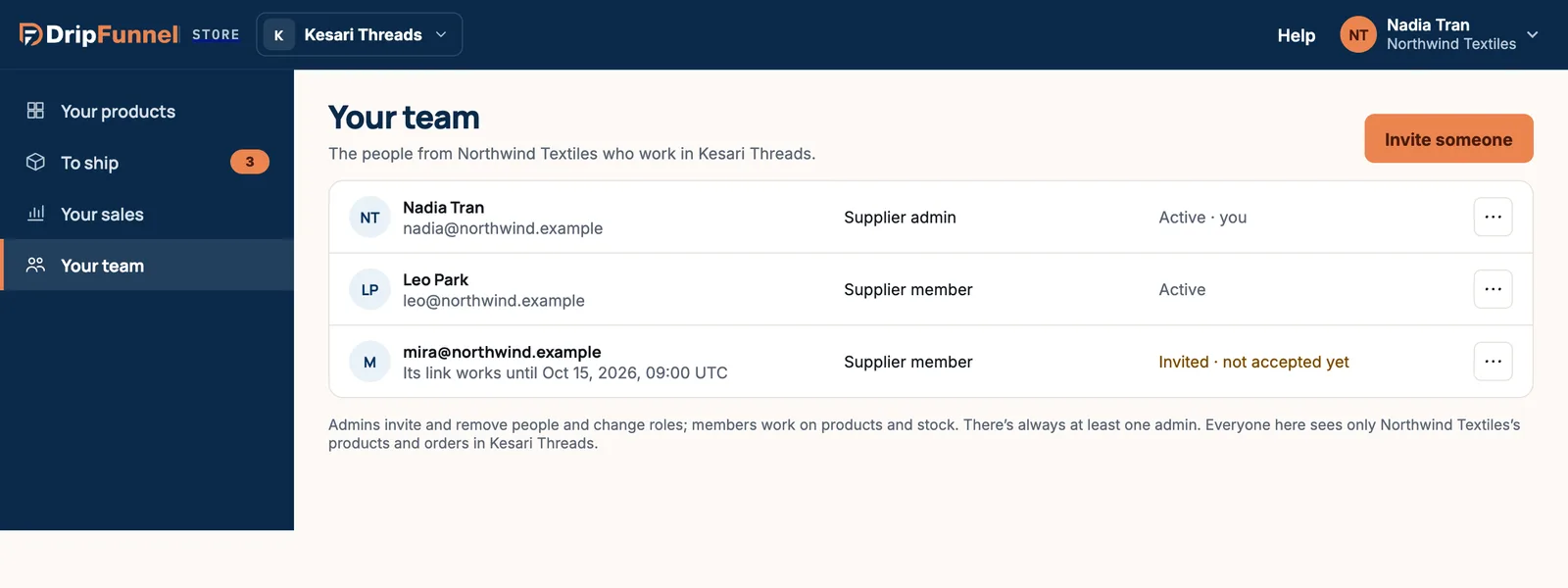
Use ⋯ on a row to resend or cancel an invitation, make someone an admin or member, or remove them. There’s always at least one admin, so the last admin can’t be removed or changed to a member.
What you never see
- The store’s other products, its own stock or other suppliers.
- Order totals, offers, the customers list, reports or billing.
- Shoppers’ emails or phone numbers. If you post straight to shoppers, you see the name and delivery address only.
Questions
Why can’t I see To ship or Your sales?
Your company’s access level doesn’t include orders. Ask the store if you need it.
Why did my product go back to Waiting for approval?
You changed its name, price or photos, and the store checks those changes before they go live.
How do I get paid?
The store pays you directly, outside the portal. Use Your sales and its export to check what was sold.
I work for two stores. Do I need two accounts?
No. One account works for every store you belong to. Switch stores from the store name at the top of the screen.