

Tell a product’s story with A+ content
Updated 20 October 2026 · Owners and managers (suppliers can submit theirs)A+ content adds big photos, feature blocks, comparison charts and more below a product’s description, so the page tells its story. You build it from ready-made blocks; no design skills needed.
Before you start
- A+ content is on Growth Pro and above (see Pricing). If it isn’t on your plan, the product page says “A+ content isn’t on your plan.”
- The owner switches it on in Settings › Catalogue under A+ content · Product story.
- Save the product first. A new product says “Save the product first, then add its A+ content.”
Open the A+ editor
- Open the product.
- Find the A+ content · Product story section and press Edit A+ content.
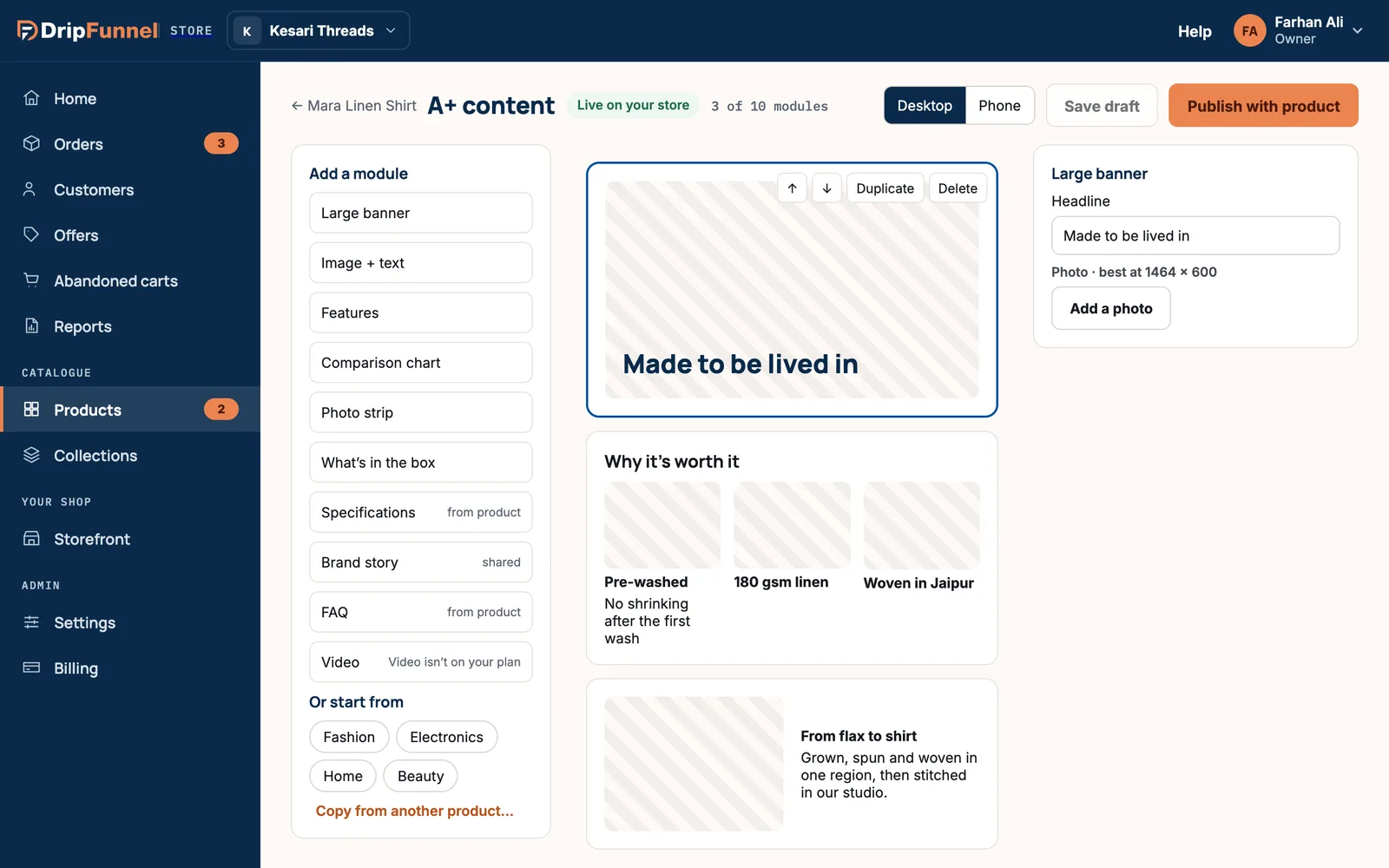
Build the page
The editor has three columns. On the left, Add a module lists the blocks you can add:
- Large banner: a wide photo with a headline.
- Image + text: a photo beside a short paragraph. Choose Photo on the Left or Right.
- Features: up to 4 points, each with a photo.
- Comparison chart: compare 2 to 5 of your products.
- Photo strip: up to 8 photos in a row.
- What’s in the box: up to 20 items.
- Specifications and FAQ: filled in from the product’s own specifications and FAQs.
- Brand story: a block shared across products, so you write it once.
- Video: a YouTube or Vimeo link. It needs the Video section switched on in Settings › Catalogue, and a plan that includes it.
- Click a block to add it to the page. A page can have up to 10.
- Click a block on the page to select it. Its settings appear on the right: headline, text, photo and so on.
- Every photo needs a description (alt text). It says what the photo shows, for shoppers using screen readers.
- Use the buttons on a block to move it up or down, Duplicate it or Delete it.
To start faster, use Or start from and pick a template (Fashion, Electronics, Home, Beauty), or Copy from another product… to reuse a page you’ve already built. Both ask before replacing blocks already there.
Preview, save and publish
- Switch Preview as between Desktop and Phone to check both.
- Save draft keeps your work without changing the live page: “Draft saved — your live page hasn’t changed”.
- Publish with product puts it live: “A+ content is live on your product page”.
The label at the top tells you where you are: Draft · not on your store yet, Live on your store, Draft has changes · live page unchanged, or Unsaved changes.
If something is missing, such as a photo description, publishing says how many things need filling in and marks them.
Suppliers’ A+ content
Suppliers who can edit products can build A+ content for their own products. Their button reads Submit with product, and with approval on, it waits for your approval along with the product.
Questions
Where does A+ content appear?
Below the product description on the product page.
Can staff edit A+ content?
No. Staff can look at it but not change it.
What happens to my A+ content if I move to a smaller plan?
You keep it. It’s hidden from your shop until you upgrade again, then it comes straight back.