

Find, filter and change products in bulk
Updated 20 October 2026 · Owners and managers (staff can view)The Products list shows everything you sell, with its status, price, stock and whether it’s ready to sell. This guide explains how to find products quickly and how to change many at once.
The Products list at a glance
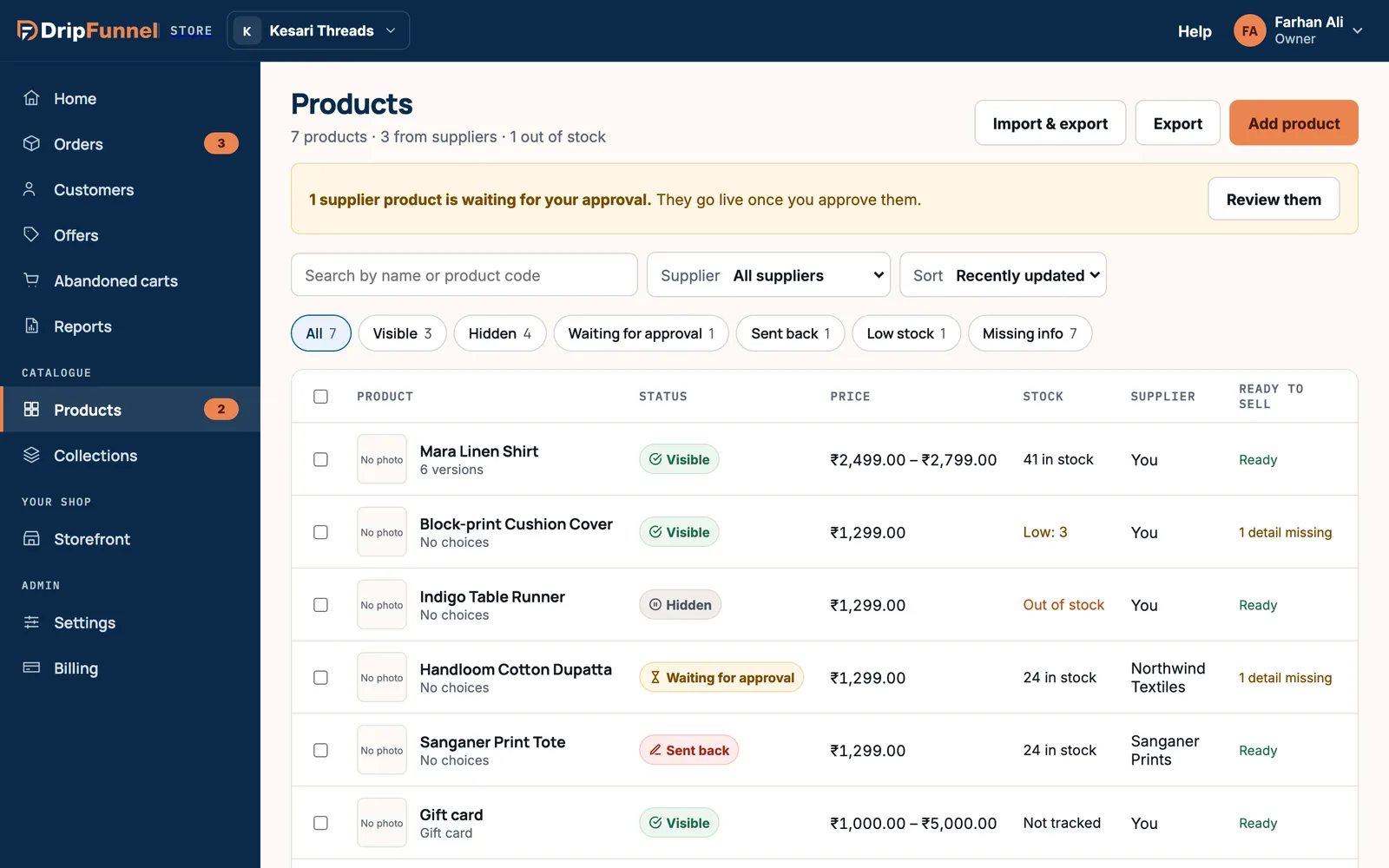
Open Products in the menu. The line under the title sums up your catalogue, for example “7 products · 3 from suppliers · 1 out of stock”. Each row shows:
- Product: photo, name and a short line: how many versions it has (“6 versions”), “No choices”, or its kind (Download, Service, Gift card).
- Status: Visible (on sale), Hidden (only your team sees it), Waiting for approval or Sent back (supplier products, see Turn on approval for supplier products).
- Price: one price, or a range such as ₹2,499.00 – ₹2,799.00 when versions differ.
- Stock: “41 in stock”, “Low: 3” or “Out of stock”. Downloads, services and gift cards show “Not tracked”.
- Supplier: “You” for your own products, or the supplier’s name. Only the owner sees this column.
- Ready to sell: “Ready”, or how many details are missing for the countries you sell to, such as “1 detail missing”. Open the product to see which.
Find a product
- Search: type part of a name or a product code in Search by name or product code.
- Show chips: All, Visible, Hidden, Waiting for approval, Sent back, Low stock and Missing info, each with a count. A chip with nothing in it is hidden.
- Low stock lists products running low (by default, 5 or fewer left to sell). Missing info lists products with no description or no photo.
- Supplier (owner only): show everything, only Yours, or one supplier’s products.
- Sort: Recently updated, Name A–Z, Price, low to high, Price, high to low or Stock, lowest first.
The list shows 10 products a page; use Previous and Next at the bottom.
Change price and stock quickly
On a computer, each row has Quick edit. It opens a small panel under the row with the price and stock of every version, so you can update them without opening the product.
- Press Quick edit on the row.
- Change the prices (in your main currency) and the stock. Stock here is at your default location only.
- Press Save (or Save 3 changes). You’ll see a message such as “Saved 3 changes to Mara Linen Shirt”.
To change anything else, or stock at another location, open the product by clicking its name.
Change many products at once
On a computer, tick the box at the start of each row you want, or the box in the header to tick the whole page. A dark bar appears with what you can do:
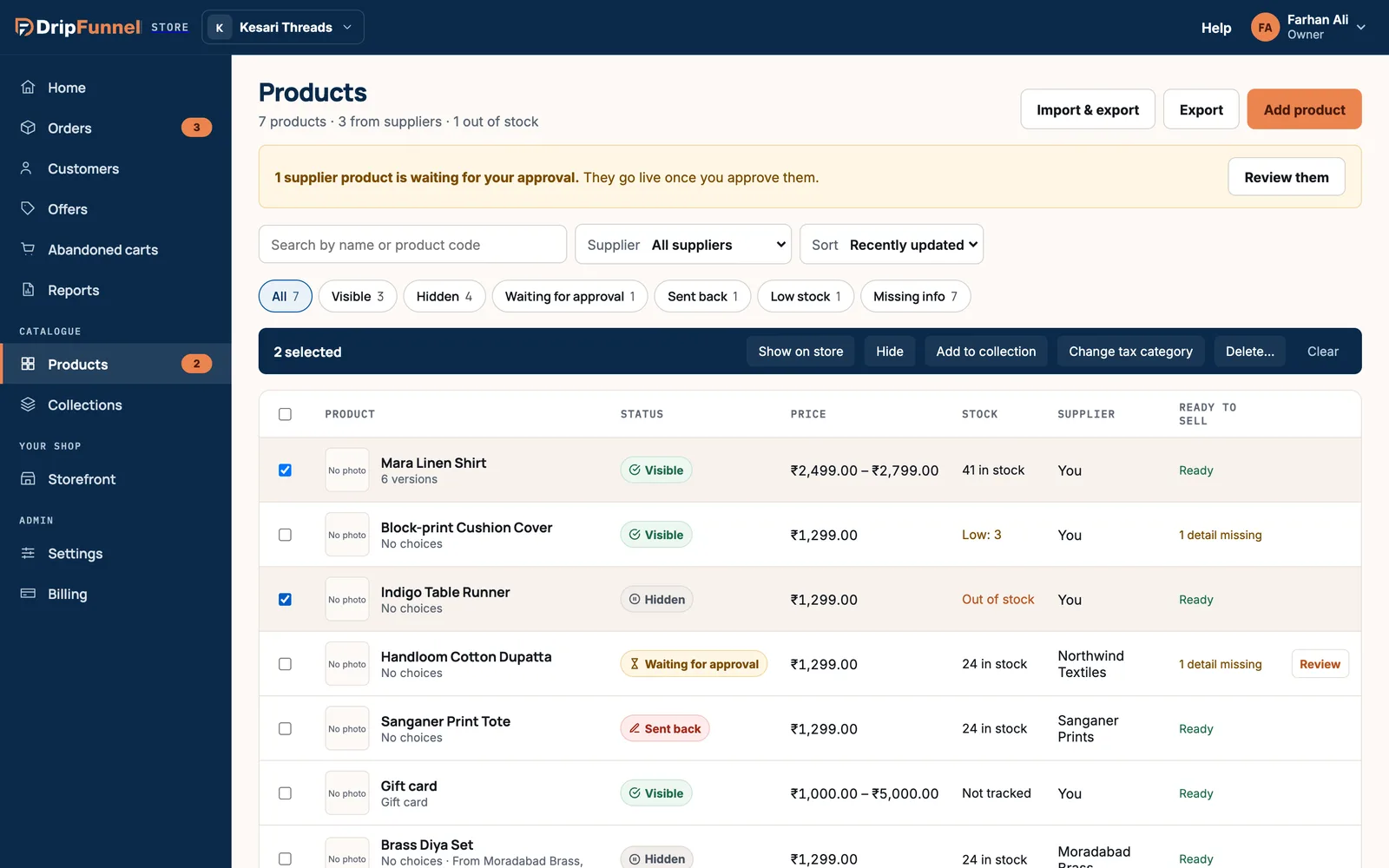
- Show on store: makes them visible. Products waiting for approval are skipped.
- Hide: hides them from shoppers.
- Add to collection: adds them to a hand-picked collection. Automatic collections fill themselves from their rules, so they aren’t listed. If you have no hand-picked collection yet, you’ll be asked to create one first.
- Change tax category: gives every version of each product the same tax category. Prices don’t change. Set up tax categories first in Settings › Tax setup (see How tax is worked out in each country).
- Delete…: removes them for good, after you confirm. They leave every collection, and past orders keep their record. If you might sell them again, hide them instead.
- Approve: the owner also gets Approve when supplier products waiting for approval are ticked.
- Clear: unticks everything.
Ticking works one page at a time. To change products on another page, move to that page and tick them there.
Review supplier products
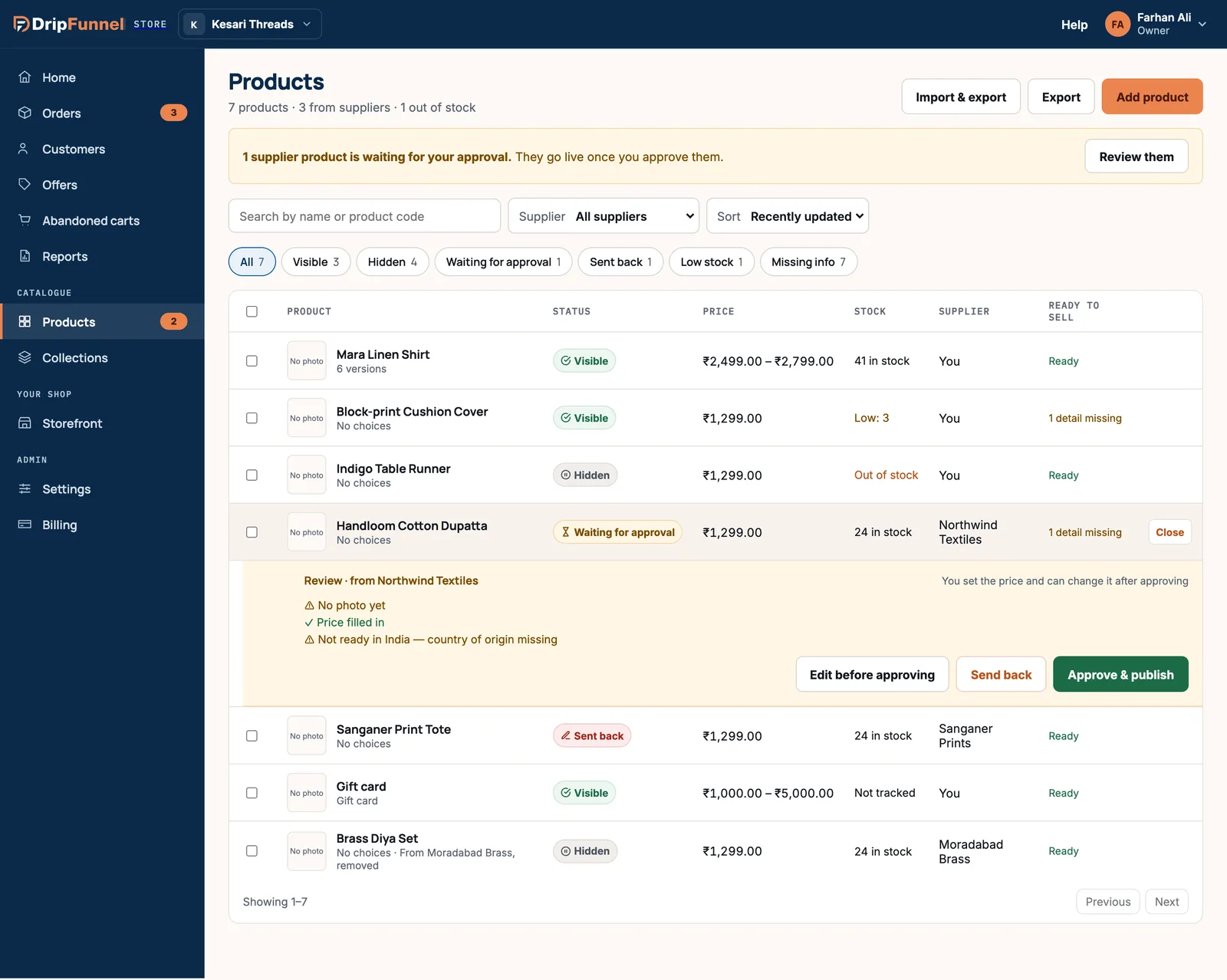
If you sell suppliers’ products with approval switched on, a yellow banner shows how many are waiting. Press Review them, then Review on a row. A panel lists what’s there and what’s missing, with Edit before approving, Send back and Approve & publish.
The full process is in Turn on approval for supplier products.
Export your products
Press Export to download your products as a spreadsheet file (CSV, a plain table that opens in Excel, Numbers or Google Sheets). It’s prepared in the background; when it’s ready, press Download. The link works for a limited time, shown under it. For more export choices, open Import & export (see Import products from a spreadsheet).
Who can do what here
- Owners can do everything on this page, including reviewing supplier products.
- Managers can edit, hide, delete and import products, but can’t approve supplier products or see the Supplier column.
- Staff see Products (view only). They can search and export but not change anything.
- Suppliers see Your products: only their own.
Questions
Why is a product marked “1 detail missing”?
Some countries ask for details such as fibre content or country of origin. Open the product: Ready to sell in on the right names what’s missing for each country. A missing detail only stops sales in that country.
What happens to orders when I delete a product?
Past orders keep their record of what was bought. The product just leaves your catalogue and every collection. If you might sell it again, hide it instead.
Is there a draft status?
Use Hidden. A hidden product is saved and only your team can see it, so you can finish it before making it visible.
Can I change the low-stock level?
Not yet. A product counts as low stock when 5 or fewer are left to sell.