

Import products from a spreadsheet
Updated 20 October 2026 · Owners, managers and suppliers who can edit productsAdd or update many products at once from a spreadsheet. You download our template, fill it in, and upload it. Nothing changes in your catalogue until you’ve checked the file and pressed import.
Before you start
- Spreadsheet import is on Growth and above. See Pricing.
- The file must be a CSV file. CSV is a simple spreadsheet format that Excel, Numbers and Google Sheets can all save. In Excel, use File › Save a copy and choose CSV.
- A file can be up to 5 MB, with up to 20,000 rows and 5,000 products. Split bigger catalogues into several files.
- A product export from Shopify works as it is. See Bring your products from Shopify.
Step 1: Get the template
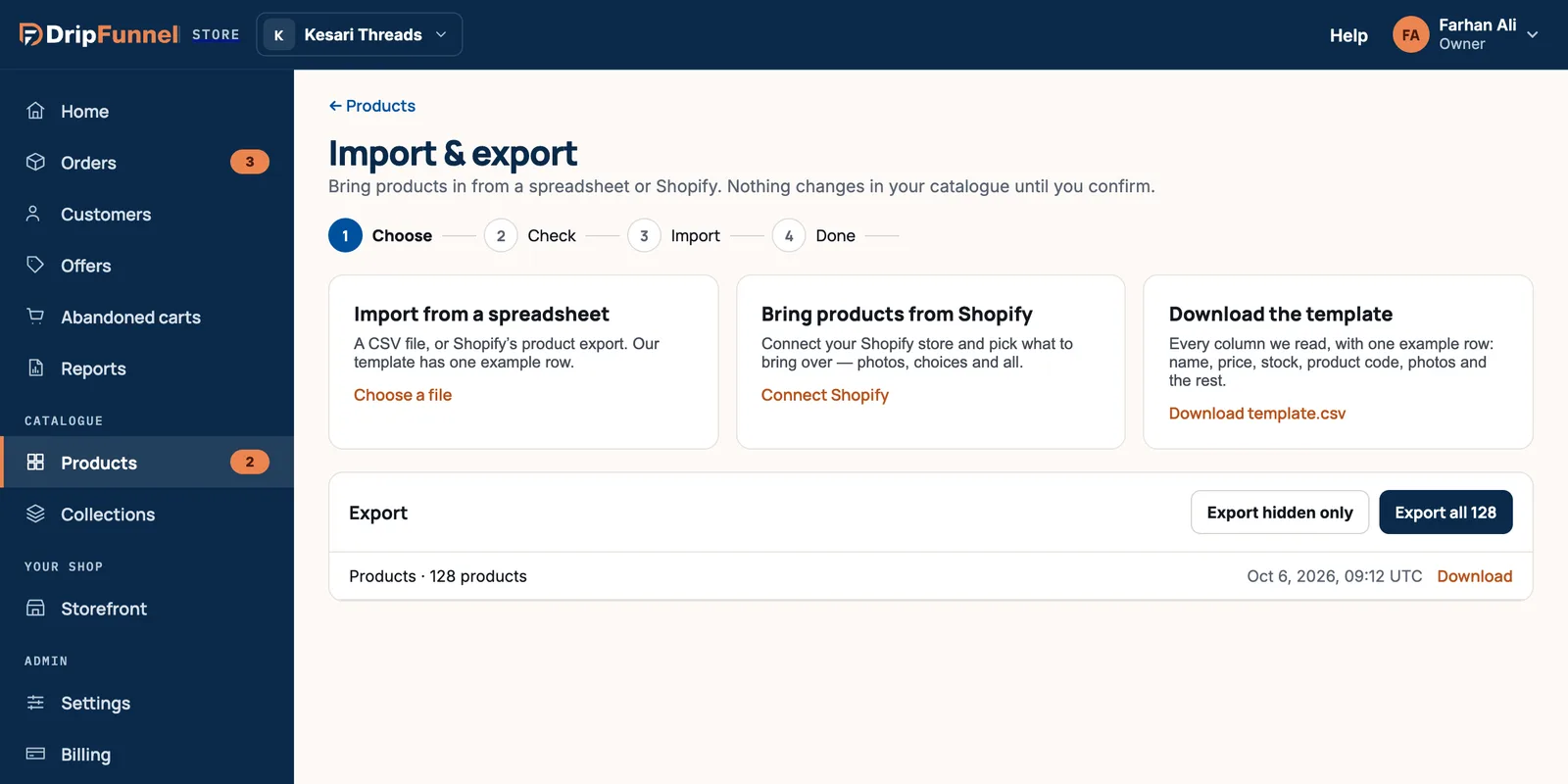
- Open Products and press Import & export.
- Under Download the template, press Download template.csv. It lists every column we read, with one example row.
Step 2: Fill it in
Keep the column names exactly as they are in the template: there’s no step to match differently named columns. One row is one version. A product with sizes or colours has one row per version, all with the same handle.
| Column | What to put in it |
|---|---|
| handle | A short, unique name for the product, such as mara-linen-shirt. Rows with the same handle are versions of one product. |
| name, description | The product name and description, on the product’s first row. |
| type | physical, digital, service or gift_card. Leave empty for physical. |
| visible | yes or no: whether shoppers can see it. Not for suppliers. |
| option1 name, option1 value (up to 3) | A kind of choice and this row’s value, such as Size and M. |
| sku | The product code for this version. Used to match products you already have. |
| barcode | EAN, UPC or GTIN, checked to be valid. |
| price, compare at price, cost | Numbers such as 1299.50, without a currency sign. |
| weight grams | The packed weight in grams. |
| stock | How many you have, as a whole number. |
| image, image alt | The web address of a photo (JPEG, PNG or WebP up to 20 MB) and its description. Put more photos on the following rows. |
If you sell in other languages, the template also has name and description columns for each language. If you price some currencies by hand, it has a price column for each of them. See Translate your shop into other languages and Set prices per currency.
Step 3: Upload and check
- Back on Import & export, press Choose a file under Import from a spreadsheet and pick your CSV file.
- The file is checked. You’ll see how many products are ready, how many are new, how many you already have (matched by product code), and how many have problems.
- Under Products you already have, choose Update them with the file or Skip them, only add new ones.
- Under Put imported stock in, pick the location the stock goes to.
- Read What to fix. Each problem names its row, its column and what’s wrong.
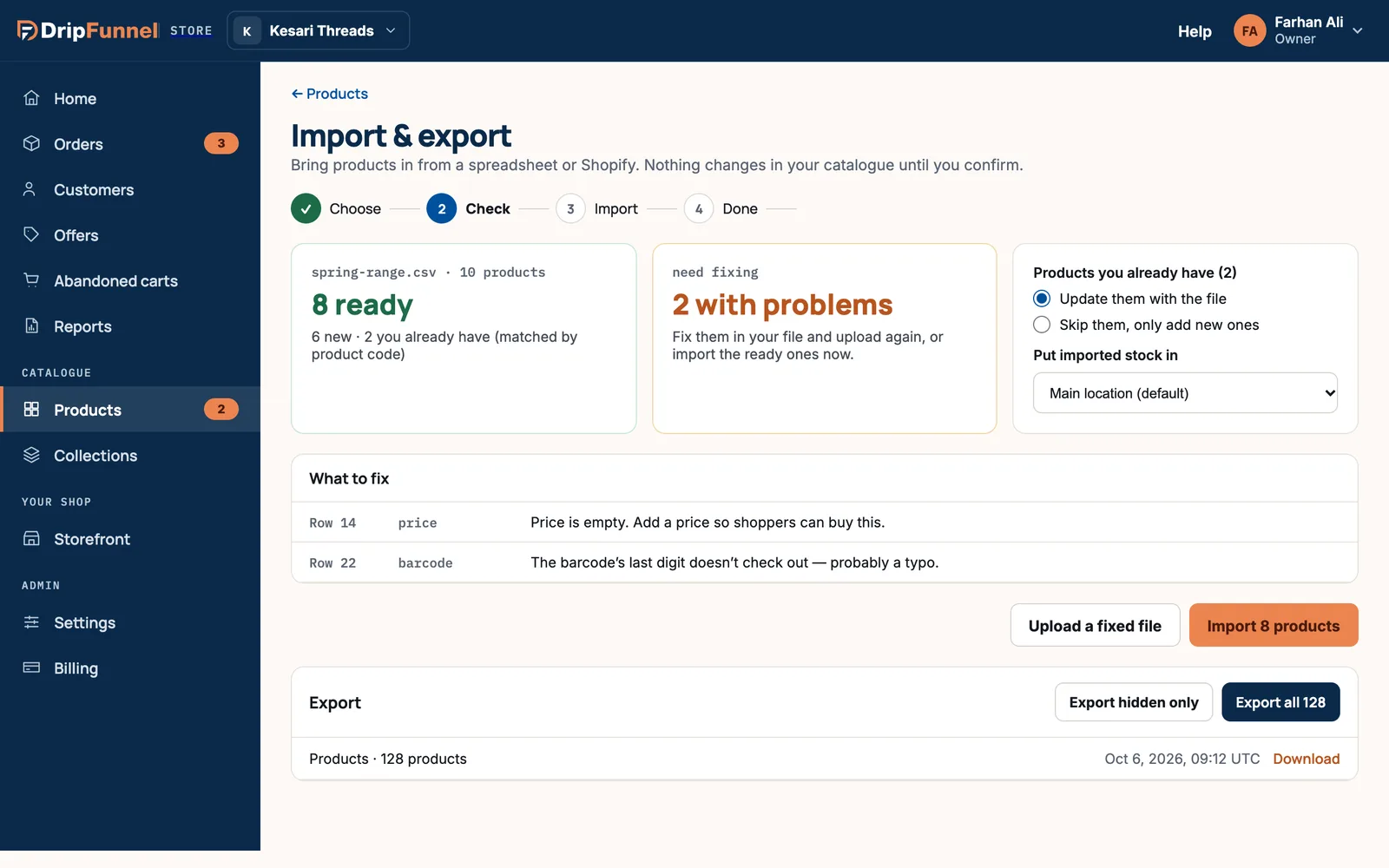
Now either fix the file and press Upload a fixed file, or press Import 8 products to bring in the ready ones now and fix the rest later.
Step 4: Import
The import runs in the background, with a progress bar. You can leave the page: press Go to Products while it runs. A banner on every page shows how far it’s got, and you’ll see “Import finished — 6 added, 2 updated” at the end.
If your internet connection drops, the import pauses by itself and carries on when you’re back online. Nothing is left half-saved.
Step 5: Done
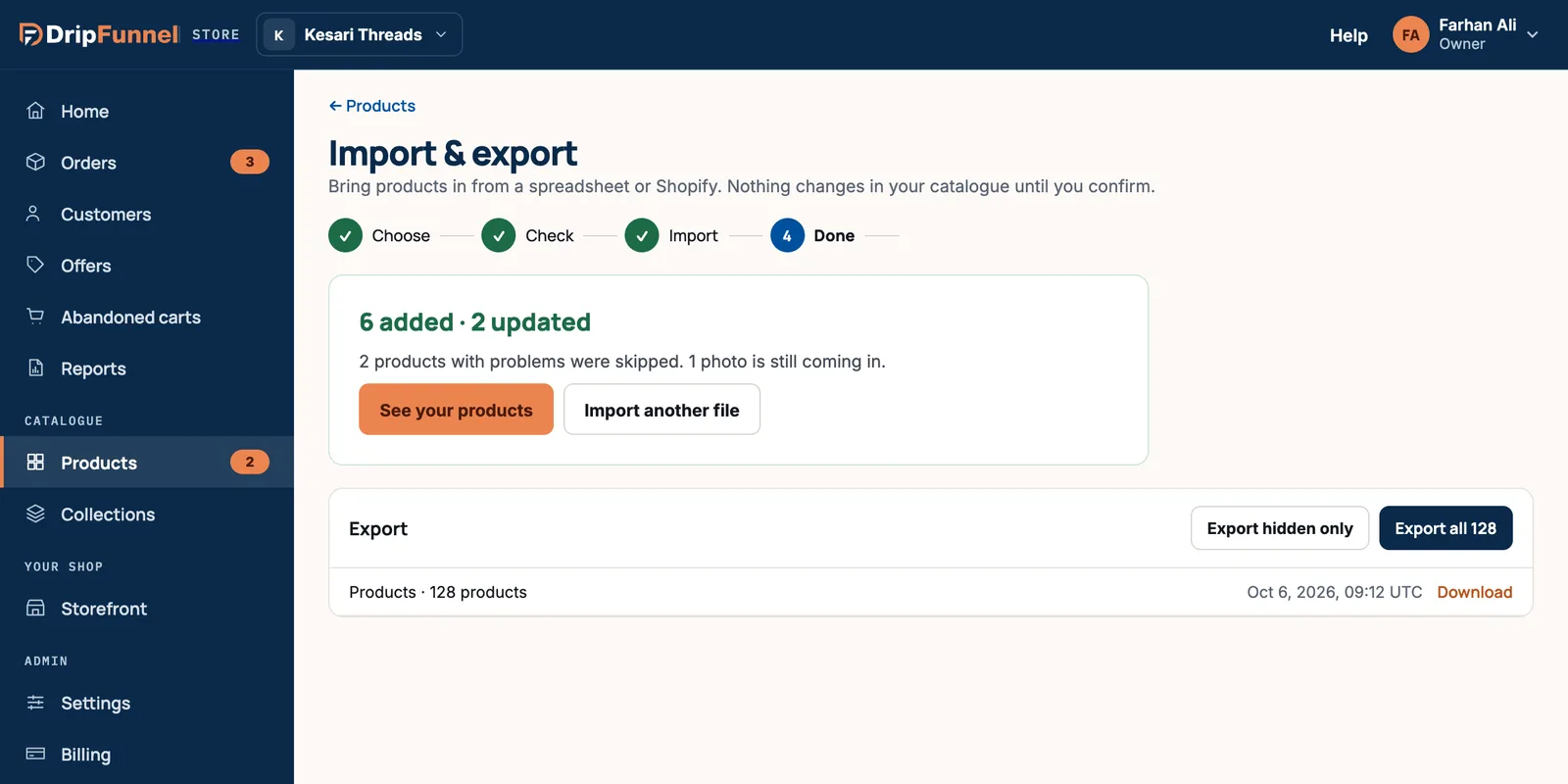
The summary shows what was added and updated, and what was skipped. Press Download what didn’t go in to get a file of the rows that failed, with a problem column saying why. Fix those rows and import that file. Photos can take a few more minutes to appear.
Common problems
| Message | What to do |
|---|---|
| That file type can’t be imported | Save the file as CSV, then choose it again. |
| That file is too big | The limit is 5 MB. Split it into two files. |
| Some columns we need are missing | Every file needs a name or handle column. Start from the template. |
| Write the price as a number, like 1299.50. | Remove currency signs and commas from the price. |
| This barcode isn’t a valid EAN, UPC or GTIN. | Check the barcode for a typo. |
| This SKU is already used by another of your products. | Product codes must be unique. Change it. |
| A product can have up to 100 versions. | Split the product, or remove some versions. |
| This photo couldn’t be fetched from its address. | Check that the photo’s web address opens in a browser, without a password. |
| Your plan’s product limit was reached. | The rest wasn’t imported. See Change your plan. |
Exporting products
The Export box on the same page downloads your products: press Export all or Export hidden only. Big exports are prepared in the background. Recent files are listed with a Download link until they expire. An export uses the template’s columns (without photos), so you can change prices or stock in it and import it back to update your products.
Questions
Can I import an Excel file?
Save it as CSV first: in Excel, File › Save a copy, then choose CSV.
Will importing overwrite products I already have?
Only if you choose Update them with the file. Products are matched by product code (SKU). Choose Skip them, only add new ones to leave them alone.
Can I stop an import halfway?
No. Once you press import it runs to the end. Nothing changes before that point, so check carefully first.
Can suppliers import their products?
Yes, suppliers who can edit products can. Their files can’t set whether products are visible, and their prices are in the store’s main currency.