

Bring your products from Shopify
Updated 20 October 2026 · Owners, managers and suppliers who can edit productsMoving from Shopify? Connect your Shopify store, pick the products to bring over, and DripFunnel copies their photos, versions, prices and stock, so you don’t start again.
Before you start
- Bringing products from Shopify is on Growth Pro and above. See Pricing.
- You need to be able to sign in to your Shopify admin, to approve the connection.
- Have your Shopify store’s address, the one ending in .myshopify.com. In Shopify, it’s under Settings › Domains.
What comes across
| Comes across | Doesn’t come across |
|---|---|
| Product name and description (as plain text: bold, links and other formatting are removed) | Collections: make them again in Collections |
| Options and versions, such as Size and Colour | Tags, product type and vendor |
| Product code (SKU), barcode, price, compare-at price and cost | Search engine titles and descriptions |
| Weight and stock | Customers, orders and reviews |
| Photos and their descriptions | |
| Status: Active becomes Visible; Draft and Archived become Hidden |
Step 1: Connect Shopify
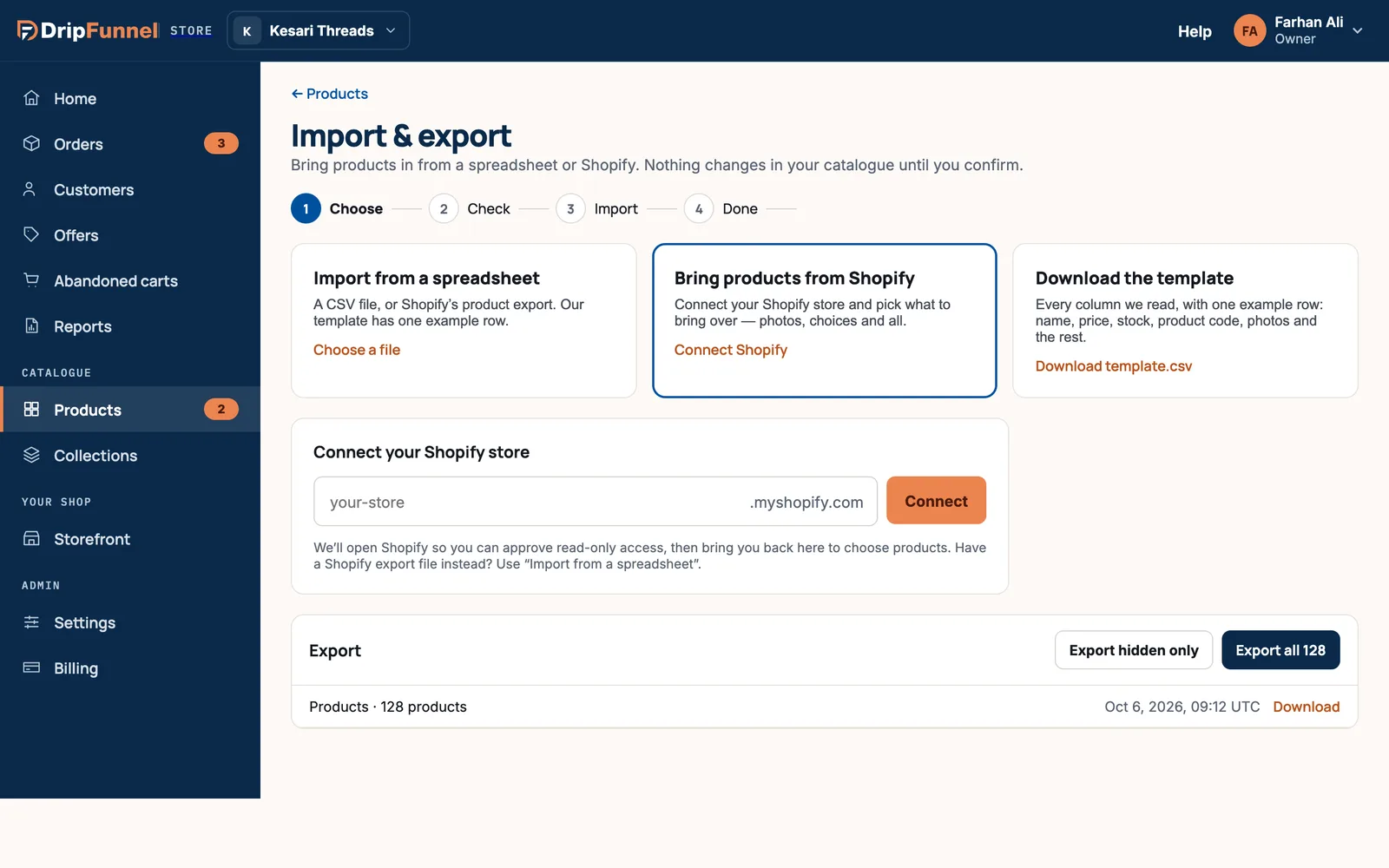
- Open Products, then Import & export.
- Under Bring products from Shopify, press Connect Shopify.
- Type your store’s address (the part before .myshopify.com) and press Connect.
- Shopify opens. Sign in if asked, and approve read-only access. DripFunnel can only read your products; it can’t change anything in Shopify.
- You’re brought back to the portal: “Connected — Shopify approved read-only access”.
Step 2: Pick products
Your Shopify products are listed with how many versions each has. Draft and archived ones are marked “Draft ·” or “Archived ·”. The first page is ticked for you.
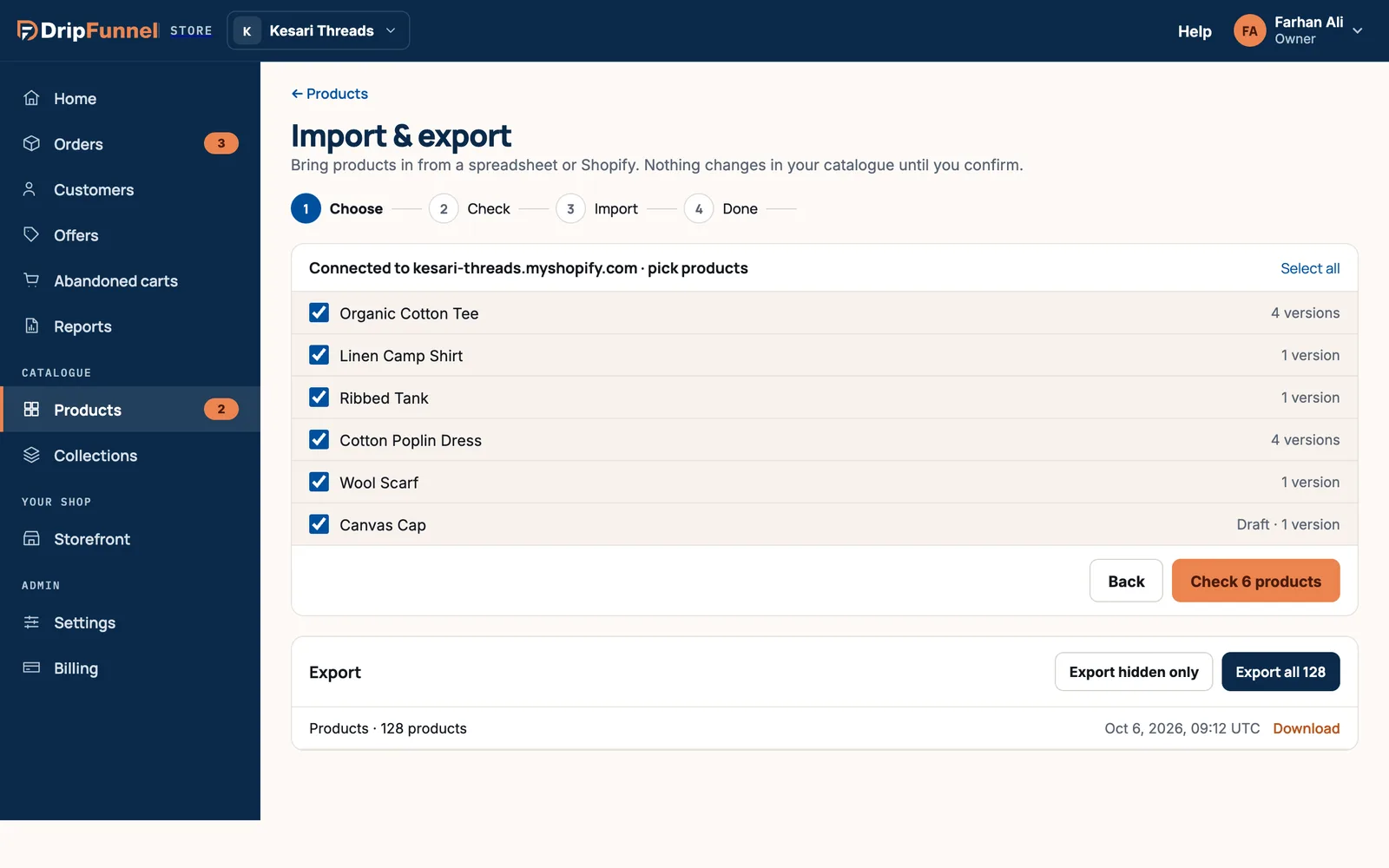
- Tick or untick products, and press Show more to see the next page.
- You can pick up to 250 by hand. To bring everything, press Select all.
- Press Check 6 products (or Check all products).
Step 3: Check and import
From here it works exactly like a spreadsheet import: you see what’s ready, what’s new, what you already have (matched by product code) and any problems; choose whether to update products you already have and where the stock goes; then import. See Steps 3 to 5 of Import products from a spreadsheet.
Another way: Shopify’s export file
You can also export your products from Shopify’s admin as a CSV file and upload it with Import from a spreadsheet. DripFunnel recognises Shopify’s file as it is, without changes.
If something goes wrong
| Message | What to do |
|---|---|
| We couldn’t find … .myshopify.com | Check the address in your Shopify admin, under Settings › Domains. |
| Shopify didn’t finish connecting. Try again. | You may have closed Shopify before approving. Connect again. |
| Shopify stopped letting us in — the connection expired. | Press Connect again to carry on. |
| Shopify isn’t answering right now. | Wait a minute and try again. |
| Connecting Shopify isn’t set up here. | Use Shopify’s product export file with Import from a spreadsheet instead. |
Questions
Can DripFunnel change my Shopify store?
No. The connection is read-only: it can read your products, nothing else.
Will my Shopify collections come across?
No. Recreate them in Collections. Automatic collections with rules can rebuild most of them quickly.
Can I import my Shopify store in several goes?
Yes. Products you’ve already brought over are matched by product code, so you can update them or skip them in the next import.
Are my Shopify product descriptions kept as they were?
The words are kept, but formatting such as bold, lists and links is removed, because product descriptions here are plain text.