

Group products into collections and menus
Updated 20 October 2026 · Owners and managers (staff can view)Collections group your products, like “Summer Sale” or “Men’s Shirts”. Each one becomes a page on your shop and can be a link in your menu. This guide covers making collections and building your menu.
Two kinds of collection
- Automatically: you set rules, such as “Fabric is Linen or Cotton”. Every product that matches joins, including new ones, by themselves.
- I’ll pick them: you choose exactly which products are in it. Good for “Staff picks” or a gift guide.
Automatic collections use your filters (such as Fabric or Occasion). If you haven’t made any yet, see Filters and internal tags.
The Collections page
Open Collections in the menu. Each row shows the collection’s name, how it fills (“Automatic · 1 rule” or “Hand-picked”), how many products it has, and whether it’s Visible or Hidden · for offers. A collection inside another is shown indented under it.
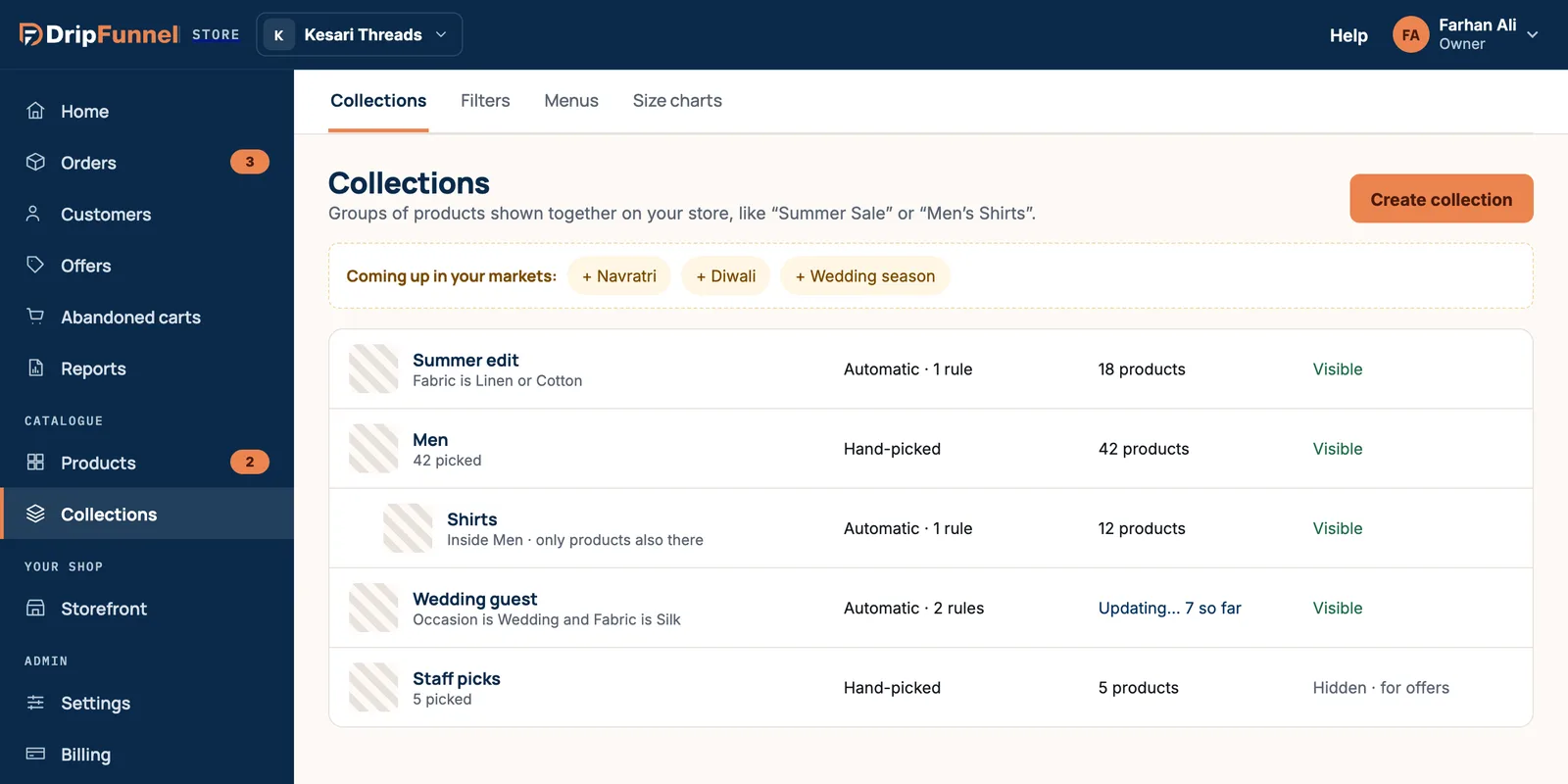
Coming up in your markets suggests collections for upcoming festivals and seasons in the countries you sell to. Press one, for example + Diwali, to start a collection with that name.
Make an automatic collection
- Press Create collection.
- Type a Name. The page shows the address it will have, such as “Shows at /collections/summer”.
- Optionally add a Description, shown at the top of the collection page.
- Under How should it fill?, pick Automatically.
- Under Show products that match, choose all of these rules (a product must match every rule) or any of these rules (one is enough).
- Build a rule: Where [a filter, such as Fabric] is [tick one or more values, such as Linen and Cotton]. You can also use Name contains with some text.
- Press + Add a rule for more, up to 20. Press × to remove one.
- Watch the Live preview on the right: it shows how many products match.
- Press Save collection.
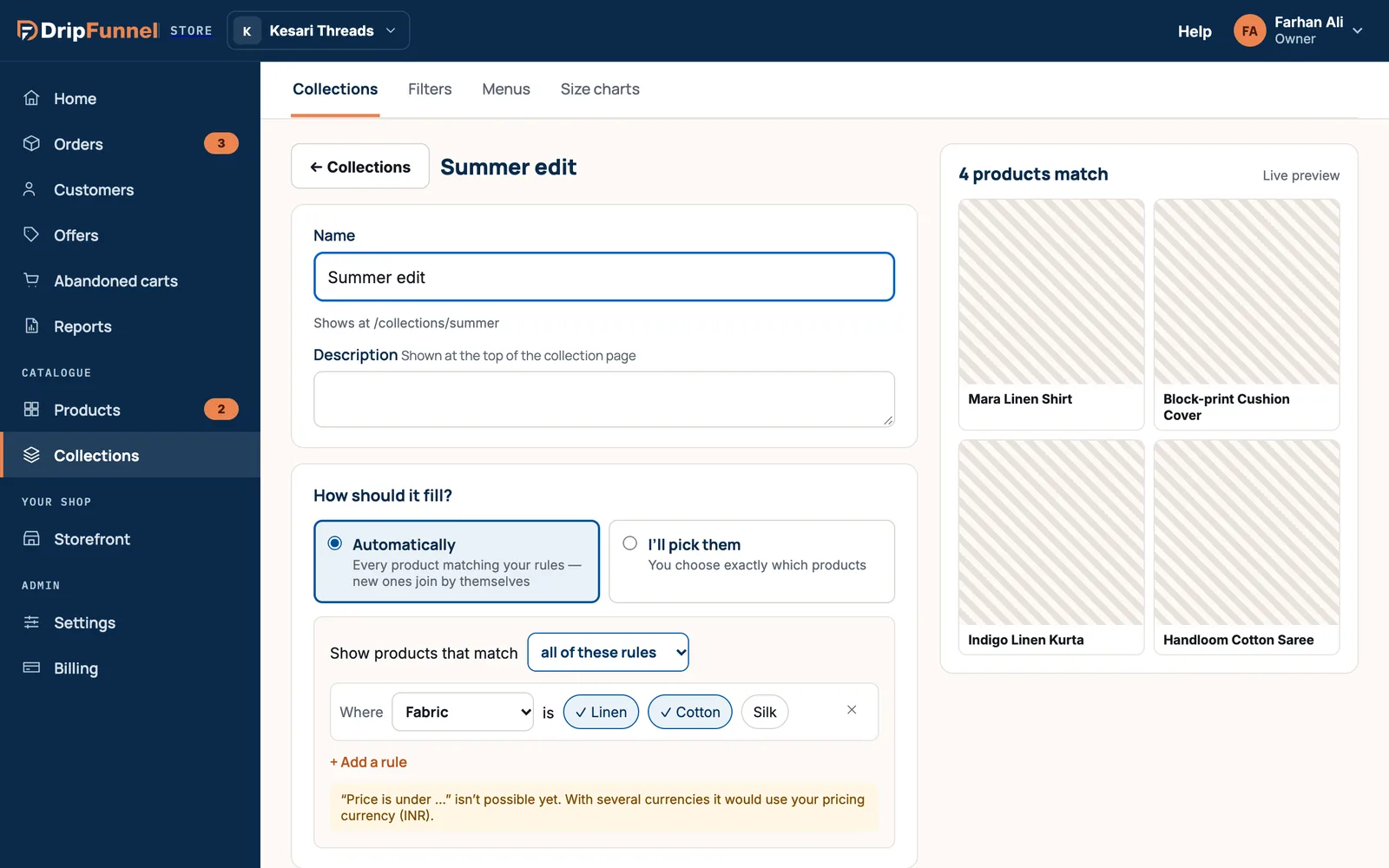
A rule like “Price is under …” isn’t possible yet. For a “Gifts under ₹999” collection, use a filter or pick the products by hand.
After saving, you’ll see “saved — filling in the background”. For a big catalogue the list shows “Updating… 7 so far” until it’s done.
Make a hand-picked collection
- Press Create collection, type a name, and under How should it fill? pick I’ll pick them.
- Search in Search products to add and tick the products you want. Hidden products, and supplier products waiting for approval, are marked “Hidden” or “Waiting”.
- Press Save collection.
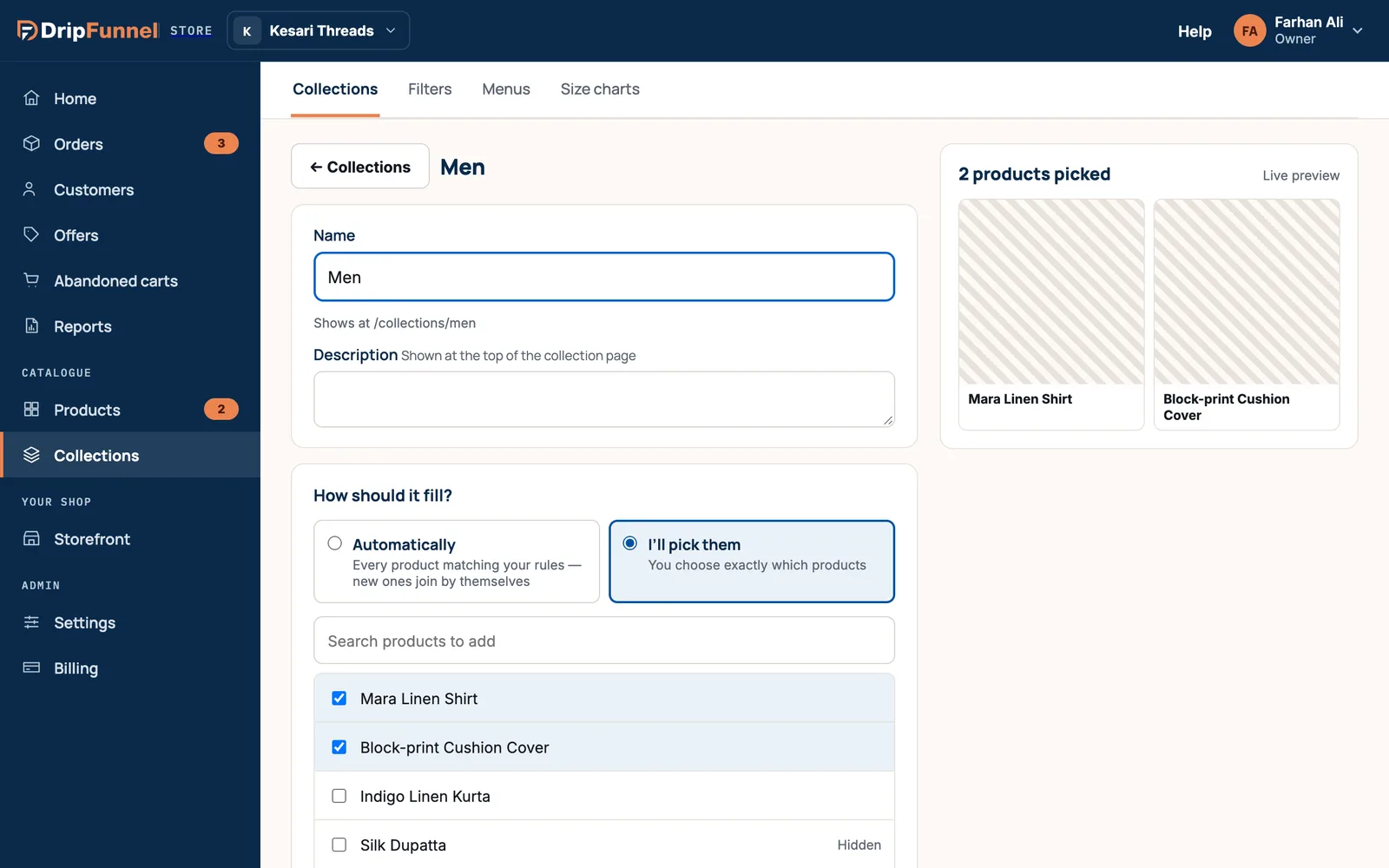
You can also add products to hand-picked collections from the Products list (tick them, then Add to collection) or on each product, in its Collections & filters section.
Collections inside collections
Under Inside another collection?, choose Inside another collection to nest it, such as “Shirts” inside “Men”. Tick Only show products that are also in Men to keep only products in both.
Hidden collections
Switch Visible on your store off to make a collection Hidden — for offers or internal use. Shoppers don’t see it, but you can still use it, for example to give a discount on everything in it (see Create a discount or offer).
Build your shop’s menu
- On the Collections page, open the Menus tab.
- In Main menu, use + Add a collection to add one.
- Use ↑ and ↓ to change the order, → to put an item under the one above it (one level deep), ← to bring it back out, and × to remove it from the menu.
- The previews on the right show how the menu looks on a computer and on a phone. Changes save straight away (“Menu saved”).
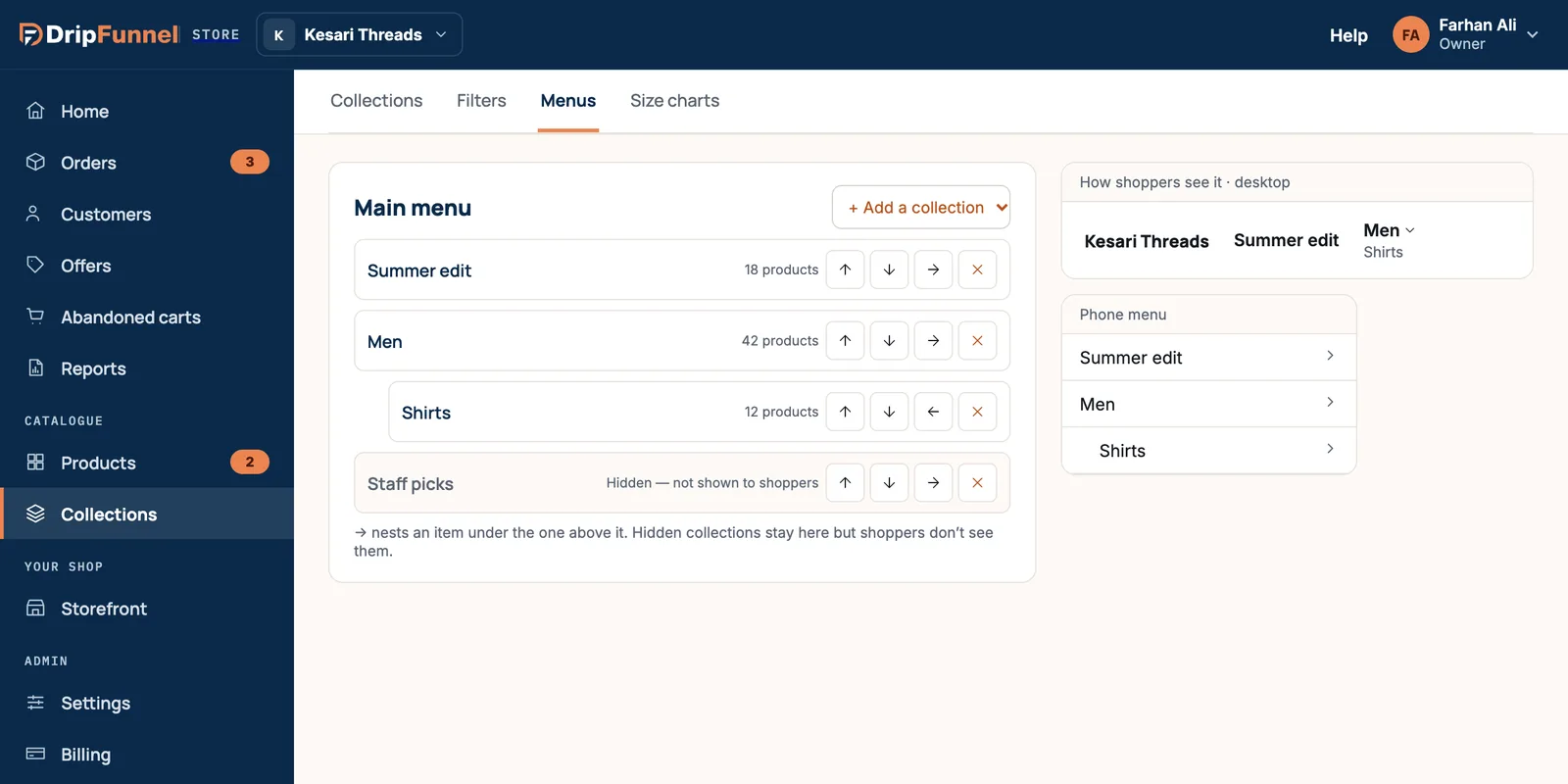
Hidden collections can stay in the menu, but shoppers don’t see them. Your menu can also link to pages such as About or FAQ; see Add pages and journal posts.
Change or delete a collection
Click a collection to open it, change it, and press Save collection. To remove it, press Delete: the products stay in your catalogue; only the group goes.
Questions
How many collections can I have?
It depends on your plan; see Pricing. A collection can have up to 20 rules, or up to 1,000 hand-picked products.
Can I choose the order of products in a collection, or give it a picture?
Not in the portal yet. Your storefront design decides how a collection page looks.
Why isn’t a new product showing in my automatic collection?
Check that the product has the filter values your rules ask for, in its Collections & filters section. Large collections can also take a moment to update.
Can suppliers add their products to collections?
No. Suppliers can set filters on their products, which automatic collections use, but only you and your managers manage collections.