

Filters and internal tags
Updated 20 October 2026 · Owners and managers (staff can view)Filters are the tick boxes shoppers use to narrow down your shop, like Fabric: Linen. Internal tags work the same way, but only your team sees them. Both also power automatic collections and offers.
Choices, filters and internal tags
| What it is | Example | |
|---|---|---|
| Choices | What the shopper picks when buying. Each choice has its own price and stock. Set on the product. | Size: M |
| Filters | Tick boxes shoppers use to narrow down a list. Nothing to pick at checkout. | Fabric: Linen |
| Internal tags | Like filters, but only you and your team see them. | Reorder soon: Yes |
See your filters
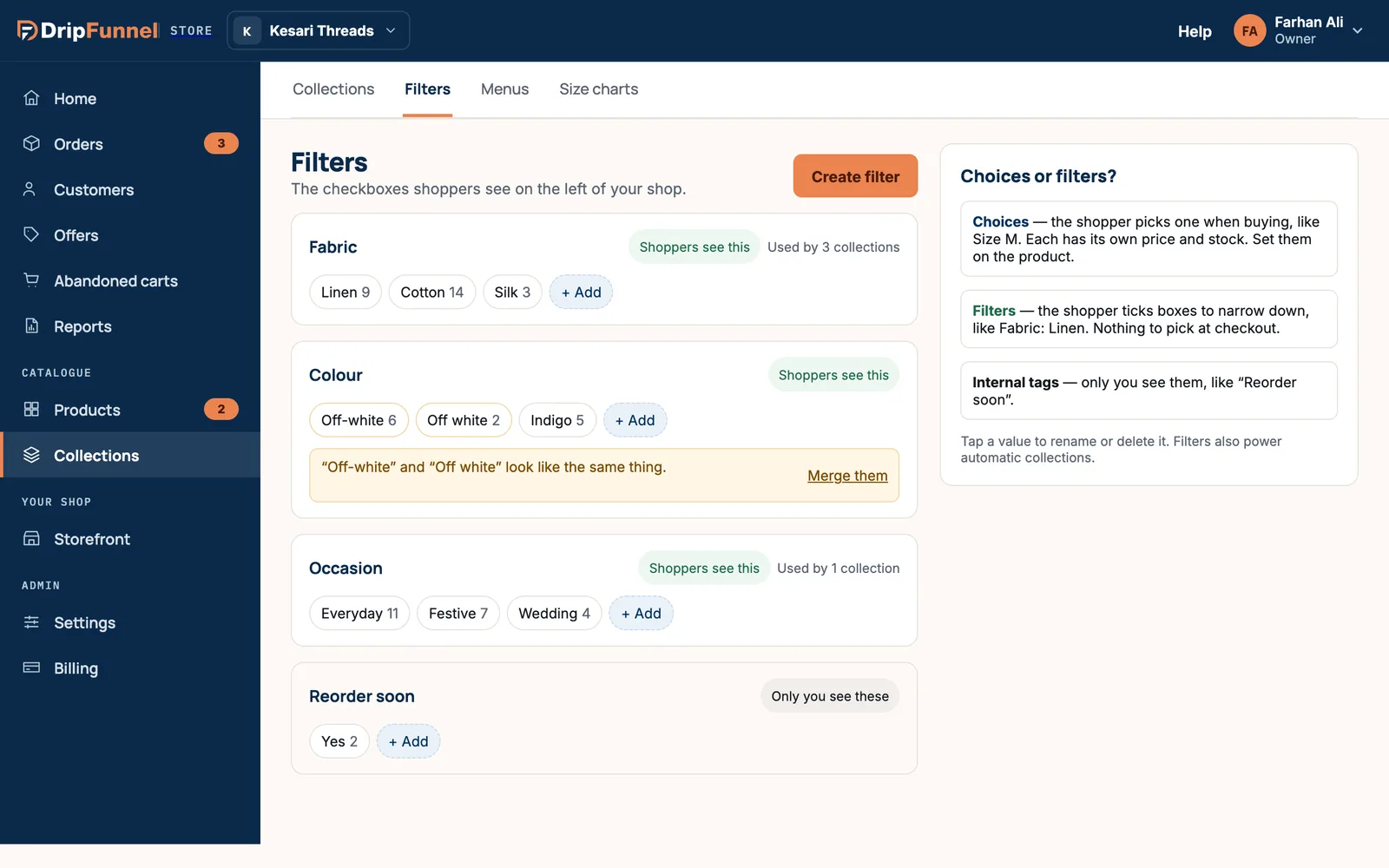
Open Collections, then the Filters tab. Each filter shows its values with the number of products that have them, and a label: Shoppers see this or Only you see these.
Create a filter
- Press Create filter and give it a name, such as “Fabric”.
- Press + Add to add each value: Linen, Cotton, Silk.
- Decide who sees it. Press the label to switch between Shoppers see this and Only you see these.
Give products their filter values
- Open a product and find the Collections & filters section (press Open ▾).
- Under Filters shoppers can use, tap the values that fit, such as Fabric: Linen. Internal ones are marked “only your team sees this”.
- Save the product.
Suppliers can set filters on their own products too.
Tidy up values
- Tap a value to Rename it or Delete value.
- When two values look like the same thing, such as “Off-white” and “Off white”, a note offers Merge them. Products with either value end up with one.
What filters are used for
- On your shop: shoppers tick values to narrow a list.
- Automatic collections: “Where Fabric is Linen” fills a collection by itself. See Group products into collections and menus.
- Offers: a discount can apply to “Products tagged…” a value. See Create a discount or offer.
- Internal tags let your team find and group products, for example “Reorder soon”, without shoppers seeing them.
Questions
Can I delete a whole filter?
Not yet. You can delete its values one by one, or switch it to Only you see these so shoppers no longer see it.
How many filters can I have?
Up to 200, and filters and internal tags are on every plan.
Should colour be a choice or a filter?
If shoppers pick a colour when buying and each colour has its own stock, make it a choice. If each colour is a separate product, make it a filter so shoppers can narrow the list.