

Add a product with sizes and colours
Updated 20 October 2026 · Owners, managers and suppliersA photo, a name and a price are enough to start selling. This guide walks through every box on the product page, including sizes, colours and the other choices a shopper picks from.
Before you start
- Who can add products: the store owner and managers. Suppliers can add their own products too (see Turn on approval for supplier products). Staff can look at products but not change them.
- Somewhere for your stock to sit. Stock is counted per location, such as your shop, studio or warehouse. If you have no location yet, the stock box says Add a location in Settings › Warehouses before counting stock. See Keep stock up to date across locations.
- Room on your plan. Each plan holds a number of products: 10 on Starter (Free), 500 on Growth, 5,000 on Growth Pro, 25,000 on Business and unlimited on Enterprise. See Pricing.
Step 1: Open a new product
- In the menu on the left, open Products.
- Press Add product at the top right. On a phone, press the round + Add product button at the bottom of the screen.
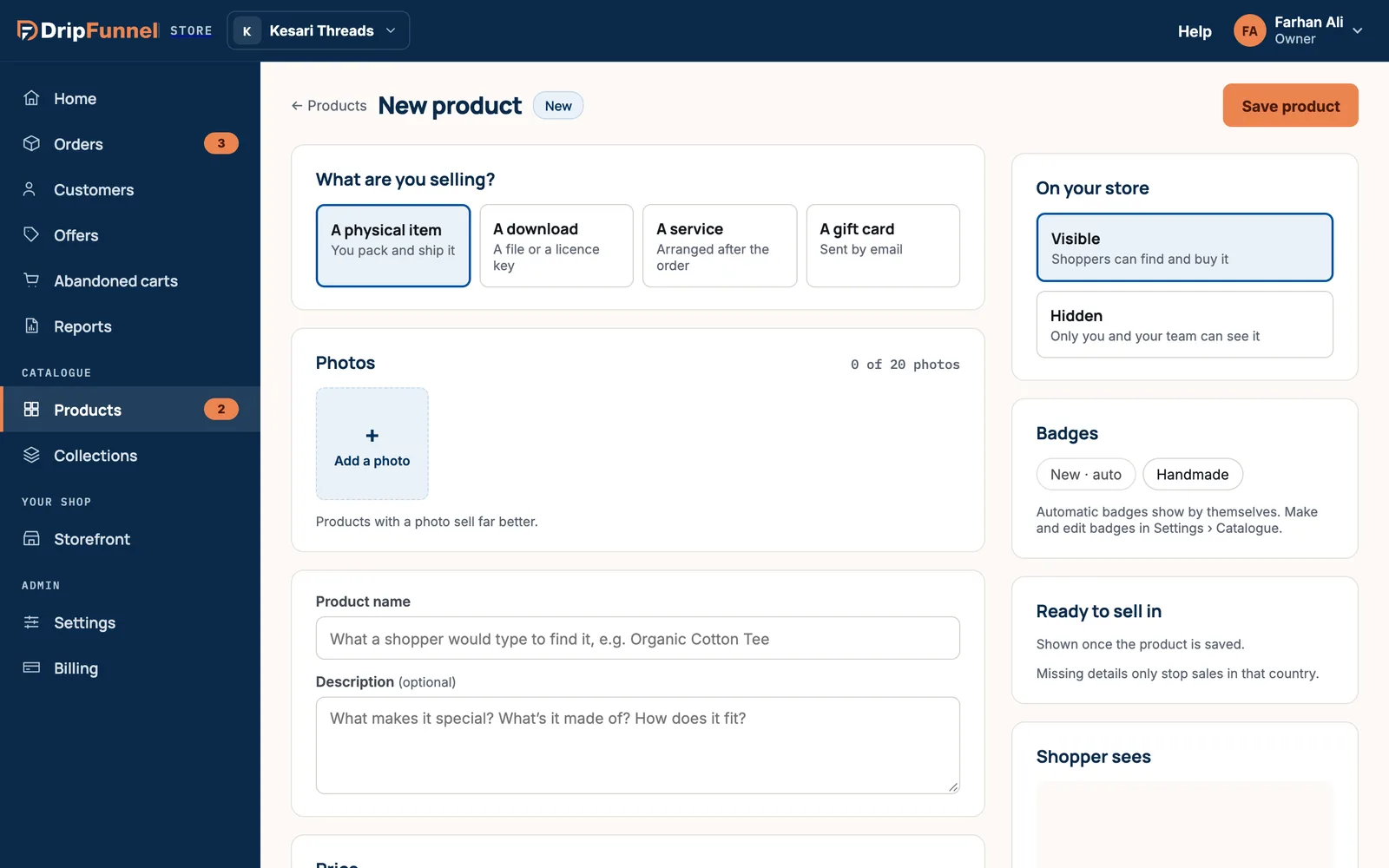
- A new product page opens, marked New. Nothing is saved until you press Save product.
Step 2: Say what you’re selling
At the top, What are you selling? has four cards. For something you pack and post, keep A physical item (it’s already picked). The other three, A download, A service and A gift card, are explained in Sell downloads, services and gift cards.
Step 3: Add photos
- In Photos, press Add a photo (or Add more once you have some). You can pick several photos at once.
- Use JPG, PNG, WebP, AVIF or HEIC photos, each under 10 MB. Square photos look best.
- The first photo is the Main photo: it’s the one shoppers see in lists. To use another one, press the ★ on it (Make main photo). Press × to remove a photo.
- Under the main photo, fill in Describe the main photo. This short description is read aloud to blind shoppers and helps Google understand the picture, for example “Sand-coloured linen shirt, folded”.
A product can have up to 20 photos. If a photo is still uploading when you save, you’ll see “A photo is still uploading. Save again once it’s in.” Wait a moment and press save again.
Step 4: Name and describe it
- Product name: write what a shopper would type to find it, for example “Organic Cotton Tee”. This is the only box that must be filled in. Without it you’ll see “Give the product a name”.
- Description (optional): what makes it special, what it’s made of, how it fits. Plain text, so no bold or bullet points.
Step 5: Set the price
If the product comes in one version only (no sizes or colours), the Price box shows three fields:
- Price: what the shopper pays.
- Compare-at price: an optional “was” price, shown crossed out next to the price. It must be higher than the price. Only use it when the product really sold for that price before.
- What it costs you · only you see this: what you paid to make or buy it. Shoppers never see it.
Underneath, a line works out what happens: “Shopper pays ₹1,299.00 — tax included.” (or “+ tax at checkout”, depending on how you set up tax), and “You make ₹399.00 per sale · 31% margin”. If you’d lose money, it says so.
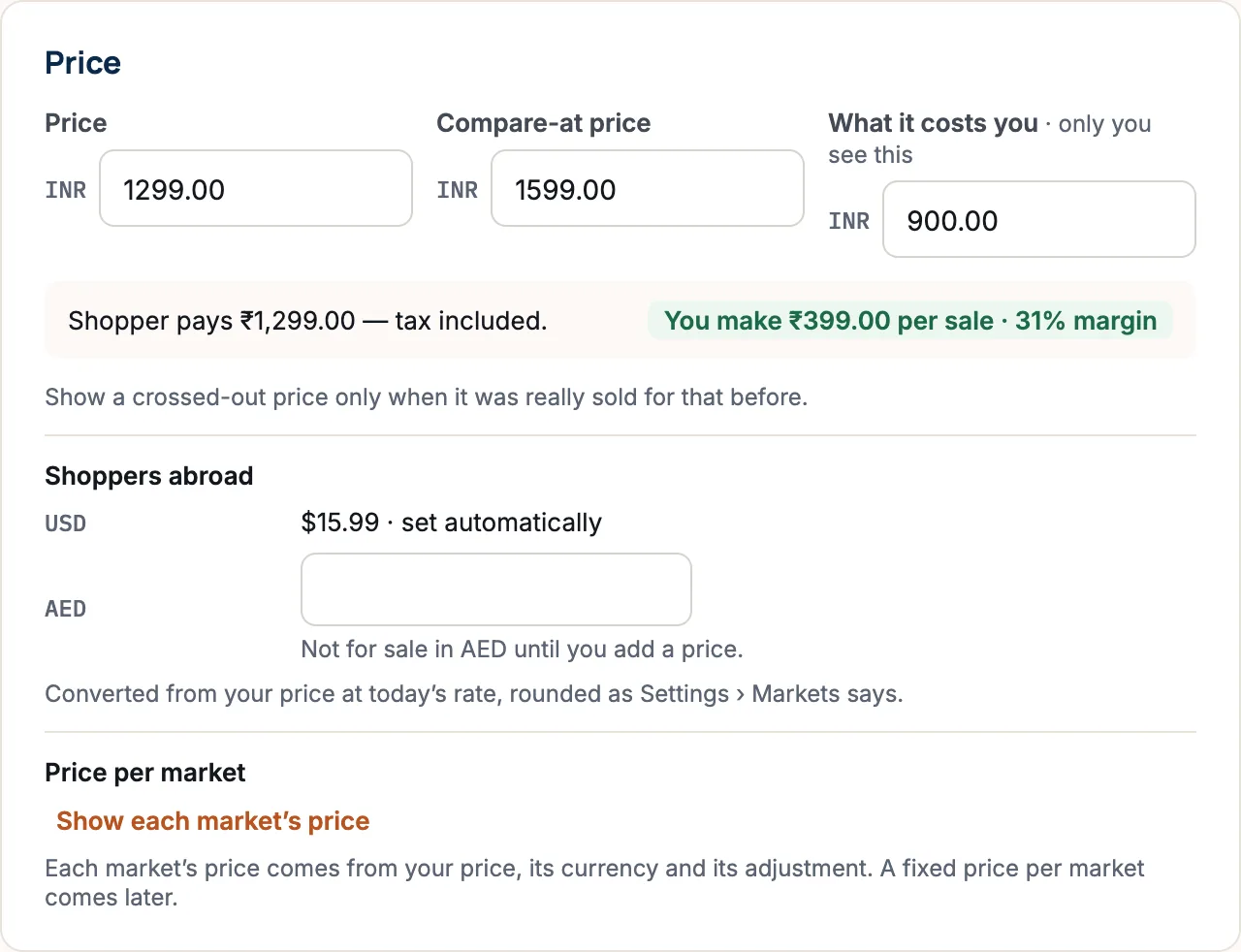
If you sell in more than one currency, Shoppers abroad lists them. A currency you convert automatically shows its price as “set automatically”. A currency you price yourself has its own box; until you fill it, the product can’t be bought in that currency. See Set prices per currency.
Step 6: Add sizes, colours and other choices
Skip this step if the product comes in one version only. Otherwise, under Does it come in different sizes, colours or other choices?, press Add choices.
- Give the first kind of choice a name, such as Size. Below Add another: there are ready-made ones: Size, Colour, Material, Style, Pack of, Scent, Flavour, or Custom… for your own.
- Type each value and press Enter (or type a comma): S, M, L. Each value becomes a small tag; press × on a tag to remove it.
- Add a second or third kind if you need one, for example Colour with Sand and Ink. A product can have up to 3 kinds of choice.
- A line works out the combinations, for example “3 size × 2 colour makes 6 versions.” Press Create 6 versions.
A version is one combination a shopper can buy, such as “M / Sand”. Each version has its own row in the Versions table with:
- Price, plus a box for each currency you price by hand. To give every version the same price at once, press Set price for all…
- Stock at your default location.
- Code, the product code (also called SKU, short for “stock keeping unit”): your own short code for that version, such as MARA-S-SAND. It helps you find it and appears in orders and exports. Two products can’t use the same code.
- On store, which shows Visible. Press it to hide one version. You can choose Hide it for now (out of season, say) or We don’t make this, which removes that combination. You can add it back at any time.
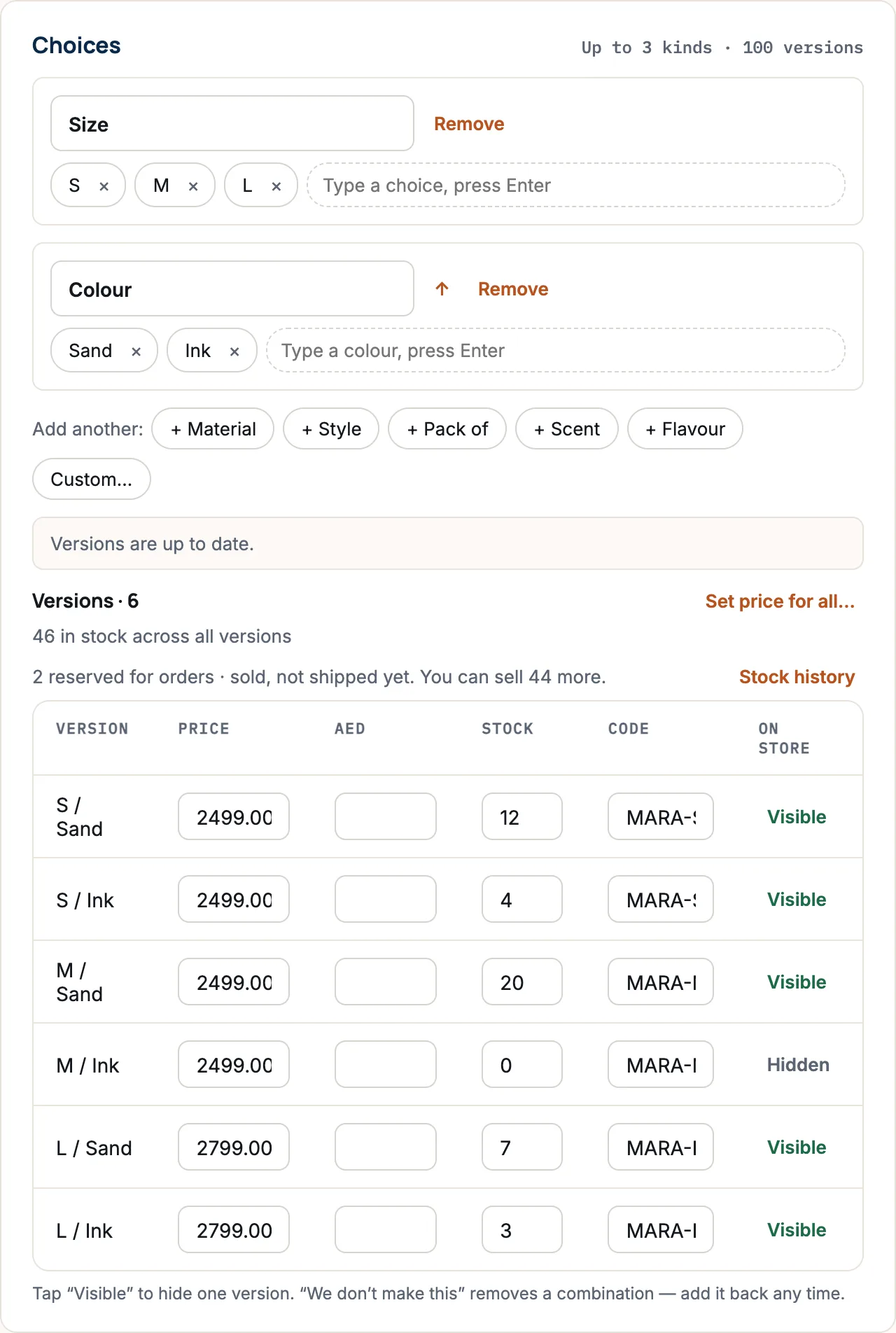
A product can have up to 100 versions. If your choices would make more, the page tells you before anything is created. Products with choices don’t have a compare-at price or cost box for each version yet.
If you later add or remove a value, the line changes to Update versions. Removing a value asks first, because the versions that use it go with it.
Step 7: Shipping details
Open Shipping (press Open ▾). Couriers charge by weight and box size, so fill these in to get the right delivery price at checkout:
- Weight when packed, in kg or lb.
- Box size (L × W × H), in cm or in.
- HS code, the customs code for the product. You only need it if you post abroad. Your courier or customs office can tell you which one fits.
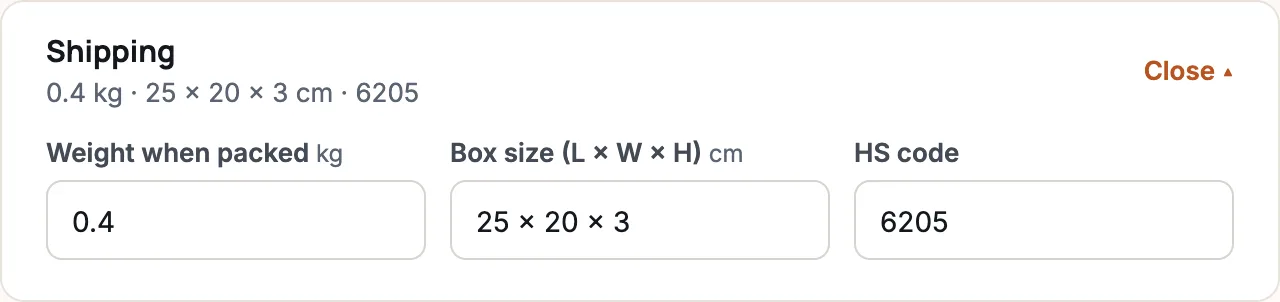
Whether the boxes show kilograms and centimetres or pounds and inches depends on the Units you chose in Settings › Store info.
Step 8: More options
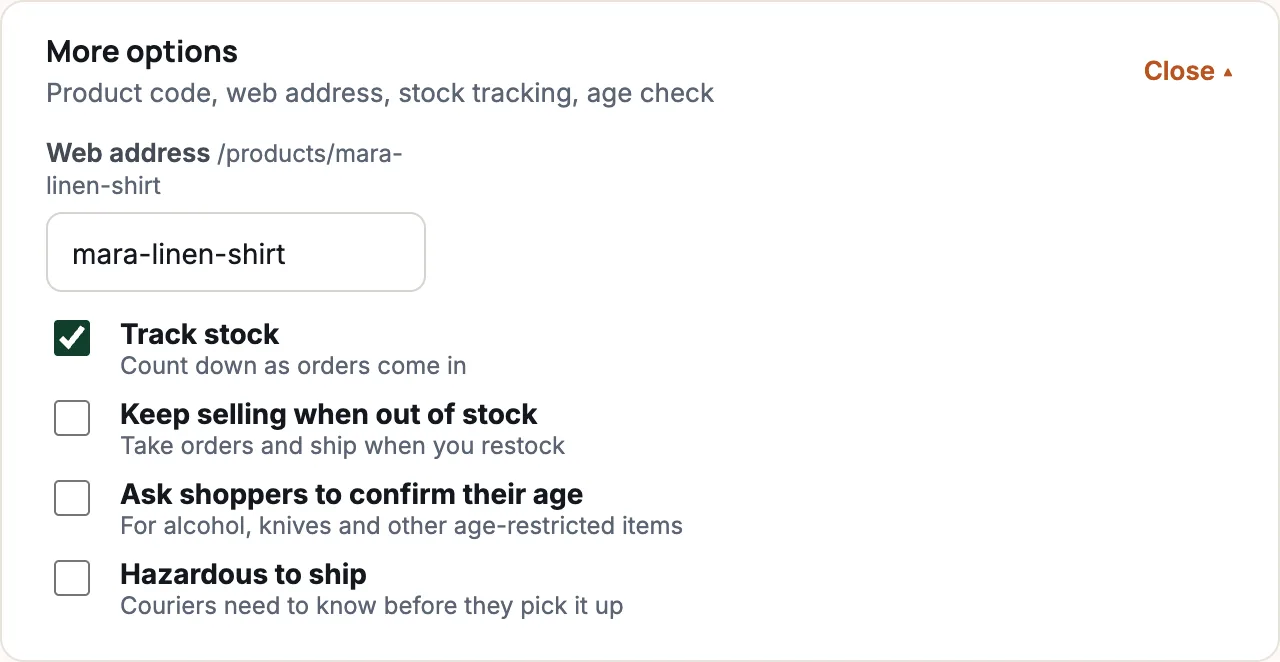
Open More options for a few less common settings:
- Product code (SKU): for a product without choices. With choices, each version has its own code in the Versions table.
- Web address: the end of the product’s address on your shop, such as /products/mara-linen-shirt. It’s made from the name. If the product is already live, changing it breaks old links, and the page warns you.
- Track stock: counts stock down as orders come in. Leave it on unless you make to order.
- Keep selling when out of stock: takes orders when stock reaches zero, and you ship when you restock.
- Ask shoppers to confirm their age: for alcohol, knives and other age-restricted items.
- Hazardous to ship: tells couriers before they pick it up.
Other sections, such as collections, size charts, specifications and FAQs, are covered in Group products into collections and menus, Make a size chart and Specifications, highlights, FAQs, badges and legal details.
Step 9: Choose whether shoppers can see it, then save
- On the right, under On your store, pick Visible (shoppers can find and buy it) or Hidden (only you and your team can see it). Hidden is useful while you finish the details.
- Check Ready to sell in. It lists each country you sell to and says Ready, or what’s missing, for example “Add: fibre content, care instructions”. Missing details only stop sales in that country.
- Look at Shopper sees for a quick preview of the photo, name and price.
- Press Save product. You’ll see ““Mara Linen Shirt” added”.
When you change an existing product, an Unsaved changes bar appears at the bottom with Discard and Save. If you try to leave with unsaved changes, the portal asks first.
If something goes wrong
| Message | What it means and what to do |
|---|---|
| Give the product a name | The Product name box is empty. Type a name. |
| Add a price above zero so shoppers can buy this | A price is missing or is 0. Type a price. |
| The compare-at price has to be higher than the price | Raise the compare-at price, or clear it. |
| You already use that product code on another product. | Product codes must be unique. Change this one. |
| Your plan has no room for more products. | You’ve reached your plan’s product limit. Delete or hide old products, or see Change your plan. |
| Someone else saved this product. | A teammate saved it while you were editing. Press Reload to see their changes; yours are still on the page until you reload. |
| The product saved, but the stock didn’t. Try saving again. | Everything else is saved. Press save again. |
Questions
Can I add a product without a photo?
Yes. Only a name is required, and a price before shoppers can buy it. Products with a photo sell far better, so add one before you make it visible.
Can each colour have its own photos?
Not yet. Photos belong to the whole product, and the first photo is the main one. Mention the colour in each photo’s description so shoppers know which is which.
What is the difference between a choice and a filter?
A choice is something the shopper picks when buying, such as Size M, and each version has its own price and stock. A filter helps shoppers narrow down a list, such as Fabric: Linen. See Filters and internal tags.
How do I add a barcode?
There’s no barcode box on the product page yet. You can add barcodes (EAN, UPC or GTIN) with a spreadsheet import, using the barcode column. See Import products from a spreadsheet.
Can I stop selling a product without deleting it?
Yes. Choose Hidden under On your store and save. It disappears from your shop but stays in your catalogue, ready to show again.