

Keep stock up to date across locations
Updated 20 October 2026 · Owners and managers (suppliers for their own stock)DripFunnel counts stock at each place you keep it, counts it down as orders come in, and keeps a history of every change. This guide covers setting up your locations and keeping the numbers right.
How stock works
- Stock is counted per location: a shop, studio, warehouse or back room.
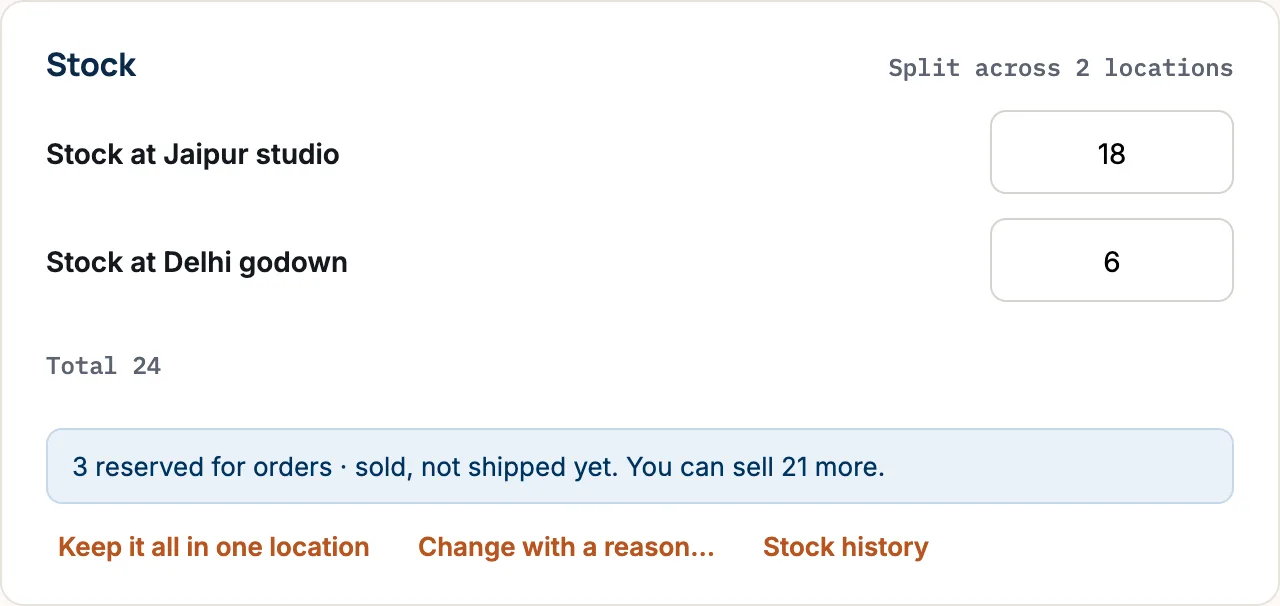
- When a shopper orders, the items are reserved: sold but not shipped yet. When you ship, they leave your stock.
- What you can sell is your stock minus what’s reserved.
- Every change is kept in the stock history: by hand, by orders, by suppliers and by imports.
Set up your locations
Locations are in Settings › Warehouse. Only the store owner can change them.
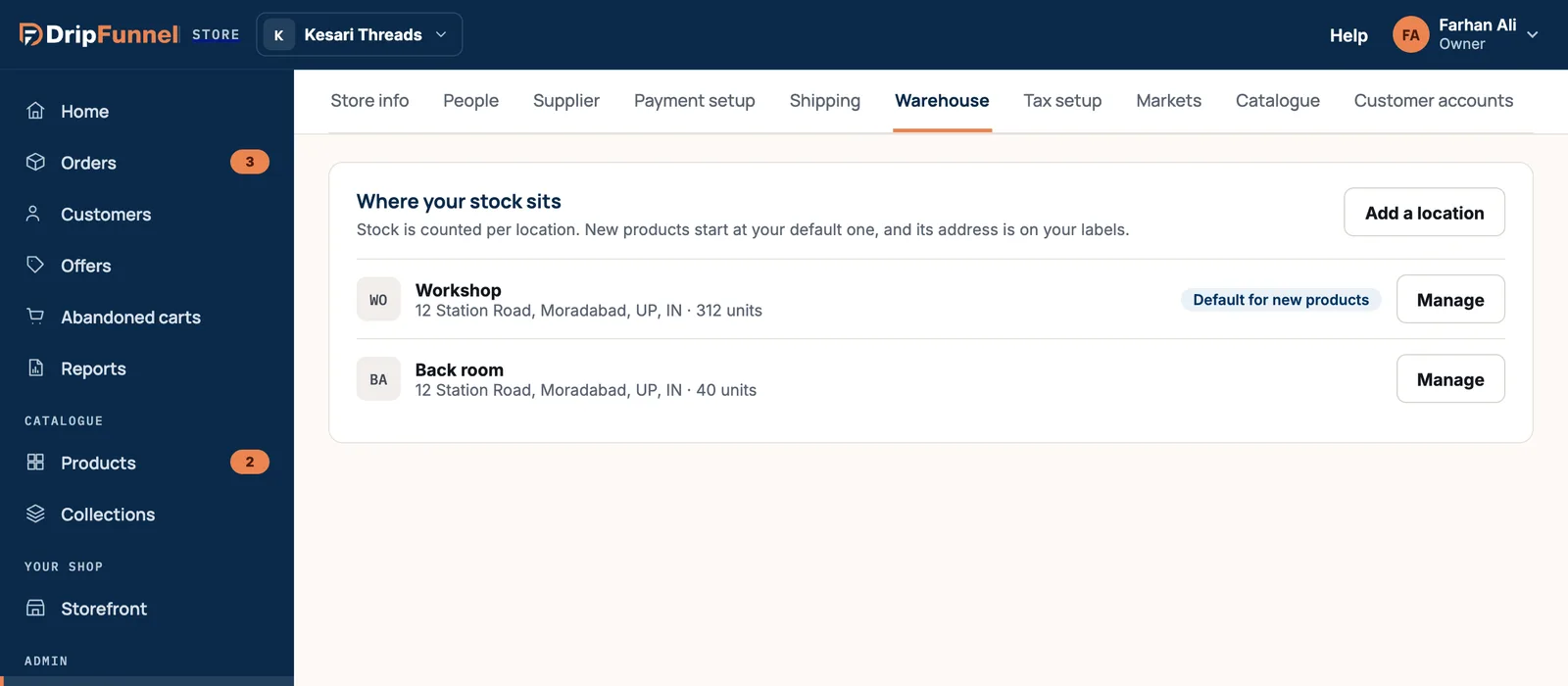
- Press Add a location.
- Fill in Name (for example “Jaipur studio”), Address, City, State or region, Postal code and Country (2-letter code), such as IN, US or AE.
- Press Add location.
Press Manage on a location to Make default, Rename or change address, or Delete it. The default location is where new products start, and its address goes on your shipping labels.
You can have up to 20 locations. You can’t delete the default location, or one that still holds stock: set its stock to 0 or move it first.
Set stock on a product
Open the product. For a product without choices, the Stock box shows how many you have at your default location, with − and + buttons. Type the number you have ready to sell, then save.
If you keep stock in more than one place, press Split across locations. You’ll get a box for each location and a Total. Press Keep it all in one location to go back.
For a product with sizes or colours, each version’s stock is in the Stock column of the Versions table, at your default location.
Change stock with a reason
When stock changes for a reason you want on record, press Change with a reason…. The reason is shown in the stock history, so everyone knows why the number moved.
- Pick Why: Received new stock, Returned by a shopper, Damaged or lost, or Counted again.
- If you have several locations, pick Where.
- Type How many? Use a plus or minus number, for example +20 or −2.
- Confirm. The change is saved straight away (you’ll see, for example, “Stock +20 · Received new stock”) and goes into the stock history. A change that would take stock below zero is refused.
Press Stock history to see every change, newest first: how many, why, which version and location, who made it (or “automatically” for orders) and the new total. Older changes are in the activity log (see See who changed what).
Other quick ways to update stock
- Quick edit on the Products list changes stock at your default location without opening the product. See Find, filter and change products in bulk.
- A spreadsheet import can set stock for many products at once, into the location you choose. See Import products from a spreadsheet.
- When you refund a return, you can tick Put the picked items back in stock. See Handle a return.
When stock runs low or out
- When 5 or fewer are left to sell, the product shows Low in the list, appears under the Low stock chip, and Home shows a Restock card.
- At zero, the product shows Out of stock and shoppers can’t buy it, unless you turned on Keep selling when out of stock in the product’s More options.
- If you make to order and don’t count stock, untick Track stock in More options.
Suppliers’ stock
Suppliers keep their own locations and stock for their own products. As the owner you see their locations under Supplier locations, but only they can change them.
Questions
What does “reserved” mean?
Items a shopper has ordered and paid for (or ordered by cash on delivery), but you haven’t shipped yet. They’re still on your shelf, but they’re not free to sell again.
Why does the stock box say to add a location?
Stock is always counted at a location. Ask the store owner to add one in Settings › Warehouse, then come back.
Can managers add locations?
No. Managers can change stock numbers, but only the owner can add, rename or delete locations.
Does a refund put items back in stock?
Only if you tick Put the picked items back in stock when you refund. Cancelling an order before it ships always puts the items back.