

Sell downloads, services and gift cards
Updated 20 October 2026 · Owners and managersBesides things you pack and post, you can sell files to download, licence keys, services you arrange after the order, and gift cards sent by email. This guide explains each kind.
Choose the kind of product
Open Products, press Add product, and at the top, under What are you selling?, pick one of:
- A physical item: you pack and ship it. See Add a product with sizes and colours.
- A download: a file or a licence key.
- A service: arranged with the shopper after the order.
- A gift card: sent by email.
Downloads, services and gift cards have no weight, box, shipping or stock, so those boxes disappear when you pick them. Only the store sells these kinds; suppliers can only sell physical items.
Sell a file to download
- Pick A download, then A file to download under What the shopper gets.
- Press Upload the file. You can upload a PDF, ZIP, MP3, MP4, WebM or an image, up to 30 MB. The file is stored privately and never appears on your shop.
- Choose Downloads per order (3, 5 or 10) and how long the Link works for (7 days, 30 days or 1 year).
- Add a photo, name, description and price as for any product, then save.
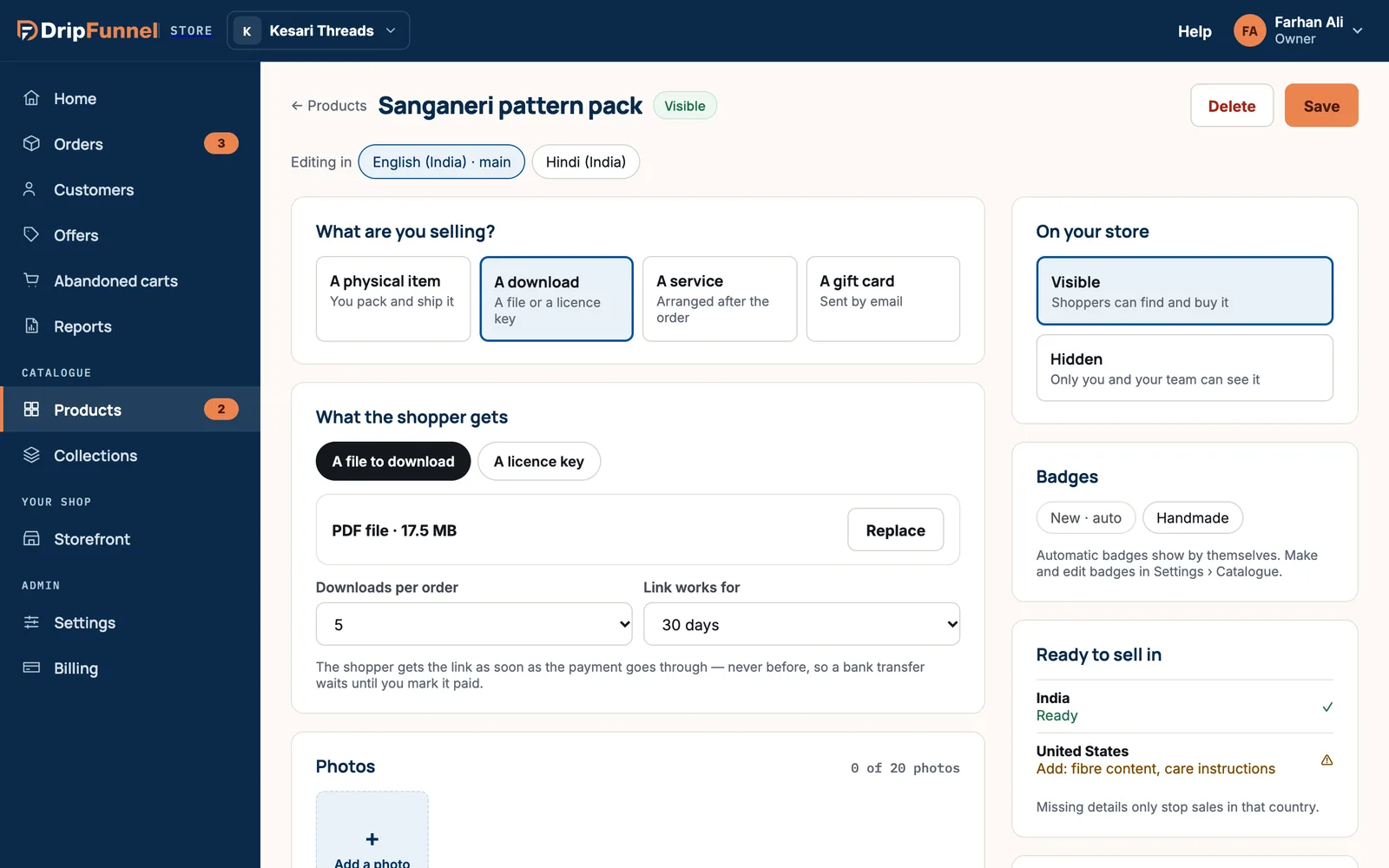
The shopper gets the link by email as soon as the payment goes through, never before. With bank transfer, that means after you mark the order paid. To swap the file later, press Replace.
Sell licence keys
- Pick A download, then A licence key.
- In Add licence keys, paste your keys, one per line. You can add up to 1,000 keys at a time, each up to 200 characters.
- Save. Each order sends one key to the shopper.
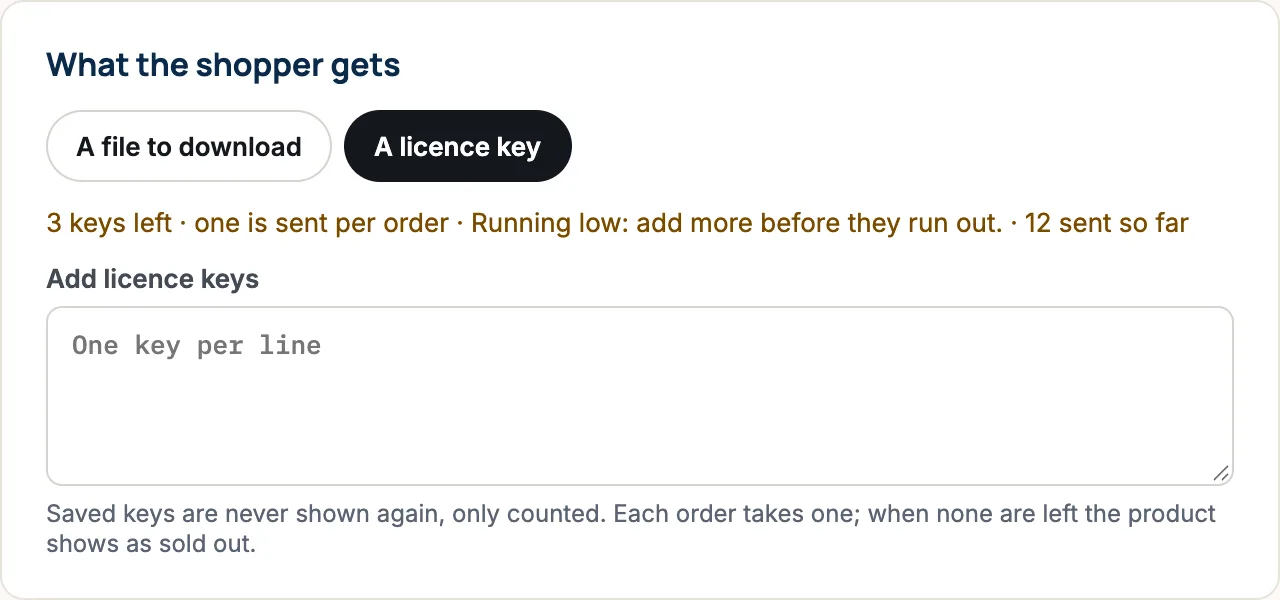
Once saved, keys are never shown again, only counted. When none are left, the product shows as sold out until you add more.
Sell a service
Pick A service. In About the service, you can fill in How long it takes (for example “2 hours”) and Where (for example your studio’s address). Both are optional.
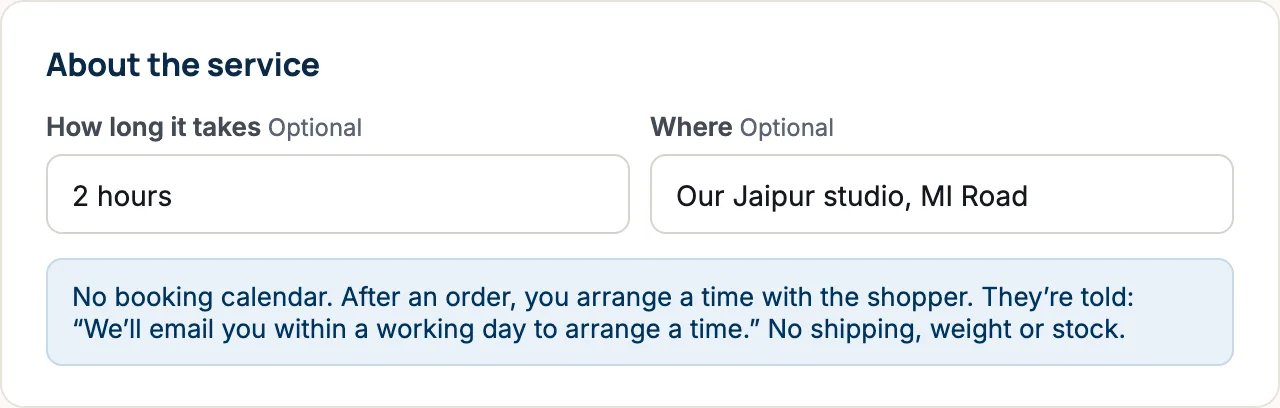
There’s no booking calendar. After an order, you contact the shopper to arrange a time. They’re told: “We’ll email you within a working day to arrange a time.” Services can still have sizes or options, each with its own price, like any product.
Sell gift cards
- Pick A gift card.
- Under Gift card amounts, press + Add an amount for each value you sell, such as ₹500, ₹1,000 and ₹2,000. Keep at least one.
- Choose when Cards expire after. The shortest choice allowed is marked “(the shortest allowed)”: 5 years for US stores and 1 year elsewhere. You can also choose Never.
- Add a photo, name and description, then save.
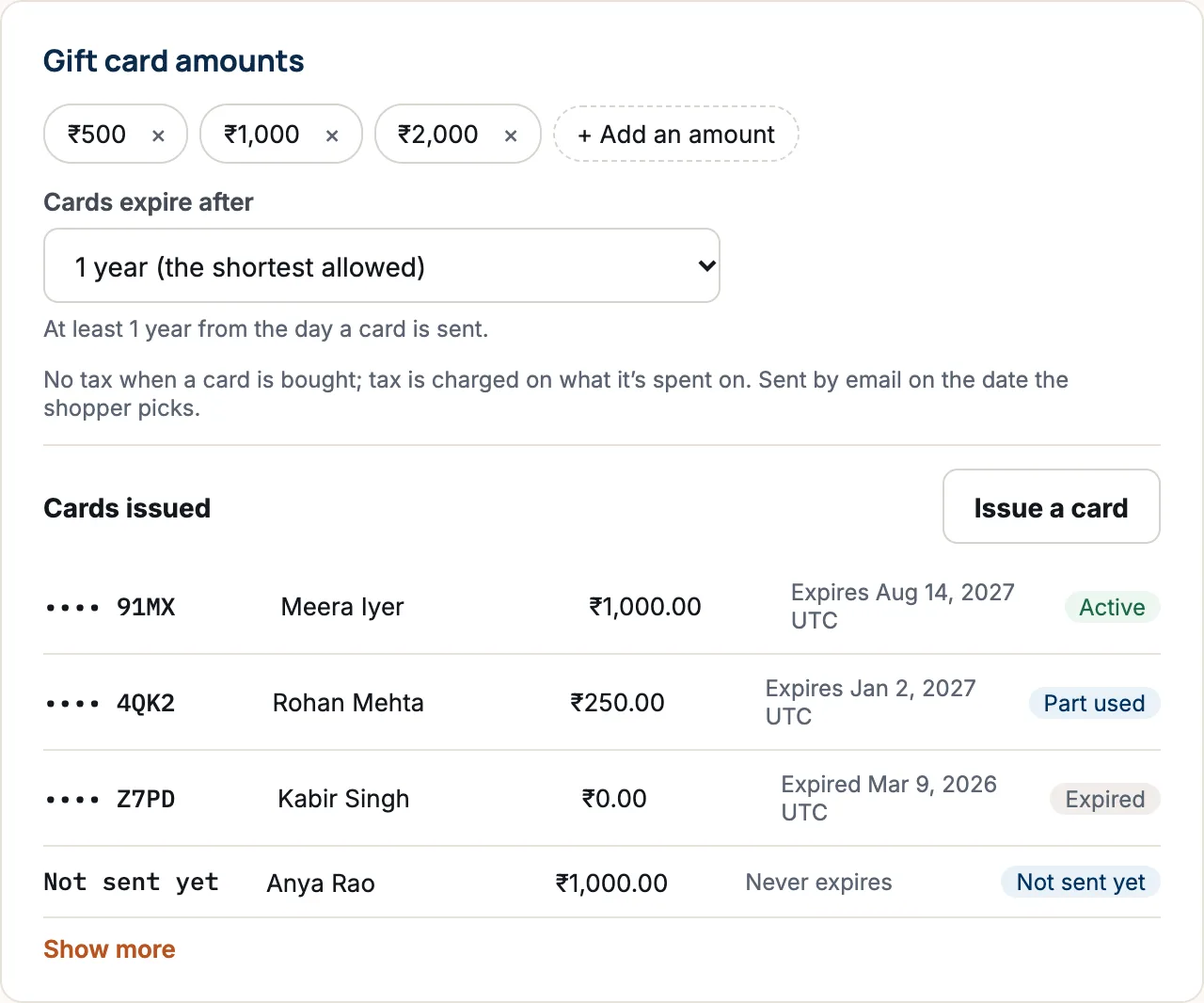
No tax is charged when a gift card is bought; tax is charged on what it’s later spent on. The card is emailed on the date the shopper picks.
See and issue gift cards
Cards issued lists every card with its last four characters, who it went to, its balance, its expiry and a status: Active, Part used, Used up, Expired, Not sent yet or Disabled. Press Show more to see older ones.
To give a card as store credit or a goodwill gesture, press Issue a card, type the Amount and Send to (email), then Issue the card. It’s emailed straight away and recorded under your name. Owners and managers can do this; save the product first.
Questions
When does a shopper get their download?
As soon as their payment goes through. For bank transfer orders, that’s when you mark the order paid.
Can I see a licence key after I’ve saved it?
No. For safety, saved keys are only counted. Keep your own copy of the keys you add.
Can shoppers book a time for a service at checkout?
Not yet. You arrange the time with the shopper after the order, by email or phone.
Why can’t my gift cards expire after 6 months?
Gift card rules set a minimum: 5 years in the United States and 1 year elsewhere. The shortest allowed choice is marked in the list.