

Specifications, highlights, FAQs, badges and legal details
Updated 20 October 2026 · Owners (switching sections on); owners, managers and suppliers (filling them in)Product pages can carry more than a description: specifications, highlights, FAQs, related products, badges and the legal details some countries require. This guide shows how to switch each one on and fill it in.
Step 1: Choose which sections your shop uses
The store owner chooses which extra sections appear on product pages, in Settings › Catalogue:
- Under What do you mostly sell?, press the closest fit: Clothing, Electronics, Food & drink, Beauty or Handmade. This switches on the sections that usually fit. You can still change each one.
- Under Product page sections, switch each section on or off: Size charts, Specifications, Highlights, FAQs, Badges, Related products, A+ content · Product story and Video.
- Press Save sections.
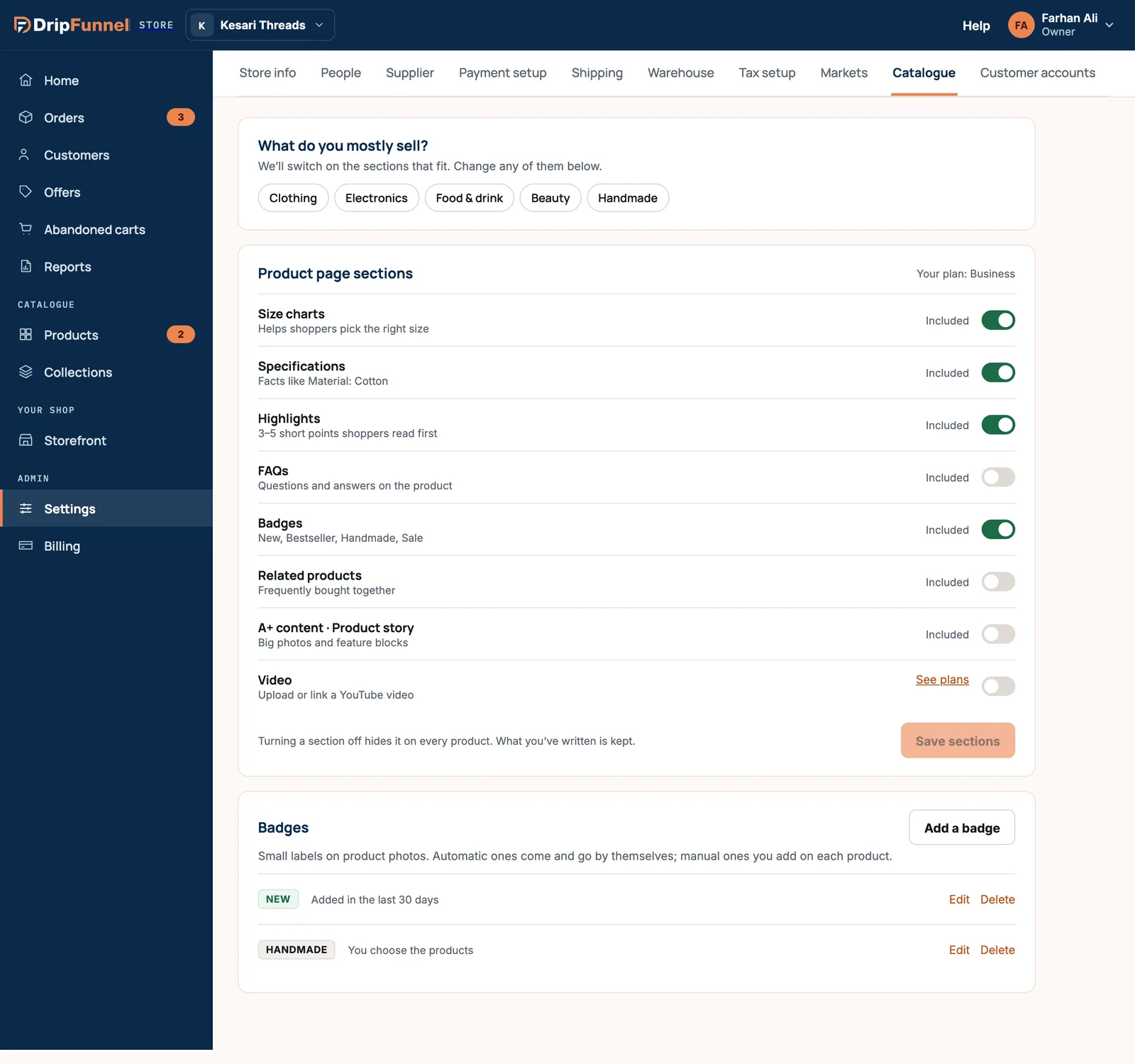
Each section says Included if your plan has it. If not, the owner sees See plans. Specifications and highlights are on every plan; badges from Growth; FAQs, related products and A+ content from Growth Pro. See Pricing.
Turning a section off hides it on every product. What you’ve written is kept, so it comes back if you switch it on again.
Step 2: Fill in the sections on each product
Open a product. Each section is a row you open with Open ▾, showing a short summary when closed.
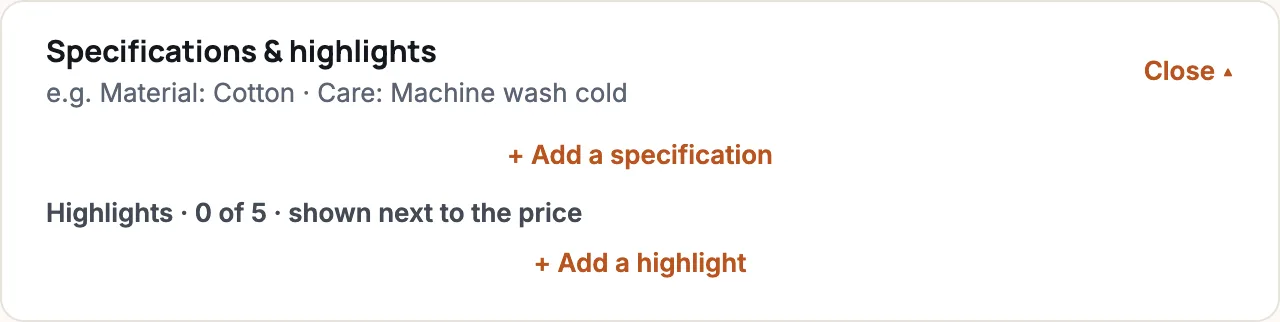
Specifications and highlights
- Specifications are facts in pairs, like “Material: Cotton” or “Care: Machine wash cold”. Press + Add a specification. Up to 50.
- Highlights are 3 to 5 short points shown next to the price, the first thing shoppers read. Press + Add a highlight. Up to 5.
FAQs
Answer questions shoppers often ask. Press + Add a question and type the question and answer, up to 20. Suggestions such as “Does it shrink?”, “How does it fit?”, “How long does delivery take?” and “Can I return it?” can be added in one tap.
Related products
Shown as “You may also like”. Tick Automatic — show products from the same collection, or untick it and search to pick up to 4 products yourself.
Legal & safety
Some countries require certain details before a product can be sold there, such as Fibre content, Country of origin and Care instructions. The section only asks for what the countries you sell to need, and marks each one “Needed for United States”, for example.
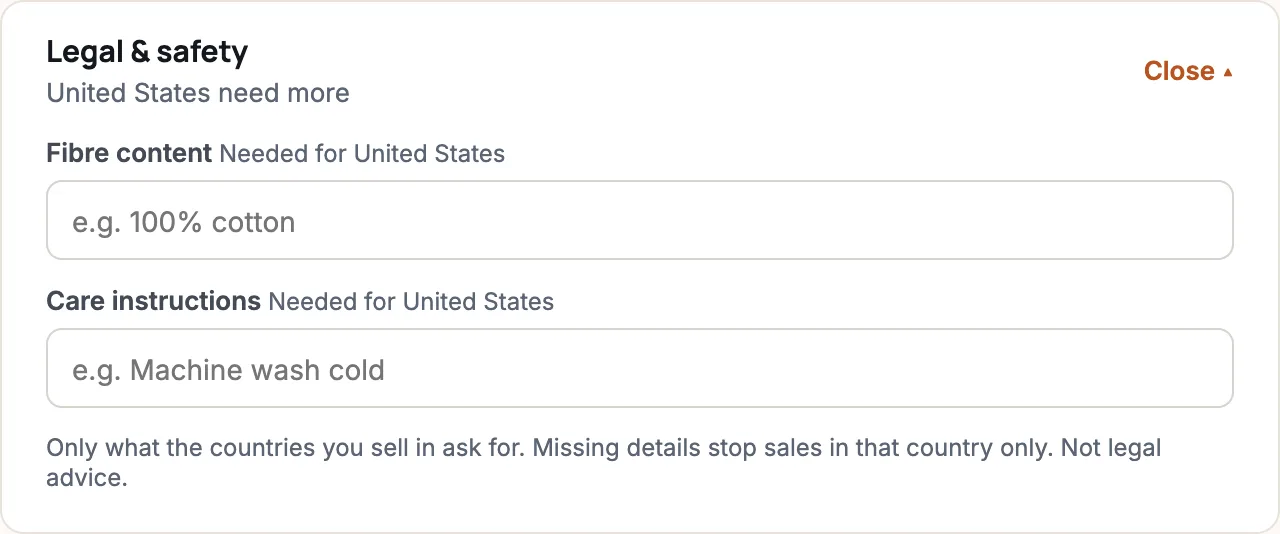
A missing detail only stops sales in that country; the product still sells everywhere else. Ready to sell in, on the right of the product page, shows which countries are ready. Legal and safety details are on every plan.
Search engine listing
How the product looks in Google. The Title (up to 70 characters) and Description (up to 160) are made from the name and description unless you write your own.
Badges
Badges are small labels on product photos, like NEW or HANDMADE. Set them up in Settings › Catalogue, in the Badges box (it appears when the Badges section is on):
- Press Add a badge.
- Type the text, up to 18 characters.
- Choose When it shows: Added in the last 30 days, Your 5 best sellers this month, Has a lower price than its compare price, Only a few left, or You choose the products.
- Save. You can have up to 20 badges, and Edit or Delete them later.
Automatic badges come and go by themselves. For a “You choose the products” badge, open a product and tap the badge in the Badges box on the right; automatic ones show there as “NEW · auto”.
Video
To show a video on a product page, add a Video block with a YouTube or Vimeo link in the product’s A+ content. See Tell a product’s story with A+ content.
Questions
Why don’t I see the FAQs section on my products?
It isn’t switched on. Ask the store owner to switch it on in Settings › Catalogue, if your plan includes it.
Do I lose my FAQs if I switch the section off?
No. They’re hidden from shoppers but kept, and come back when you switch the section on again.
Is the Legal & safety section legal advice?
No. It asks for the details the countries you sell to commonly require. Check the rules for your products with an adviser if you’re unsure.