

Make a size chart
Updated 20 October 2026 · Owners and managers (suppliers for their own products)A size chart answers “Will it fit?” before the shopper asks. Make a chart once, from a template or from scratch, and use it on every product that fits the same way.
Before you start
- Size charts must be switched on in Settings › Catalogue, under Product page sections (the owner does this). If they’re off, you’ll see “Size charts are switched off in Settings › Catalogue”.
- How many charts you can have depends on your plan; see Pricing. If charts aren’t in your plan, the owner sees See plans.
- Size charts are for physical products.
Start a chart
- Open Collections, then the Size charts tab.
- Press + New.
- Pick a starting point and press Create.
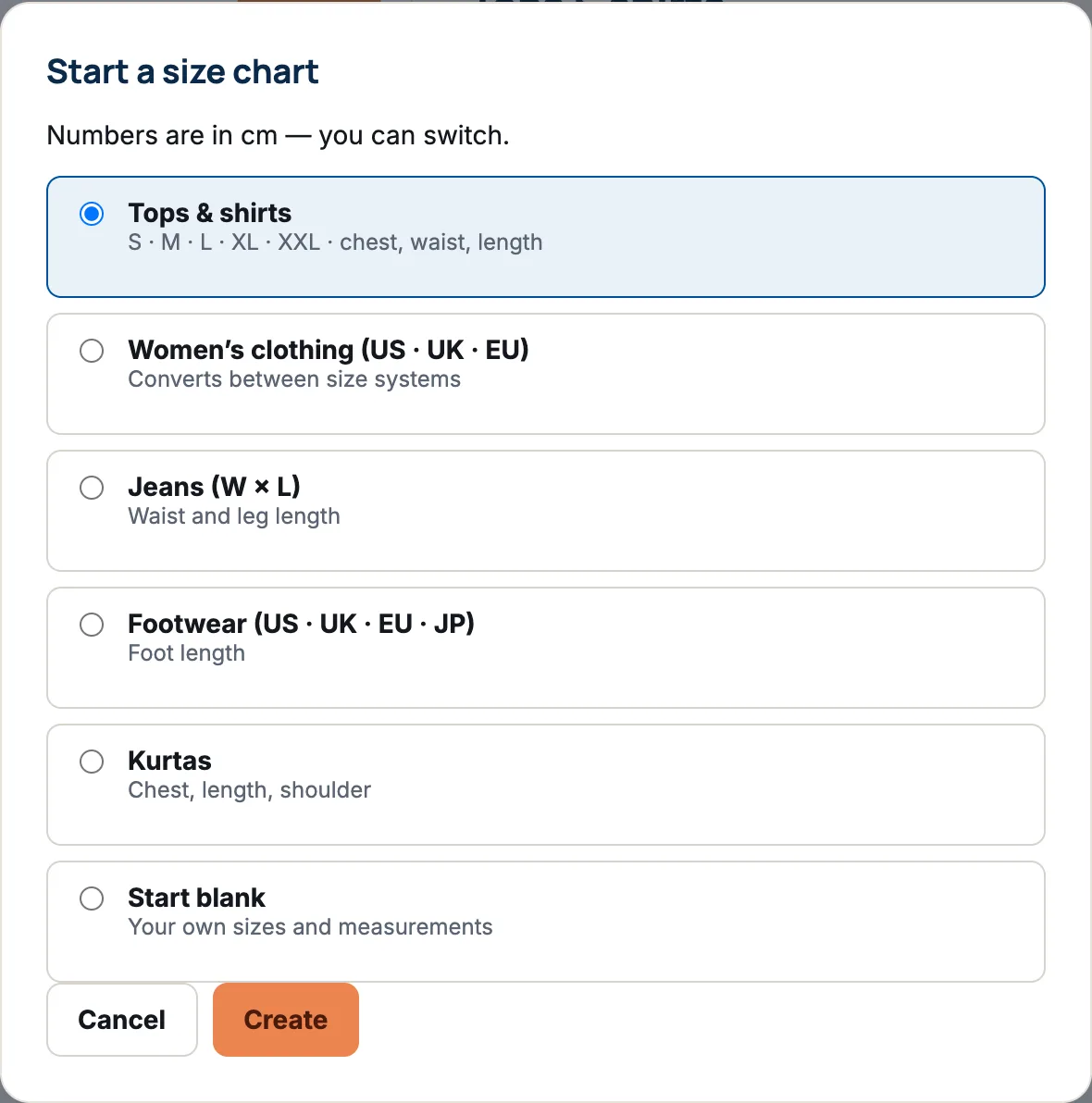
- Tops & shirts: S to XXL with chest, waist and length.
- Women’s clothing (US · UK · EU): converts between size systems.
- Jeans (W × L): waist and leg length.
- Footwear (US · UK · EU · JP): foot length.
- Kurtas: chest, length and shoulder. Offered to stores that sell in Indian rupees.
- Start blank: your own sizes and measurements.
Fill in the chart
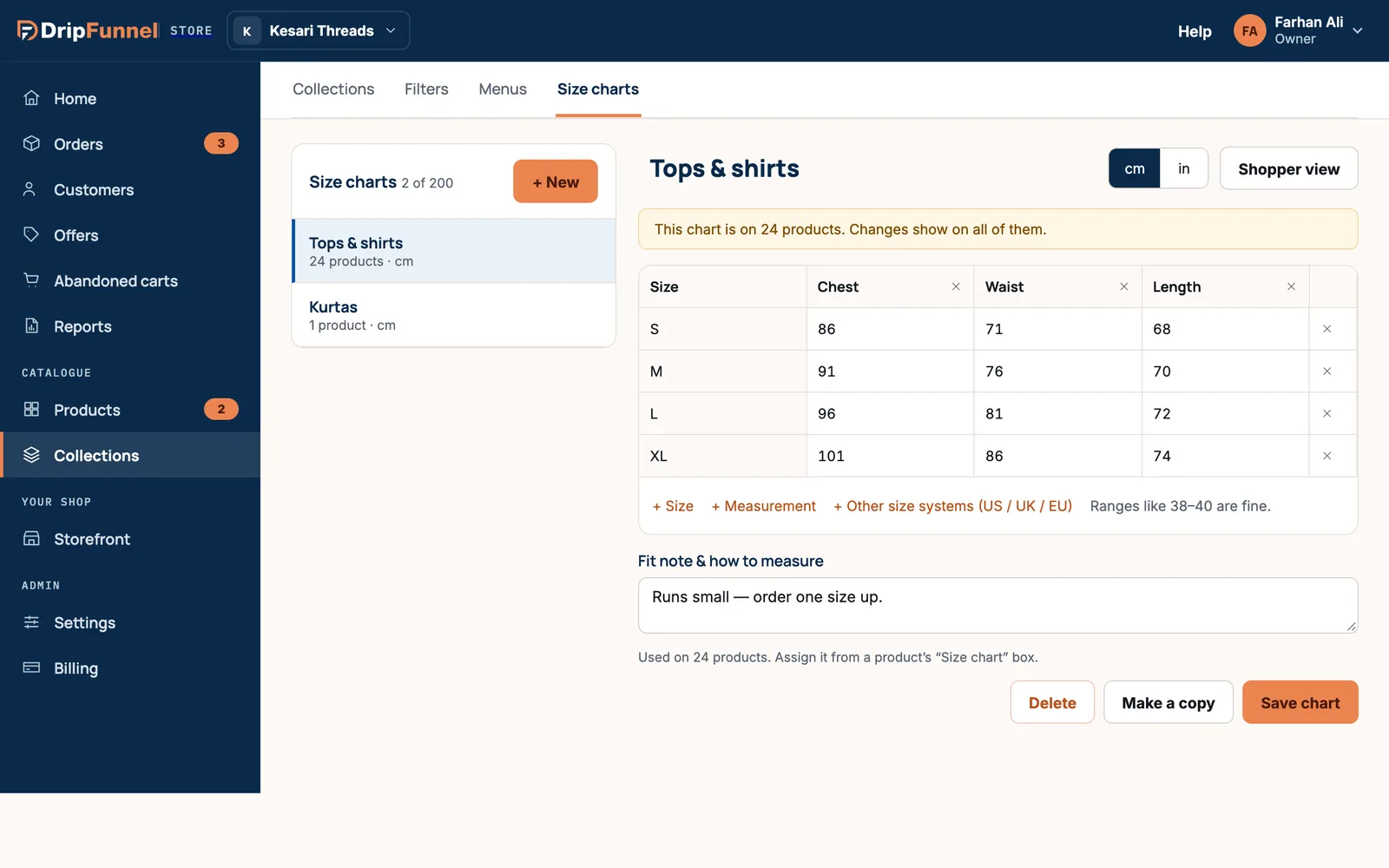
- Type your measurements into the grid. Ranges like 38–40 are fine.
- Use + Size to add a row, + Measurement to add a column, and × to remove one.
- Press + Other size systems (US / UK / EU) to add columns for other countries’ sizes.
- Switch between cm and in at the top. The numbers are converted for you.
- In Fit note & how to measure, add a line or two, for example “Runs small — order one size up.”
- Press Shopper view to see the chart as shoppers will.
- Press Save chart.
For tips on what to measure and how to word the fit note, read our blog article Size charts that answer the question before it’s asked.
Use the chart on products
- Open a product and find the Size chart section.
- Pick the chart from the list (or No size chart).
- Save the product.
The chart then shows on that product’s page in your shop.
Change a chart used on many products
A chart can be used on many products, and changing it changes it everywhere. If the chart is on several products, saving asks “This changes the chart on 24 products”. Choose Change all 24, or Make a copy instead to change only a copy. You can also press Make a copy at any time, or Delete a chart you no longer need.
Suppliers’ size charts
Suppliers who add their own products have their own charts under Your products › Size charts, and can use them on their products.
Questions
Should I make one chart per product?
No. Make one chart per fit or category, such as “Relaxed kurtas”, and use it on every product that fits that way. Fixing a mistake then fixes it everywhere.
Why can’t I see the Size chart section on my product?
Size charts may be switched off in Settings › Catalogue, or the product isn’t a physical item.